Bank Transfer Payments
Customers wire money directly to your bank account; fulfillment waits until receipt is verified. Standard for B2B and high-value orders.
On this page
Bank Transfer lets customers wire funds directly to your bank account rather than paying with a card. Standard for B2B (purchase orders → wire → fulfillment) and high-value transactions where card limits are restrictive. Operationally, it's a manual payment method: order is created in pending state until your finance team verifies funds and marks the order paid.
Enabled under Supported payment methods in Settings > Payments.
Before you begin
- You are signed in to your Tanqory store admin.
- You have the Manage payments permission.
- You have a business bank account with international wire capability (if serving international customers).
- You have a workflow for finance to verify and mark orders paid.
Steps
1. Open Settings > Payments
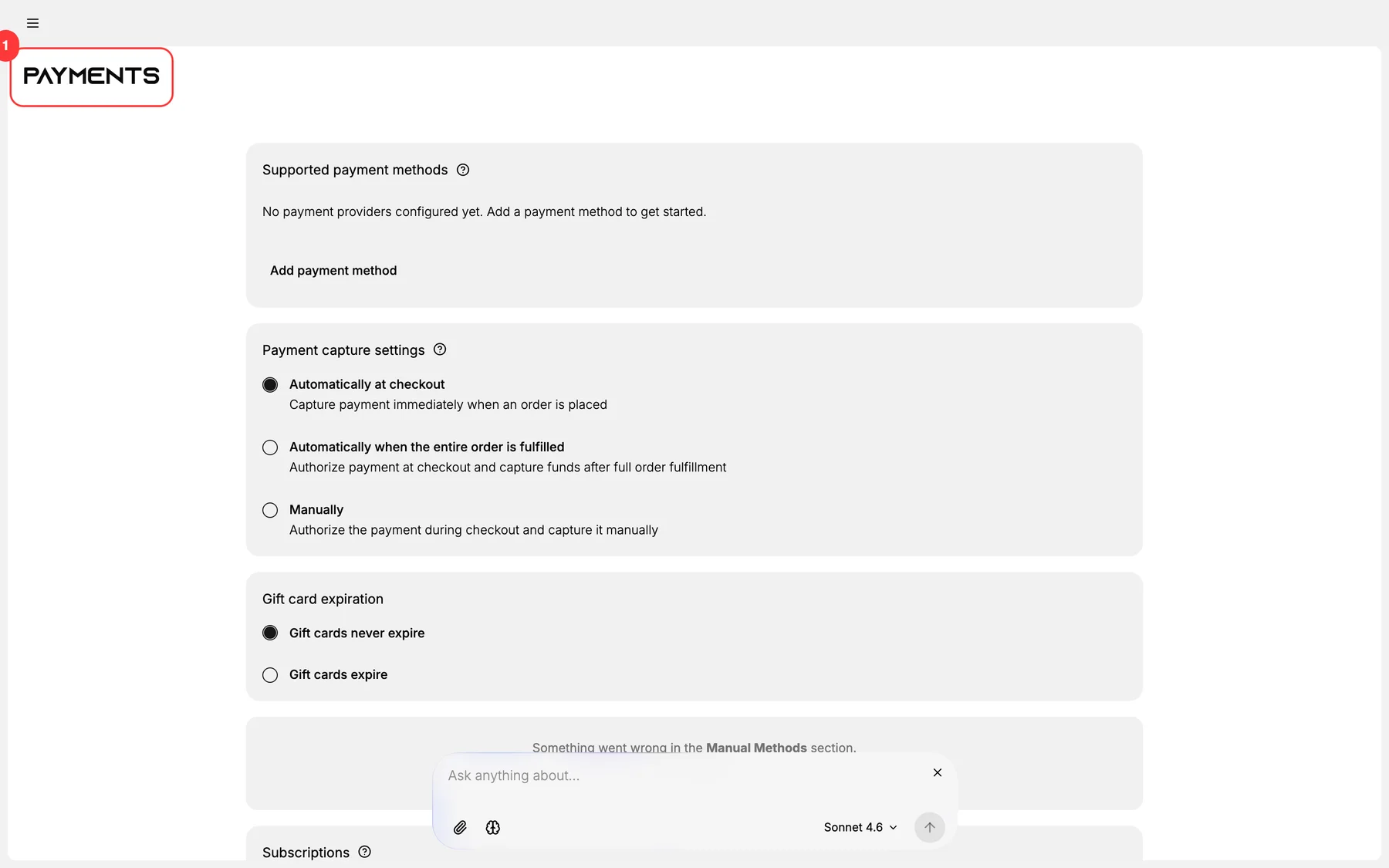
2. Add Bank Transfer under Supported payment methods
The first functional section. Add Bank Transfer under the manual / alternative payment methods category.
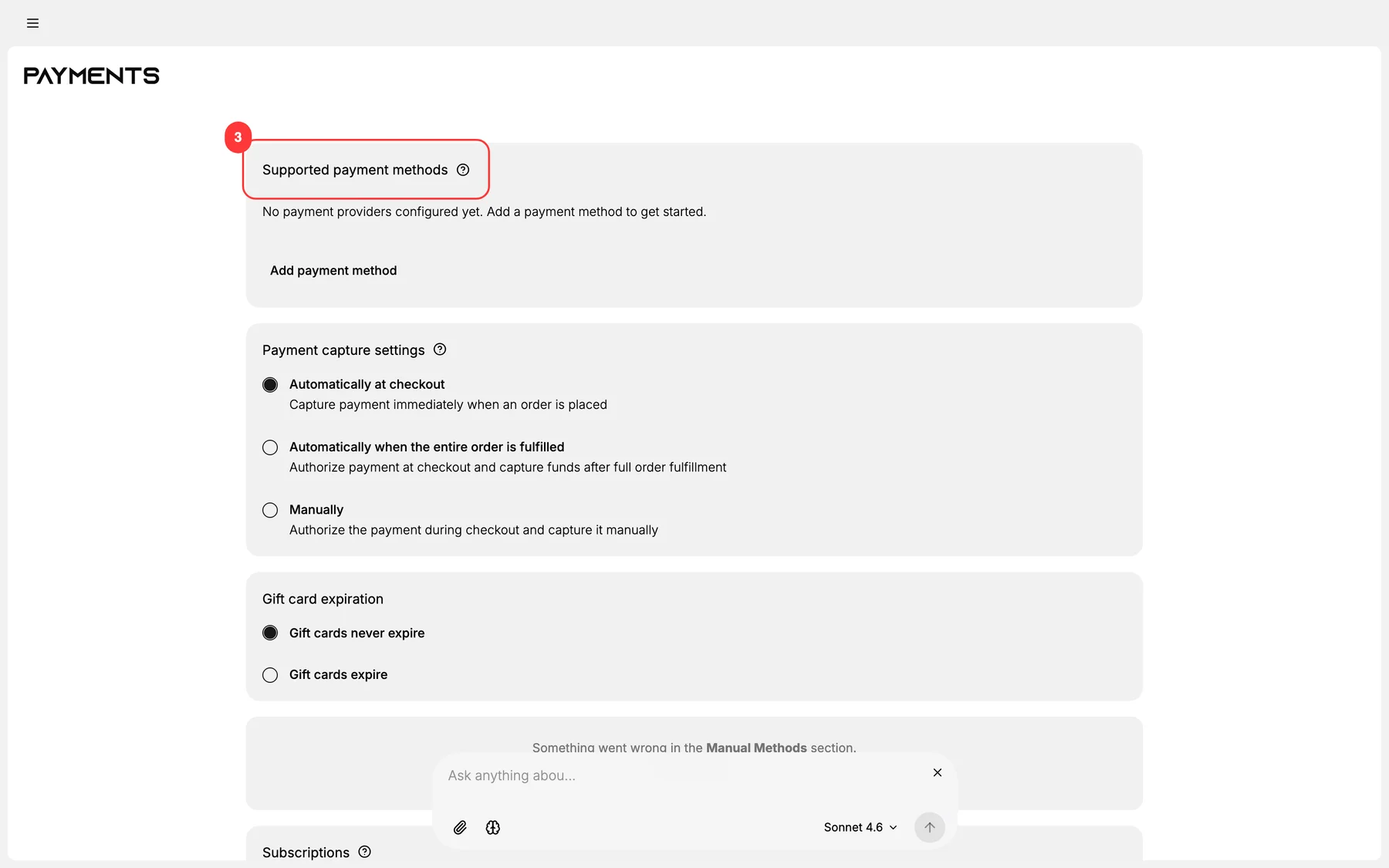
3. Configure bank-transfer details
Tanqory surfaces these to the customer on the order confirmation:
- Account name (your business name as it appears on the account).
- Account number (or IBAN for international).
- Bank name + branch.
- SWIFT / BIC code for international transfers.
- Routing number for US ACH.
- Reference instructions (typically "Use order number as reference").
4. Set per-currency / per-zone eligibility
Bank transfer is geo + currency dependent. Configure:
- Which countries can use it (some markets prefer alternatives).
- Which currencies you accept (matching your bank's accepted currencies).
- Minimum cart-value threshold (transfers have fees; small orders aren't worth processing).
5. Configure the Verify payment workflow
Bank transfer orders are NEVER auto-paid. Your finance / operations team must:
- Receive the wire (usually 1-3 business days).
- Match the wire to the order via the reference number.
- Mark the order as paid in admin.
6. Save and test
Run a test order using Bank Transfer. Verify:
- Order is created with payment status Pending.
- Confirmation email shows the bank-transfer instructions.
- The reference number matches the order number.
- Marking the order as paid (via order actions) advances the status.
Verify the result
- Bank Transfer appears at checkout in eligible geos.
- Order confirmation email includes complete bank details + reference number.
- Order status starts as Pending payment.
- Manual mark-as-paid moves the status to Paid with audit trail.
Best practices
- Auto-cancel after N business days of no payment received: frees inventory holds.
- Use the order number as the reference: makes reconciliation trivial.
- Verify against bank statement, not customer claim: customers sometimes say they paid before they actually do.
- Document FX risk for international transfers: currency may shift between order and payment.
- For B2B, pair with a credit-check workflow: bank transfer on net-30 terms requires established trust.
Common mistakes
- No auto-cancel rule: pending orders accumulate forever.
- Vague reference instructions: finance team can't match wires to orders.
- Marking paid before bank confirmation: risk of fraud or NSF on the wire.
- Accepting unsupported currencies: bank rejects or charges high conversion fees.
- No FX-rate locked at order time: customer expectations break when rate shifts.
If something goes wrong
- Customer says they paid but no funds arrived: request wire confirmation; international transfers can take 5+ days.
- Wire arrived but reference is wrong: manual matching by customer name + amount.
- Wrong currency arrived: apply the closing exchange rate; charge / refund the difference.
- Order auto-cancelled but customer paid late: re-instate the order with the late payment.
- Permission denied: your role lacks Manage payments.
Next steps
Related articles
Still stuck?
- Ask Tanqory AIAsk in your own words. It answers from these articles and links the ones it used.
- Ask in your adminThe assistant in your Tanqory admin answers and makes the change for you once you confirm.
- Contact TanqoryWrite to our privacy, security or legal teams, or talk to sales about a plan or a move.