Discount Code Not Working
A customer says a discount code will not apply, and you need to find why. This is a quick reference that maps what you see on the Discounts page to what it means and how to fix it, from an expired or scheduled discount to an eligibility rule, a usage limit, or a combination that is blocking the code.
On this page
When a customer reports that a discount code does not apply, the cause is almost always a rule on the discount rather than a fault, and most of what you need is visible on the Discounts page. The page groups discounts by status and shows the key rules as columns, so you can usually name the reason without opening each section. Use the reference below to turn what you see on that page into a cause and a fix, then confirm it by trying the code yourself.
Before you begin
- Your role includes Edit discounts.
- You have the exact code the customer entered, since a mistyped code and a rule that excludes them look the same from the outside.
- Open Discounts in the admin sidebar and open the discount the customer is trying to use.
Read the discount on the Discounts page
The Discounts page shows the status tabs, All, Active, Scheduled, Expired, and Draft, and columns for Status, Method, Eligibility, Type, Combinations, and Used. Those are the signals you read to find the blocking rule.
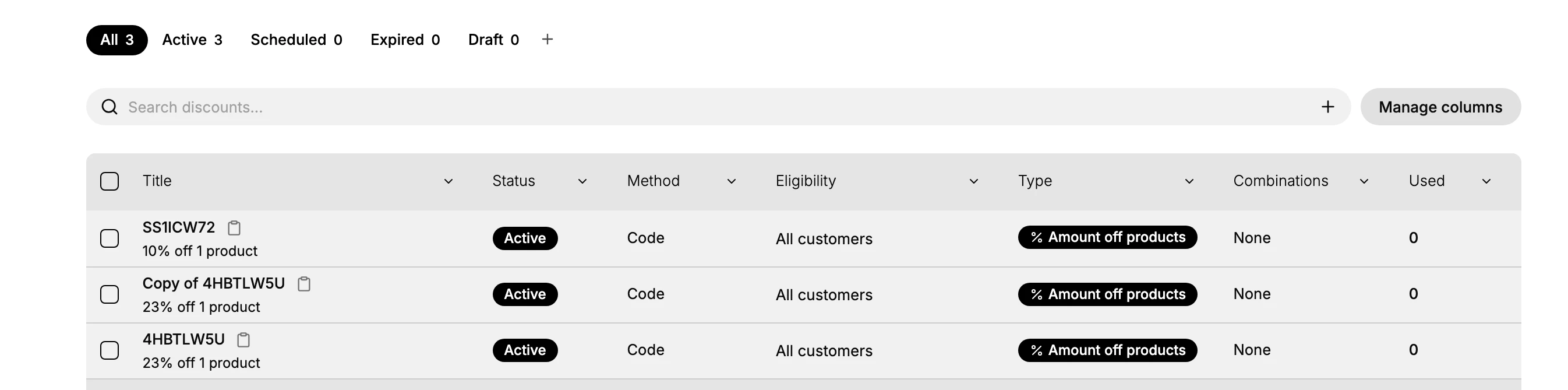
What you see, what it means, and how to fix it
| What you see | What it means | How to fix it |
|---|---|---|
| Method shows Automatic discount, not Discount code | It applies on its own at checkout, so there is no code for anyone to type | Tell the customer to leave the code field empty, or create a code discount instead |
| The discount sits under the Scheduled tab | It has not started yet | Wait for the start date, or bring it forward on the discount |
| The discount sits under the Expired tab | Its end date has passed | Extend the end date, or create a new discount |
| The discount sits under the Draft tab | It was never published | Set it to Active to publish it |
| Eligibility shows a specific segment | Only customers in that segment can use it | Confirm the customer is signed in and is in that segment |
| Combinations shows None and the cart already has a discount | The other discount is blocking this one | Allow this discount to combine, or have the other removed |
| Used has reached the discount's limit | The total or per-customer usage cap is hit | Raise the limit if that was not intended |
| It is Active and open to all customers but still fails | The blocking rule is a condition not shown in the list | Open the discount and check its dates, minimum purchase, and usage limits |
Why two of these are easy to miss
An automatic discount has no code, so no code can work. A discount is either a code customers type at checkout or an automatic one that applies on its own when the cart qualifies. If it was saved as automatic, there is nothing to enter, and it may already be reducing the customer's total. Their report of a code that does not work describes a code that was never meant to exist.
A discount set not to combine will refuse a cart that already has one. Every other rule can be met and it still does nothing, with no sign that the other discount is the reason. Empty the cart of other discounts and try the code on its own.
Confirm it yourself
The columns explain most cases, but the fastest way to be certain is to reproduce the problem. Add the same items to a cart and enter the code in a private browser window to see exactly what the customer sees, including the message they get. A private window shows the live storefront rather than a cached view, so your result matches theirs.
Tip: Reproduce the problem before you reply, signed out rather than as staff, since eligibility rules read the signed-in account and a code that works for you can still fail for the customer. It is easy to assume a customer made a typo, but confirming the exact blocking rule yourself means your answer is right the first time, and you are not sending them back to try something that was never going to work.
Checks that live on the discount
A few conditions do not appear in the list and are only on the discount's own page. Open the discount to check these when the columns do not explain the problem.
- The active dates, which set when the discount can be used.
- Any minimum purchase amount the cart must reach.
- The usage limits, both in total and per customer.
See Create a Discount Code for what each of these settings does.
Where each fix is made
The fixes in the table are made in a few different places, and each has its own article.
- Publishing a Draft discount, or moving one between states, is covered in Discount Status Flow.
- Changing when a discount starts or ends is covered in Schedule Discounts.
- Raising or removing a usage cap is covered in Discount Usage Limits.
- Letting two discounts apply together is covered in Combining Discounts.
Verify the result
- You can name the specific rule that stopped the code, such as an expired date or an unmet minimum.
- Entering the code yourself under the customer's conditions reproduces the same outcome.
- The customer is told either how to qualify or that you have adjusted the discount.
Best practices
- Test a discount by placing an order before you publish it, which catches most blocking rules before a customer meets them.
- Reproduce a reported problem in a private browser, so you see the real message rather than guessing.
- Tell the customer the specific reason in plain terms, so they know exactly what to do next.
- Set minimums, limits, and combination rules deliberately, since each one is a reason a code can fail to apply.
Next steps
Related articles
Still stuck?
- Ask Tanqory AIAsk in your own words. It answers from these articles and links the ones it used.
- Ask in your adminThe assistant in your Tanqory admin answers and makes the change for you once you confirm.
- Contact TanqoryWrite to our privacy, security or legal teams, or talk to sales about a plan or a move.