Schedule Discounts
The Active dates section controls the window in which a discount runs. You set a start date and time so the discount begins on its own, and you can turn on Set end date to add an end date and time so it stops on its own. Because the start and end drive the discount status, scheduling lets you plan a sale in advance and be sure it does not run longer than you intend.
On this page
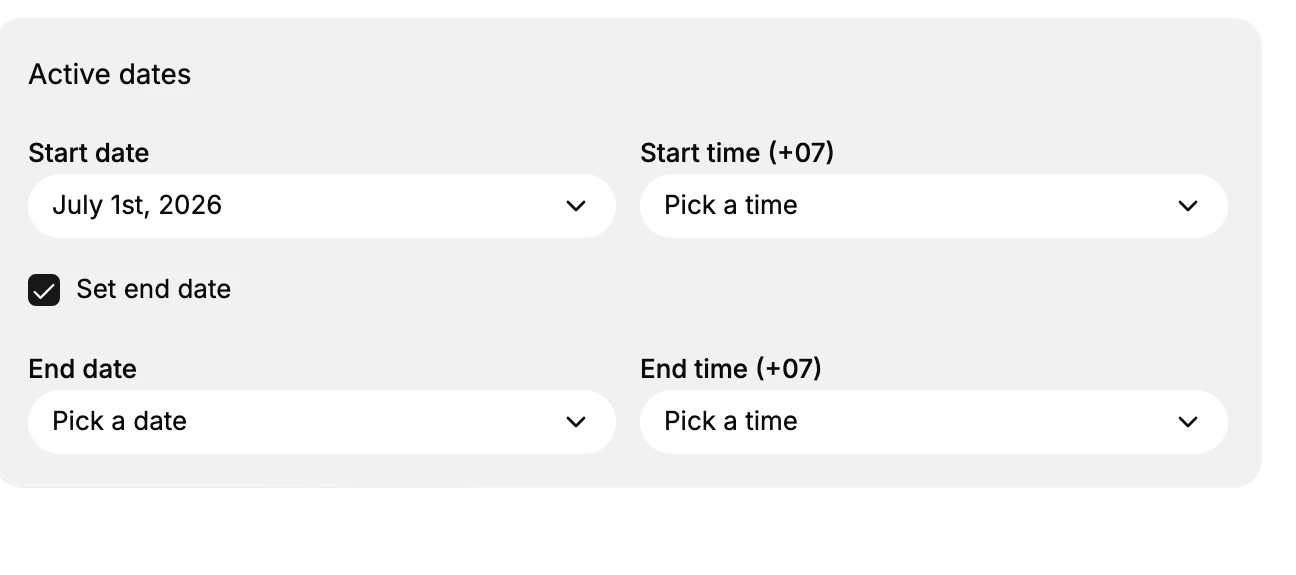
Every discount has an Active dates section that controls the window in which the discount is live. You set a Start date and Start time for when it should begin, and the discount turns itself on at that point rather than waiting for someone to activate it. If you turn on Set end date, an End date and End time appear, and the discount turns itself off at that point so it does not keep running after the promotion is over.
The dates you set here drive the discount status, which is why scheduling matters. Before the start, the discount sits as Scheduled and does nothing at checkout. During the window it is Active and customers can use it. After the end, it becomes Expired and stops applying. Because the change happens automatically, you can prepare a sale ahead of time and trust that it starts and stops on the dates you chose. This section appears on every discount type, whether the discount uses a code or is automatic.
Active dates fields
| Field | What it sets | Result |
|---|---|---|
| Start date and Start time | When the discount becomes active | The discount stays Scheduled until this time, then turns Active on its own |
| Set end date | A checkbox that adds the end fields | When on, the End date and End time appear so you can give the discount a stop time |
| End date and End time | When the discount stops | At this time the discount turns Expired and stops applying at checkout |
The time fields show your store timezone in brackets, for example (+07). Times are read in that timezone, so a start time of 9:00 means 9:00 where your store is set, which keeps the discount from starting or stopping at an unexpected local hour.
Before you begin
- Your role includes Edit discounts.
- You know when the promotion should start and, if it is temporary, when it should end.
- Open Discounts in the admin sidebar, then create a discount or open an existing one, since this section is part of every discount form.
Steps
1. Open the discount form
Create or open a discount. The Active dates section is part of every discount form, so you set the schedule in the same place where you set the value and the rules. See Create a Discount Code.
2. Set the start
Find the Active dates section and set the Start date and Start time. This is the moment the discount goes live, so choose the time you want customers to be able to use it. Until then the discount stays Scheduled and does not apply, which lets you build the discount now and have it launch later without any manual step.
3. Add an end, if the discount is temporary
Turn on Set end date to reveal the End date and End time fields, then set when the discount should stop. Because the discount turns Expired at that time on its own, an end date is how you keep a sale from running past its campaign. Leave Set end date off only when you want the discount to keep running until you remove it yourself, such as a standing customer perk.
4. Save
Save the discount. From this point it follows the schedule on its own, becoming active at the start and, if you set one, stopping at the end. You do not need to return to switch it on or off.
Verify the result
- Before the start, the discount shows as Scheduled in the Discounts table and does not apply at checkout.
- At the start time, it changes to Active and customers can use it.
- At the end time, if you set one, it changes to Expired and stops applying.
Best practices
- Set an end date for any promotion, because the discount turns Expired on its own at that time and the sale cannot quietly run on past the campaign.
- Check the timezone shown in the time labels, so the discount starts and stops at the local hour you expect rather than a different one.
- Schedule ahead of time, so the discount launches on its own and does not depend on someone remembering to turn it on at the right moment.
Common mistakes
- Leaving Set end date off for a sale, which keeps the discount Active with no stop time, so it runs until you remove it by hand.
- Setting the time in the wrong timezone, so the discount becomes Active or Expired at an hour you did not intend.
If something goes wrong
- The discount is not active yet. It stays Scheduled until the start date and time, so check that the start is not still in the future.
- The discount stopped early. Check the End date and End time under Active dates, since the discount turns Expired at that point.
- You cannot edit the discount. Your role may not have permission to manage discounts.
Next steps
Related articles
Still stuck?
- Ask Tanqory AIAsk in your own words. It answers from these articles and links the ones it used.
- Ask in your adminThe assistant in your Tanqory admin answers and makes the change for you once you confirm.
- Contact TanqoryWrite to our privacy, security or legal teams, or talk to sales about a plan or a move.