Discount Management
The Discounts page is where you manage every discount in your store. You filter the list by status, search for a discount, select rows to activate or deactivate several at once, manage the columns shown, export the list, and open any discount to edit it. Because everything is in one list, you can review and update your discounts from a single place.
On this page
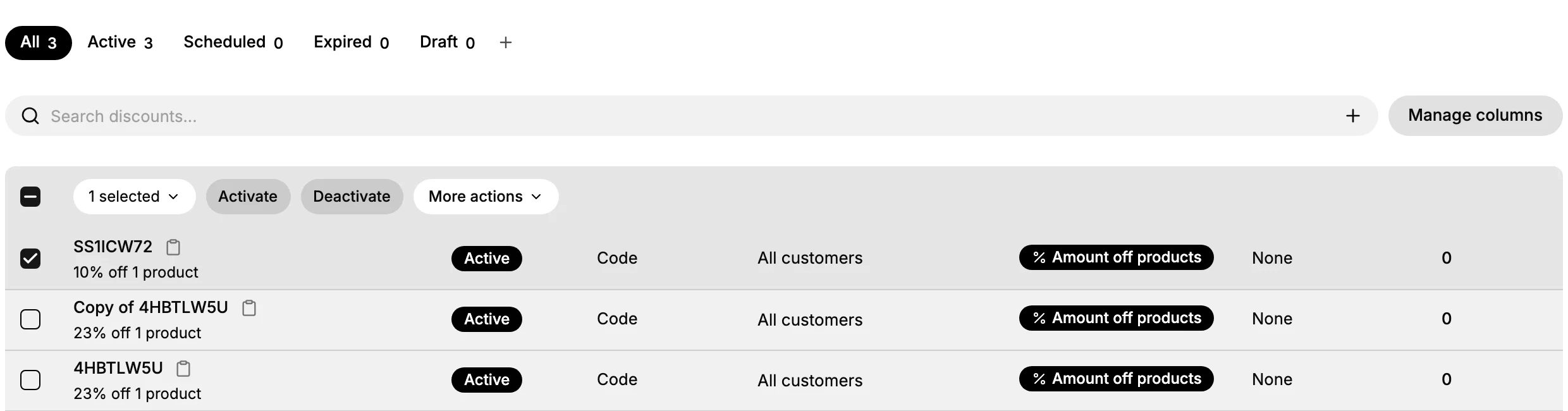
The Discounts page lists every discount in your store and is where you manage them. Each row shows the discount's Status, Method, Eligibility, Type, Combinations, and how many times it has been Used, so you can see the state of every discount in one place. From this one page you can narrow the list, act on several discounts at once, and open any single discount to edit it.
The controls on the page each do one job. The status tabs filter the list, the search box finds a discount, selecting rows lets you act on more than one at a time, Manage columns changes what the table shows, and Export saves the list. Because these live together above the table, you can go from finding a discount to changing it without leaving the page.
What you can do on the page
| Control | What it does | Result |
|---|---|---|
| Status tabs (All, Active, Scheduled, Expired, Draft) | Filter the list by status | The table shows only discounts in that status |
| Search discounts | Find a discount by name | The table narrows to matches as you type |
| Row checkboxes | Select one or more discounts | A bulk bar appears with Activate, Deactivate, and More actions |
| Manage columns | Choose which columns show | The table shows the columns you select |
| Export | Save the discount list | You get a file of the discounts for your records |
| Create discount | Start a new discount | Opens the Select discount type dialog |
Before you begin
- Your role includes Edit discounts.
- Open Discounts in the admin sidebar to open the discounts list.
Steps
1. Open Discounts
Open Discounts from the admin. The page opens on the All tab, showing every discount. See Discounts Overview.
2. Filter and search the list
Use the status tabs to filter the list. All shows every discount, and Active, Scheduled, Expired, and Draft show only discounts in that status, which is how you find, for example, the discounts that are live right now. To find a specific discount, type its name in Search discounts and the table narrows to the matches.
3. Act on several discounts at once
Select the checkbox on one or more rows. A bar appears above the table showing how many are selected, with Activate and Deactivate buttons and a More actions menu. Use Activate to turn the selected discounts on and Deactivate to turn them off, so you can update a group of discounts in one step instead of opening each one.
4. Choose the columns and export
Use Manage columns to choose which columns the table shows, so you see the details you care about. Use Export to save the list of discounts for your records or for review outside the admin. See Export Discount List.
5. Open a discount to edit it
Click a discount row to open it. This opens the discount so you can change its value, rules, schedule, or status. See Discount Detail Page.
Verify the result
- A status tab shows only the discounts in that status.
- A search shows only the discounts that match what you typed.
- After a bulk action, the selected discounts show the new status in the table.
Best practices
- Filter by status before a review, so you look at just the discounts you mean to, such as only the ones that are Active.
- Use the bulk actions for seasonal cleanup, so you can deactivate a group of old discounts in one step.
- Export the list for your records, so you have a copy of your discounts outside the admin.
Common mistakes
- Editing discounts one by one when a bulk action would do, which takes longer than selecting the rows and using Activate or Deactivate.
- Searching on the wrong tab, since a status tab already limits the list, so a discount in another status will not appear.
If something goes wrong
- A discount is not in the list. Check that you are on the right status tab, since each tab shows only that status.
- A bulk action did not apply to a discount. Confirm its row was selected before you used Activate or Deactivate.
- You cannot change a discount. Your role may not have permission to manage discounts.
Next steps
Related articles
Still stuck?
- Ask Tanqory AIAsk in your own words. It answers from these articles and links the ones it used.
- Ask in your adminThe assistant in your Tanqory admin answers and makes the change for you once you confirm.
- Contact TanqoryWrite to our privacy, security or legal teams, or talk to sales about a plan or a move.