Discount Detail Page
Clicking a discount opens its detail page, which is the discount form filled in with its current settings, plus a Summary panel that shows the status, type, and a list of the discount's rules in plain language. From here you can review a discount in one read, edit any part of it, duplicate it, and see how many times it has been used.
On this page
When you click a discount in the Discounts list, its detail page opens. The detail page is the same form you use to create a discount, filled in with this discount's current settings, so any field you can set when creating a discount you can change here. On the right is a Summary panel that restates the discount in plain language, which lets you check what the discount does without reading every field.
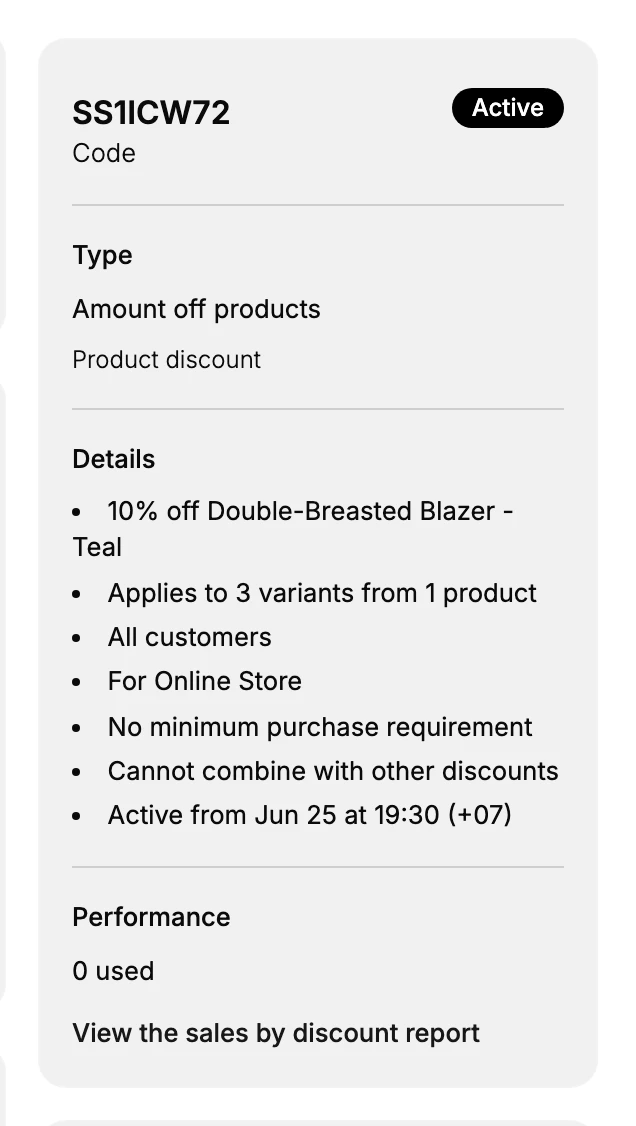
The Summary panel shows the discount's code or title with its status, the Type, and a Details list such as the value, what it applies to, who is eligible, the purchase requirement, whether it combines with other discounts, and when it is active. Below that, Performance shows how many times the discount has been used and a link to the sales by discount report. The page header has a Duplicate button to copy the discount and a More actions menu, and a Timeline at the bottom records changes to the discount.
What the detail page shows
| Area | What it shows |
|---|---|
| The form | Every setting of the discount, filled in and editable |
| Summary: status | The code or title with its status, such as Active |
| Summary: Type | The discount type, such as Amount off products |
| Summary: Details | A list, in plain language, of the value, targeting, eligibility, requirements, combinations, and active dates |
| Summary: Performance | How many times the discount has been used, with a link to the sales by discount report |
| Header and Timeline | A Duplicate button, a More actions menu, and a Timeline of changes |
Before you begin
- Your role includes Edit discounts.
- Open Discounts in the admin sidebar and open the discount you want to work on.
Steps
1. Open a discount
On the Discounts page, click the discount you want. Its detail page opens with the form filled in and the Summary panel on the right. See Discount Management.
2. Review the discount in the Summary panel
Read the Summary panel to check the discount without opening each section. The top shows the code or title and its status, Type shows the discount type, and Details lists the rules in plain language, so you can confirm the discount is set up the way you intend without going through each field.
3. Check how many times it has been used
Under Performance, see how many times the discount has been used. Use View the sales by discount report to open the report for more on how the discount is performing. This is how you tell whether a discount is being redeemed.
4. Edit the discount if needed
Change any field on the form, such as the value, what it applies to, the eligibility, the usage limits, the combinations, or the active dates. Because the detail page is the full form, an edit here updates the live discount once you save. See Create a Discount Code.
5. Save
Save your changes. The Summary panel and the discount in the list update to match what you changed.
Verify the result
- The Summary panel matches the settings on the form.
- After a change, the updated setting shows in the Summary Details and in the Discounts list.
- Performance shows the current number of times the discount has been used.
Best practices
- Use the Summary panel to review a discount before a promotion, so you can confirm its rules from one panel rather than reading every field.
- Check Performance during a campaign, so you know whether the discount is being used.
- Duplicate rather than rebuild when you want a similar discount, so you start from a working set of rules.
Common mistakes
- Editing a live discount without checking the Summary first, so a change has an effect you did not expect.
- Expecting detailed revenue figures on the discount, when Performance shows times used and links out to the sales by discount report for more.
If something goes wrong
- A change did not take effect. Confirm you saved, then check the Summary panel and the list.
- Performance shows no uses. The discount may not have been redeemed yet, or it may not be active.
- You cannot edit the discount. Your role may not have permission to manage discounts.
Next steps
Related articles
Still stuck?
- Ask Tanqory AIAsk in your own words. It answers from these articles and links the ones it used.
- Ask in your adminThe assistant in your Tanqory admin answers and makes the change for you once you confirm.
- Contact TanqoryWrite to our privacy, security or legal teams, or talk to sales about a plan or a move.