Discount Timeline
The Timeline at the bottom of a discount records when the discount was created and updated, each entry marked with the date and time. It also has a comment box where staff can leave notes that only you and other staff can see, so you can check what has happened to a discount and add context for your team.
On this page
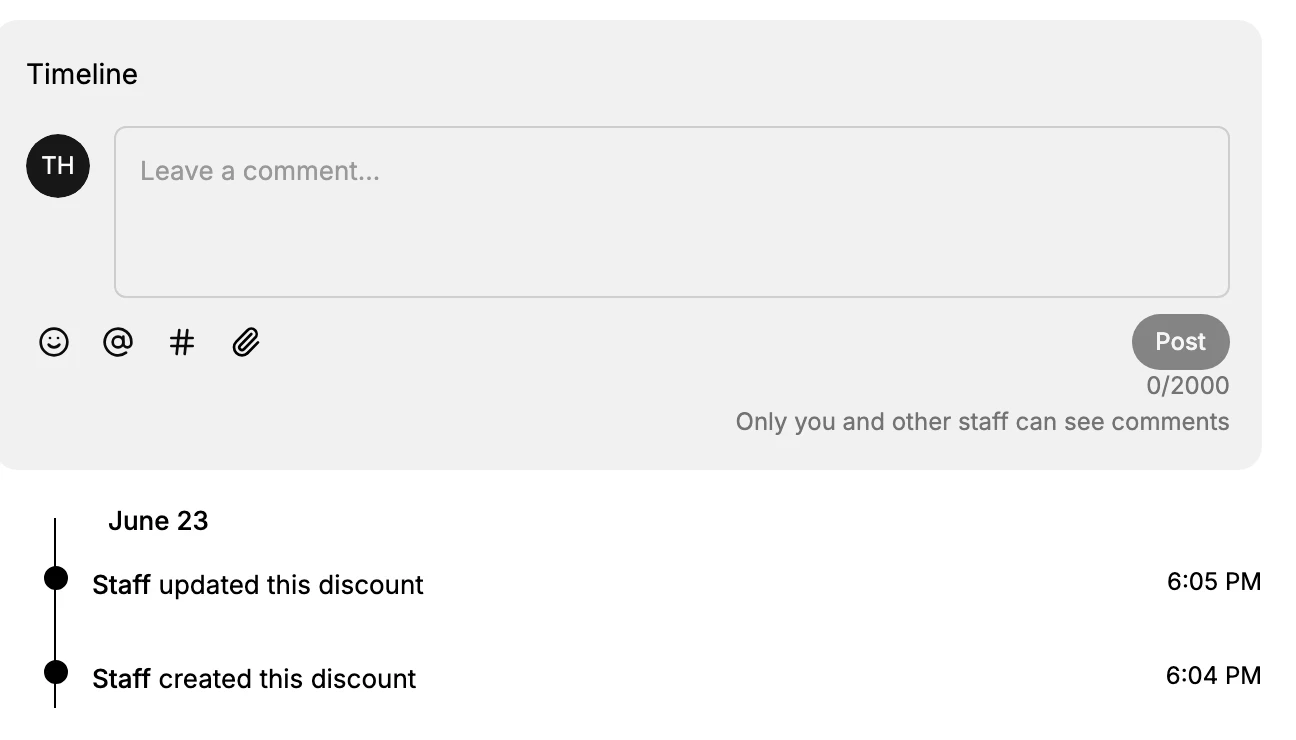
The Timeline sits at the bottom of a discount's detail page and records what has happened to the discount. Each entry is shown on a dated line, for example that staff created the discount and later updated it, with the time of each. Because the entries are kept in order with their timestamps, the Timeline is where you look first when a discount has changed and you want to see when.
Above the entries is a comment box. You can type a note, use the emoji, mention, tag, and attachment controls, and post it with Post. A line reads "Only you and other staff can see comments", so a comment is internal to your team and is not shown to customers. Use it to record why a discount was changed or what a campaign is for, so the next person who opens the discount has that context.
What the Timeline shows
| Part | What it shows |
|---|---|
| Entries | That the discount was created and updated, each on a dated line with the time |
| Comment box | A field to leave a note, with emoji, mention, tag, and attachment controls and a Post button |
| Visibility note | "Only you and other staff can see comments", so comments stay internal |
Before you begin
- Your role includes View discounts.
- Open Discounts in the admin sidebar and open the discount you want to work on.
Steps
1. Open a discount
On the Discounts page, click the discount you want to open its detail page. See Discount Management.
2. Scroll to the Timeline
Scroll to the bottom of the detail page to the Timeline. The entries show that the discount was created and updated, each with its date and time, so you can see when the discount last changed. This is useful when a discount is not behaving as you expect and you want to check whether it was edited.
3. Leave a comment for your team
Type a note in the comment box and click Post. The note is added to the Timeline and, as the box notes, only you and other staff can see it, so use it to record why a change was made. This keeps the reason for an edit with the discount instead of in a separate place.
Verify the result
- The Timeline lists the create and update entries with their dates and times.
- A comment you post appears in the Timeline for other staff to see.
Best practices
- Check the Timeline before investigating a discount problem, since a recent update is often why a discount started behaving differently.
- Leave a comment when you make a significant change, so the reason is recorded with the discount for your team.
Common mistakes
- Skipping the Timeline when a discount changes unexpectedly, so you miss that it was recently edited.
- Expecting the Timeline to show customer activity, when it records changes to the discount and internal staff comments, not customer redemptions.
If something goes wrong
- You are not sure when a discount changed. Open the Timeline and read the update entries and their times.
- A comment did not save. Confirm you clicked Post and that the box was not empty.
- You cannot open the discount. Your role may not have permission to view discounts.
Next steps
Related articles
Still stuck?
- Ask Tanqory AIAsk in your own words. It answers from these articles and links the ones it used.
- Ask in your adminThe assistant in your Tanqory admin answers and makes the change for you once you confirm.
- Contact TanqoryWrite to our privacy, security or legal teams, or talk to sales about a plan or a move.