Duplicate a Discount
The Duplicate button on a discount makes a copy with the same settings, so you can create a similar discount without building it from scratch. The copy opens right away with its own detail page, named after the original, and you then change the code and anything else that should differ before you use it.
On this page
The Duplicate button copies a discount so you can start a new one from a working set of rules instead of building it again. It is useful when you want a discount that is almost the same as an existing one, for example the same offer for a new campaign. When you click Duplicate, the copy is created straight away and its detail page opens, so you land on the new discount ready to edit.
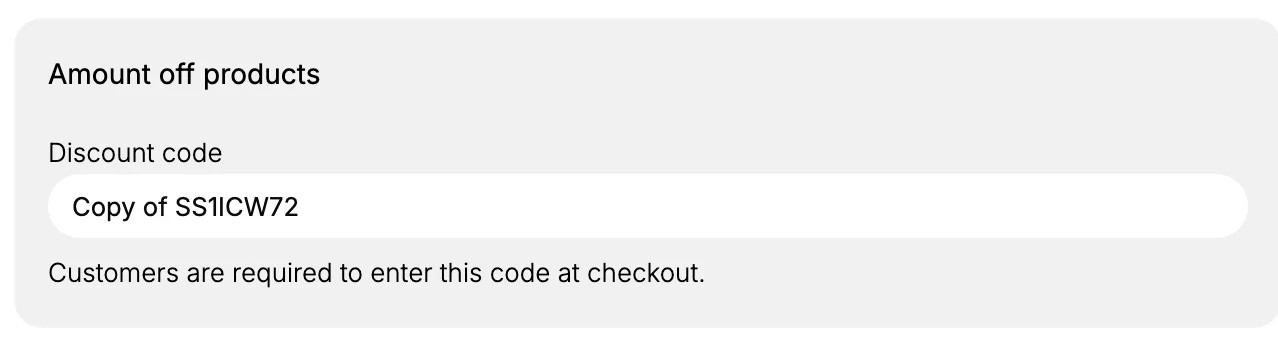
The copy carries over the original's settings, such as the type, value, what it applies to, eligibility, requirements, usage limits, and combinations, while its own Performance starts at zero because it has not been used yet. The copy is named after the original, for example Copy of SS1ICW72, and if copies already exist the new one is numbered, such as Copy 2 of SS1ICW72. Because the copy uses that name as its code, you will usually change the code, and any other setting that should differ, before you use it.
What carries over
| Setting | In the copy |
|---|---|
| Type and value | Copied from the original |
| Applies to | Copied from the original |
| Eligibility, requirements, usage limits, combinations | Copied from the original |
| Code or title | Set to the copy's name (for example Copy of SS1ICW72), so you change it |
| Performance | Starts at 0 used, since the copy is new |
Before you begin
- Your role includes Edit discounts.
- You have a discount that is close to the one you want to create.
- Open Discounts in the admin sidebar and open the discount you want to work on.
Steps
1. Open the discount you want to copy
On the Discounts page, click the discount you want to copy to open its detail page. See Discount Management.
2. Click Duplicate
Click Duplicate in the page header. The copy is created straight away and its detail page opens, with a banner confirming the copy was created and a Get shareable link button. Because the copy is made and opened in one step, you do not fill in a separate form first.
3. Change the code and anything that should differ
Change the Discount code from the copy's name to the code you want customers to use, since two code discounts should not share a code. The copy opens with its code set to its name, such as Copy of SS1ICW72, as shown below. Then change any setting that should differ from the original, such as the value or the active dates, so the copy is the discount you actually intend.
4. Save
Save the copy. It now appears in the Discounts list as a separate discount, and the original is unchanged.
Verify the result
- The copy appears in the Discounts list as its own discount, alongside the original.
- The copy has the original's settings, with its own code and a Performance of 0 used.
- The original discount is unchanged.
Best practices
- Change the code before you use the copy, since a code discount needs a code that is not already in use.
- Update the active dates on the copy, so it does not run in the same window as the original unless you mean it to.
- Duplicate a working discount for a recurring promotion, so you reuse settings you know are correct.
Common mistakes
- Leaving the copy's code as the copy name, which is not the code you want customers to enter.
- Forgetting to change the active dates, so the copy runs at the same time as the original.
If something goes wrong
- The copy has the wrong code. Open it and change the Discount code to the one you intend.
- You meant to edit the original but changed the copy. They are separate discounts; open the original from the list to edit it.
- You cannot duplicate the discount. Your role may not have permission to manage discounts.
Next steps
Related articles
Still stuck?
- Ask Tanqory AIAsk in your own words. It answers from these articles and links the ones it used.
- Ask in your adminThe assistant in your Tanqory admin answers and makes the change for you once you confirm.
- Contact TanqoryWrite to our privacy, security or legal teams, or talk to sales about a plan or a move.