Delete a Discount
Deleting a discount removes it for good from More actions on the discount's page. A confirmation dialog spells out that the action cannot be undone, that the discount's usage history is lost, and that an active discount stops working right away. If you only want to turn a discount off, use Deactivate instead, which is reversible.
On this page
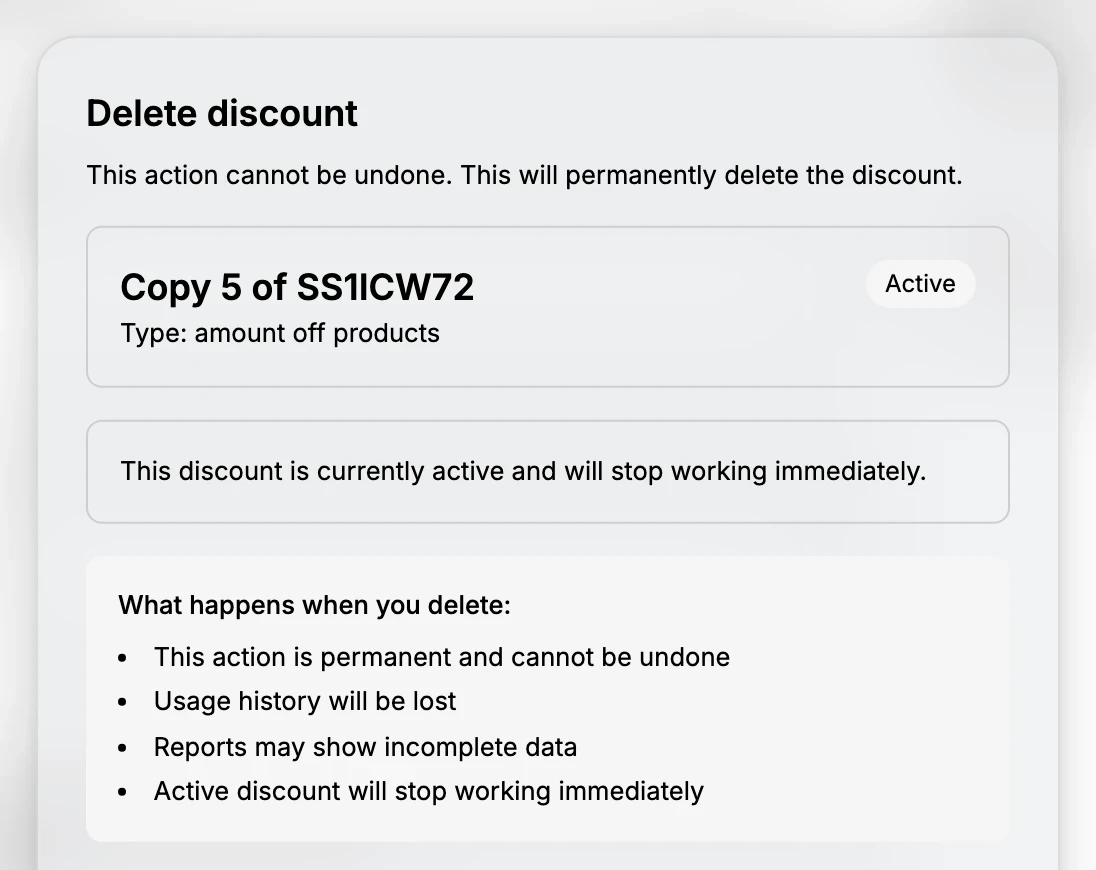
Deleting a discount removes it from your store permanently. You delete from the discount's own page, under More actions, and a confirmation dialog appears before anything is removed. The dialog is there because deleting cannot be undone: it warns that the action is permanent, that the discount's usage history is lost, that reports may then show incomplete data, and, if the discount is active, that it will stop working immediately.
Because a delete is final, use it only when you are sure the discount should no longer exist, such as a test discount or one created by mistake. If you only want to stop a discount from applying, choose Deactivate from the same More actions menu instead. Deactivate turns the discount off without removing it, so it keeps its history and you can turn it back on later, which is the safer choice for ending a promotion.
Delete or deactivate
| Action | What it does | Reversible |
|---|---|---|
| Deactivate | Turns the discount off but keeps it and its history | Yes, you can activate it again |
| Delete discount | Removes the discount permanently and loses its usage history | No |
Before you begin
- Your role includes Edit discounts.
- You are sure the discount should be removed for good, rather than just turned off with Deactivate.
- Open Discounts in the admin sidebar and open the discount you want to work on.
Steps
1. Open the discount
On the Discounts page, click the discount you want to delete to open its detail page. See Discount Management.
2. Open More actions and choose Delete discount
In the page header, open More actions and choose Delete discount. The delete action is in this menu, rather than a button on the page, so it is not clicked by accident. Deactivate is in the same menu if you would rather turn the discount off than remove it.
3. Read the confirmation and confirm
A confirmation dialog opens. It names the discount, its type, and its status, and if the discount is active it warns that it will stop working immediately. Under What happens when you delete, it lists that the action is permanent and cannot be undone, that usage history will be lost, that reports may show incomplete data, and that an active discount will stop working. Read this, then click the red Delete discount to remove it, or Cancel to keep it.
4. Verify the discount is gone
After you confirm, the discount is removed and no longer appears in the Discounts list. Because the delete is permanent, recreate the discount if you find you still need it.
Verify the result
- The discount no longer appears in the Discounts list.
- If the discount was active, it stops applying at checkout right away.
- The discount's usage history is no longer available.
Best practices
- Use Deactivate for ending a promotion, since it keeps the discount and its history and can be reversed.
- Reserve Delete for test or mistaken discounts that should not exist at all.
- Read the confirmation dialog before confirming, so you remove the discount you intend and understand that it is permanent.
Common mistakes
- Deleting when you meant to deactivate, which removes the discount and its history instead of just turning it off.
- Deleting an active discount without meaning to, so it stops working for customers immediately.
- Confirming without reading the dialog, so the wrong discount is removed.
If something goes wrong
- You deleted the wrong discount. It cannot be recovered, so recreate it with the same settings if you still need it.
- You wanted to keep the history. Use Deactivate next time, since Delete loses the usage history.
- The Delete discount option is missing. Your role may not have permission to manage discounts.
Next steps
Related articles
Still stuck?
- Ask Tanqory AIAsk in your own words. It answers from these articles and links the ones it used.
- Ask in your adminThe assistant in your Tanqory admin answers and makes the change for you once you confirm.
- Contact TanqoryWrite to our privacy, security or legal teams, or talk to sales about a plan or a move.