Bulk Discount Actions
When you select more than one discount in the list, a bar appears with actions that apply to all of them at once. You can activate or deactivate the selected discounts together, which saves opening each one, and a More actions menu holds further options.
On this page
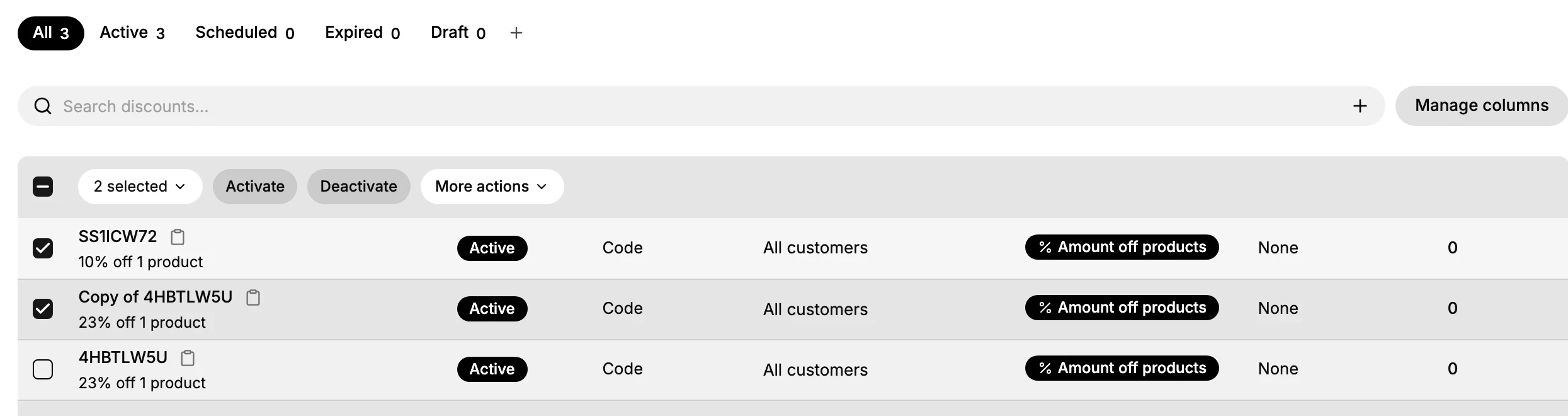
The Discounts list lets you act on more than one discount at a time. When you select discounts with the checkboxes, a bar appears above the table showing how many are selected, with Activate and Deactivate buttons and a More actions menu. Any action you choose applies to every selected discount, so you change a group in one step instead of opening each discount on its own.
This is useful for tidying up or switching a set of discounts together, for example turning off several codes at the end of a promotion or turning a group back on for a new one. The checkbox at the top of the table selects every discount on the page, and the count in the bar ("2 selected", for example) confirms how many the action will affect, so you can check the number before you act.
The bulk action bar
| Control | What it does |
|---|---|
| Row checkboxes | Select one or more discounts to act on |
| Header checkbox | Selects every discount shown on the page |
| N selected | Shows how many discounts are selected |
| Activate | Turns the selected discounts on |
| Deactivate | Turns the selected discounts off |
| More actions | Holds further actions for the selection |
Before you begin
- Your role includes Edit discounts.
- You know which discounts you want to change together.
- Open Discounts in the admin sidebar to open the discounts list.
Steps
1. Open Discounts and find the discounts
Open Discounts and use the status tabs or search to bring up the discounts you want. Narrowing the list first makes it easier to select the right ones. See Discount Management.
2. Select the discounts
Select each discount with its row checkbox, or use the checkbox at the top of the table to select every discount on the page. As soon as one is selected, the bulk action bar appears and shows the count, such as 2 selected, so you can confirm how many you are about to change.
3. Activate or deactivate the selection
Click Activate to turn all the selected discounts on, or Deactivate to turn them all off. The action applies to every selected discount at once, so this is how you switch a group of discounts together without opening each one. The More actions menu holds further options for the selection.
4. Verify the result
After the action runs, the selected discounts show their new status in the list. Check that the discounts you meant to change are the ones that changed, and that the others are untouched.
Verify the result
- The selected discounts show the new status, such as changing from Active after you deactivate them.
- Discounts you did not select are unchanged.
- The selected count in the bar matches the number of discounts you meant to change.
Best practices
- Narrow the list first, then select, so you do not include a discount you did not mean to.
- Check the selected count before you act, since the action applies to every selected discount.
- Use bulk activate or deactivate for a group, such as turning off a set of codes at the end of a promotion, rather than opening each discount.
Common mistakes
- Selecting all on the page when you meant a few, so the action changes more discounts than intended.
- Deactivating active discounts by accident, so codes stop working for customers.
If something goes wrong
- The wrong discounts changed. Select them again and use the opposite action, for example Activate to turn back on discounts you deactivated.
- The bulk bar did not appear. Make sure at least one row checkbox is selected.
- You cannot change the discounts. Your role may not have permission to manage discounts.
Next steps
Related articles
Still stuck?
- Ask Tanqory AIAsk in your own words. It answers from these articles and links the ones it used.
- Ask in your adminThe assistant in your Tanqory admin answers and makes the change for you once you confirm.
- Contact TanqoryWrite to our privacy, security or legal teams, or talk to sales about a plan or a move.