Discounts Overview
A discount lowers the price a customer pays at checkout. Tanqory has four discount types, each available as a code customers enter or as an automatic discount, all managed from the Discounts page.
On this page
A discount lowers the price a customer pays at checkout, either when they enter a code or automatically once their cart qualifies. You create and manage every discount from the Discounts page, where each row shows its method, eligibility, type, and how many times it has been used. This article explains the discount types Tanqory offers and the path you follow to create one.
Before you begin
- When you are ready to build one, select Create discount on the Discounts page, which opens the type dialog described below.
- Your role includes Edit discounts.
- Know what the offer is before you open the form. The type you pick first decides what the rest of the form can express, and changing your mind later means starting again rather than editing.
- The things the discount points at already exist. A discount that targets particular products needs those products or collections in your catalog, one limited to a group of customers needs that segment saved. A free shipping offer needs your shipping rates set up, since it waives a charge that has to exist first.
- Decide how customers get it. A code has to be typed at checkout and is worth using when you want to hand it out or track a campaign, while an automatic discount applies on its own to anyone who qualifies. This is the Method control, and it is set per discount.
- Know the dates and the limits. If the offer runs for a period, have the start and end dates ready; if it should be used a fixed number of times or once per customer, decide that before you save. A discount that is already live is harder to tighten than to loosen.
- Open Discounts > Overview in the admin sidebar for the summary of your discounts, or open Discounts itself for the full list.
Discount types
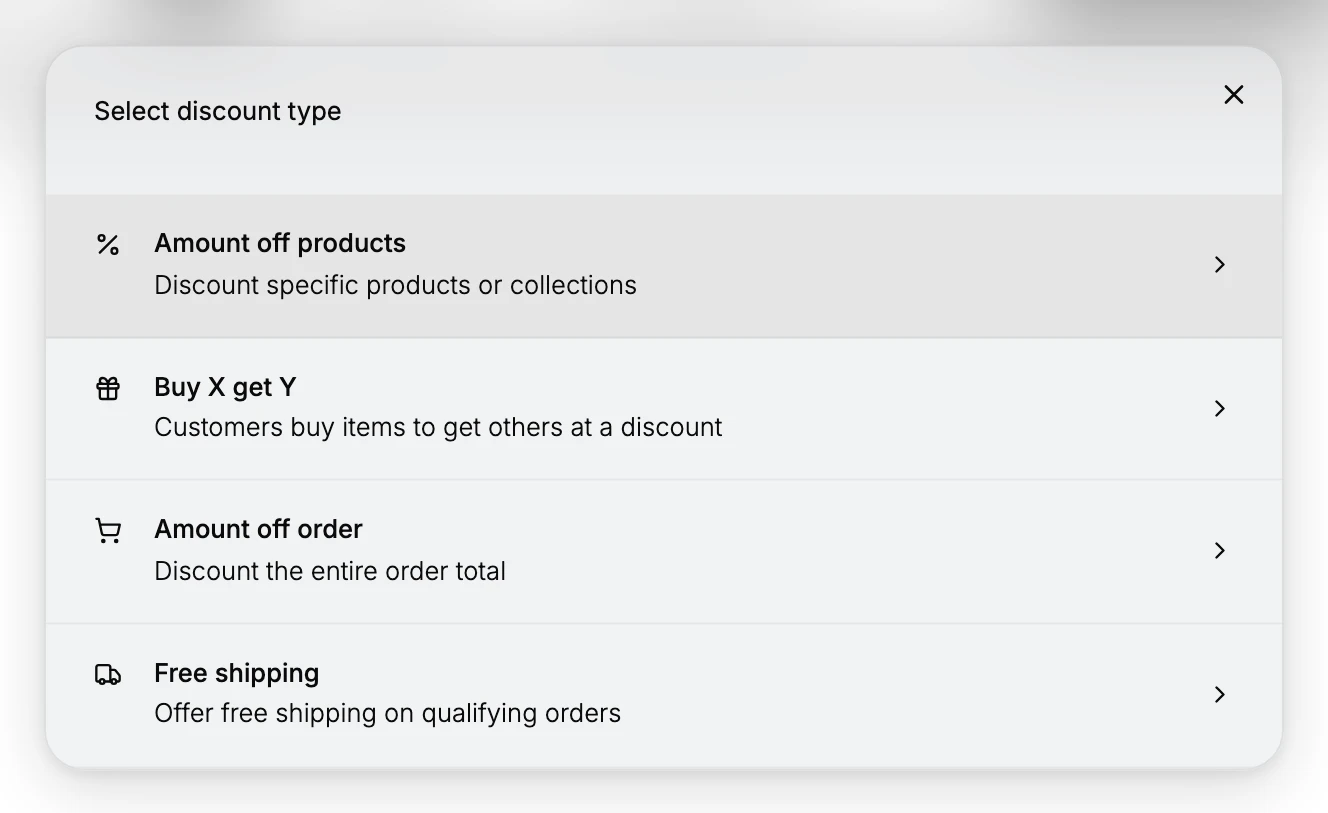
When you start a discount, Tanqory asks you to Select discount type. There are four, and the type decides what the rest of the form can express, so it is the first real decision you make.
| Type | What it reduces | Reach for it when |
|---|---|---|
| Amount off products | The price of the products or collections you pick | You are putting one range on sale while the rest of the catalog stays at full price |
| Buy X get Y | The price of the reward items, once the customer buys the qualifying ones | The offer depends on what is in the cart, such as a buy two, get one deal |
| Amount off order | The order total, whatever is in the cart | The offer is storewide and you do not want to list the products it covers |
| Free shipping | The shipping charge | You want to remove the last obstacle at checkout, usually once the order passes a spend threshold |
Amount off products and Amount off order are the pair people mix up. Both take money off, but the scope differs: the first reduces only the items you select, and the second reduces the whole cart. If the offer is described to customers in terms of products, it is the first; if it is described in terms of the order, it is the second.
Discount Types sets out what each type asks you to fill in on the form.
Code or automatic
Every type can be set up one of two ways, chosen with the Method control at the top of the form:
| Method | How customers get it |
|---|---|
| Discount code | The customer enters a code at checkout, for example WELCOME10. You can type a code or use Generate random code. |
| Automatic discount | No code is needed. The discount applies on its own once the order meets the rules you set. |
Steps
1. Open Discounts
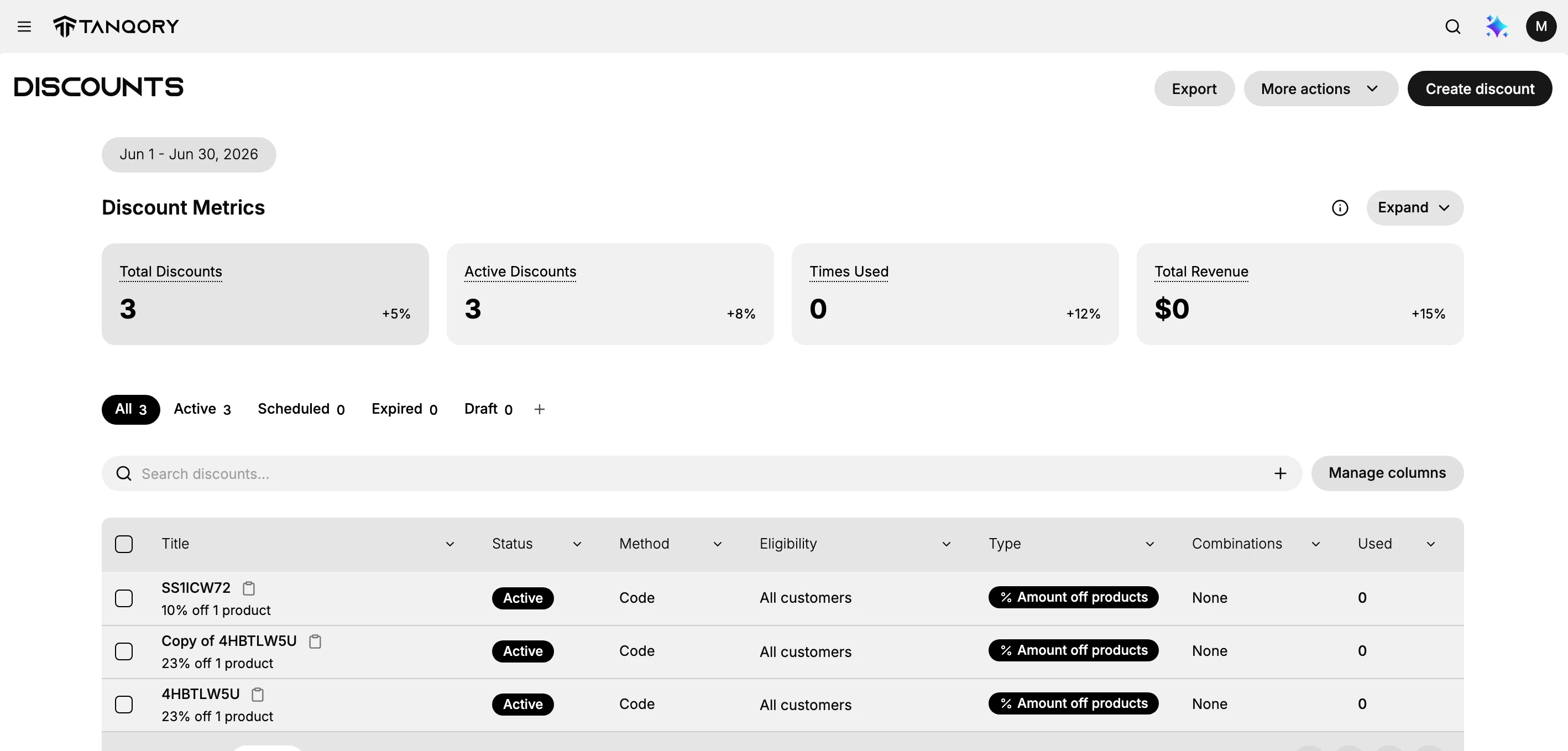
Open Discounts from the admin. The page shows your discount metrics, status tabs (All, Active, Scheduled, Expired, Draft), and a table of every discount with its Status, Method, Eligibility, Type, Combinations, and times Used. From here you can search, Export, open More actions, or Create discount.
2. Start a discount and choose a type
Click Create discount. In the Select discount type dialog, choose Amount off products, Buy X get Y, Amount off order, or Free shipping. Your choice opens the matching discount form.
3. Choose the method
At the top of the form, set Method to Discount code or Automatic discount. For a code, enter one or click Generate random code; for an automatic discount, no code is required. See Create Discount Code and Automatic Discounts.
4. Set the value and what it applies to
Under Discount value, choose how the value is calculated and enter it. Then set what it applies to, such as specific collections or the whole order, depending on the type. See Discount Type Selector and Product Selection.
5. Add eligibility, requirements, and limits
Set Eligibility (for example, all customers), any Purchase requirements such as a minimum amount, and Usage limits to cap total uses or limit one use per customer. See Eligibility and Usage Limits.
6. Set combinations and active dates
Under Combinations, decide whether this discount can combine with product, order, or shipping discounts. Under Active dates, set a start date and time, and optionally an end date.
By default a discount does not combine with any other discount at checkout. Turn on a combination only if you intend two discounts to stack.
See Combine With Other Discounts and Discount Schedule.
7. Save, then test at checkout
Save the discount. For a code, place a test order and enter the code; for an automatic discount, build a qualifying cart and confirm the price drops at checkout.
Verify the result
- The discount appears in the Discounts table with the right Method and Type.
- Its Status matches what you set, such as Active or Scheduled.
- At checkout the price changes as expected, and usage limits are respected.
Best practices
- Give every discount an end date so a promotion does not run longer than intended.
- Set a purchase requirement when you want to protect margin on small orders.
- Leave combinations off unless you have a reason to let discounts stack.
- Use a clear code for discounts that use a code, so customers can read and type it.
Common mistakes
- No usage limits, which lets a single code be reused far more than planned.
- Turning on combinations by accident, so a discount stacks with another and cuts margin.
- No end date, which keeps a sale running after the campaign is over.
If something goes wrong
- The discount does not apply. Check that the order meets the rules, and that the discount is Active and within its active dates.
- A code is rejected. Confirm the customer typed the exact code and that its usage limit is not reached.
- You cannot create a discount. Your role may not have permission to manage discounts.
Next steps
Related articles
Still stuck?
- Ask Tanqory AIAsk in your own words. It answers from these articles and links the ones it used.
- Ask in your adminThe assistant in your Tanqory admin answers and makes the change for you once you confirm.
- Contact TanqoryWrite to our privacy, security or legal teams, or talk to sales about a plan or a move.