Configure Discount Combinations
The Combinations section decides whether a discount can be used together with other discounts on the same order. You can allow it to combine with product, order, or shipping discounts. By default a discount does not combine with any other, so a customer gets one discount at a time unless you turn a combination on.
On this page
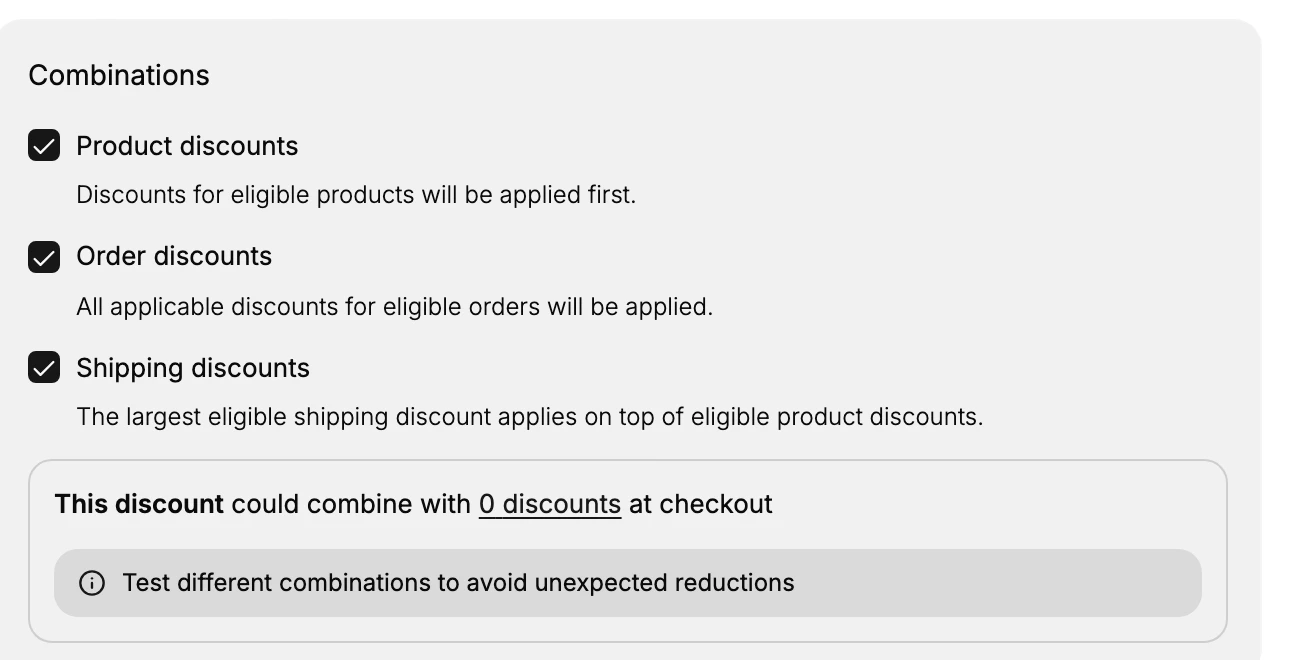
The Combinations section decides whether a discount can be used at the same time as other discounts on one order. It has three checkboxes: Product discounts, Order discounts, and Shipping discounts. Each one you turn on lets this discount combine with that kind of discount, so a customer can receive both on the same order. Each checkbox shows a short line describing how it applies once it is on.
By default all three are off, and the section shows the note "This discount won't combine with any other discount at checkout", which means a customer gets this discount on its own. You turn a combination on only when you want two discounts to stack on purpose. When at least one is on, the section instead shows how many existing discounts this one could combine with, along with a reminder to test different combinations so you do not give a larger reduction than you meant to.
What each combination allows
| Checkbox | What it lets this discount combine with | Note shown on screen |
|---|---|---|
| Product discounts | Discounts that apply to products | "Discounts for eligible products will be applied first." |
| Order discounts | Discounts that apply to the order total | "All applicable discounts for eligible orders will be applied." |
| Shipping discounts | Discounts that apply to shipping | "The largest eligible shipping discount applies on top of eligible product discounts." |
Before you begin
- Your role includes Edit discounts.
- You know whether this discount is meant to be used on its own or together with another discount.
- Open Discounts in the admin sidebar, then create a discount or open an existing one, since this section is part of every discount form.
Steps
1. Open the discount form
Create or open a discount. The Combinations section is part of every discount form, so you set stacking in the same place as the value and the other rules. See Create a Discount Code.
2. Decide whether the discount stacks
Find the Combinations section. With all three checkboxes off, the note reads "This discount won't combine with any other discount at checkout", so the discount is used on its own. Leave it this way when you want a customer to receive only this discount, which keeps two offers from reducing the same order more than you planned.
3. Turn on the combinations you want
Turn on Product discounts, Order discounts, or Shipping discounts to let this discount combine with that kind. Each box shows how it applies: product discounts are applied first, all applicable order discounts are applied, and the largest eligible shipping discount applies on top of eligible product discounts. Turn a box on only when you intend the two discounts to stack, because stacking reduces the order by both amounts.
4. Check how many discounts it could combine with
Once a combination is on, the section shows a line such as "This discount could combine with 0 discounts at checkout", where the number reflects how many of your existing discounts this one could stack with. It also reminds you to test different combinations to avoid unexpected reductions, so you can confirm the stacked result before the discount goes live.
5. Save and test
Save the discount. At checkout, try an order that would trigger both this discount and another one, and confirm the result matches what you intended, so a combination you turned on does not reduce the order more than expected.
Verify the result
- With all boxes off, only this discount applies to an order and it does not stack with others.
- With a box on, this discount can combine with that kind of discount, and the checkout total reflects both.
- The Combinations section reports how many discounts this one could combine with.
Best practices
- Leave combinations off unless you have a reason to stack, because two discounts on one order reduce it by both amounts.
- Test the stacked result at checkout before the discount goes live, so a combination does not give a larger reduction than you meant.
- Turn on only the kinds you intend, since product, order, and shipping combinations each add a different discount on top.
Common mistakes
- Turning on every combination without checking the result, so discounts stack and reduce orders more than planned.
- Assuming a discount stacks by default, when a discount does not combine with any other until you turn a combination on.
If something goes wrong
- Two discounts stacked when you did not expect it. Check which boxes are on in the Combinations section of each discount.
- A discount will not stack with another. Confirm the matching combination is turned on for this discount.
- You cannot edit the discount. Your role may not have permission to manage discounts.
Next steps
Related articles
Still stuck?
- Ask Tanqory AIAsk in your own words. It answers from these articles and links the ones it used.
- Ask in your adminThe assistant in your Tanqory admin answers and makes the change for you once you confirm.
- Contact TanqoryWrite to our privacy, security or legal teams, or talk to sales about a plan or a move.