Limit a Discount to Specific Products
When you create a product discount, the Applies to control decides what it discounts. You can apply it to specific collections or to specific products, then use Browse to pick the exact items the discount covers.
On this page
When you create an Amount off products discount, the Applies to control sets which items the discount covers. You can apply it to specific collections or to specific products, then use Browse or the search box to choose the exact items. This keeps a discount focused on the products you want to promote rather than the whole store. The same control appears in a Buy X get Y discount, under Customer buys and Customer gets.
Applies to options
| Option | What the discount covers |
|---|---|
| Specific collections | The products in the collections you choose |
| Specific products | Only the individual products you choose |
Before you begin
- Your role includes Edit discounts.
- You are creating or editing an Amount off products discount.
- Open Discounts in the admin sidebar, then create a discount or open an existing one, since this section is part of every discount form.
Steps
1. Open the discount form
Create or open an Amount off products discount. See Create a Discount Code.
2. Choose what the discount applies to
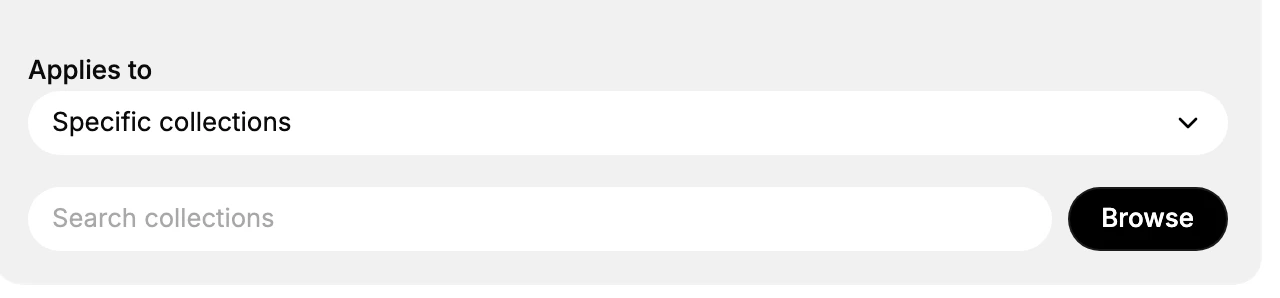
Find the Applies to control. Choose Specific collections to cover the products in chosen collections, or Specific products to cover individual products. A search box and a Browse button appear so you can find and add the items.
3. Add the products or collections
Click Browse, or type in the search box, to find items. Select the products or collections you want, then add them. The discount then applies only to those items.
4. Save and test
Save the discount. Add an item that should be covered to a cart and confirm the discount applies, then add an item that should not be covered and confirm it does not.
Verify the result
- The discount lists the products or collections you selected.
- A cart with a covered item gets the discount.
- A cart with an item that was not selected does not get the discount on that item.
Best practices
- Use Specific collections when you want the discount to follow a category, so newly added products in that collection are covered too.
- Use Specific products when you want to target a small, fixed set of items.
- Check the selected list after editing your catalog, so the discount still covers what you intend.
Common mistakes
- Selecting nothing, so the discount has no items to apply to.
- Choosing Specific products when you meant a whole category, so new products in that category are missed.
If something goes wrong
- The discount applies to nothing. Confirm you added at least one product or collection under Applies to.
- An item is not discounted. Check that the item, or its collection, is in the selected list.
- You cannot edit the discount. Your role may not have permission to manage discounts.
Next steps
Related articles
Still stuck?
- Ask Tanqory AIAsk in your own words. It answers from these articles and links the ones it used.
- Ask in your adminThe assistant in your Tanqory admin answers and makes the change for you once you confirm.
- Contact TanqoryWrite to our privacy, security or legal teams, or talk to sales about a plan or a move.