Customer Segments
A segment is a saved question about your customers rather than a saved list, so its members change as they do. Tanqory gives you two ways to write that question, a query builder and a form of Field, Operator and Value filters, and this article covers both, plus the panel that starts closed, the AI Refine field and what to do when it answers with nothing, the forty-nine fields you can filter on, and everything the row menu lets you do to a segment afterwards.
On this page
A segment is a saved question about your customers, not a saved list of them. You describe who you mean, the store answers with whoever matches right now, and it keeps answering: a customer who starts matching joins, one who stops leaves. That is the difference between a segment and a group you tag by hand.
A saved segment is not only a list to look at. Use segment on it offers Email segment, covered in Send Email to a Segment, which sends those customers promotional email, and Apply discount, which offers them a discount. That is what most people build a segment for.
Before you begin
- You have the View customers permission, and Manage customer segments to save one.
- Your customers already carry whatever the segment will ask about, such as orders, tags or a location.
- Open Customers > Segments in the admin sidebar.
The Segments list
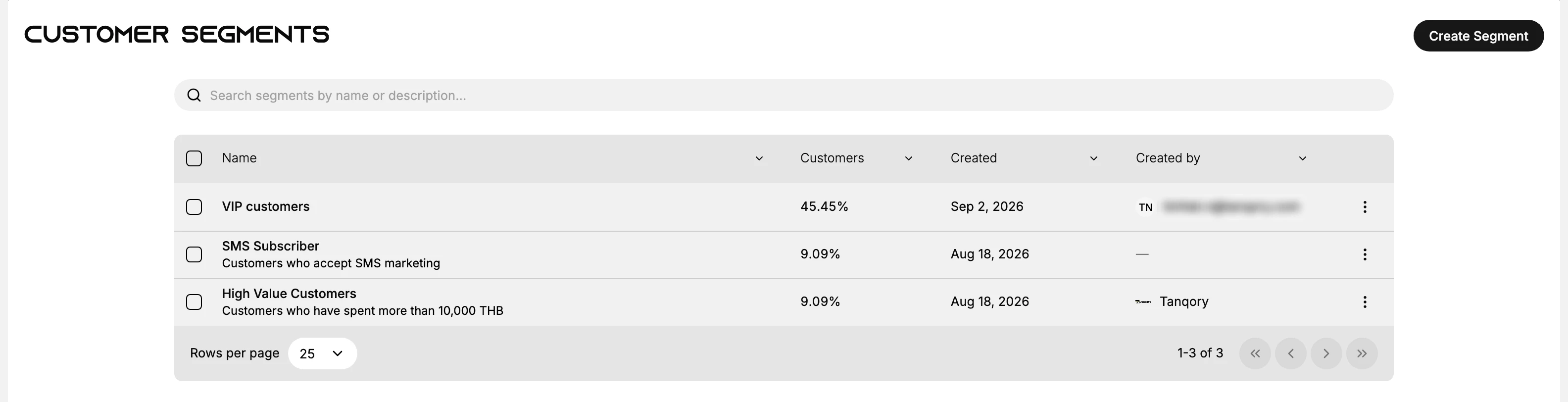
The list is usually short, since a store rarely needs many segments. It gives each one a Name with its description underneath, a Customers figure, a Created date and a Created by author, plus a menu at the end of the row and a search box above for when the list does grow. Every column heading carries its own menu, opened with the chevron beside its name, holding Sort A → Z, Sort Z → A, Copy column and Hide column, so a column you never read can be put away.
The Customers column is the one to read carefully, for two reasons.
It shows a percentage of your customer base, not a number of people. On a store of eleven customers, 9.09% is one person.
And it is not live. It is the figure worked out when the segment was last evaluated, so it can disagree with the segment itself. In the picture above VIP customers reads 45.45%, which is five people out of eleven. Asking the same question live, by running tags CONTAINS 'vip' in the builder the same minute, answers 1 of 11 customers: the tag has since come off four of them and the saved figure has not caught up. Treat the column as a rough sort order and open the segment for the real answer.
Two ways to write the question
Create Segment opens a builder, and there are two of them. They produce the same kind of segment, and a button in the top right swaps between them. Swapping costs you whatever you have built, which is the warning below.
| Builder | What you work with | Which button gets you there |
|---|---|---|
| The query builder | Four lines of query with the condition on the WHERE line, over a live preview of who matches | Opens by default. Create with query brings you back to it |
| The filter form | A Segment Name, a description, a colour and a stack of Field, Operator, Value filters | Create manually, at the top right |
Both reach the same result, so pick by what you want from the screen. The query builder shows the whole question at once and is the faster place to experiment. The filter form asks for a name first and never makes you type a condition, which is the easier place to start if you have not written a query before.
The builder remembers which one you were last in, so it may open on the other one tomorrow. The button in the top right tells you which you are in: it always names the one you are not using.
Decide before you start, because swapping throws your work away. A condition typed into the query builder does not arrive in the filter form, and it is not waiting for you when you swap back either: the WHERE line comes back empty. There is no warning and no prompt, so treat the swap as starting again.
The query builder
Create Segment opens this one by default, and everything happens on one screen.
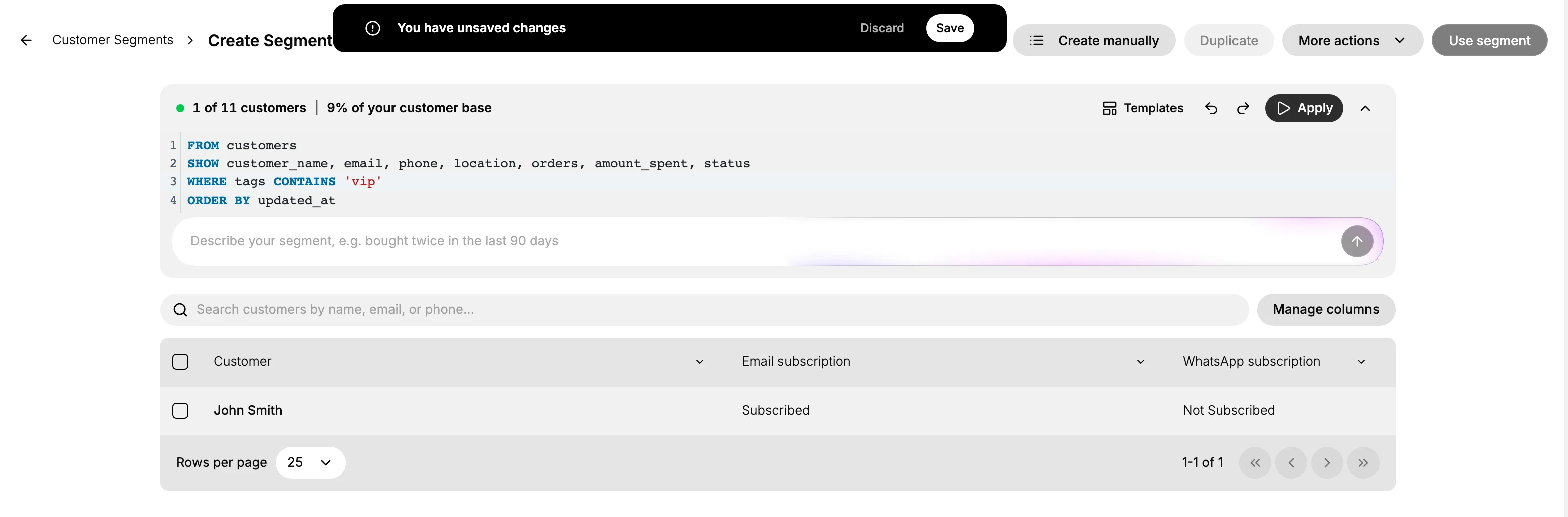
| Part | What it is |
|---|---|
| The count | How many match out of your whole base, and the share, reading 1 of 11 customers and 9% here. This one is live |
| Templates | Ready-made starting queries, covered in Segment Templates |
| The chevron beside Apply | Opens the panel holding the query and the Refine field. Both are hidden until you do |
| The query | The definition itself, four lines, inside that panel |
| Refine segment | A field inside the same panel. You describe the group in ordinary words and an assistant writes the query. See the caution below |
| Apply | Runs the current definition against your customers |
| The preview | Who currently matches, with its own search and Manage columns |
Undo and redo sit between Templates and Apply, so an experiment is cheap.
The query behind a segment
The chevron beside Apply opens what the builder is actually holding, and it reads like a sentence:
FROM customers
SHOW customer_name, email, phone, location, orders, amount_spent, status
WHERE
ORDER BY updated_at
WHERE is the part that decides who is in. Everything else is the shape of the answer rather than the question. A finished condition looks like this, and this one is real:
WHERE tags CONTAINS 'vip'
Applied to the store in the picture above, that line returned 1 of 11 customers, which is exactly the one person carrying the tag. The condition is worth reading whichever way it got there, because it is the question your segment will keep asking after you have forgotten how you built it.
The Refine field, and what to do when it answers with nothing
Beneath the query sits a single field with a round arrow button at its right, placeholdered Describe your segment, e.g. bought twice in the last 90 days. The same field appears on the Customers list, where it is labelled Refine your segment. You describe the group in ordinary words, press the arrow or Enter, and the store writes the WHERE line for you. It is not a search box: what you type is never matched against your customers' names, it is turned into a condition and put on line 3.
It does not always answer. On the store used for this article, every phrase tried came back empty: the query stayed exactly as it was, and, more awkwardly, nothing on the screen said so. No message and no error, so the only way to tell it had failed was that the WHERE line had not changed.
So treat the field as a shortcut rather than the way in. If the line does not change within a few seconds, write the condition yourself or take Templates, both of which always work.
The filter form
Create manually swaps the query for a form, and Create with query at the top right goes back. Swap before you have built anything, for the reason above.
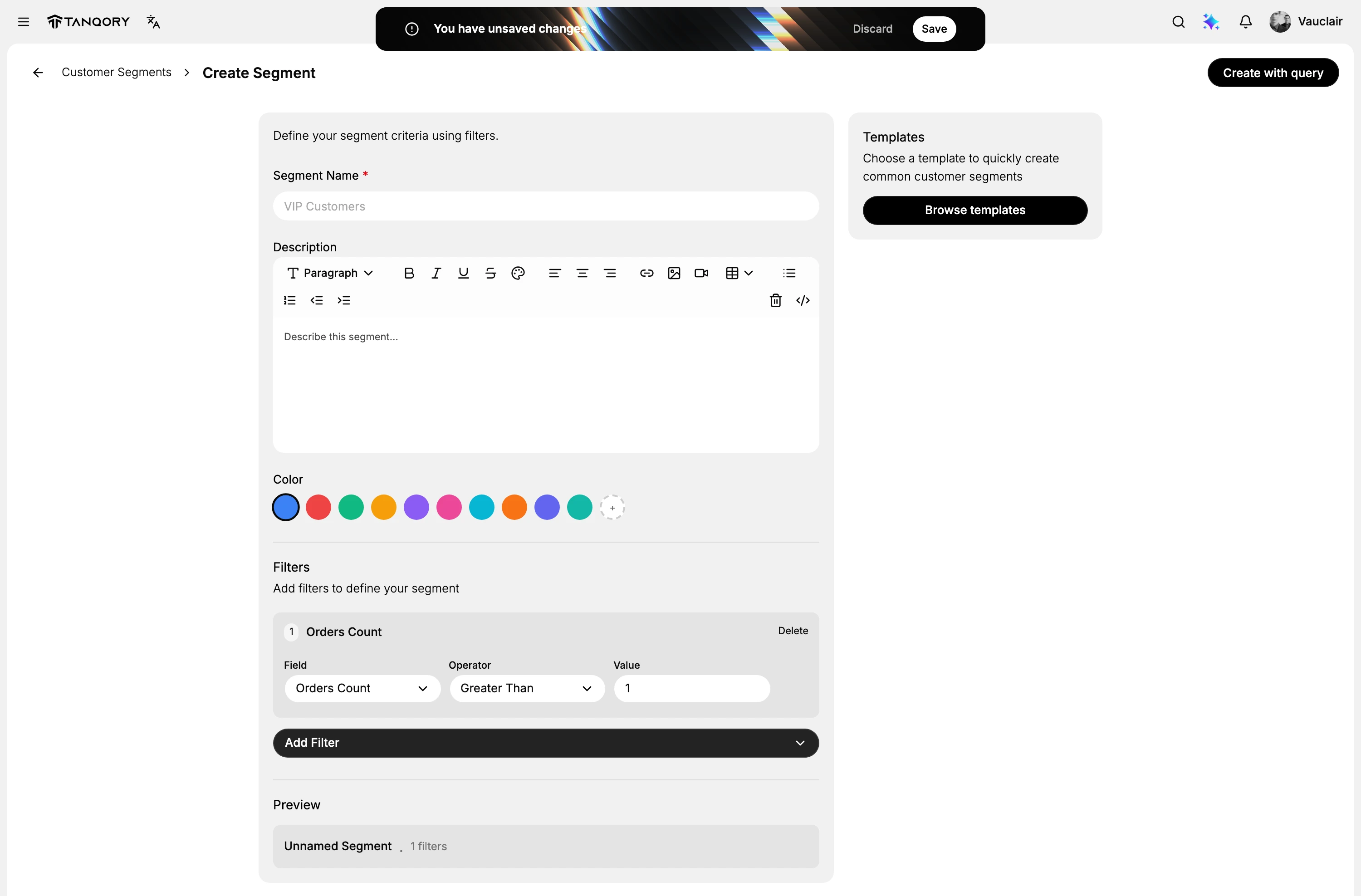
| Part | What it is |
|---|---|
| Segment Name | The only required field, marked with a red asterisk. The form will not save without it |
| Description | A full text editor rather than a plain box, with headings, bold, colour, links, images and tables |
| Colour | Ten swatches and a custom one, so a segment can be recognised at a glance |
| Filters | The condition itself, built one card at a time. Each card has a Field, an Operator and a Value, is numbered, and carries its own Delete |
| Add Filter | Adds another card. The first one defaults to Orders Count, Greater Than |
| Preview | A line naming the segment and counting its filters, reading Unnamed Segment until you fill in the name |
| Templates | The same ready-made segments as the other builder, behind Browse templates |
Before you have added anything, the Filters area says No filters added yet and offers seven shortcut chips, Orders, Spent, Last Order, Email, Tags, RFM and Status. Each one builds its filter for you: pressing Tags produces a card already set to the Tags field with the operator In, waiting only for a value. They are the quickest way in, and Add Filter is there for anything they do not cover.
What you can filter on
Field is the long list, and it is worth knowing what is in it, because it reaches a good deal further than the customer record you can see on screen.
| Group | Fields |
|---|---|
| Orders and money | Orders Count, Total Spent, Average Order Value, First Order Value, Last Order Value, Orders In Period, Store Credit |
| Dates | First Order Date, Last Order Date, Customer Since, Updated At, Abandoned Checkout Date |
| Who they are | Customer Name, First Name, Last Name, Email, Phone, Note, Status, Tags, Company, Account Status |
| Where they are | City, Province, Country, Postal Code, Market, Language, Currency, Tax Exempt |
| Marketing consent | Email Marketing, SMS Marketing, Whatsapp Marketing Consent, Email Domain, Subscription Status |
| Behaviour | Last Email Open At, Last Email Click At, Last Page View At, Overall Engagement Score, Email Engagement Score, Sms Engagement Score |
| What they bought | Products Purchased, Product Tags, Discount Codes Used |
| Scores the store works out for you | RFM Segment, Predicted Spend Tier, Predicted CLV, Churn Risk Score, Purchase Probability |
The last group is the one worth pausing on. Those five are worked out by the store rather than entered by anyone, so a segment can ask who is likely to lapse or likely to spend without you having to define what that means.
The operators follow the field
Operator is not one fixed list. It changes to suit whatever Field holds, which is why the list is short and why options that would not fit the field are never offered.
| Kind of field | Example | What Operator offers |
|---|---|---|
| A number | Orders Count, Total Spent | Equals, Not Equals, Greater Than, Less Than, Greater Than or Equal, Less Than or Equal, Between |
| A date | Last Order Date | The same seven, plus Date Before, Date After and Date Within Last |
| A list | Tags | In, Not In, Is Empty |
| A fixed choice | Status, Email Marketing | Equals and Not Equals, with Value becoming a list rather than a box. Status offers ACTIVE, DISABLED and DECLINED; Email Marketing offers SUBSCRIBED, UNSUBSCRIBED and NOT SUBSCRIBED |
Date Within Last is the one to look for when you want a segment that stays honest. A fixed date goes stale the day after you write it, while a rolling window keeps meaning what you meant.
Is Empty is the way to ask the opposite question. Tags with Is Empty finds the customers nobody has labelled yet, which no positive condition will give you.
Steps: the filter form
Take these first if you have not built a segment before. They are in this order for a reason: the form will not save without a name, so filling it in first means Save is live the moment the condition is right.
1. Open the form
From the Segments list, select Create Segment, then Create manually at the top right. If the button there reads Create with query instead, you are already in the form.
2. Name it
Fill in Segment Name. It is the only required field, marked with a red asterisk, and it is what everyone else in the store will see. Description and Colour are optional and can wait.
3. Add the condition
Press one of the chips, Orders, Spent, Last Order, Email, Tags, RFM or Status, and the filter card is built for you with its field and a sensible operator already set. Add Filter gives you a card to set up yourself, for anything the chips do not cover.
4. Set Field, Operator and Value
Read the card left to right. Field is what you are asking about, Operator is how you are comparing it, and Value is what you are comparing it to. Change Field and the operators change with it, so set the field first.
Add another card for a second condition, and use Delete on a card to drop one.
5. Save
Adding anything raises the unsaved changes bar at the top of the page, carrying Discard and Save. Take Save.
You land back on the Segments list with the new segment on it, carrying today's date and your account under Created by. Nothing else confirms the save, so the list is the confirmation.
Steps: the query builder
The same job in the other builder, which opens by default and asks for the name last rather than first.
1. Start a segment
From the Segments list, select Create Segment. The builder opens on everybody, with no condition yet.
2. Open the panel first
This is the step that is easy to miss, because nothing on the screen suggests it. The query and the field you type into are inside a panel that is collapsed when the builder opens, and the only thing that opens it is the chevron at the right-hand end of the bar, just past Apply.
Until you press it there is nothing to type into. The undo and redo controls sit between Templates and Apply and are not it.

Compare that bar with the one in the builder image above, where the same chevron points up and the query and the Refine field have appeared beneath it.
3. Set the condition
With the panel open you can see the query, four lines beginning FROM customers, and the Refine your segment field beneath it. There are three ways to fill in the WHERE line, and they lead to the same place.
- Type it yourself. Click at the end of line 3, after WHERE, and write the condition, such as
tags CONTAINS 'vip'. This is the one that never fails. - Describe it in the Refine field. Quicker when it answers, silent when it does not; read the section above before relying on it.
- Take a template. Templates opens a set of ready-made segments grouped by purpose, such as high value customers and customers who have not ordered in a while. Segment Templates covers them.
4. Apply, and read the count
Apply runs it. The count changes to a match out of a total, and the preview below fills with the people who matched.
This is the step to linger on. The count and the preview together are the only check that your question means what you thought it meant, and they cost nothing to look at.
5. Save it
Changing the query raises an unsaved changes bar at the top of the page with Discard and Save. Take Save and a Save as new segment dialog asks for a name of up to 255 characters. This is the difference from the form, where the name comes first.
The name is what the rest of the store sees, so it should say what the group is rather than how it was built. Saving returns you to the Segments list with the new segment on it.
What you can do to a segment afterwards
Everything after saving lives in one place: the menu at the end of the segment's row on the Segments list. It holds five things.
| Action | What it does |
|---|---|
| Use segment | Opens a short menu of what to do with the group: Email segment, described as emailing customers with promotional updates, and Apply discount, described as offering discounts to drive repeat purchases |
| Duplicate | Copies it so you can adapt the copy and leave the original alone, covered in Duplicate and Adapt a Segment |
| Export | Takes the segment out as a file |
| Rename | Changes the name without touching the condition |
| Delete | Removes the segment. The customers in it are not affected |
Rename is the one worth remembering. A segment's name is the only part of it other people see, and renaming does not disturb the condition, so a badly named segment is a cheap thing to put right rather than a reason to rebuild.
Ticking the checkboxes at the left of the rows raises a bar reading N selected with a Delete on it, for clearing several out at once.
The same actions, minus the two that need a saved segment, are on More actions inside the builder, where a segment you are still working on offers Export, Rename and Delete. Duplicate and Use segment are greyed out there until the segment has been saved, which is the clearest sign that those two need something that exists.
Opening one you already saved
Selecting a segment's name on the list opens it, and it does not look quite like the builder you created it in.
- The panel is already open. The query is on screen from the start, so the chevron step does not apply here.
- The query can be a single line. A saved segment shows only what it needs: SMS Subscriber on this store reads
FROM customers WHERE smsMarketingConsent = "SUBSCRIBED"on line 1, with no SHOW or ORDER BY at all. The four-line shape is the starting point for a new segment, not a requirement. - Create manually is gone. The filter form is offered only while a segment is new, so an existing segment is edited as a query.
- Duplicate is now available, where it was greyed out before, and More actions narrows to Rename, Export and Delete.
Editing the query raises the same unsaved-changes bar, so a change is never silent.
If something goes wrong
- The count did not change after Apply. The condition may be empty. Open the query with the chevron and check that WHERE has something after it.
- The preview holds people you did not expect. Read the WHERE line rather than the description you typed; the wording you used and the condition produced are not always the same thing.
- You cannot find Save. It only appears once the query differs from what is saved, in the bar at the top of the page.
- You cannot find anywhere to type. The query and the Refine field live in a panel that starts collapsed. Press the chevron at the end of the bar, past Apply.
- Your condition vanished. Check whether you pressed Create manually or Create with query. Swapping empties the WHERE line, and the two builders do not share what you have built.
- The form will not save. Segment Name is required and marked with a red asterisk; a filter on its own is not enough.
- You typed into Refine and nothing happened. That is the failure this field has: it returns nothing and says nothing. Look at the WHERE line rather than waiting for a message, and if it is unchanged, write the condition yourself or start from a template.
Next steps
- Segment Templates
- Send Email to a Segment
- Duplicate and Adapt a Segment
Related articles
Still stuck?
- Ask Tanqory AIAsk in your own words. It answers from these articles and links the ones it used.
- Ask in your adminThe assistant in your Tanqory admin answers and makes the change for you once you confirm.
- Contact TanqoryWrite to our privacy, security or legal teams, or talk to sales about a plan or a move.