Customer Detail Page
Everything the store knows about one customer on one screen: the five summary tiles including the RFM group, recent and draft orders, the Customer panel with its three separate marketing consents, store credit that can hold a balance per currency, the More actions menu where merging, privacy requests and deletion live, and a timeline you can resend an email from.
On this page
The detail page is everything the store knows about one customer on a single screen: what they have spent, what they have ordered, how to reach them, what they are allowed to be sent, and a log of everything that has happened to their account.
It is the page you open before answering a customer, because it tells you who you are talking to before you say anything.
Before you begin
- The customer has a record to open. Everything on this page belongs to one person, so there is nothing to read until a customer exists.
- You know what you came for. The page is long, and the same record holds orders, addresses, marketing consent, tax status, credit and a timeline, each with its own control.
- Your role includes View customers to read the page. Changing anything needs the permission for that action.
- Open Customers in the admin sidebar and select a customer's name.
The top of the page
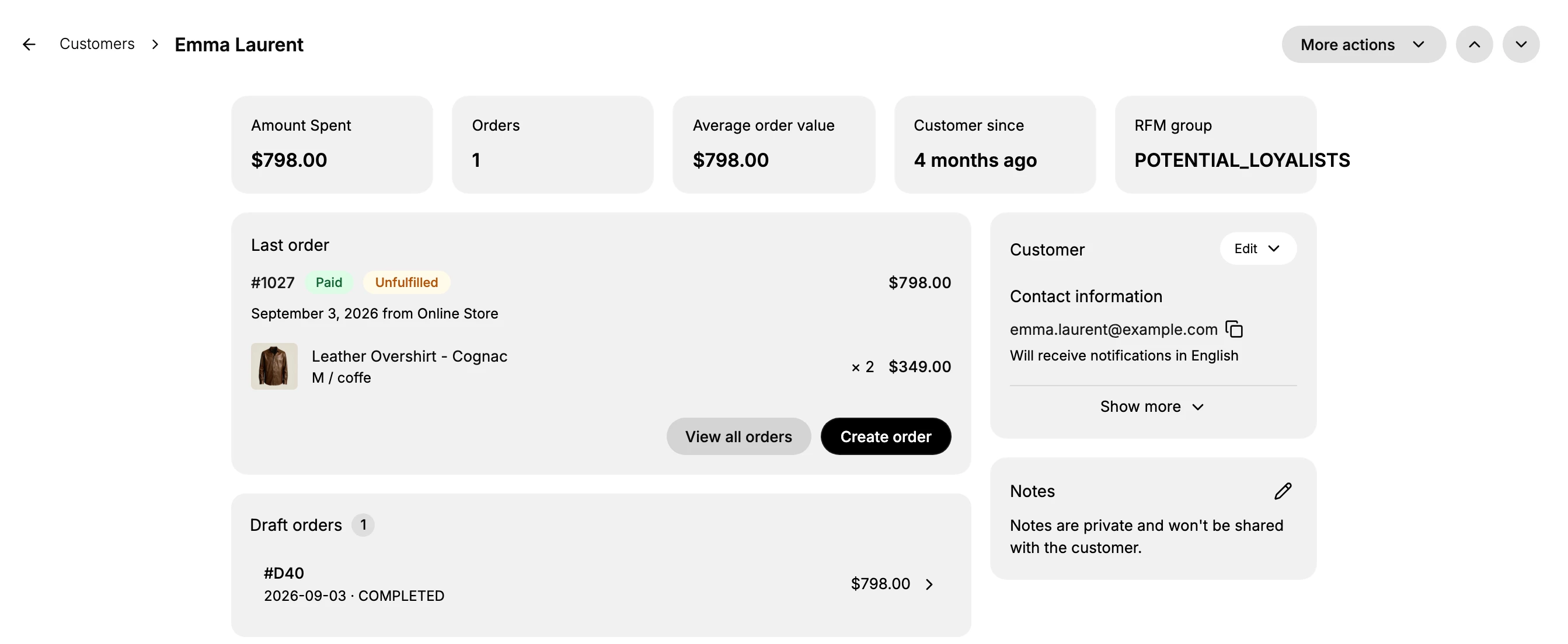
Five tiles summarise the customer before you read anything else.
| Card | What it tells you |
|---|---|
| Amount Spent | Their lifetime total, in your store's currency |
| Orders | How many they have placed |
| Average order value | What a typical order from them comes to, which is their spend divided by their order count |
| Customer since | How long they have been on your books, phrased in plain words such as 2 months ago |
| RFM group | Which of several groups the store puts them in from how recently, how often and how much they buy. Two seen on this store are CHAMPIONS, which the store's own segment templates describe as best customers, and POTENTIAL_LOYALISTS. It is worked out for you rather than set by anyone |
The two chevrons beside More actions step to the previous and next customer in the list, which is quicker than going back and picking another row when you are working through several.
What is on the rest of the page
| Section | What it holds |
|---|---|
| Last order | Despite the heading it lists several recent orders, not one, each with its number, status chips such as Paid, Fulfilled or Unfulfilled, the date and where it came from, and its line items with variant and price. View all orders and Create order sit at the foot |
| Draft orders | Orders started but not placed, counted at the top and listed by number, date, OPEN or COMPLETED, and amount |
| Customer | The panel on the right, holding contact details, address, marketing consent, tax status and notes, with one Edit control for the lot |
| Store credit | What the customer can spend, held as one balance per currency. A customer with none reads No store credit. It shares a card with Tags in the left column, and the control is the pencil at the card's top right |
| Tags | The labels on the record, shown as chips |
| Metafields | Extra fields your store has defined, with View all and Add definition |
| Timeline | Everything that has happened to the account, and a box for posting an internal note |
On a customer who has never bought anything the page reads differently, and it is worth knowing before you conclude something is broken. The Last order card is still there but reads No orders yet, offers only Create order, and drops the View all orders button. The Draft orders card is not rendered at all rather than showing a count of zero, so its absence means no draft has ever been made for that customer.
The Customer panel
The panel opens holding Contact information and nothing else. Show more at its foot reveals Default address, Marketing and Tax details, and turns into Show less, so a reader looking for an address on a freshly opened record will not find one until they press it.
Everything you would call the customer's own details is here, under one Edit control rather than a separate one per field. It is a menu, not a button, and it holds five things:
| Edit menu | What it opens |
|---|---|
| Edit contact information | Name, email, phone and the language they are written to in |
| Manage addresses | The addresses on the record, including which is the default |
| Edit marketing settings | The three consents |
| Edit tax details | The customer's tax status |
| Add to company | Attaches the customer to a company record |
So every field in the panel below is changed from the same place, whichever card it appears under.
| Part | What it shows |
|---|---|
| Contact information | Email with a copy button beside it, phone number, and which language they are written to in |
| Default address | The address used unless an order says otherwise, including a company name if there is one |
| Marketing | Three separate consents, Email, SMS and WhatsApp, each reading subscribed or not subscribed |
| Tax details | Whether the customer is treated as tax exempt. It reports a state, reading Collect tax for most customers and something like Tax exempt (pending) for one with an exemption. The card only displays it; Edit, then Edit tax details is where it changes |
| Notes | A short internal note about the customer, separate from the timeline. The card says in as many words that notes are private and will not be shared with the customer |
Marketing is worth reading before any campaign. A customer can be subscribed on one channel and not another, and the panel is where that is settled rather than guessed.
Store credit can hold more than one balance
Store credit is not a single figure. It keeps a separate balance per currency, so a customer can show $677.00 and CA$787.00 on the same card, each spendable only in its own currency.
Read which currency you are looking at before promising a customer anything. Issuing and adjusting a balance is covered in Store Credit.
The More actions menu
Everything that changes or removes the record itself is in More actions at the top right, not on the cards.
| Action | What it does |
|---|---|
| Issue store credit | Adds credit to the customer's balance |
| Merge Customer | Folds this record together with another for the same person |
| Send account invite | Invites the customer to use an account on your storefront |
| Contact customer | Opens the way to write to them |
| Request customer data | For answering a customer asking for a copy of what you hold about them |
| Erase personal data | For answering a customer asking to be erased |
| Delete Customer | Removes the record |
The last three are the ones to be careful with. Request customer data and Erase personal data exist to answer a privacy request rather than to tidy the list, and what each one actually does once started is covered in Handle Customer Privacy Requests.
The timeline
The timeline runs newest first and records what was done and by whom, in the store's own words. Entries read like Staff added a tag, You placed order #1025, You fulfilled order #1014 and You requested return for order #1017, so it is a record of who did what rather than a list of states the account passed through.
Emails the store sent appear here too, each naming the email and who it went to, with a Resend email button beside it. That is the fastest answer to a customer who says they never received a confirmation.
The box at the top posts an internal note, up to 2000 characters, and says so plainly underneath: only you and other staff can see comments. Customer Notes covers the card and what belongs in it.
If something goes wrong
- A change will not save. Your role may lack the permission for that particular action, such as Edit customers.
- The customer says they got no email. Find the email in the timeline and use Resend email rather than sending it by hand.
- The order you expect is missing. Check Draft orders. An order that was started but never placed sits there, not in the order history.
- There is no Draft orders card. No draft has ever been made for this customer. The card is not rendered rather than shown empty.
- The order card reads No orders yet. The customer has not bought anything. Only Create order is offered, since there is no history to open.
- There is no address, marketing status or tax line on the Customer panel. The panel is collapsed. Show more at its foot reveals all three.
- An action you were told about is not on the cards. Everything that changes or removes the record itself lives in More actions at the top right.
Next steps
Related articles
Still stuck?
- Ask Tanqory AIAsk in your own words. It answers from these articles and links the ones it used.
- Ask in your adminThe assistant in your Tanqory admin answers and makes the change for you once you confirm.
- Contact TanqoryWrite to our privacy, security or legal teams, or talk to sales about a plan or a move.