Search the Customer List
Finding one customer and finding a group are different jobs with different tools. The search box matches name, email and phone and nothing else, it searches inside the tab you are standing on rather than the whole store, and the thing people most often type into it, a tag, comes back as No customers found rather than as an error.
On this page
Finding one customer and finding a group are different jobs, and the Customers list gives you a different tool for each. The search box is for a person you can name. The tabs above it are for a group you cannot.
What the search box will not do is worth knowing first: it matches name, email and phone, and nothing else. Its own placeholder says so.
Before you begin
- Your role includes View customers.
- You know which of the two you are doing: finding a person, or gathering a group. The box answers the first and the tabs answer the second.
- Open Customers in the admin sidebar.
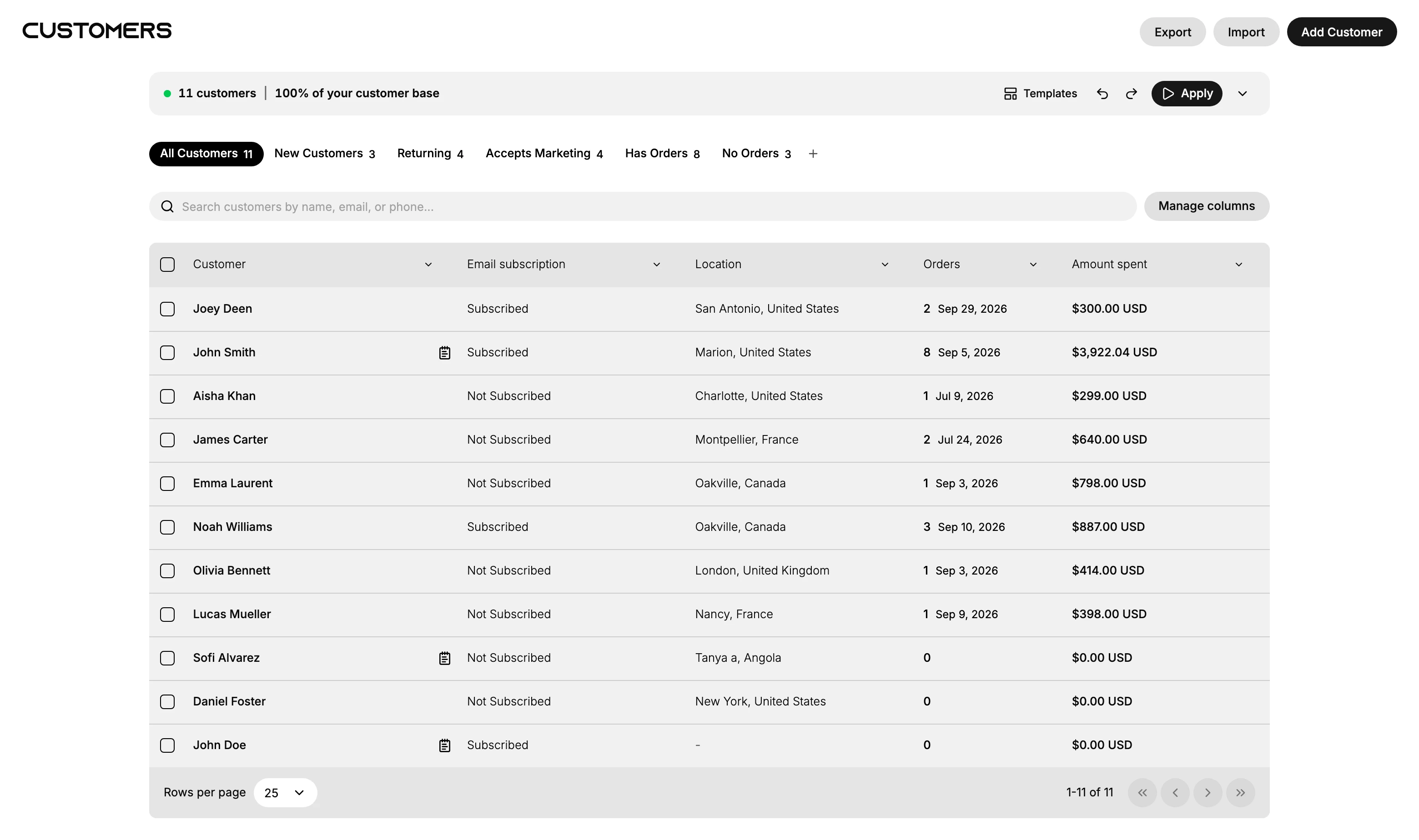
What each tool is for
| Tool | What it does |
|---|---|
| Search box | Type part of a name, email address or phone number, and the list narrows as you type |
| The tabs | One selection filters the list to a common group, with a count beside each name |
| Column menus | The chevron on each heading holds Sort A → Z, Sort Z → A, Copy column and Hide column |
| Manage columns | Which of the twenty columns are in the table at all |
| Segments | For a group the box cannot express, or one you want to keep |
The tabs are All Customers, New Customers, Returning, Accepts Marketing, Has Orders and No Orders, each carrying its own count, so you can size a group before you open it. The + at the end saves the filters you have on as a tab of your own, which Customer List Views covers.
Steps
1. Search by name, email or phone
Type into Search customers by name, email, or phone and the list narrows as you type, with nothing to press. Typing four letters of a first name is usually enough: John leaves John Smith and John Doe and takes the other nine customers out of the table.
Two controls appear beside the box as soon as there is something in it. Cancel empties the box and brings the whole list back, and Save as keeps what you have found as a tab. There is also an X inside the box, which clears the text without leaving the search.
Note: There are two text boxes on this page and only the lower one searches the list. The card above the tabs, which reads how many customers you have and what share of your customer base they are, opens a segment builder with a box of its own labelled Refine your segment. Typing a name there describes a group for a query; typing it into Search customers by name, email, or phone finds the person.
2. Check which tab you are standing on
The search runs inside the active tab, not across the store. With Returning selected, searching for a customer who has never ordered returns nothing, although that customer exists and is one selection away on All Customers.
This is worth a glance before you conclude that somebody is not in your store. The tab you are on stays highlighted while you search, so the answer is always on screen.
3. Read an empty result correctly
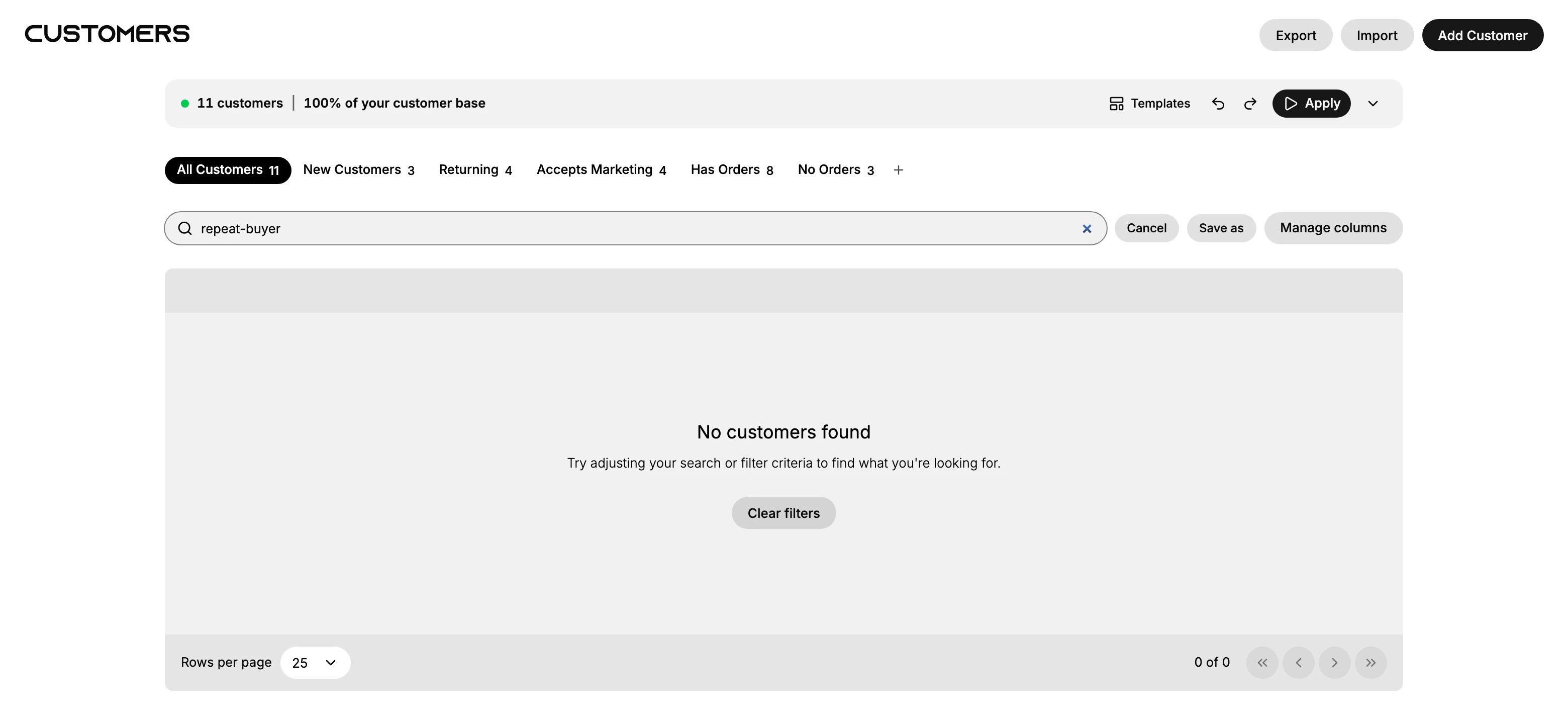
A search that finds nobody does not say that the search was unsupported. The table is replaced by No customers found, the line Try adjusting your search or filter criteria to find what you're looking for, and a Clear filters button, and the footer counts 0 of 0.
Clear filters is the way back. It drops the search text and the tab together, so you are looking at every customer again rather than hunting for which of the two emptied the list.
4. Know what the box cannot find
Tags are the common one. Typing a tag name returns the same empty state as a misspelt surname, because the box matches name, email and phone, and tags are not in the table either. Nothing on screen distinguishes "nobody carries this tag" from "this is not a thing you can search for here".
The same goes for anything else off those three fields, such as an order number or a street. For any of them the answer is a segment, which Customer Segments covers.
5. Sort the list or change its columns
Sorting lives in the menu on each column heading, opened with the chevron beside its name rather than by selecting the heading itself. The menu holds four entries: Sort A → Z, Sort Z → A, Copy column, and Hide column, which is a second way to take a column out of the table.
Copy column is the one worth knowing. It puts that column's values on your clipboard, one per line, for the rows on the list in front of you, so a tab or a search narrows what you get. The values come out plain: Amount spent copies as 300 and 3922.04, without the currency and without the heading, which is what you want when the next stop is a spreadsheet.
Manage columns, beside the search box, is the other direction. It lists twenty columns, among them Email, Phone, Status, Customer language, Tax exempt and Customer added date, each switched on or off for the table. Customer is marked Always visible and cannot be taken out.
6. Open the customer
Select a row to open that customer's detail page, where their orders, addresses, notes and tags are. Customer Detail Page walks through what is on it.
7. Keep a search you run often
Save as, beside the search box, opens Create View, the same dialog the + at the end of the tabs opens. It saves the filters you have on under a name and adds them to the tab row, so the search becomes one selection next time.
Save it as a segment instead when something other than your own eyes has to act on the group, such as a marketing campaign. A view is for looking at a list; a segment is a group other tools can use.
If something goes wrong
- A customer you expect is missing. The search runs within the active tab, so somebody outside it will not appear however you spell their name. Select All Customers, then search again.
- A search returns No customers found. Either nothing matches, or you have typed something the box does not match, a tag above all. Clear filters puts the list back so you can tell the two apart.
- The list looks filtered and you did not filter it. A tab may still be selected from earlier. All Customers shows everyone again.
- Sorting does nothing when you select a heading. The heading text is not the control. Use the chevron beside it.
- A column you need is not in the table. Add it under Manage columns. If it is missing there too, it is not one of the twenty.
- Permission denied. Your role does not include View customers.
Next steps
Related articles
Still stuck?
- Ask Tanqory AIAsk in your own words. It answers from these articles and links the ones it used.
- Ask in your adminThe assistant in your Tanqory admin answers and makes the change for you once you confirm.
- Contact TanqoryWrite to our privacy, security or legal teams, or talk to sales about a plan or a move.