Export Customers
The Export dialog, control by control: the scope that decides who goes in the file, the two CSV formats, the twenty columns that all start ticked, and the summary that counts what you have chosen. The file is emailed to the address you signed in with rather than downloaded, and the dialog closes the same way whether it worked or not.
On this page
The Export button on the Customers list opens one dialog that holds every choice an export has. Where the file goes is the part to know before anything else: the dialog says it will be sent to the email address you signed in with, and prints that address under the heading. Nothing lands in your downloads folder.
What you end up with is a spreadsheet of the customers you chose, carrying the columns you ticked, in your own mailbox. Exporting Customer Data makes the case for taking one and sets out what you owe the people in the file; this article is the controls.
Before you begin
- Your role includes Export customers, which is the permission the dialog runs on.
- You can reach the mailbox of the account you are signed in as, since that is the only place the file is sent.
- Go to Customers. Export sits at the top right of the list, before Import and Add Customer.
Where the button is
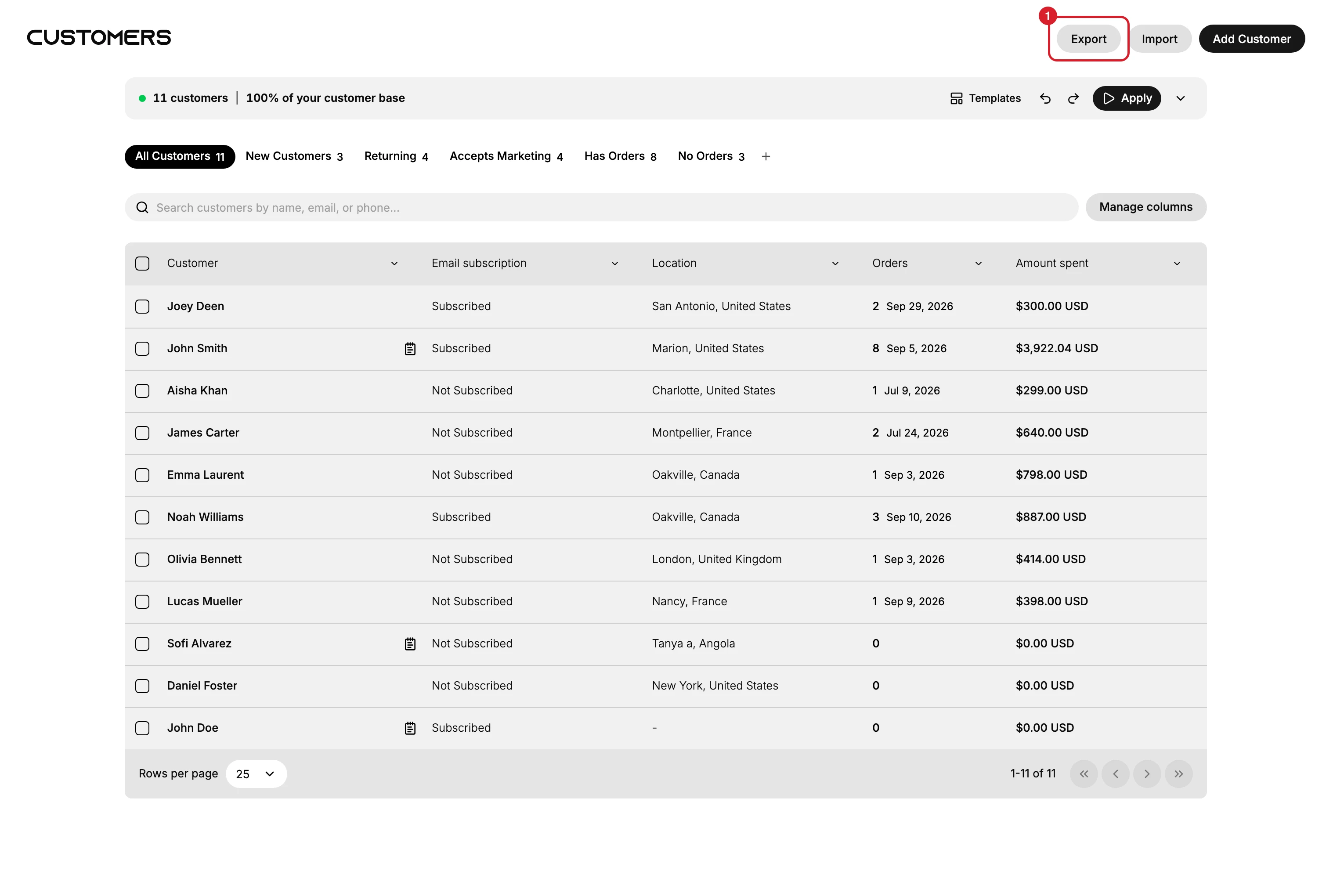
Export (1) acts on the list as it stands, which is why the search you ran before opening it matters. Nothing inside the dialog can filter for you.
The dialog
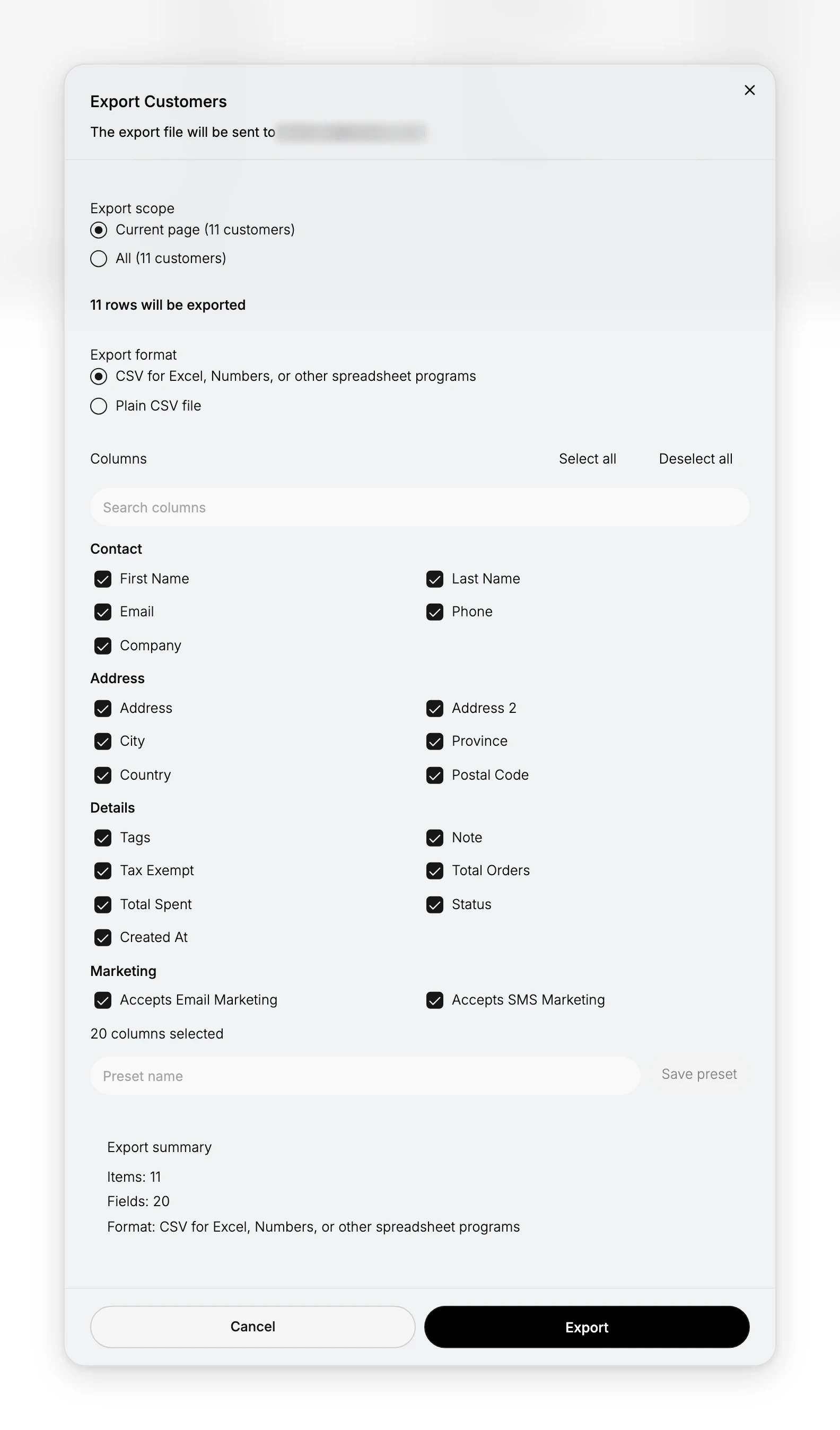
| Control | What it offers |
|---|---|
| Export scope | Current page or All, each with a count. A third option appears while a search is running |
| Export format | CSV for Excel, Numbers, or other spreadsheet programs, or Plain CSV file |
| Columns | Twenty boxes, every one ticked to begin with, with Select all, Deselect all and a search field |
| Preset name | A field and a Save preset button under the column list |
| Export summary | The running count of items, fields and format, directly above Cancel and Export |
Two lines keep count as you work. Under the scope, one reads 11 rows will be exported on the store pictured here, and at the foot the summary repeats that figure as Items, with Fields and Format beside it. Read the summary last, before you press Export: it is the only place all three choices are stated together.
Choosing who goes in the file
Current page is the default, and it means the rows on the page you are looking at rather than the whole store. On a store whose customers fit on one page the two options come to the same thing, and on a longer list they do not.
Run a search first and a third option appears, Customers matching your search:
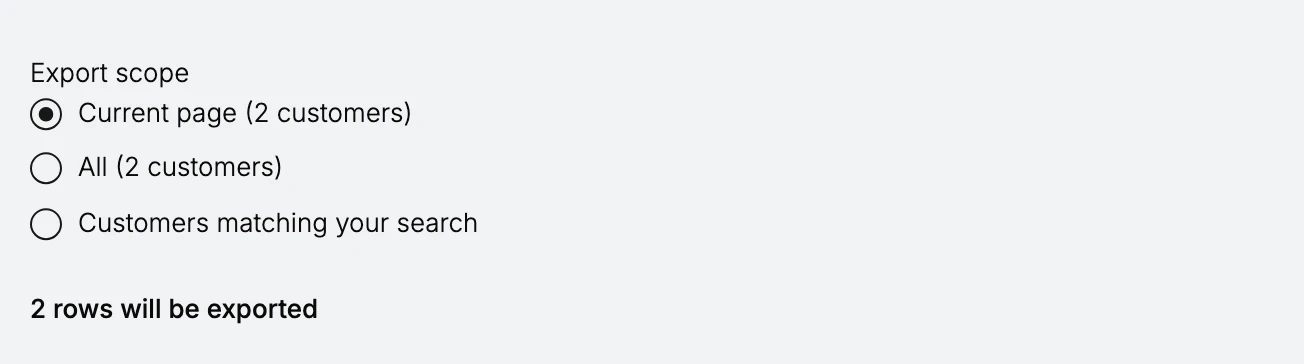
The counts beside the first two options follow what is on screen. With a search narrowing the list to two customers, All reads two as well, so the figures cannot tell you which scope is wider. Choose by the option you mean rather than by its number, and if you want the whole store, clear the search before you open the dialog.
Taking the third option also empties the count: the line under the scope and the Items figure in the summary both disappear, so the dialog stops saying how many rows it is about to send.
What the twenty columns are
The columns sit in four named groups, and the names are the dialog's own.
| Group | Columns |
|---|---|
| Contact | First Name, Last Name, Email, Phone, Company |
| Address | Address, Address 2, City, Province, Country, Postal Code |
| Details | Tags, Note, Tax Exempt, Total Orders, Total Spent, Status, Created At |
| Marketing | Accepts Email Marketing, Accepts SMS Marketing |
All twenty start ticked, so an export taken without changing anything carries names, email addresses, phone numbers and street addresses. Deselect all clears them in one action, and the search field above the groups finds a column by name. Ticking back only the columns the file is for takes a few seconds, and it is what separates a file you can send to a supplier from one you cannot.
Steps
1. Narrow the list, if you want part of it
Search the Customers list before you open the dialog. The scope cannot filter. It works on what the list has already been narrowed to, and the matching-search option is not offered at all until a search is running. Search the Customer List covers the narrowing itself.
Skip this and the dialog opens on Current page, which on a short list is everybody.
2. Open Export and read the address
Select Export at the top right. Read the line under the heading first: it names the mailbox the file is going to, and the dialog offers no second copy and no download.
On a shared or borrowed login that address may not be yours, and the file goes wherever the line says it goes.
3. Set the scope, the format and the columns
Choose the scope you mean, then a format, then cut the columns down with Deselect all and tick back what the file needs. Both formats are CSV: the first is described for spreadsheet programs, the second as a plain file.
Watch the Export summary as you go. It is the only place that states, at once, how many rows, how many columns and which format you are about to send.
4. Send it
Select Export. The dialog closes.
The dialog closing is not a confirmation. It closes the same way whether the export went through or not, and nothing on the Customers page changes. Give it a few minutes and check your mailbox rather than pressing Export again.
5. Check the run if the file does not turn up
The admin does keep a record of the job, on a page most people never find. Go to Exports and imports, on the Settings page.
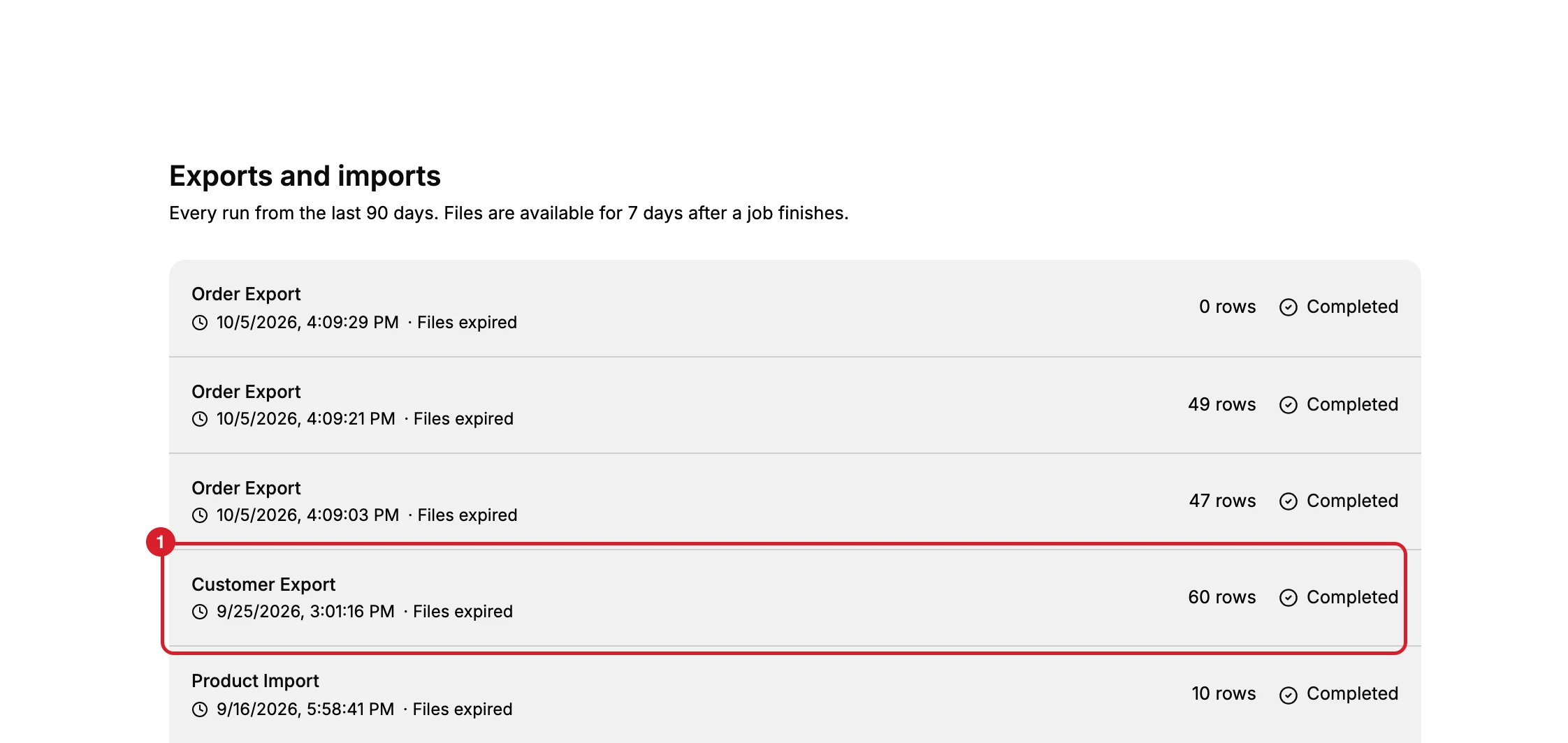
Every export and import of the last 90 days is listed here (1), newest first, each with the kind of job, when it ran, how many rows it covered and how it ended. The row count is the quickest check that the scope was the one you meant, and the status is where an export that did not finish shows itself.
The page also states its own limit: files are available for 7 days after a job finishes. After that the row stays, marked Files expired, and the file is gone. So the emailed copy is the one to keep, and an export taken for a record needs saving somewhere of your own within the week.
Once the file is in your hands, what happens to it is no longer governed by anything in the admin. Exporting Customer Data covers keeping it safe and when a segment would have served you better than a file.
If something goes wrong
- No file arrived, and nothing said why. Open Exports and imports on the Settings page and look for the run: the row shows how it ended and how many rows it covered. If no row appeared at all, confirm your role has Export customers before trying again.
- The wrong customers are in it. The scope was All or Current page when the search results were what you wanted, or the search had been cleared before the dialog opened.
- More columns than you meant to send. Everything is ticked when the dialog opens, so an export has to be cut down rather than built up.
- Export is not on the page at all. Your role cannot reach the feature.
Next steps
Related articles
Still stuck?
- Ask Tanqory AIAsk in your own words. It answers from these articles and links the ones it used.
- Ask in your adminThe assistant in your Tanqory admin answers and makes the change for you once you confirm.
- Contact TanqoryWrite to our privacy, security or legal teams, or talk to sales about a plan or a move.