Bulk Edit Customers
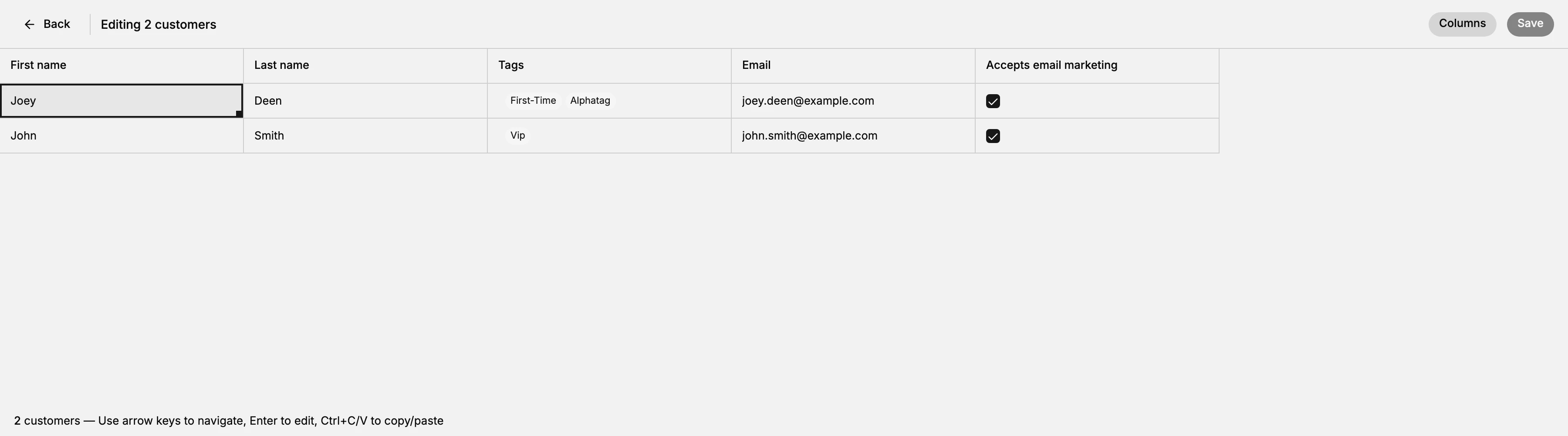
Bulk Edit opens the customers you ticked as a spreadsheet, one row each, so the same field can be changed across all of them without opening a single record. Five columns show by default and three more can be added, including the marketing consents. Nothing is stored until you select Save, and leaving by any other route discards the lot.
On this page
Correcting the same thing on twenty customers one record at a time is an afternoon. Bulk Edit turns those customers into rows of a spreadsheet and lets you work down a column instead, which is the difference between a job worth doing and one that gets put off.
It behaves like a spreadsheet rather than like a form. Arrow keys move between cells, Enter opens a cell for editing, and Ctrl+C and Ctrl+V copy a value from one row to another, which is stated along the bottom of the grid. That last one is the reason to come here for a repetitive change: type the value once and paste it down.
What the grid holds
One row per customer you selected, and one column per field. Five columns show without any setup.
| Column | What it changes |
|---|---|
| First name | The customer's first name |
| Last name | The customer's last name |
| Tags | The labels on the record, shown as chips, or No tags where there are none |
| The email address on the record | |
| Accepts email marketing | A tick box for their email marketing consent |
Columns at the top right adds three more: Phone, Accepts SMS marketing, and Accepts WhatsApp marketing. Add them when that is the change you came to make, and leave them off otherwise, since a narrower grid is a smaller target for a mistake. First name is the one column you cannot turn off; it stays as the way to tell the rows apart.
Note what is not here. Tax status, addresses, store credit and notes are not columns in this grid and cannot be changed from it, so those remain one customer at a time.
Before you begin
- You know which customers to change, and you have narrowed the list to them. The grid takes exactly the rows you ticked, so a wrong selection becomes a wrong change with one Save.
- You know the value you are setting. Nothing in the grid validates an email or a phone number, so a typo pasted down a column repeats itself on every row.
- Your role includes Edit customers. Editing the marketing columns also needs Manage customer subscriptions.
- Open Customers in the admin sidebar, tick the customers you want, and select Bulk Edit on the bar above the rows.
Steps
1. Select the customers first
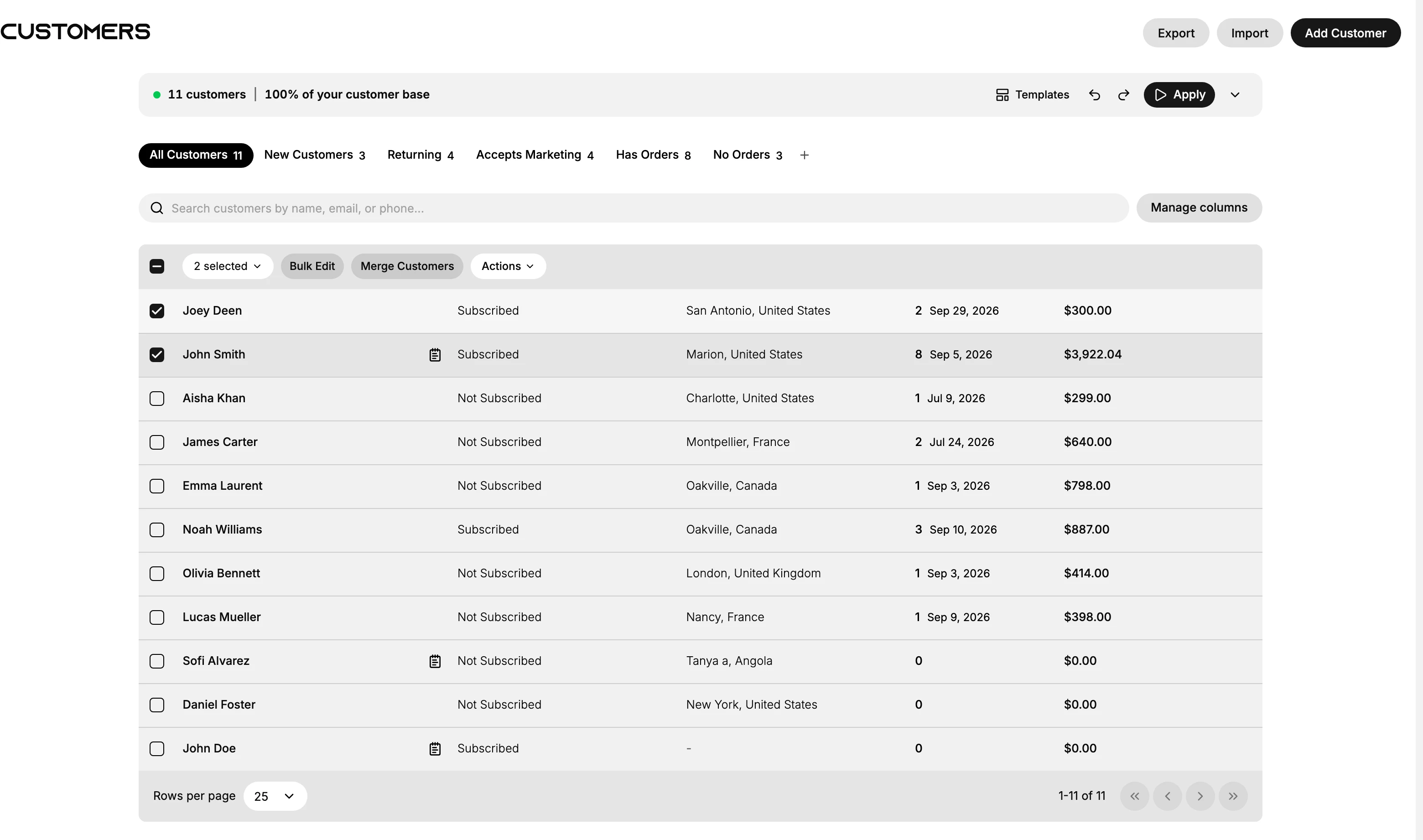
Tick the checkbox at the left of each customer's row on the Customers list. A bar appears above the rows the moment the first one is ticked, reading how many are selected and carrying Bulk Edit, Merge Customers and Actions. Select Bulk Edit on that bar.
Filtering or picking a saved view before you tick is worth the extra moment, because the grid has no way to add a customer once it is open and no way to tell you that you missed one. Select nothing and there is nothing to open: the bar itself does not exist until at least one row is ticked.
To take the whole list rather than a few rows, open the n selected control on the bar. Its menu holds Select all 11 customers, with the real number of customers in it, and Clear Selection to start again. Selecting everything is worth a pause: whatever you do next applies to every customer in the store.
2. Add the columns you need
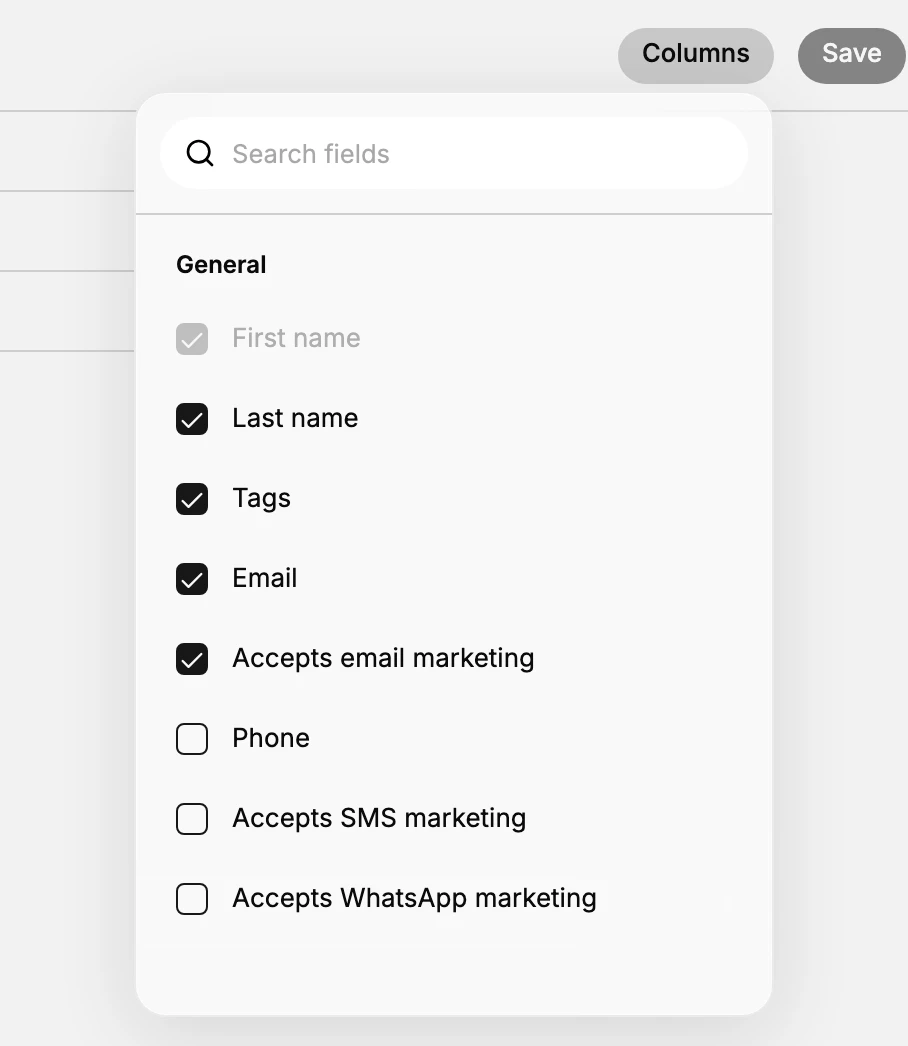
The grid opens with five columns. Select Columns at the top right to open the field list, which has a Search fields box and one group, General, holding all eight fields as checkboxes. Tick the one you need before you start typing.
First name is ticked and greyed out, so it cannot be removed. Every other column can be turned off, and turning off the ones you are not changing is worth doing. Each column left on is another cell your cursor can land in by accident, and the grid gives no warning before you overwrite something you did not mean to touch.
3. Edit the cells
The grid works like a spreadsheet, not like a form, and the hint along its foot spells out the three keys that matter: arrow keys to move, Enter to edit, Ctrl+C and Ctrl+V to copy and paste.
Selecting a cell puts a heavy border around it with a small square at the bottom right corner. That is selection, not editing. Press Enter and the cell becomes a text box you can type into, with the current value in it, or the placeholder where there is none. Escape leaves the cell without keeping what you typed.
Each kind of column behaves as you would expect once it is open. First name, Last name, Email, Phone and Tags are text you type. The marketing columns are tick boxes rather than text, so they take a tick rather than a typed value.

4. Repeat a value down a column
This is the step that makes the screen worth opening. Type the value into the first row, select that cell, press Ctrl+C, then move down with the arrow keys and press Ctrl+V on each row that needs it.
Setting the same tag on fifteen customers is one piece of typing and fourteen keystrokes, against fifteen records opened and closed. Work the grid with the mouse alone and it still beats opening each record, but you give up most of what makes it faster.
5. Save
Select Save at the top right to apply every change to every row at once.
Nothing is stored before that. Back, closing the tab, or navigating away all discard the grid, so a screen of careful edits is gone with no prompt and no draft kept. That is worth knowing in both directions: it means a mistake costs nothing if you catch it before saving, and it means a long session of edits is fragile until you do.
With the grid saved, the change is on every customer you selected and the list behind you reflects it. From here the work goes back to being one customer at a time, on their own records.
What else the selection bar offers
Bulk Edit is one of three things you can do with a set of ticked customers.
| Control | What it does |
|---|---|
| Bulk Edit | Opens this grid for changing field values |
| Merge Customers | Combines two records into one, and takes exactly two |
| Actions | A menu holding Add Tags, Remove Tags, and Delete customers |
Actions is the quicker route when tags are all you are changing, since it works on the whole selection without opening the grid. Each of its three entries opens a dialog that names the number of customers it is about.
| Entry | What its dialog holds |
|---|---|
| Add Tags | Headed Add tags to 2 customers, listing every tag the store has, with Cancel and Add tags |
| Remove Tags | Headed Remove tags from 2 customers, listing only the tags those customers actually carry, with Cancel and Remove tags |
| Delete customers | Headed Delete 2 customers?, with the warning that it cannot be undone and a list of who will survive it, with Cancel and Delete 2 customers |
The difference between the two tag dialogs is worth knowing. Add Tags offers the store's whole tag list, so you can put a tag on people who have never had it. Remove Tags offers only the tags present on the customers you ticked, which is why a tag you expected can be missing from it: nobody in the selection has it.
Delete customers does not delete everybody you ticked. The dialog says so before you confirm, listing what protects a record: Order history, Pending redaction because of a customer data erasure request, and Active subscription. A customer who has ever ordered is kept rather than removed, so a selection of twenty can end with only the handful who never bought anything gone. Delete a Customer covers removing one record from their own page.
Merge Customers takes two records and no more. Select three and it opens a box headed Merge customers reading Only 2 customers can be merged at a time. Deselect 1 customer and try again., with Close as the only way out. The count in the message follows your selection, so it tells you how many to untick. Merge Duplicate Customer Records covers the merge itself.
If something goes wrong
- Your changes are gone. The grid was left without saving. There is no draft, so they have to be made again.
- The column you need is missing. Add it from Columns, using the Search fields box if the list is quicker to search than to read, or accept that it is not one of the eight and change it on the record instead.
- Bulk Edit is not on the bar. No customer is ticked yet. The bar appears once at least one row is selected.
- Save does nothing you can see. Go back to the list and open one of the customers to confirm, since the grid does not report per-row results.
- Merge Customers will not go ahead. You have more than two customers ticked. The box says how many to deselect.
- A tag is missing from Remove Tags. That dialog lists only tags the selected customers carry. Nobody in the selection has it.
- Fewer customers were deleted than you ticked. Order history, a pending erasure request or an active subscription each keep a record. The dialog lists all three before you confirm.
- You cannot open the grid. Your role may not include Edit customers. Ask an owner or admin.
Next steps
Related articles
Still stuck?
- Ask Tanqory AIAsk in your own words. It answers from these articles and links the ones it used.
- Ask in your adminThe assistant in your Tanqory admin answers and makes the change for you once you confirm.
- Contact TanqoryWrite to our privacy, security or legal teams, or talk to sales about a plan or a move.