Adding a Customer
Creating a customer record by hand, from the Add Customer button to the saved record. Three fields are required and everything else can wait, the three marketing consents start unticked and are a record of what the customer agreed to rather than a way to opt them in, and the Save bar is on the form from the moment it opens.
On this page
A customer record does not have to start with the customer. Creating one by hand is for the cases that begin somewhere else: a sale agreed over the phone, a wholesale buyer you are setting up, a record you need before the first order exists.
The record you make here is the same record those other routes produce, which is why it is worth getting the email right: it is what their future orders attach to. Ways to Add a Customer sets out the other routes, and Customer Creation Form is the field-by-field reference for the form itself.
Before you begin
- Your role includes Create customers.
- You have the customer's first name, last name and email, which are the three fields the form marks as required.
- You have searched the list for them, so you do not start a second record for someone already there.
Steps
1. Open the form
Go to Customers, then Add Customer at the top right. The form opens on its own page, and nothing is created by opening it.
2. Fill in the three required fields
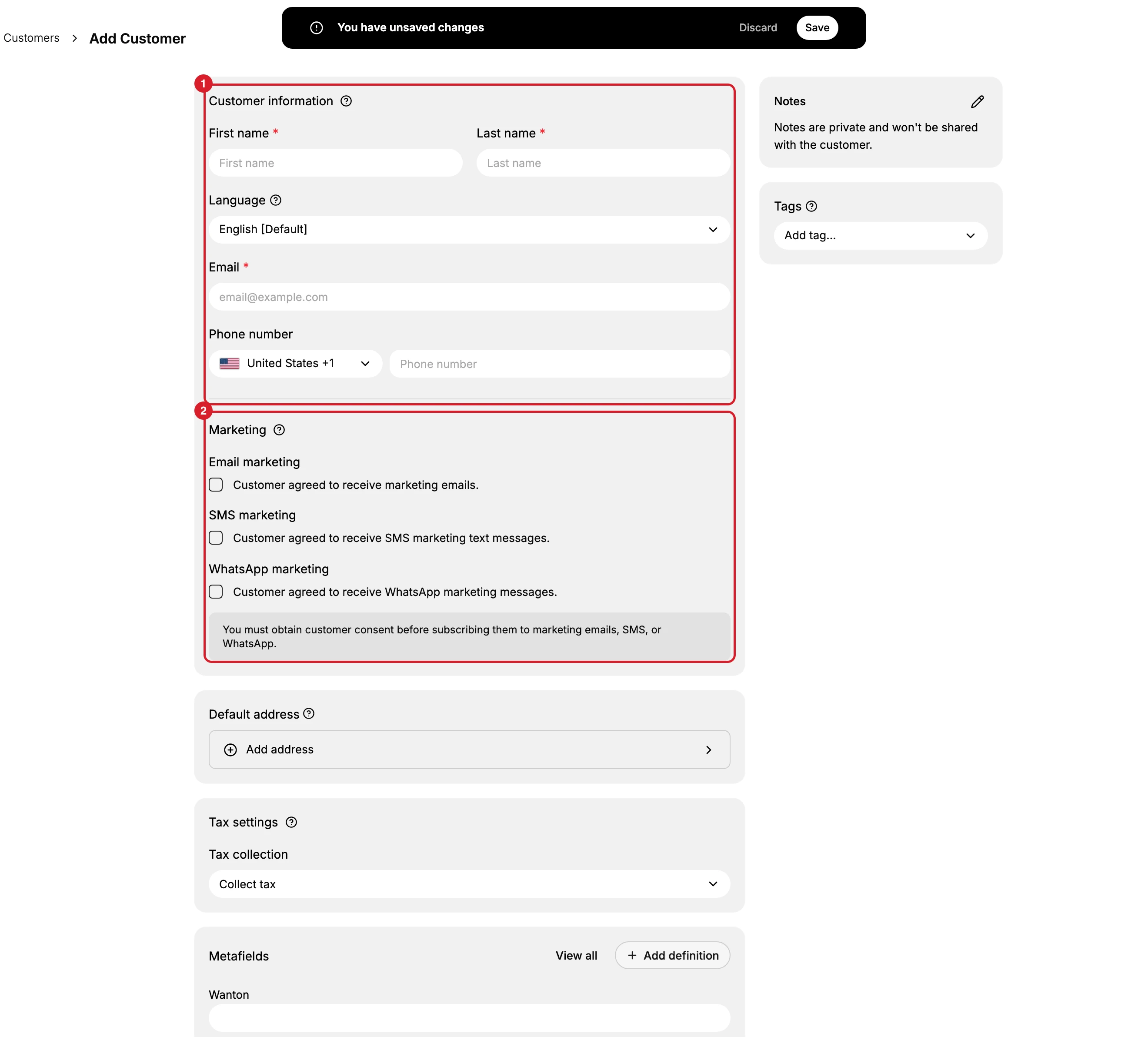
First name, Last name and Email in the Customer information section (1) carry a red asterisk. The email is the one to be careful with, since it is how the customer signs in and where their order emails go.
Two more fields sit beside them. Both are optional, and both are worth a moment. Language is a dropdown listing the languages your store has, and it sets which one the customer's notifications are written in. Phone number has a country selector: pick the country first, so the number is stored with its dialling code and is usable for SMS later.
3. Record marketing consent, if there is any
The Marketing section (2) holds three boxes, not one: Email marketing, SMS marketing and WhatsApp marketing. All three start unticked, and the form prints its own warning underneath them, that you must obtain customer consent before subscribing anyone.
Tick a box only for a channel the customer actually agreed to. This section is the store's record of that agreement, not a way to sign someone up, and each channel is a separate agreement.
4. Add the optional details while you are here
Four of the remaining sections open a dialog or a dropdown rather than taking a value where they stand.
Default address. Take Add address and a dialog opens, headed Add address over the line Enter the customer's address details. It asks for Country/Region first, then First name and Last name, an optional Company, the street Address and an optional Apartment, suite, etc., City, Postal code, and a Phone with its own country selector. The dialog says underneath that the number is used for delivery coordination and order-related communications. Save address puts it on the form; Cancel leaves the form as it was.
Tax settings. Tax collection is a dropdown with three choices: Collect tax, Don't collect tax and Tax exempt (pending). It opens on Collect tax, so leaving it alone is the same as collecting tax from this customer.
Notes. The card carries an Edit notes control rather than a box to type in. It opens the same Add note dialog the saved record uses, counting to 5000 characters, with Cancel and Save.
Tags. Add tag opens the store's tag selector: a Search or create tags field over the tags the store already has, and View all tags at the foot. Typing a name that does not exist yet creates it, so reach for an existing tag before inventing one.
Metafields shows any extra fields your store has defined, and stays empty until somebody defines one.
None of this is required, and all of it can be added afterwards from the customer's own page. Filling it in now saves the second visit.
5. Save
The bar across the top of the form carries Discard and Save, and it is there from the moment the form opens rather than appearing when you type. Save is the control that creates the record. Discard clears the form and leaves you on it, which is the way out if you opened the form by mistake.
From there the record behaves like any other customer: it can take orders, store credit, tags and notes, and it can be found by a search or gathered by a segment.
If something goes wrong
- Nothing happens when you save. Check the three asterisked fields, which are the ones the form marks as required.
- The email is rejected. Check it is a complete address, and search the list in case another record already holds it.
- There is no Add Customer button. Your role may lack Create customers.
- You meant to add several people. One at a time is the wrong tool for that. Ways to Add a Customer covers the import route.
Next steps
Related articles
Still stuck?
- Ask Tanqory AIAsk in your own words. It answers from these articles and links the ones it used.
- Ask in your adminThe assistant in your Tanqory admin answers and makes the change for you once you confirm.
- Contact TanqoryWrite to our privacy, security or legal teams, or talk to sales about a plan or a move.