Ways to Add a Customer
There is more than one way a customer record appears. You can create one by hand with Add Customer, bring a batch in from a CSV file with Import, or let shoppers create their own accounts on your storefront. This says which route fits which situation, and how to tell afterwards which way a record arrived.
On this page
A customer record can start in more than one place, and picking the wrong route is the usual reason a store ends up with the same person twice.
| Route | Use it for |
|---|---|
| Add Customer on the Customers list | One person you are entering yourself |
| Import on the same row of controls | A batch, from a CSV file |
| Shoppers creating their own accounts | Anyone who signs up on your storefront, which needs no work from you |
Before you begin
- Your role includes Create customers for the first route, or Import customers for the second. The roles screen lists them separately.
- You have searched the list for the person already, since none of these routes warns you about a duplicate.
Add Customer, for one person
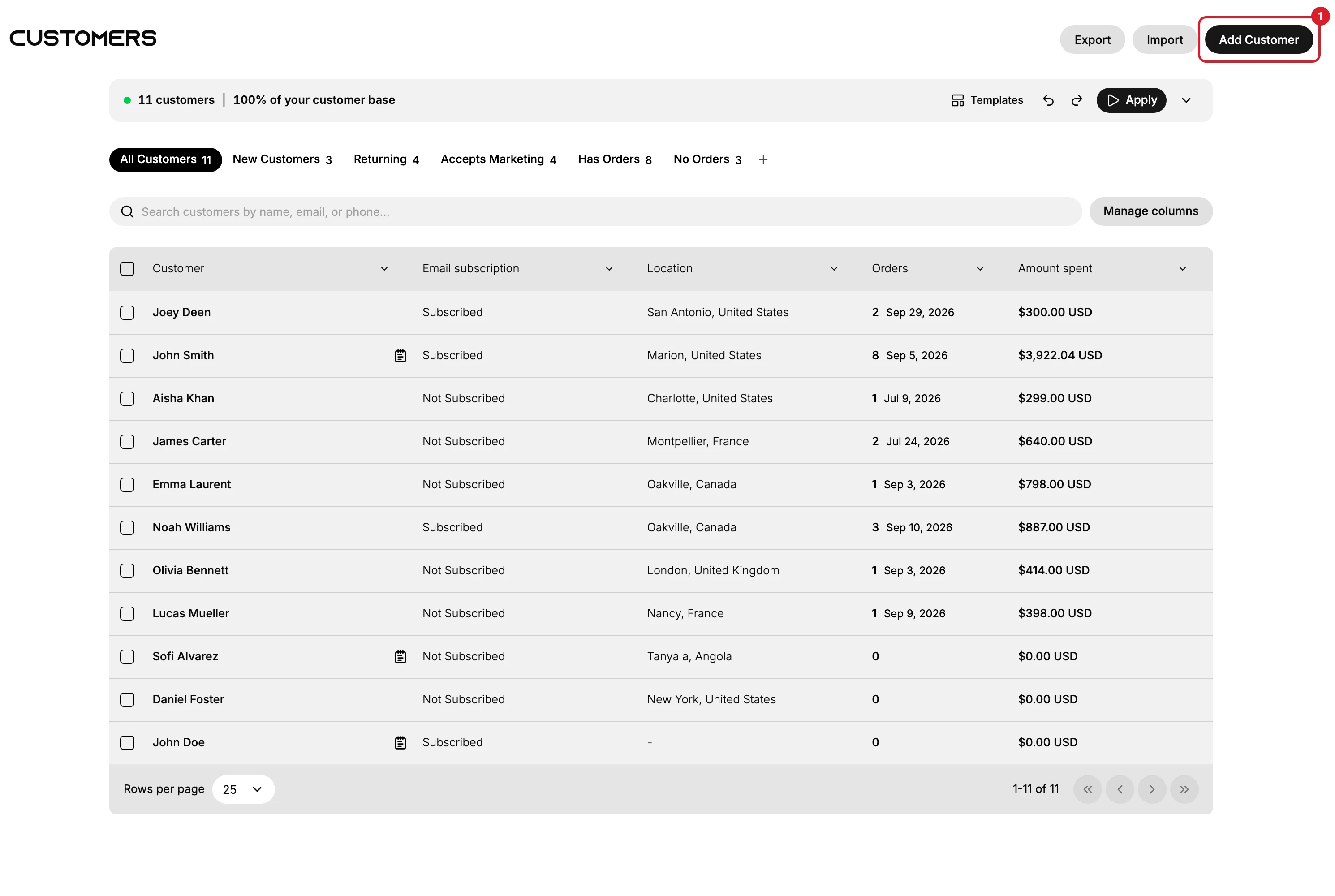
Add Customer (1) is the filled button at the end of the row, after Export and Import. It opens a blank form on its own page, and nothing is created until that form is saved. Adding a Customer walks the form, and Customer Creation Form is the field reference.
Opening the form is harmless. The record exists only after Save, so there is no half-made customer left behind if you change your mind.
Import, for a batch
Import sits beside it and takes a CSV file, the plain spreadsheet format every spreadsheet program can save. The dialog explains itself in a line, offers Add file, and keeps its confirming button out of reach until a file is chosen, reading Select a CSV file to continue until then.
Two things in that dialog are worth knowing before you start. It offers Download sample CSV, which is the quickest way to get the column headings right rather than guessing them, and its confirming button reads Upload and preview, so the file is shown back to you before anything is created.
Accounts shoppers make themselves
The third route needs nothing from you. Under Settings > Customer accounts, the Account type card describes the current option as allowing customers to create and sign in to new customer accounts, which is a record arriving in your list without anyone in the admin touching it. Customer Accounts covers that side.
Telling afterwards how a record arrived
The timeline on a customer's page is where this shows. A record somebody made in the admin carries the entry You created this customer. at the very bottom of its history, under the date it was made. A record that arrived another way has no such line, and its history begins with whatever the customer did.
That one entry is also the quickest way to audit a list you have inherited, since it separates the records your team typed from the ones the store collected.
If something goes wrong
- There is no Add Customer button. Your role may lack Create customers.
- Import is refused or missing. Importing is its own permission, Import customers, which a role can be without while still being able to add one customer at a time.
- You created someone who already existed. Nothing in these routes checks. Merge Duplicate Customer Records covers putting the two back together, which is a longer job than searching the list first.
Next steps
Related articles
Still stuck?
- Ask Tanqory AIAsk in your own words. It answers from these articles and links the ones it used.
- Ask in your adminThe assistant in your Tanqory admin answers and makes the change for you once you confirm.
- Contact TanqoryWrite to our privacy, security or legal teams, or talk to sales about a plan or a move.