Merge Duplicate Customer Records
A duplicate is one person holding two customer records, so their orders and spend are split between them. Tanqory has no duplicate finder, so you spot the pair yourself in the Customers list and merge one into the other. The record you merge in is emptied but stays on the list, so expect two rows afterwards, not one.
On this page
A duplicate is one person holding two customer records. Because each record counts only its own orders, the person's real order count and total spend are split between the two, which makes one regular customer look like two occasional ones. Segments, the Accepts Marketing tab and the order and spend totals on the Customers list all read from the individual records, so a duplicate quietly distorts each of them.
Fixing it means merging the duplicate into the record you want to keep, which moves its history onto that record. Merge Customers walks through the flow step by step and sets out exactly what moves. This page covers the part that comes first, which is noticing the duplicate and deciding which of the two records to keep.
Worth knowing before you start: merging does not remove the duplicate from your list. The record you merge in stays where it is, emptied and marked with a note saying where its data went.
Why duplicates happen
- The person checked out as a guest once and created an account another time, so the guest order sits on its own record.
- They used two different email addresses across orders, and Tanqory treats each address as its own customer.
- An email or phone number was mistyped at one checkout, creating a near-match of a customer who already existed.
- The same person was added by hand while a record for them already existed, usually from a phone order or an import.
How to spot them
The Customers list has no duplicate view, filter, or automatic detection, so duplicates are found by looking. Search a name, email, or phone number and watch for two rows that clearly belong to the same person: the same surname with two email addresses, the same city with a slightly different spelling, or one row with orders and a near-identical row with none. Search the Customer List covers the search field and the filters that narrow the list first.
The No Orders tab at the top of the list is a useful place to start, since an accidental second record usually has no orders of its own.
Decide which record to keep
Before you merge, settle which of the two records survives, because that choice is fixed once the merge page opens. Keep the record that holds the email the customer signs in with, since the merged customer always uses that record's email and changing it would lock them out of their account. Where neither record has an account, keep the one with the order history, so the orders stay attached to the customer ID your reports already use.
Before you begin
- You have the Edit customers permission, since a merge rewrites one customer record and combines another into it.
- You are sure the two records are the same person, because the confirmation Tanqory shows before it runs states that a merge cannot be undone.
- Neither record has an open order, an open draft order or a gift card with a balance. Any of the three stops the merge, and Tanqory says so instead of opening the page.
- Go to Customers and find the two records for the same person.
Merge the pair
Tick the record you want to keep first, then tick the duplicate, and select Merge Customers (1) on the bar that appears above the rows. Ticking in that order matters: the first record you tick becomes the primary, and the merge page will not let you swap them afterwards. Only two records can be merged at once, so a person with three records takes two merges.
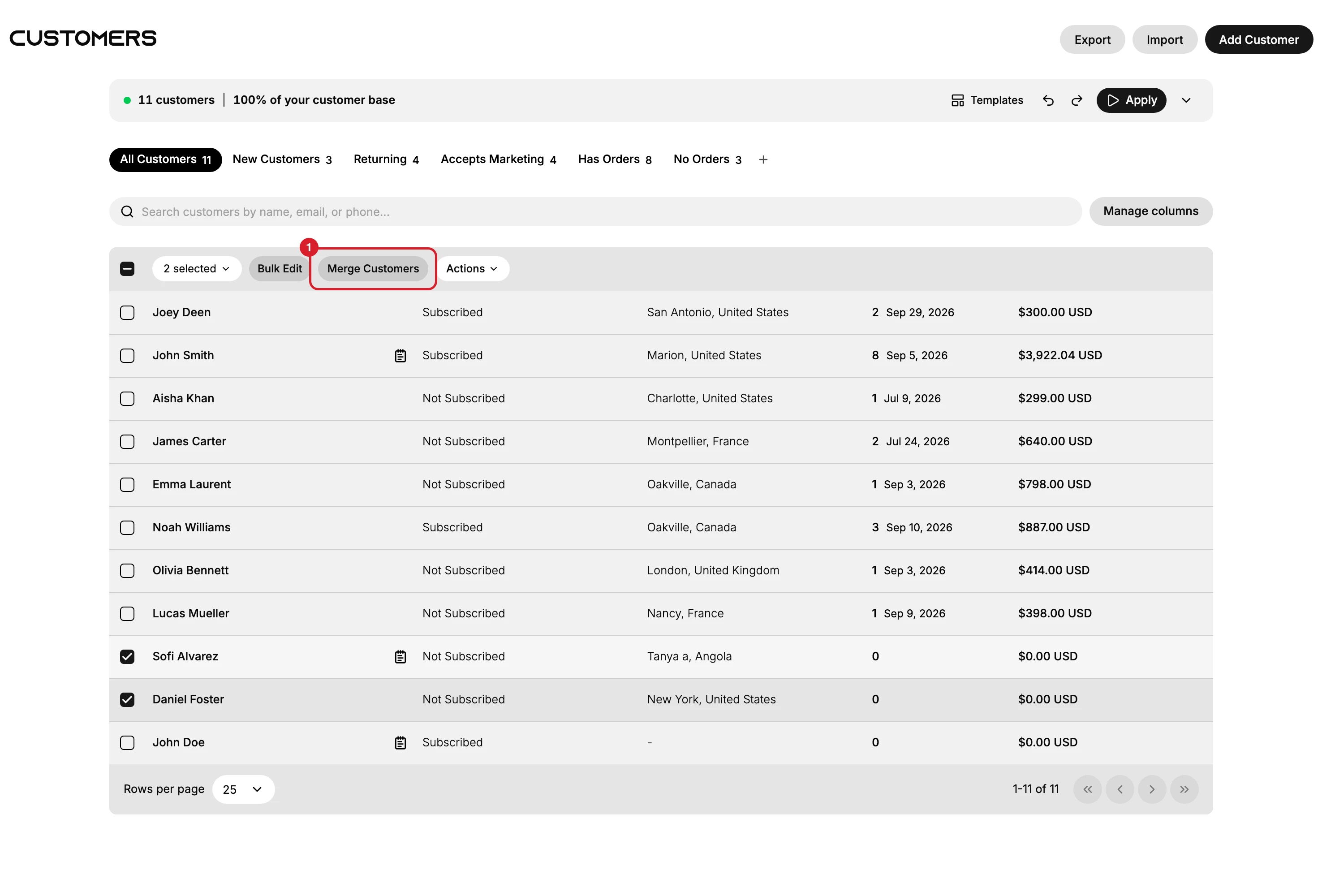
If either record is not ready, no page opens. A message appears instead, naming what is in the way record by record: a gift card with a balance left on it, an order that is still open, or an open draft order. Clear those first, then tick the rows again.
From there, Merge Customers covers the rest: reading the combined orders and addresses in View merge details, choosing which name, phone, note and default address the merged record keeps in Edit contact information, and confirming.
Deleting the duplicate is not the same thing
The same bar carries an Actions menu, and Delete customers sits inside it, one control away from Merge Customers. For a duplicate it is the wrong tool. Deleting removes the record instead of combining it, so the orders, addresses, notes, and tags that were on it are not carried across to the record you keep, and the order history you were trying to reunite is the very thing you lose.
Delete a customer when they should not be in your store at all. Merge them when the two records are one person. Delete a Customer covers the delete side.
How to tell it worked
Look for that person again and expect both records, not one. Merging moves the duplicate's data onto the record you kept, but it does not delete the duplicate, so your customer count does not go down.
Tell the two apart by opening them. The record you kept has the address and the combined timeline, plus a "You merged customer records" entry at the time you confirmed. The record you merged in has no address, an empty timeline, and a line in its Notes card naming the email it was merged into. Merge Customers shows that note and covers the rest of what moves and what does not.
So a merge fixes the history without shortening the list. The person's addresses and timeline stop being split, and support and fulfilment read one record from then on, but the leftover row stays where it is, emptied. If your list collects a few of them, that is how the feature works rather than a merge that failed.
Two things are worth checking by hand on the record you kept, because they do not move across: its Store credit balance and its Marketing consent. A record merged a month before this article was checked still carried its own store credit, which Merge Customers shows.
If something goes wrong
- You cannot tell which of the two is the duplicate. Open both. The one with no orders, no address and a sparse timeline is almost always the accidental record, and the other is the one to keep.
- Searching the name returns only one row. The second record may hold a different spelling or a second email address. Search the email address or the phone number instead, which the customer list also matches.
- They turn out to be two different people with the same name. Check the city and the order count on the two rows before you go any further. A merge cannot be undone, so this is the check worth being slow about.
- No merge page opens. One of the records has an open order, an open draft order or a gift card with a balance, and the message that appears names which.
Next steps
Related articles
Still stuck?
- Ask Tanqory AIAsk in your own words. It answers from these articles and links the ones it used.
- Ask in your adminThe assistant in your Tanqory admin answers and makes the change for you once you confirm.
- Contact TanqoryWrite to our privacy, security or legal teams, or talk to sales about a plan or a move.