Merge Customers
When the same person has two customer records, merging moves one onto the other. The record you start from is the primary and keeps its customer ID and its email, so open the merge page from the record you want to keep. Tanqory refuses the merge outright if either record has an open order, an open draft order or a gift card with a balance, and the record you merge in is emptied rather than deleted.
On this page
When the same person ends up with two customer records, their orders, addresses and history are split across both, so neither record shows what they have actually spent with you. Merging brings that history onto one of the two.
Every merge has a primary record and a secondary one. The primary is the record the merged customer is built on: it keeps its customer ID and its email, and the secondary's data is moved onto it. Which record becomes the primary is decided the moment you open the merge page, and nothing on that page swaps them, so the first decision is which record you want to keep.
Two things are worth knowing before you start, because neither is what the word merge suggests. Tanqory refuses the merge outright if either record has an order still open, a draft order, or a gift card with money left on it. When a merge does go through, the record you merge in is not deleted: it stays in your Customers list with a note saying where it went.
Before you begin
- Your role includes Edit customers, since a merge rewrites one customer record and folds another into it.
- You have decided which record to keep, because that is the one to start from.
- Neither record has an open order, an open draft order or a gift card with a balance left on it. Any of the three stops the merge before it begins.
What stops a merge
Select Merge Customers and Tanqory checks both records first. If either one is not ready, no merge page opens. A message appears instead, naming what is in the way, record by record.
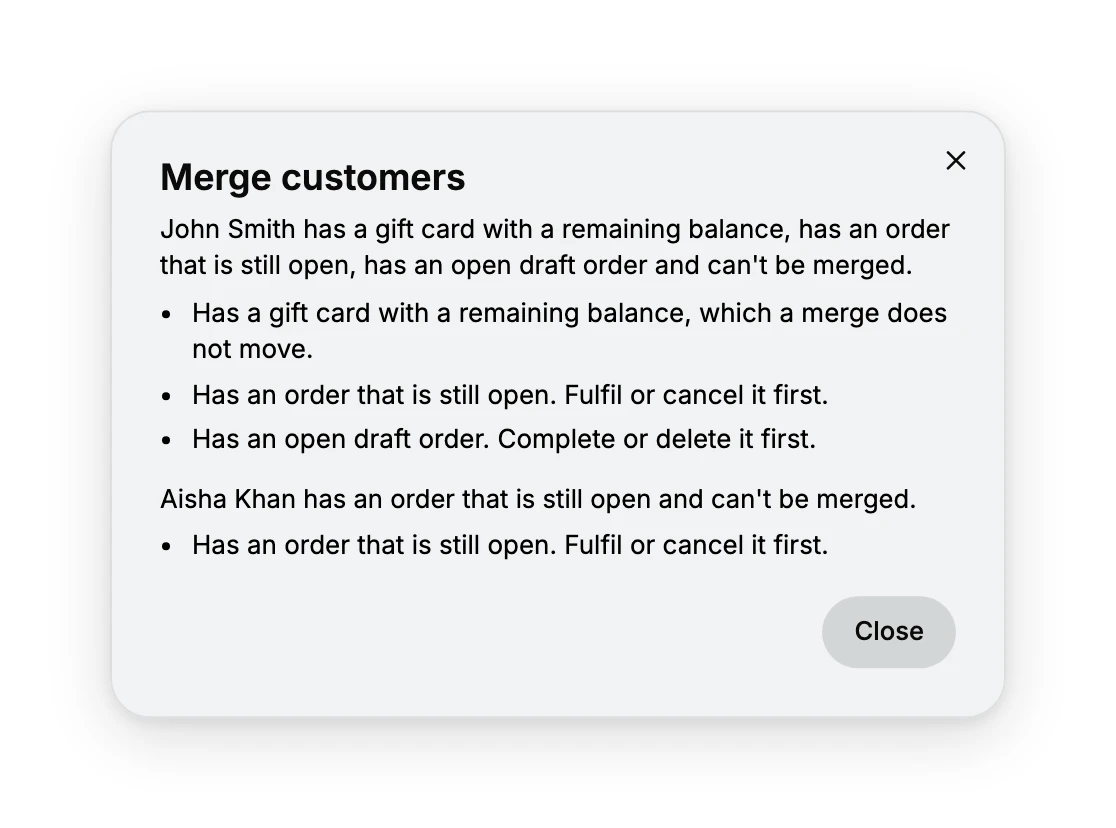
| What it finds | What it says to do | Why it blocks |
|---|---|---|
| A gift card with a balance | The message offers no way round it | A merge does not move the balance, so it would be left behind |
| An order that is still open | Fulfil or cancel it first | The order is still being worked on against that customer |
| An open draft order | Complete or delete it first | The draft is attached to the record that is about to stop being used |
The message is a list rather than a single reason, so one record can hold up a merge for three different things at once. Clear what it names, then start again. Nothing has been changed at this point: the two records are exactly as they were.
Three ways to open the merge page
All three land on the same Merge customers page. The difference is how much is filled in when you arrive.
| Where you start | What happens |
|---|---|
| Customers list, tick two rows, then Merge Customers | Both records are filled in, and the customer you ticked first becomes the primary |
| Customers list, tick one row, then Merge Customers | That customer becomes the primary and you search for the second record on the page |
| A customer's page, More actions then Merge Customer | That customer becomes the primary and you search for the second record on the page |
Ticking three or more rows and selecting Merge Customers returns a message reading "Only 2 customers can be merged at a time. Deselect 1 customer and try again." A person with three records therefore takes two merges.
Steps
1. Open the merge page from the record you are keeping
From the Customers list, tick the record you want to keep first and then the duplicate, then select Merge Customers on the bar above the rows. The order matters: the first row you tick becomes the primary.
If you are already on the record you want to keep, the second route starts there instead.
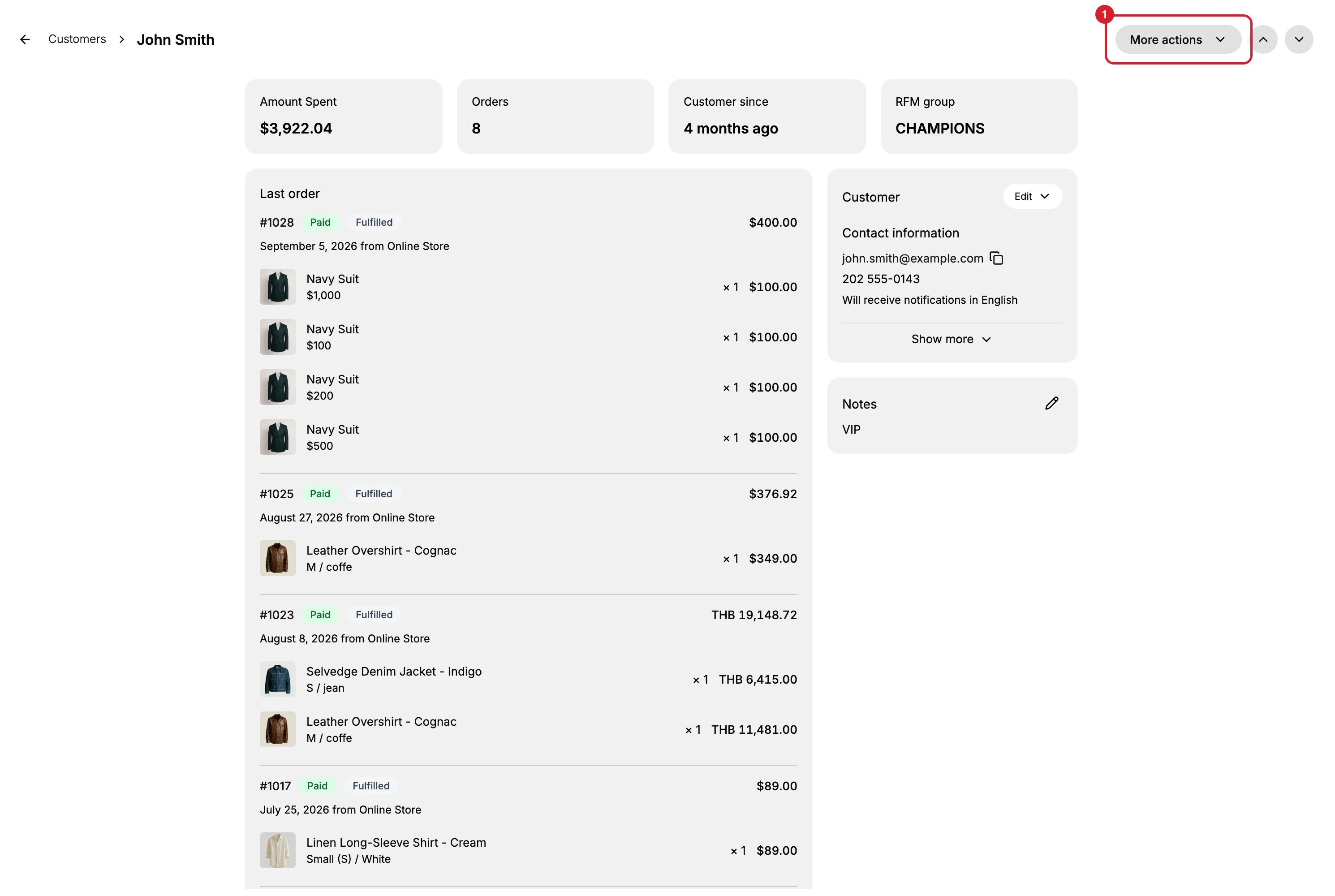
More actions (1) sits at the top right of the record, opposite the breadcrumb, and holds Merge Customer alongside Issue store credit and the privacy entries. The merge page then opens with that customer as the primary and the second record still to be chosen.
2. Choose the customer to merge in
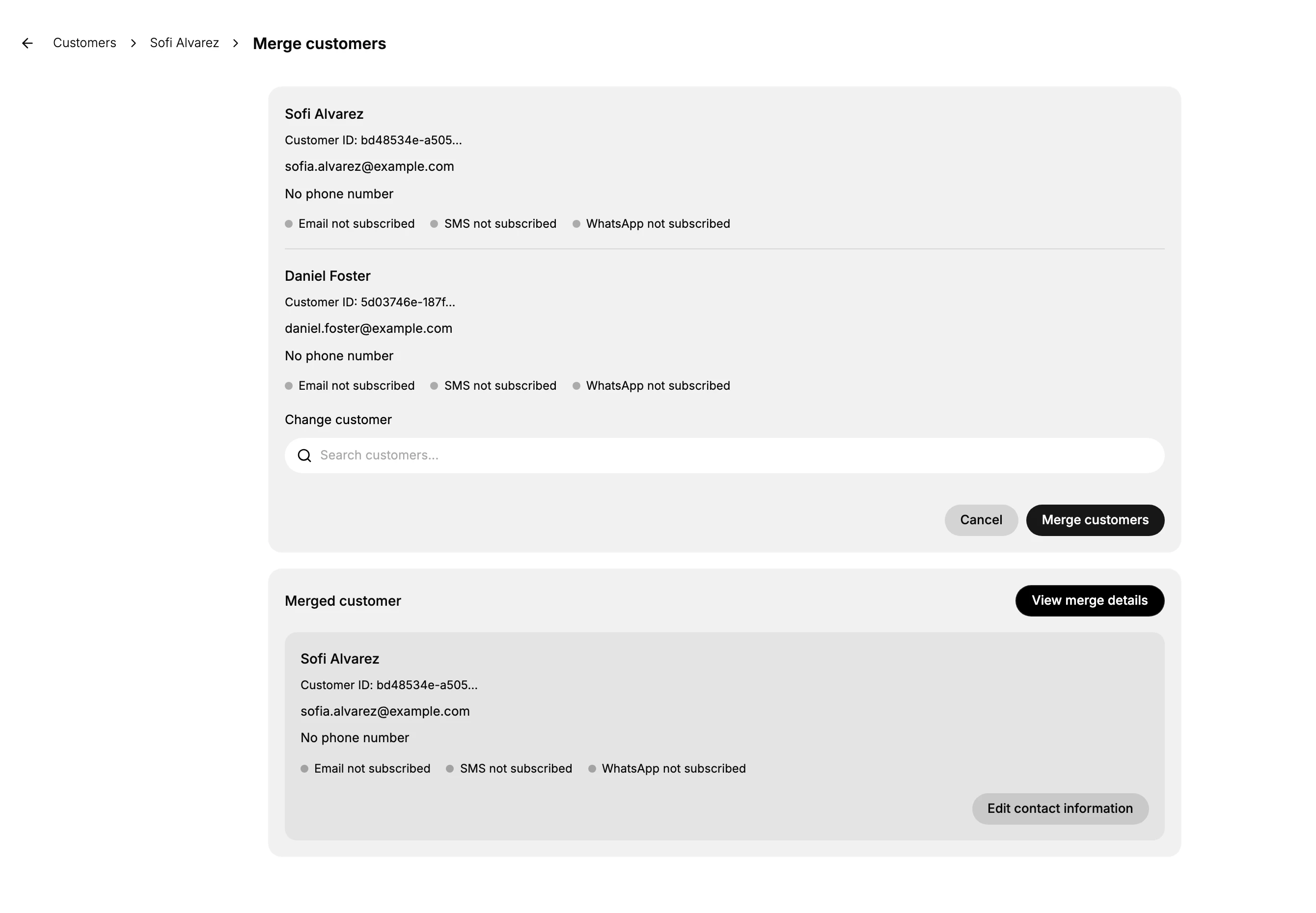
The primary's card sits at the top, carrying the customer ID, the email, the phone number and a line each for the Email, SMS and WhatsApp subscriptions. If you arrived with only one record chosen, type into Search customers and pick the second from the results. The field matches a name, an email address or a phone number, but not a town, and each result carries the customer's email, phone, location and order count, which is usually enough to tell two similar names apart.
Once a second customer is chosen, their card appears under the primary's, Change customer appears so you can replace them, and Merge customers becomes available. Until then it stays greyed out, because a merge needs two records.
3. Check what will be combined
Take View merge details in the Merged customer panel. This is the last chance to catch a wrong pair, while both records are still untouched.
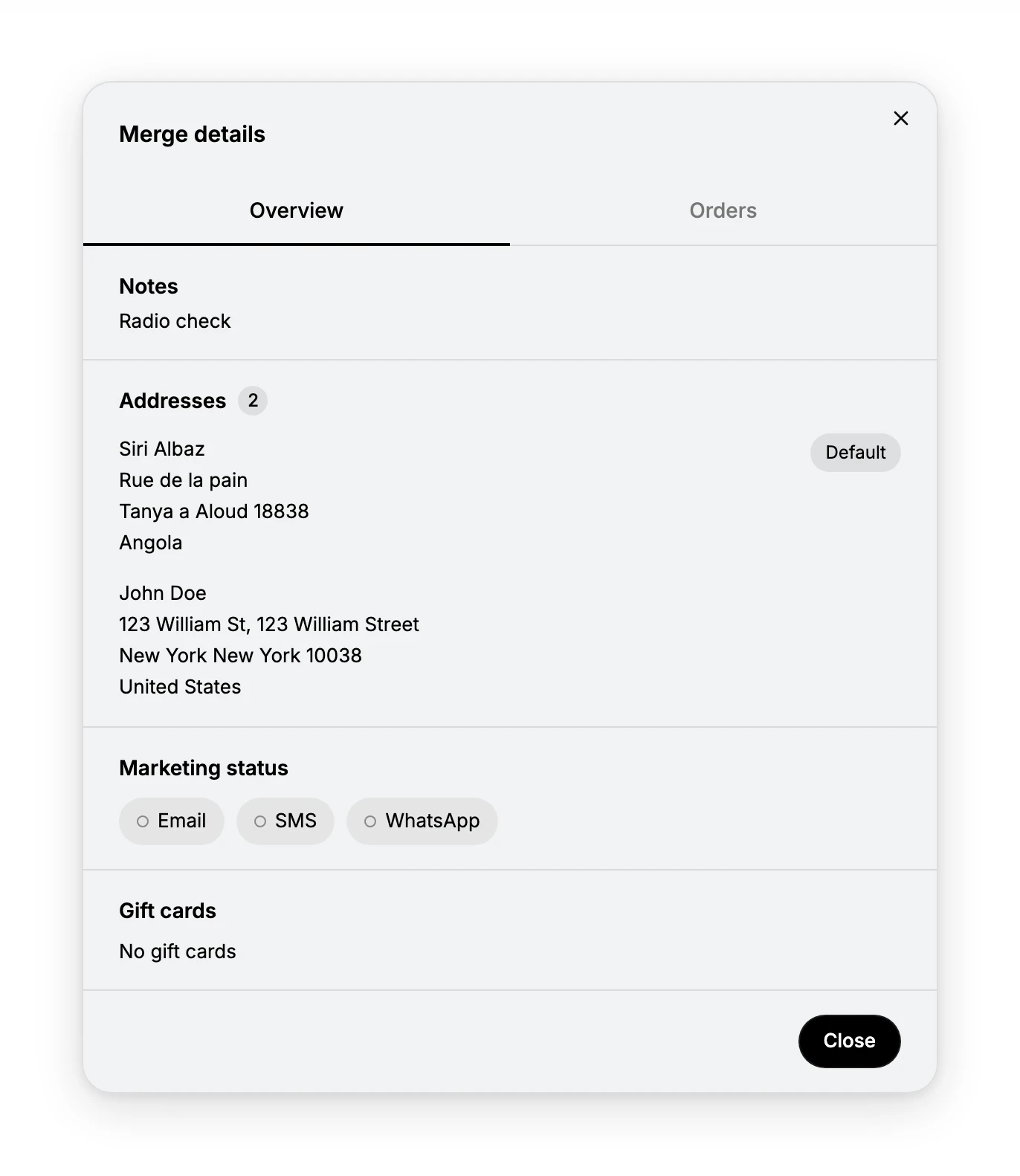
| Tab | What it shows |
|---|---|
| Overview | The notes, every address from both records with a count and the Default badge each one already carries, the marketing status for email, SMS and WhatsApp, any gift cards, and the tags |
| Orders | The orders from both records in one list, each with its date, order number, status and total |
The window shows what is there rather than a fixed set of headings: a pair with no tags between them has no tags section. The preview also combines rather than replaces, so a record tagged vip previewed against one tagged first-time shows both.
4. Choose the contact details the merged record keeps
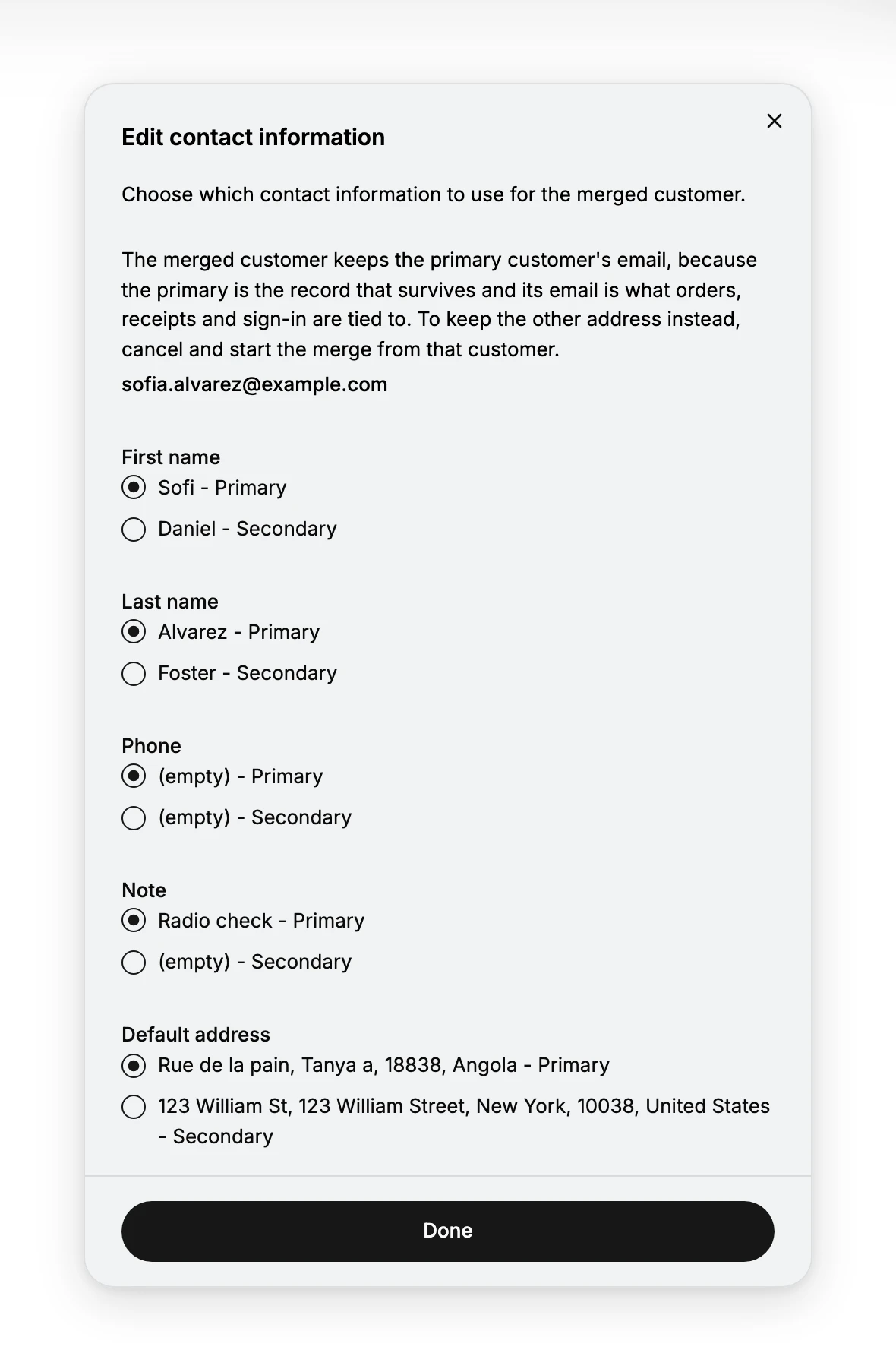
Edit contact information offers five choices, each as a pair labelled Primary or Secondary: First name, Last name, Phone, Note and Default address. Taking the secondary's value is how you keep the newer phone number, the correctly spelled name or the address the person actually uses, while still keeping the primary's record.
The email is not among them, and the window says why: the merged customer keeps the primary's email, because the primary is the record that survives and its email is what orders, receipts and sign-in are tied to. If the other address is the one to keep, cancel and start the merge from that customer instead. Done returns you to the merge page with your choices shown in the Merged customer preview.
5. Merge the records
Read the Merged customer panel one last time. It is not a summary of the two records. It is the record you will be left with: the primary's customer ID and email, and the name, phone, note and address you chose.
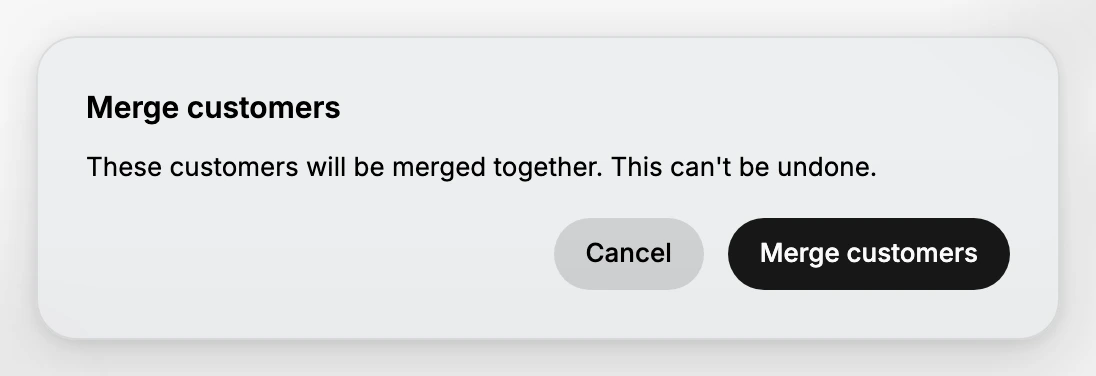
Select Merge customers. A confirmation appears reading "These customers will be merged together. This can't be undone." Taking Merge customers in that confirmation is the point of no return, and Cancel at either stage leaves both records as they were.
What actually happens when you confirm
A merge moves data onto the primary, and it does not delete the record you merged in.
On the record you kept, the secondary's address arrives as the default address, still labelled with the secondary customer's name, and the secondary's timeline entries are folded into the primary's. A new entry, "You merged customer records", is added with the time of the merge. The primary's own email is unchanged.
On the record you merged in, the address is removed, the timeline is emptied, and a line is written into its Notes card (1) recording which email it was merged into, when, and what its own email was. The picture below is one of those records a month after the merge, with the whole page in view. What is left is a stub: a record that exists only to say where its data went. No orders, nothing spent, an empty timeline, and the note.
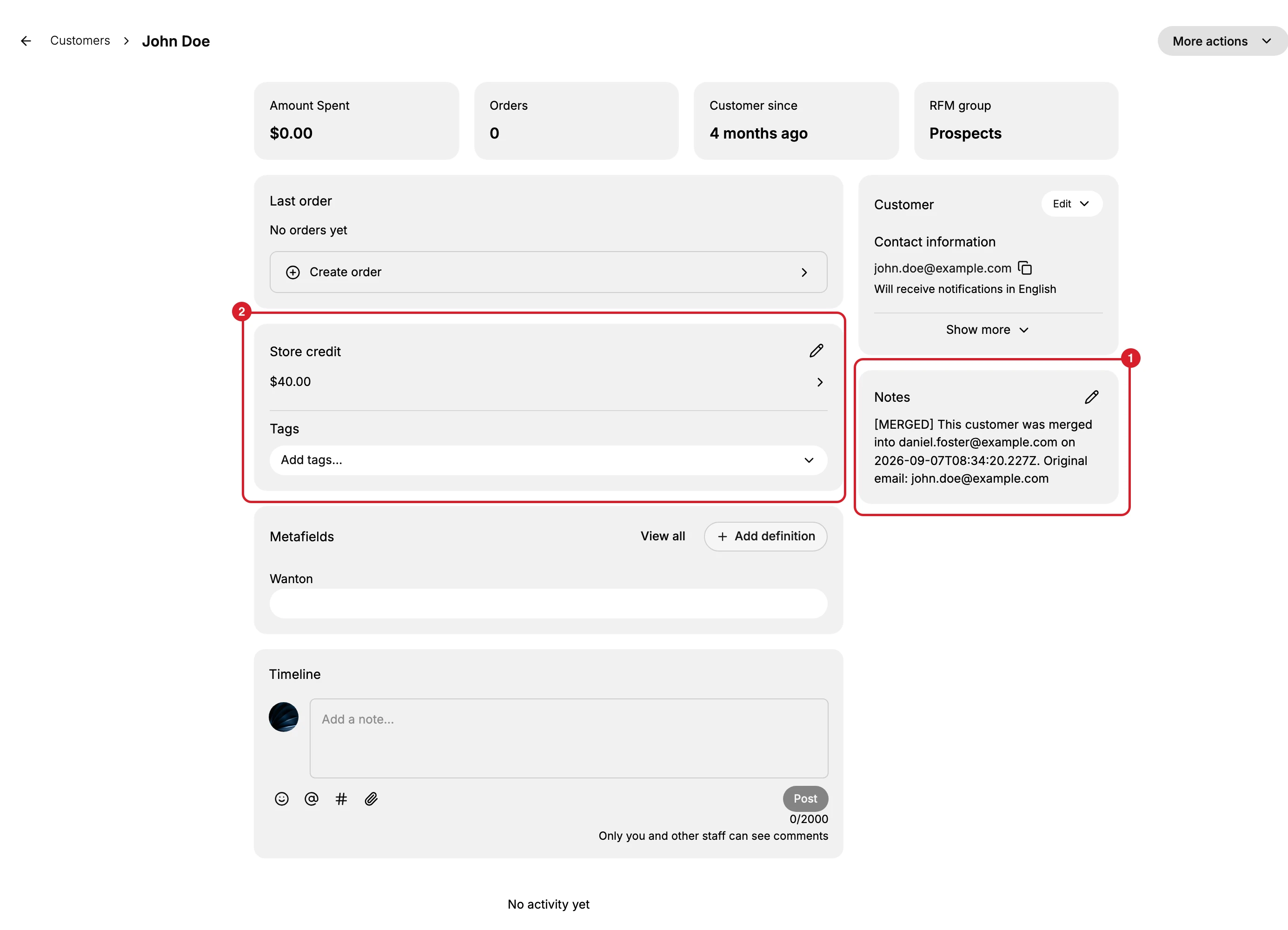
That record stays in your Customers list. The customer count does not go down, and both records are still there to be found. The merged-in one is the row with no orders and no address, carrying the note in its Notes card, so opening it and reading that card is how you tell the two apart afterwards.
Two things did not move, and the same record shows it: store credit stayed on the record that was merged in, which is the $40.00 still sitting on the stub above (2), and so did its marketing consent. A subscribed duplicate merged into an unsubscribed primary therefore leaves you with an unsubscribed record. Check both on the record you kept, and set them there yourself if they matter.
What a merge changes for your store
Every count in the admin reads from the individual customer record, so the value of a merge is that one person's history stops being spread across two of them. The addresses and the timeline end up in one place, which is what support and fulfilment actually read, and the orders both records held are brought together on the primary.
What a merge does not do is shorten your customer list. Because the merged-in record stays, the row count still has an entry for it, as does any segment whose rule the emptied record still matches. Treat that leftover record as a marker rather than a customer: it carries the note explaining where its data went, and the person you deal with from now on is the primary.
The customer signs in with the primary's email from then on, which is the reason to start from the record holding the address they actually use. Their past orders keep their own numbers, dates, statuses and totals; merging moves orders onto one customer, it does not rewrite the orders themselves.
If something goes wrong
- A message lists reasons instead of opening the page. One of the records has an open order, an open draft order or a gift card with a balance. Clear what the message names, then start again.
- The Merge customers button is greyed out and does not respond. No second customer has been chosen yet, which is the only state the button is disabled in.
- A message says only 2 customers can be merged. Untick rows until two are selected.
- The wrong record is the primary. Take Cancel, go back to the list, and start from the record you want to keep. The page cannot swap them.
- You picked the wrong duplicate. Use Change customer to replace them before you confirm.
- The duplicate does not appear in search. Try their email address or phone number, both of which the field matches, since the two records may spell the name differently. A town does not match.
- Both rows are still in the list afterwards. That is how it works. The merged-in record keeps a note saying which email it was merged into.
- The store credit or the marketing consent is missing from the record you kept. Neither moved in testing. Read the value on the record you merged in and set it on the one you kept.
- More actions has no Merge Customer. Your role may lack Edit customers.
One more control deserves a warning, because it sits on the same bar: Actions holds Delete customers. Deleting a duplicate throws its orders and addresses away instead of moving them, which is the opposite of what a merge is for.
Next steps
Related articles
Still stuck?
- Ask Tanqory AIAsk in your own words. It answers from these articles and links the ones it used.
- Ask in your adminThe assistant in your Tanqory admin answers and makes the change for you once you confirm.
- Contact TanqoryWrite to our privacy, security or legal teams, or talk to sales about a plan or a move.