Customer Notes
What belongs in a customer note and what does not, with examples of four kinds of context worth saving. It also sets the Notes card, which holds one standing description of the customer, against the Timeline below it, which is a dated feed of comments and activity, and walks through writing a note from the record.
On this page
A customer note is a short internal record you keep on a customer, such as a support call summary, a delivery preference, or how to handle their account. Notes are for your team only, and the customer never sees them. Each customer has one note, on the Notes card of their detail page, and you can rewrite it whenever the situation changes.
The point of writing one is that the next person who helps that customer starts with the background instead of asking for it again.
Customer Internal Notes walks through the card itself and the dialog behind it.
Before you begin
- Your role includes Edit customer notes, since the note is written onto the customer's record.
- You have something worth recording that the next person needs, rather than something you will remember yourself.
What to keep in notes
| Context | Example |
|---|---|
| Support interaction | Phoned about a delayed order, offered store credit and an apology. |
| Delivery preference | Leave parcels with the building concierge, not at the door. |
| Sizing or fit | Prefers a size up in outerwear, returned the slim-fit jacket. |
| Account handling | Wholesale buyer, route large orders through the account manager. |
Keep a note to the context that helps your team serve the customer. Put real data such as the address, email, or phone in its own field on the record, not in a note.
Notes and the Timeline
The Notes card is not the same as the Timeline further down the customer page. The card holds one standing description of the customer, high on the page where a colleague sees it as soon as they open the record. The Timeline is a dated feed of staff comments and recorded activity, which is where a back-and-forth belongs. Put in the card what someone needs the moment they open the customer, and in the Timeline what happened on a particular day.
Steps
1. Open the customer
Go to Customers and select the customer to open their detail page.
2. Find the Notes card
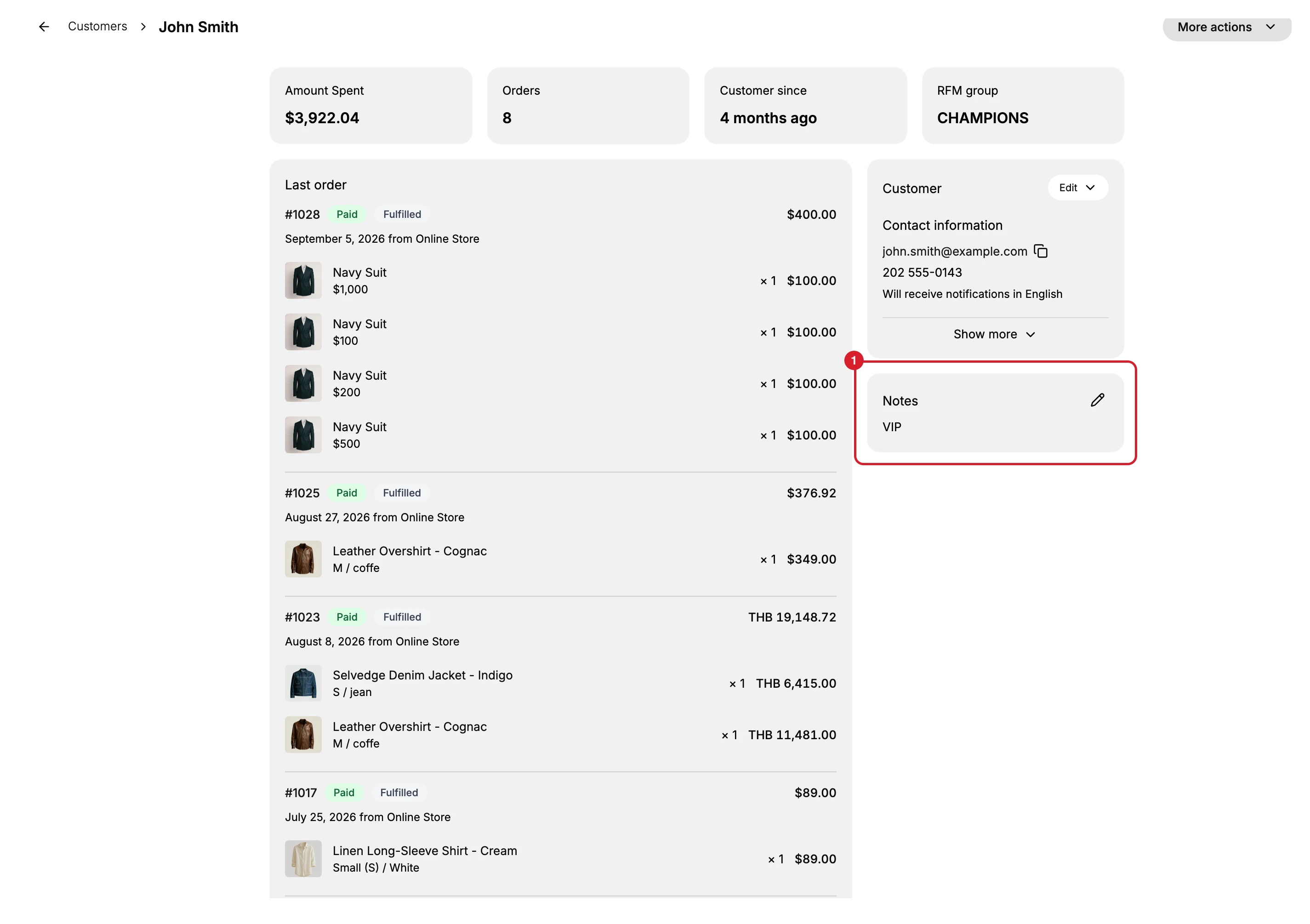
On the detail page, find the Notes card (1) in the right column, under the card holding the contact details. If a note is already saved it is shown here in full, so you can read it before you change it. A customer with nothing recorded yet shows the card's own reminder that notes stay private, and no text.
3. Add or edit the note
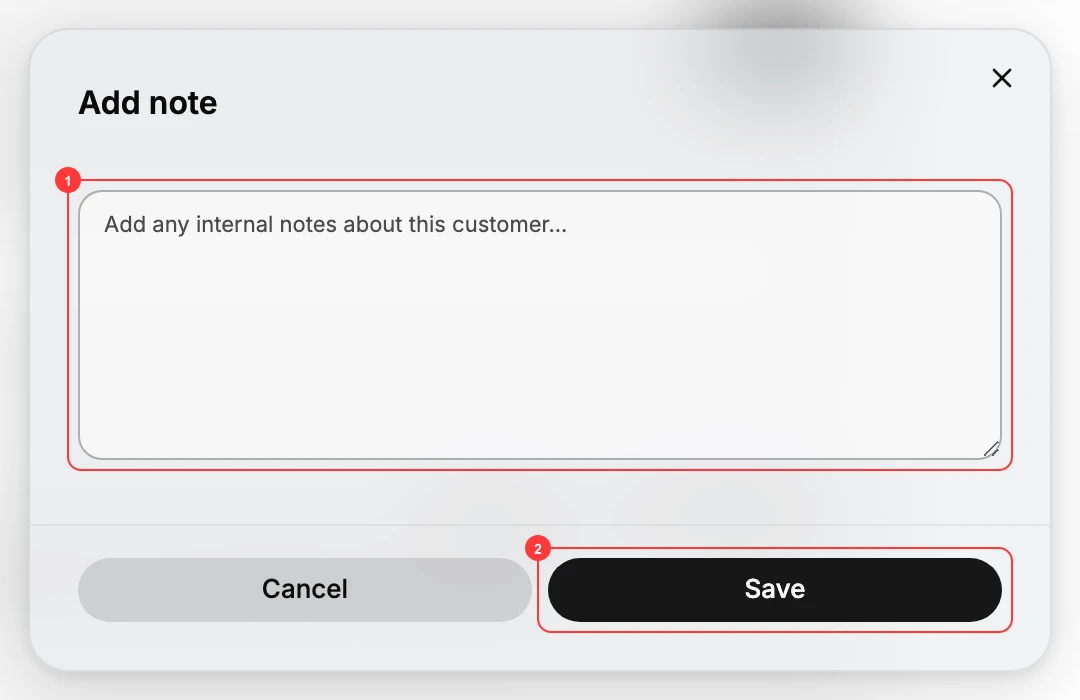
Open the dialog with the pencil at the top right of the Notes card. The box it opens (1) is where the note goes, and Save (2) writes it to the record. There is no button labelled Add note on the card itself; the pencil is the only control. The dialog it opens is headed Add note when the customer has no note and Edit note when they have one, and in the second case the box already holds that note.
Saving replaces what was there. The card keeps one note, not a list, so read the existing text before you type over it. The box counts to 5000 characters.
The note is on the record from that moment, visible to anyone on your team who opens the customer and to nobody outside it. That is also the reason to read the card before you contact someone: whatever a colleague recorded there is context the customer should not have to give you twice.
If something goes wrong
- The note did not save. Confirm you selected Save in the dialog, then reopen the customer to check the Notes card.
- You cannot add a note. Your role may lack the Edit customer notes permission.
Next steps
Related articles
Still stuck?
- Ask Tanqory AIAsk in your own words. It answers from these articles and links the ones it used.
- Ask in your adminThe assistant in your Tanqory admin answers and makes the change for you once you confirm.
- Contact TanqoryWrite to our privacy, security or legal teams, or talk to sales about a plan or a move.