Customer Internal Notes
The Notes card holds one internal note per customer, opened with the pencil on the card. The dialog is headed Add note or Edit note depending on whether there is one already, the box counts to 5000 characters, and saving replaces whatever was there rather than adding to it.
On this page
The Notes card on a customer's page holds one internal note about that person. This article is the mechanics of that card: where it is, what the dialog does, and how the note behaves once saved.
What is worth writing in one, and how a note differs from a timeline comment, belongs to Customer Notes.
Before you begin
- Your role includes Edit customer notes, since the note is saved onto the record.
- You know whether the customer already carries a note, because a new one replaces it rather than joining it.
The card
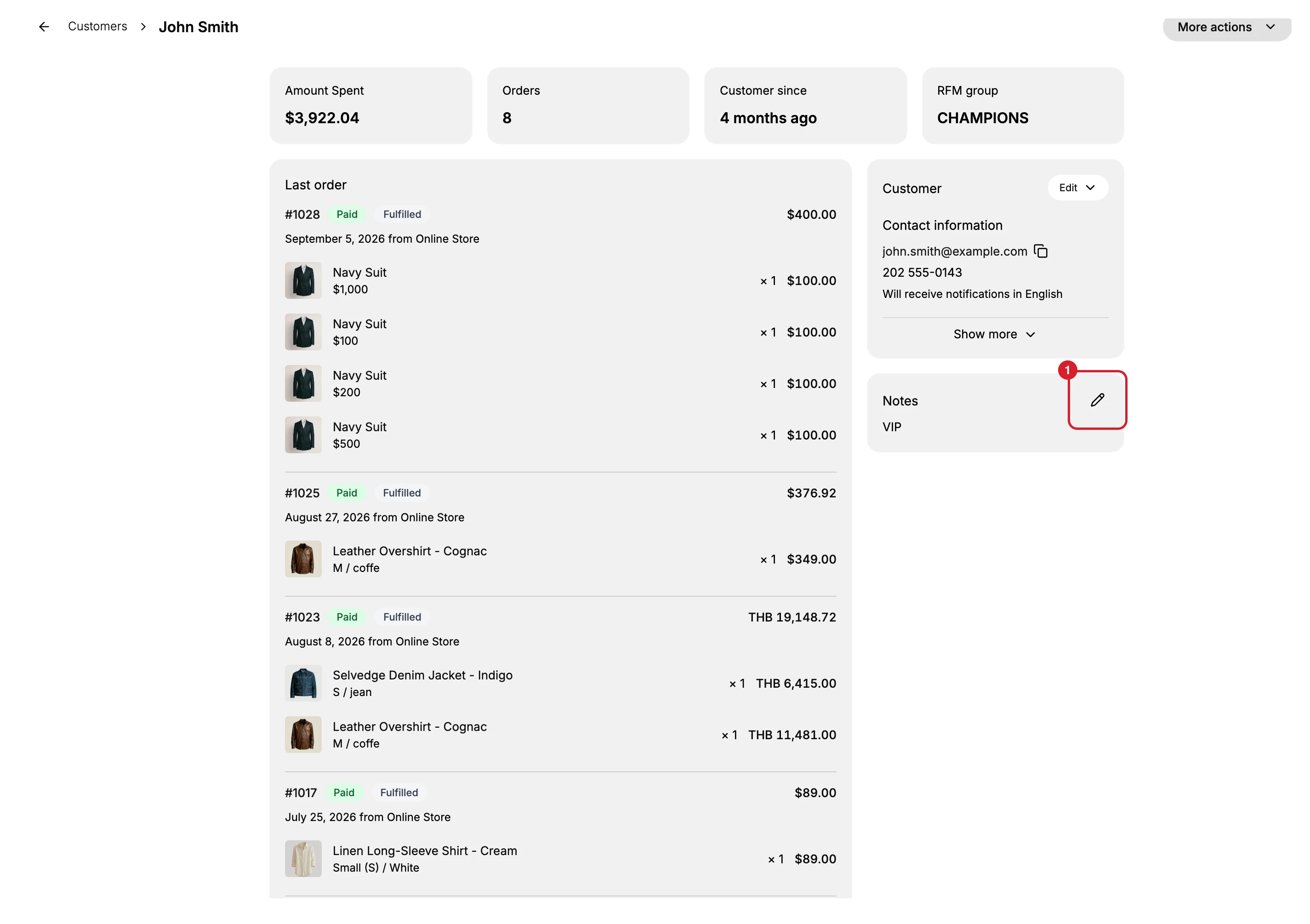
Notes sits in the right-hand column of the customer's page, under the Customer card that carries their contact details. A customer with no note yet shows only the card's own reminder:
Notes are private and won't be shared with the customer.
The control is the pencil at the top right of the card. There is no labelled button to look for, on an empty card or a filled one.
The dialog
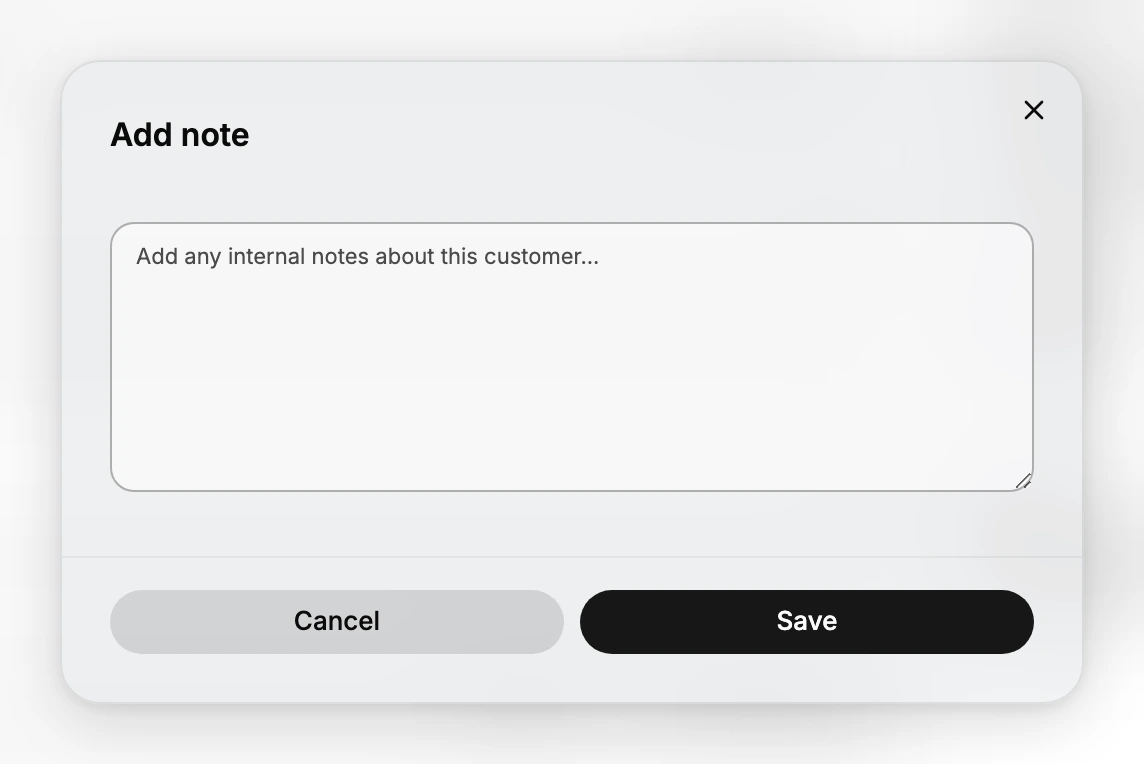
The pencil opens one text box with Cancel and Save. Two details are worth knowing before you type.
The heading tells you which you are doing. It reads Add note when the customer has no note, and Edit note when they already have one. In the second case the box opens with the existing note in it, ready to change.
The box counts to 5000 characters. A counter under it reads how much you have used, which is more room than the comment box on the timeline, where the count stops at 2000.
One note, replaced each time
The card holds a single note, not a list. Opening it again gives you the same text back, and saving replaces what was there.
So a note is a standing description of the customer rather than a log of events. If you need to keep the previous wording, copy it out before you overwrite it, and if what you have is a series of things that happened, the timeline is where those belong.
Steps
1. Open the card
Open the customer from Customers and find the Notes card on the right of their page. If there is already a note it is shown here in full, so read it before changing anything.
2. Select the pencil
Select the pencil at the top right of the card. The dialog opens on Add note or Edit note depending on whether there is one already.
Nothing is written yet. Cancel and the close cross both leave the note exactly as it was.
3. Write it and save
Type the note, then take Save. The dialog closes and the card shows the new text at once, which is the confirmation that it was written to the record.
From then on the note is what your team reads first when they open this customer. What belongs in it is covered by Customer Notes.
If something goes wrong
- You cannot find a way to add a note. The control is the pencil on the card, not a labelled button.
- The old note came back. You may have taken Cancel or closed the dialog rather than Save.
- Nothing saves. Your role may lack the Edit customer notes permission.
Next steps
Related articles
Still stuck?
- Ask Tanqory AIAsk in your own words. It answers from these articles and links the ones it used.
- Ask in your adminThe assistant in your Tanqory admin answers and makes the change for you once you confirm.
- Contact TanqoryWrite to our privacy, security or legal teams, or talk to sales about a plan or a move.