Customer Events Timeline
The Timeline at the foot of a customer page records what happened and who did it, newest first under date headings. Entries begin You or Staff, an order number inside one is a link that carries a way back, every sent email offers Resend, and the note box takes 2000 characters that only staff can see.
On this page
The Timeline at the foot of a customer's page is the store's record of what happened to that customer and who did it. You read it before answering them, and you write to it when something happened that the store could not record on its own.
Customer Events catalogues the entries themselves and what each one tells you.
Before you begin
- Your role includes View customers, which is what reading the timeline takes.
- Your role includes Edit customers as well, if you intend to post a note rather than only read.
- Go to Customers, open a customer, and scroll to the foot of their page.
What the Timeline looks like
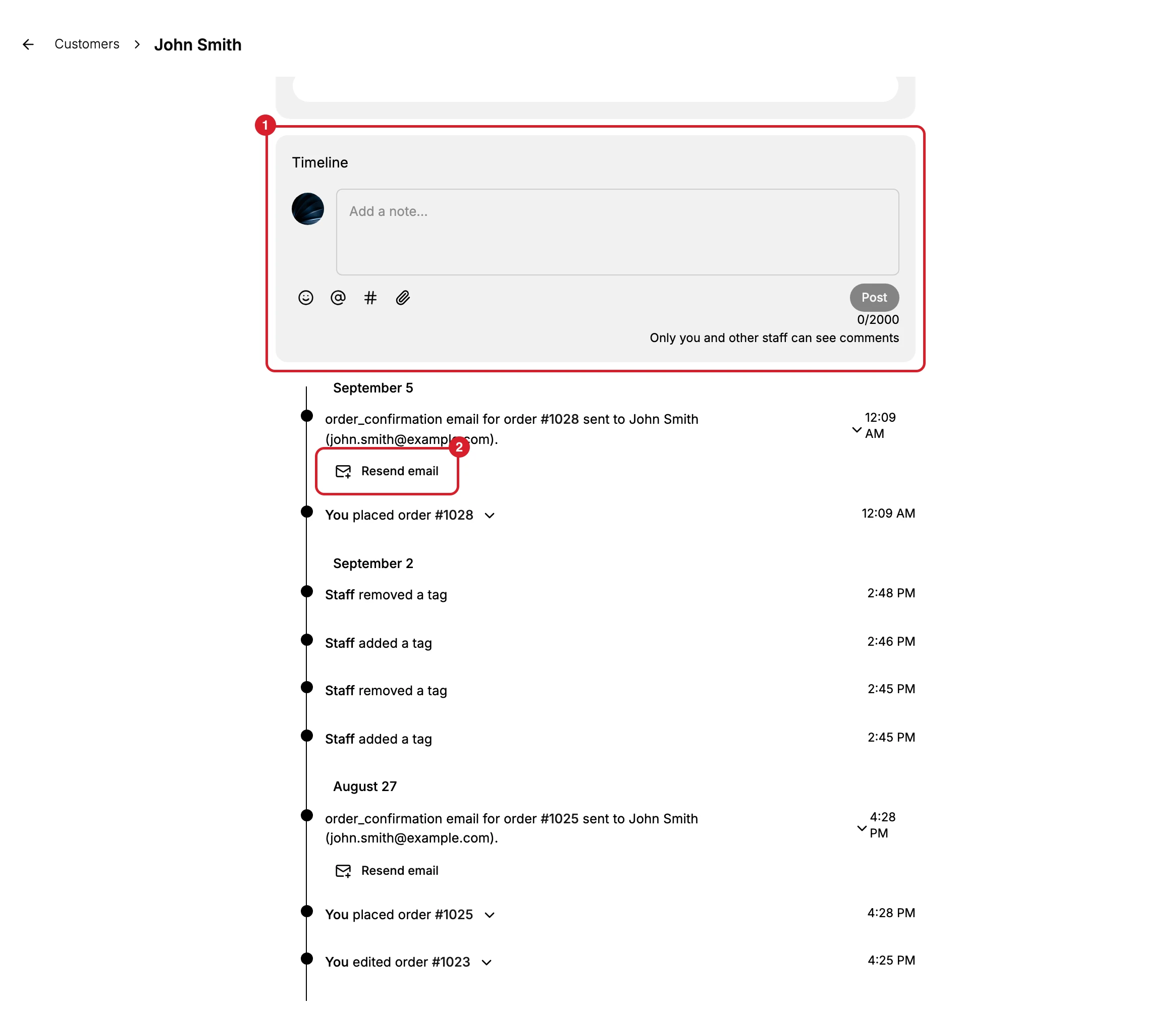
The Timeline card (1) holds the note box, and the history runs below it, newest first, grouped under a date heading with the time of each entry on the right.
Read the first word of an entry. Entries begin either You, meaning the account you are signed in as, or Staff, meaning someone on the team. That one word is the difference between "I did this" and "somebody did this", and it is the only attribution the line gives you: no entry names a person.
The entries fall into five kinds: the record itself, orders, money and returns, emails the store sent, and notes and privacy actions. Customer Events lists the wordings and says what each one does and does not tell you.
Reading an entry
| Part | What it does |
|---|---|
| The chevron on an entry | Expands it in place for a little more detail. It does not leave the page |
| An order number | A real link. It opens that order, and it carries a way back to this customer, so you are not stranded in Orders |
| Resend email (2) | Appears on every email the store sent. It is the fastest answer to a customer who says a confirmation never arrived |
Posting a note
The box at the top reads Add a note, and four controls sit under it: Add emoji, Mention someone, Add reference and Attach file. Post writes the note, the counter beside it caps what you type at 2000 characters, and the line underneath states that only you and other staff can see comments.
A note you post lands at the top of the history under today's date, attributed to you, and the customer never sees it. What is worth posting is the outcome rather than the conversation: what was agreed, what you promised, what the next person has to honour.
A note is not the same as the Notes card higher up the page. The card holds one standing description of the customer, replaced whenever it is edited. A note posted here is an entry in the history, sitting in date order alongside everything else, and it is the right choice when what you are recording happened at a moment: a phone call, an agreement, a decision. Customer Internal Notes covers the card.
What it is for
Read it before you reply to anyone. A customer writing to ask where their order is has a timeline that already says whether it was placed, fulfilled, cancelled or returned, and whether the confirmation email went out. That is usually the whole answer, and it takes seconds.
Write to it when the store cannot know. Tanqory records what happens inside it. A phone call, a promise made on chat, a decision about how to handle this customer in future: none of that exists until someone posts it, and the next person to open the record is the one who needs it.
If something goes wrong
- You cannot post. Your role may lack the Edit customers permission.
- An entry you expected is missing. The store only records its own actions; anything done outside it has to be written in.
- The order link took you away. Use the way back it carries, rather than the browser's back button.
- There is no history at all. A customer added by hand has nothing yet beyond the line saying they were created, and a record that was merged into another one has had its timeline emptied.
Next steps
Related articles
Still stuck?
- Ask Tanqory AIAsk in your own words. It answers from these articles and links the ones it used.
- Ask in your adminThe assistant in your Tanqory admin answers and makes the change for you once you confirm.
- Contact TanqoryWrite to our privacy, security or legal teams, or talk to sales about a plan or a move.