Edit a Customer Record
The Edit control on the Customer panel opens five things, not four: contact information, addresses, marketing consent across three channels, tax details, and adding the customer to a company. This walks each dialog, what it asks for, which fields are required, and which of them the store acts on without asking you again.
On this page
Almost everything the customer told you about themselves is changed from one place: the Edit control on the Customer panel of their detail page. It opens a short menu, and each entry opens a dialog over the page.
These fields matter more than most of the record because the store acts on them without asking again. The email is where every receipt goes, the default address is what gets printed on a label, the consent lines decide who a campaign is allowed to reach, and the tax setting decides what the customer is charged. A stale value here does not just sit on the record. It goes out on the next order.
Editing Customer Information maps the rest of the record, including everything this menu does not reach.
Before you begin
- Your role includes Edit customers. The roles screen also lists Edit customer details, Manage customer addresses and Manage customer subscriptions separately, so a role can be set up to open some of these forms and not others.
- For an email change, you have confirmed the new address with the customer, since it is both their sign-in and where their order emails go.
- Go to Customers and open the customer.
Where the control is
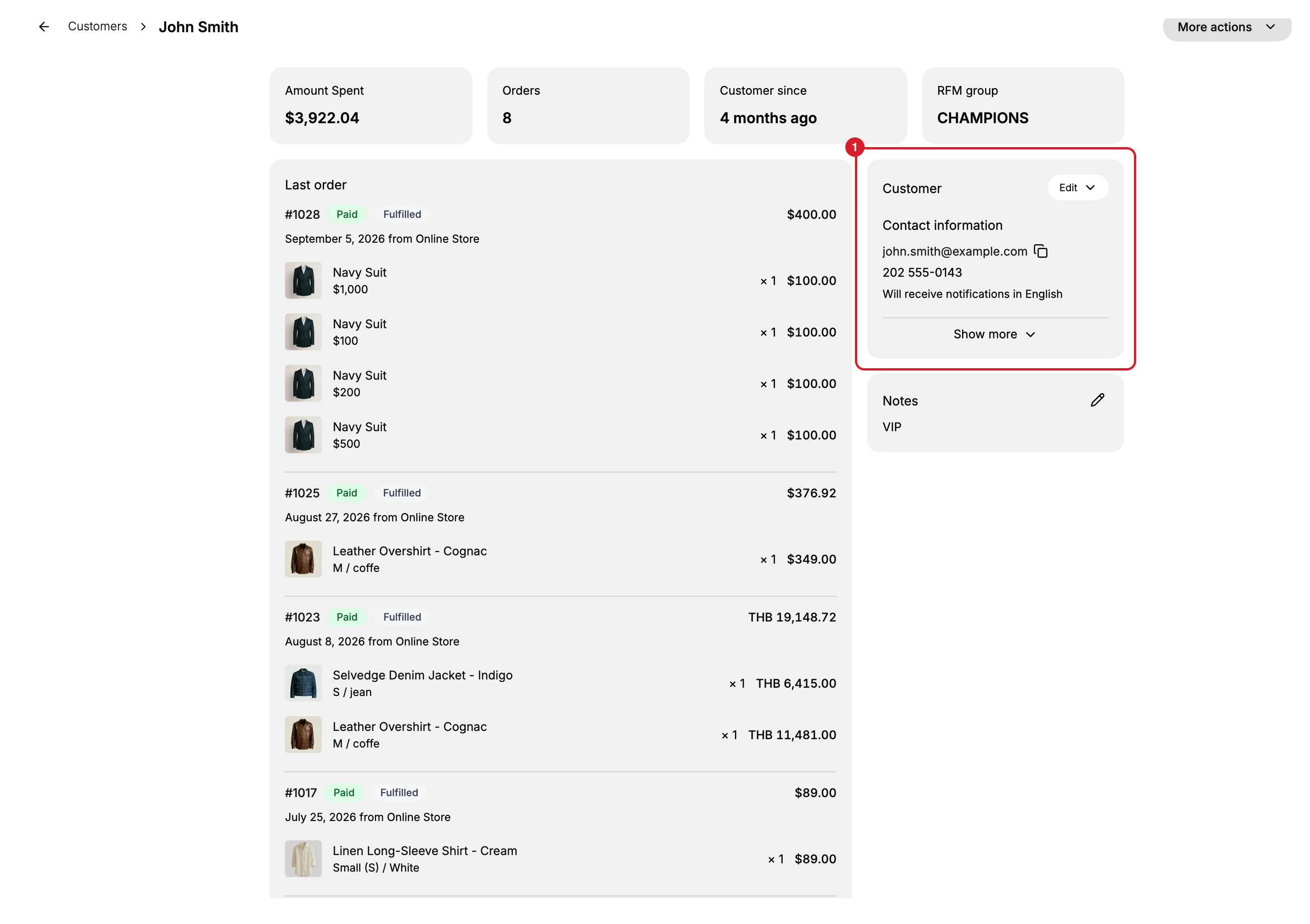
Edit sits at the top right of the Customer panel (1), the first card in the right-hand column. The card itself only reports. Contact information, the default address, the marketing lines and the tax details are all shown there, and all of them are changed through this menu. Show more at the foot of the card opens the ones it keeps folded away.
| Menu entry | What it opens |
|---|---|
| Edit contact information | Name, language, email and phone |
| Manage addresses | Every address on the record, and which one is the default |
| Edit marketing settings | The three marketing consents |
| Edit tax details | Whether tax is collected, and any exemptions |
| Add to company | Attaching the customer to a company and its locations |
Four of the five change what the customer told you about themselves. The fifth, Add to company, is a decision of yours rather than a fact of theirs, and it is the entry people do not think to look for in this menu.
Steps
1. Open the form you need
Select Edit at the top right of the Customer panel and choose one of the five. Each opens a dialog over the page with Cancel on it, and the page itself stays where it was behind the dialog.
Pick by what you are changing rather than by where you saw it on the card. Tax status, for instance, is reported under Tax details on the panel but changed through this menu.
2. Contact information
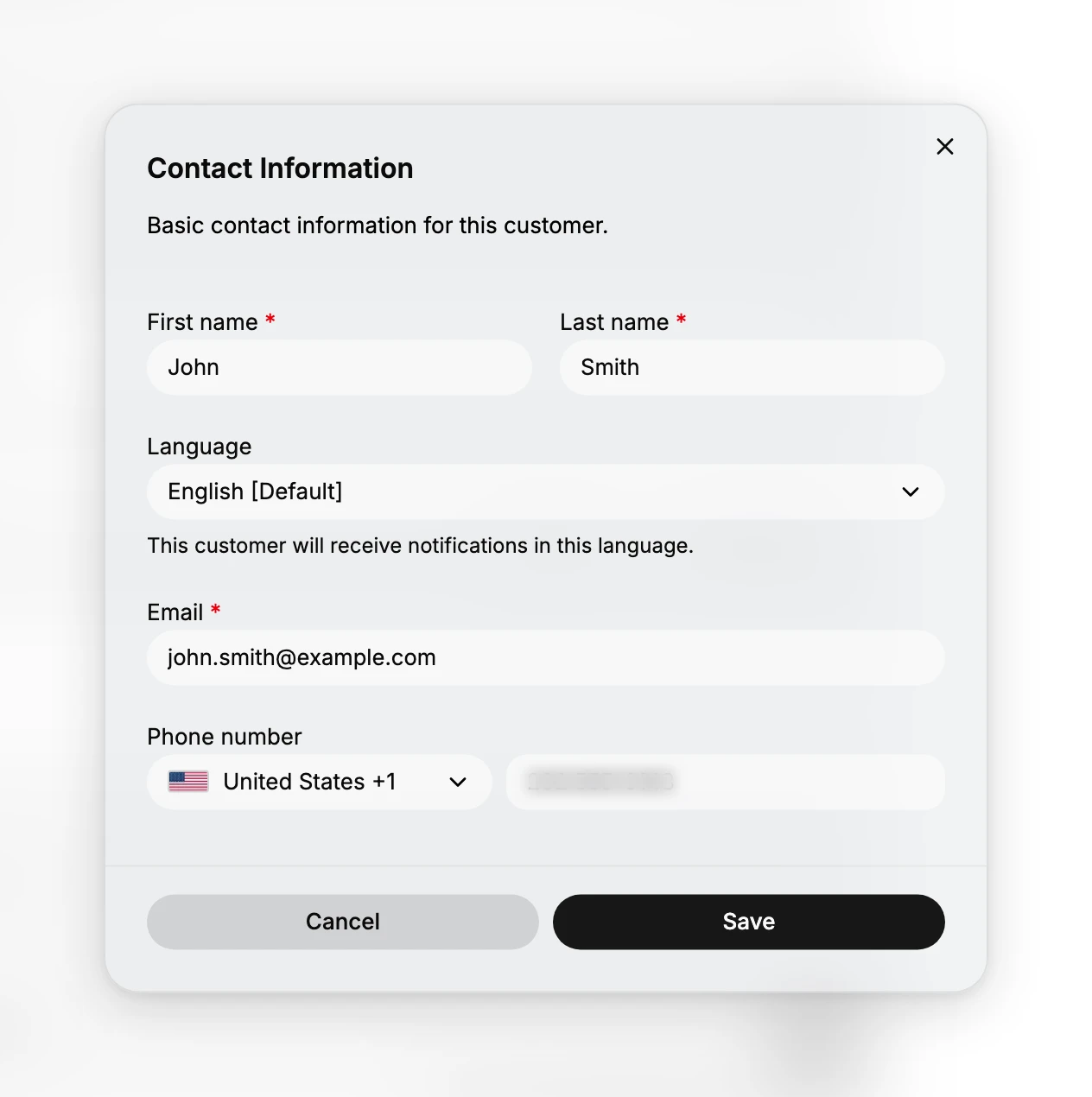
First name, Last name and Email carry a red asterisk, which is how the dialog marks a field it needs. Phone number has a country selector beside it. Language decides which language the customer's notifications are written in, as the line under the field says.
The email is the field to be careful with, because it is both the customer's sign-in and the address their order emails go to. Change it to an address the customer has not confirmed and their next order confirmation goes somewhere they cannot read it, with nothing on the record to show that anything is wrong.
3. Addresses
Manage addresses lists every address the customer has, each showing the name, any company, the street, the town and postcode, the country and a phone number. One of them carries a Default badge. Each row has its own Edit control, Add new address at the foot adds another, and there is no Save button at all, since the editing happens row by row rather than across the dialog.
The badged one is the address the Customer panel shows as the default, so on a record with several it is the one worth keeping current. The others stay on the record and nothing is lost by leaving them there.
4. Marketing consent
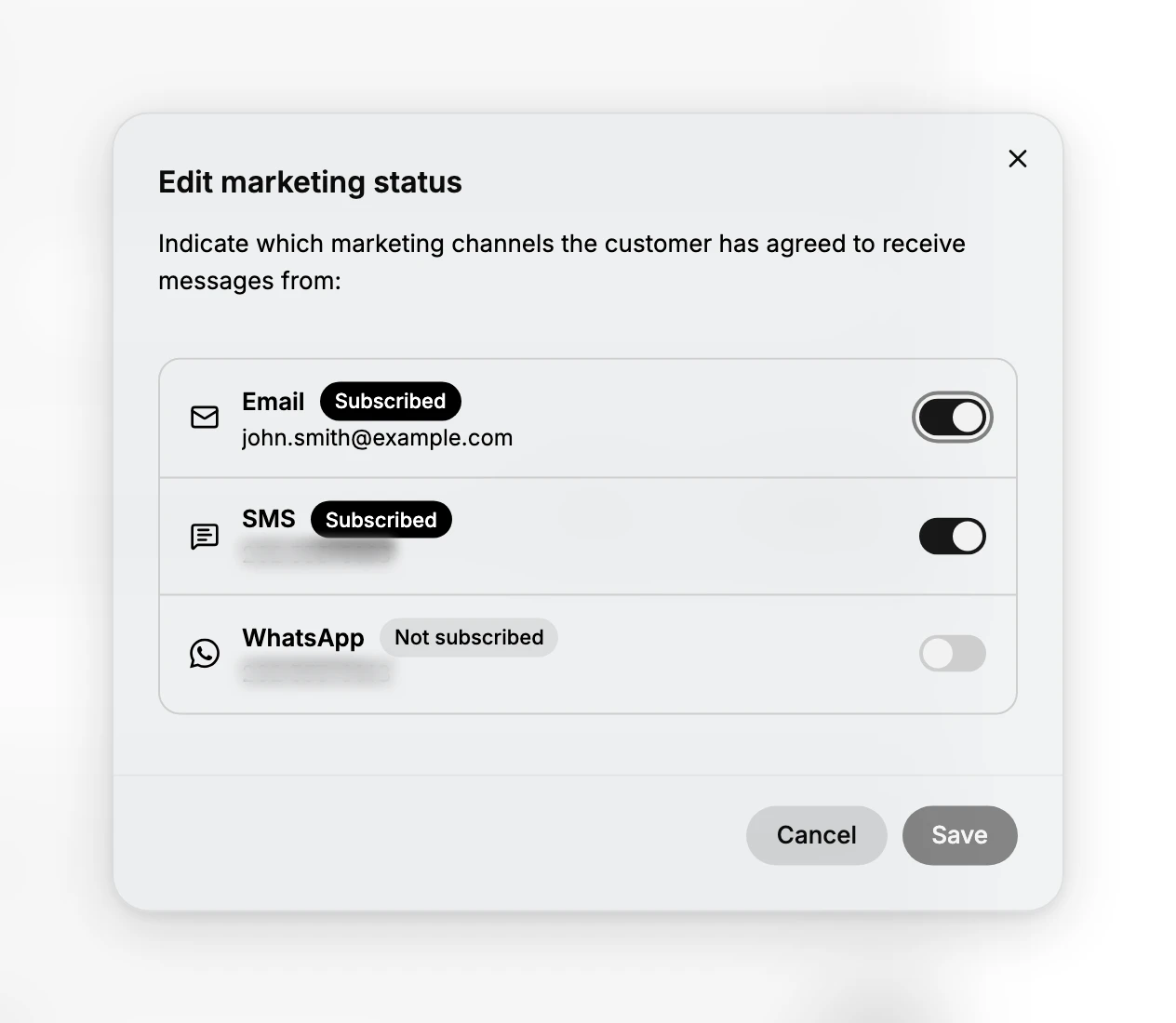
There are three channels here, not two: Email, SMS and WhatsApp. Each has its own toggle, reads Subscribed or Not subscribed, and shows the address or number it would use, so you can see at a glance that the customer in the picture takes email and SMS but not WhatsApp.
Consent is recorded per channel because that is how it is given. Someone who agreed to order updates by email has not thereby agreed to messages on WhatsApp, and this dialog is the store's record of which they actually said yes to. Turning a channel on without that agreement makes the record say the customer agreed to something they did not.
5. Tax details
Edit tax details opens a Tax settings section holding a dropdown that reads Collect tax unless exemptions apply, and under it a required Select exemptions field with a search box.
The wording is worth reading twice. The dropdown is the setting rather than a description of the customer: tax is collected unless an exemption is added, so the exemption is the thing you add rather than something you switch off. The result then appears on the card, under Tax details, which on the customer in these pictures reads Tax exempt (pending).
6. Add to company
Add to company opens a list of the store's companies, each with the number of locations it has, over a search field and an Add new company control. The dialog says it will add the customer to a company and give them access to one or more of its locations.
This is the B2B side of the record, and it changes what the customer can do at checkout rather than any of their details. Manage a Company covers what a company is and what being attached to one gives them.
Whichever form you used, the Customer panel is where the value is displayed afterwards, so that is where to check it. If it still reads the old one, the change did not go through, and an empty required field is the first thing to look for.
If something goes wrong
- Save does nothing and the dialog stays open. Look for a field marked with a red asterisk and left empty. The contact form marks first name, last name and email; the tax form marks the exemption.
- The panel still shows the old value. The change did not save. Reopen the form and look for a field the dialog is rejecting.
- You cannot find where to change tags or notes. Neither is in this menu. The rest of the record is mapped in Editing Customer Information.
- Nothing in the menu saves at all. Your role may lack Edit customers, or the narrower permission behind that one form.
Next steps
Related articles
Still stuck?
- Ask Tanqory AIAsk in your own words. It answers from these articles and links the ones it used.
- Ask in your adminThe assistant in your Tanqory admin answers and makes the change for you once you confirm.
- Contact TanqoryWrite to our privacy, security or legal teams, or talk to sales about a plan or a move.