Manage a Company
A company's page is where you work on it after it is created: the customers who may order for it and which of them is the main contact, the ordering status that follows from those customers, the actions menu behind the three dots, the company-wide markets, catalogs, payment terms and checkout, the staff assigned to it, its notes and locations, and placing an order on its behalf. This article maps the page and gives the steps for the parts that have them.
On this page
A company's page is where you manage everything about it after it is created. You reach it by opening a company from Customers > Companies. From here you decide who may order for the company, set the company-wide rules its locations can inherit, keep notes, work with its locations, and place an order on the company's behalf. Add a Company covers making one in the first place.
Before you begin
- Your role includes Create and edit in the Companies permission group, which is the permission the actions on this page need.
- The company already exists. Creating one is a different job, covered in the article linked above.
The company page at a glance
| Area | What it is for |
|---|---|
| Company card | The name, the ordering status, the Company ID, the customers, the assigned staff, and the actions menu behind the three dots |
| Customizations | The company-wide Markets, Catalogs, Payment terms, and Checkout rule |
| Notes | Free notes about the company |
| Locations | The company's locations, each with its own addresses, payment terms and checkout rules |
| Orders | The company's orders, and Create order to place one on its behalf |
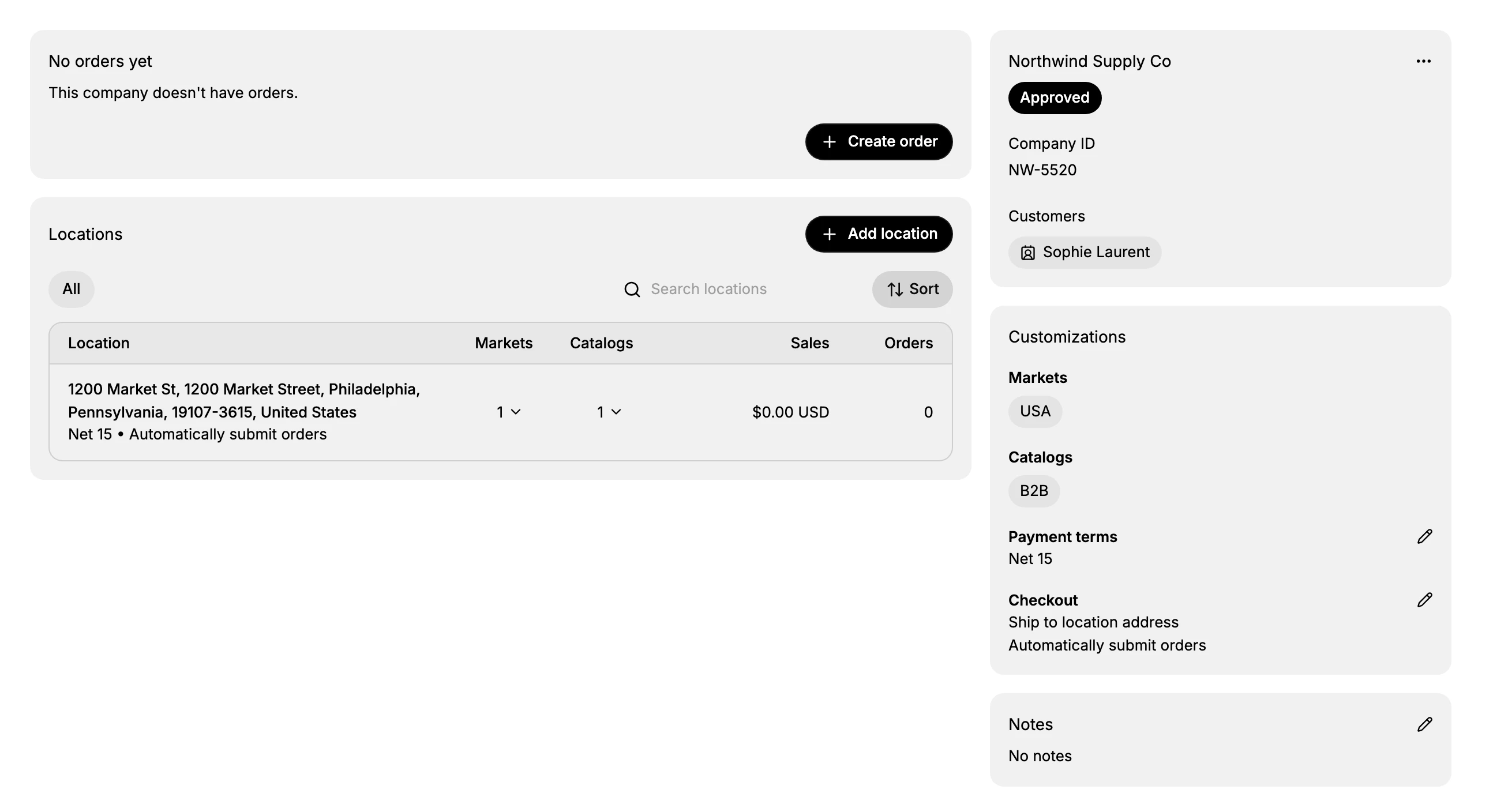
Customers, the main contact, and the ordering status
These three are one subject, because the status follows from the customers.
The Customers section lists the buyers who may order for the company. Each is shown as a chip holding their name, and the chip itself tells you which of them holds the main contact role.
A main contact: the chip (1) carries a contact card in front of the name.
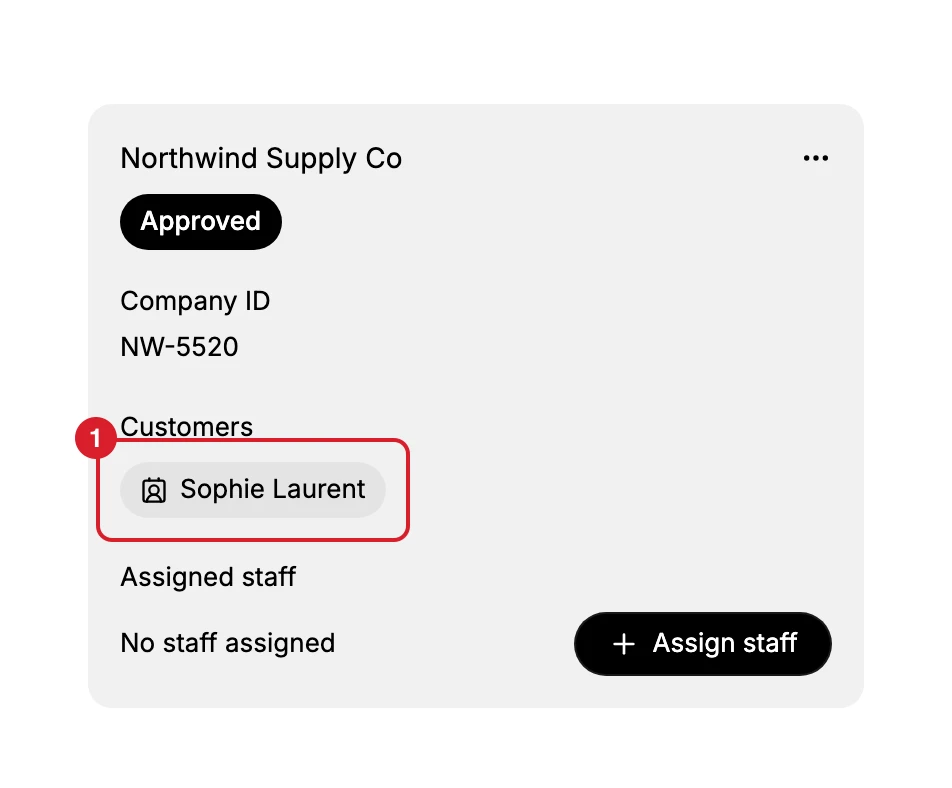
An ordinary buyer: the chip (1) carries the name alone.
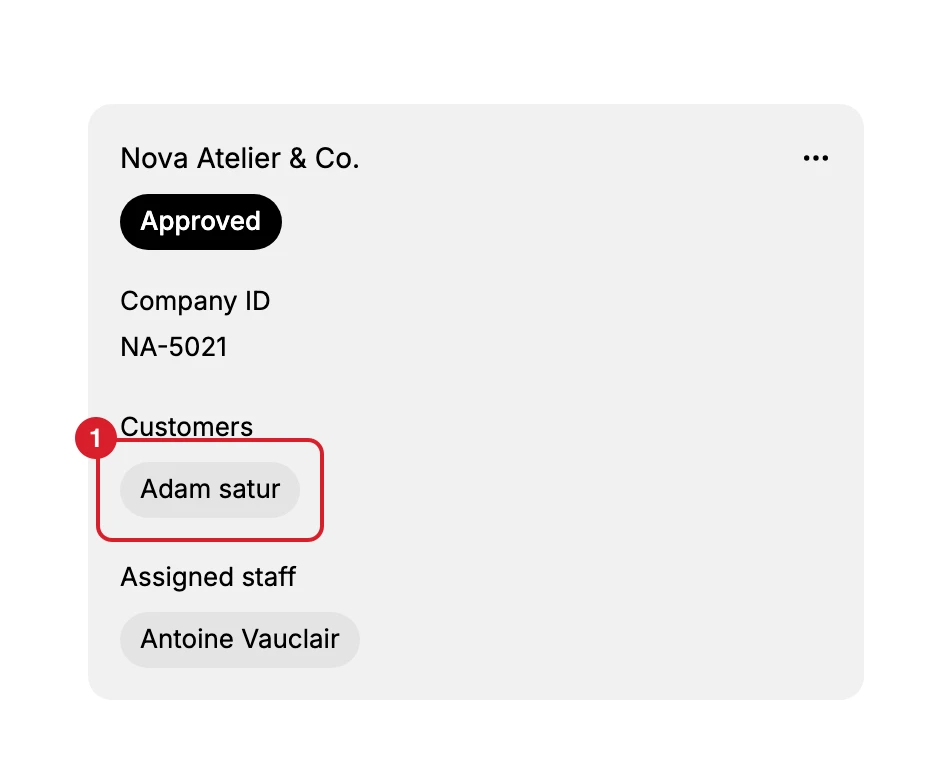
Both customers can order. The mark separates the person you deal with from everyone else who buys, and it is what the Companies list goes by: Northwind shows Sophie Laurent under Main contact, Nova shows No main contact.
The difference is made when the customer is added. A customer picked in the Main contact field while you are filling in the New company form arrives as the main contact. A customer added afterwards, from this page, arrives as an ordinary buyer, and promoting them is a separate step.
The ordering status on the card follows from all of this. Until one of its customers has ordering access, a company reads Not approved and cannot buy. Grant that access and the badge turns Approved. There is no switch to flip, which is why a company with every other detail filled in can still read Not approved. Granting access is not a purchase.
Add a customer to the company
- Select the three dots on the company card and choose Add customer. The dialog is headed Add customer to location, since access is granted per location rather than to the company as a whole.
- Find the customer by typing in the search box, or open the full list with the control beside it. Customers already attached to another company are marked Added to another company, so you can see at a glance who is free to assign.
- Select the customer. The dialog moves straight on to its second step, which names the customer and the location the access applies to.
- Leave the permission as Ordering only, which is what lets them place orders for that location.
- Tick Notify customer that they can start placing B2B orders if you want them emailed about it, and use Preview email to read what they would receive. Leave it clear to add the access quietly.
- Select Save. The change takes effect at once: the customer appears in the Customers section, and a company that was Not approved turns Approved.
Note: The person must already be a customer of your store. This dialog picks from the customers you have and cannot create one.
Change the main contact
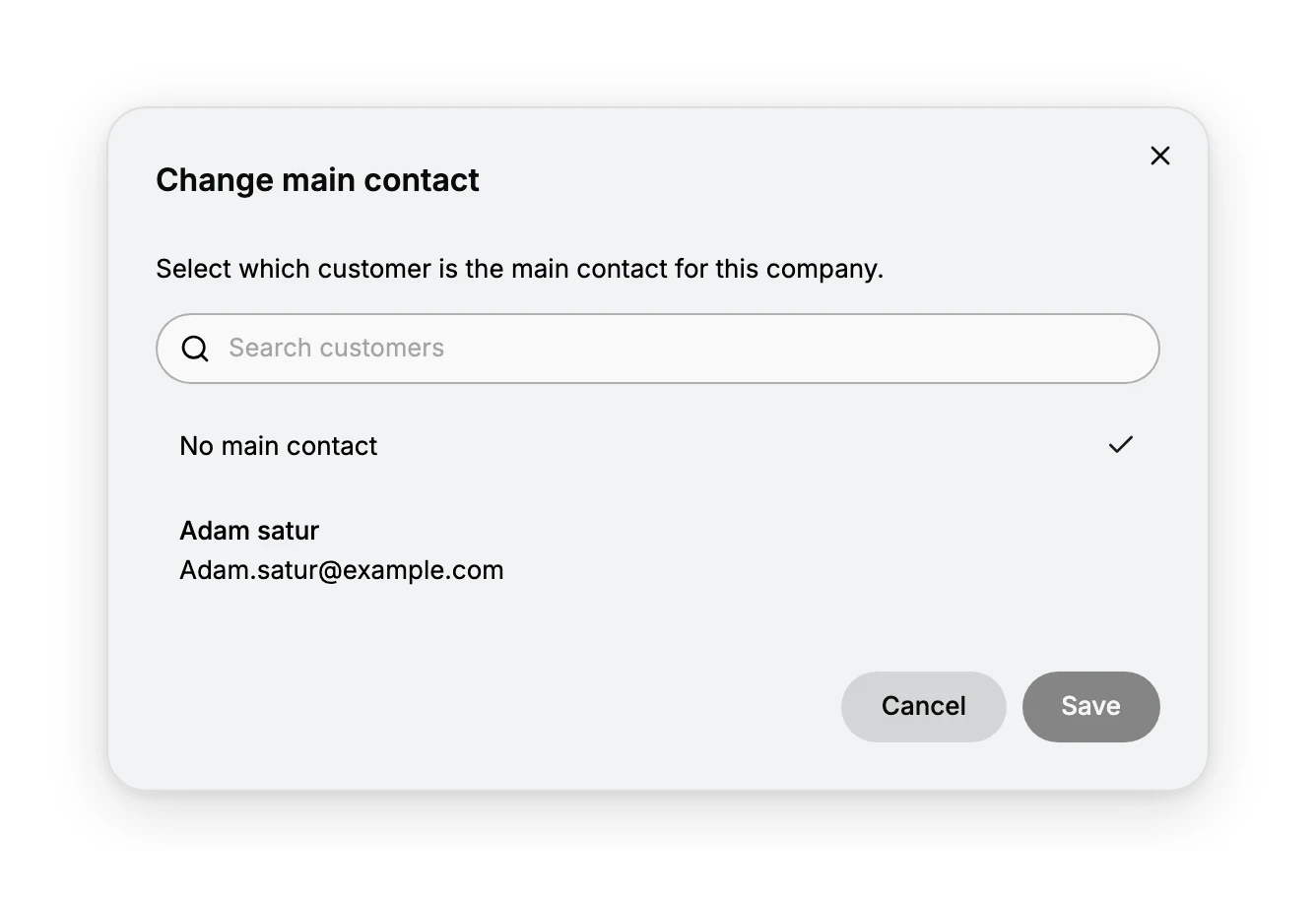
- Select the three dots and choose Change main contact.
- Pick the customer who should hold it. Only the company's own customers are listed, so add the person first if they are not there.
- Select Save in the dialog. The chip changes on the card, but nothing is saved yet.
- Select Save in the unsaved changes bar that appears across the page. Leaving without it, or choosing Discard, puts the old main contact back.
To clear the main contact without removing anyone's access, pick No main contact instead and save the same way. The customer keeps their ordering access either way, since the two are set separately.
The company actions menu
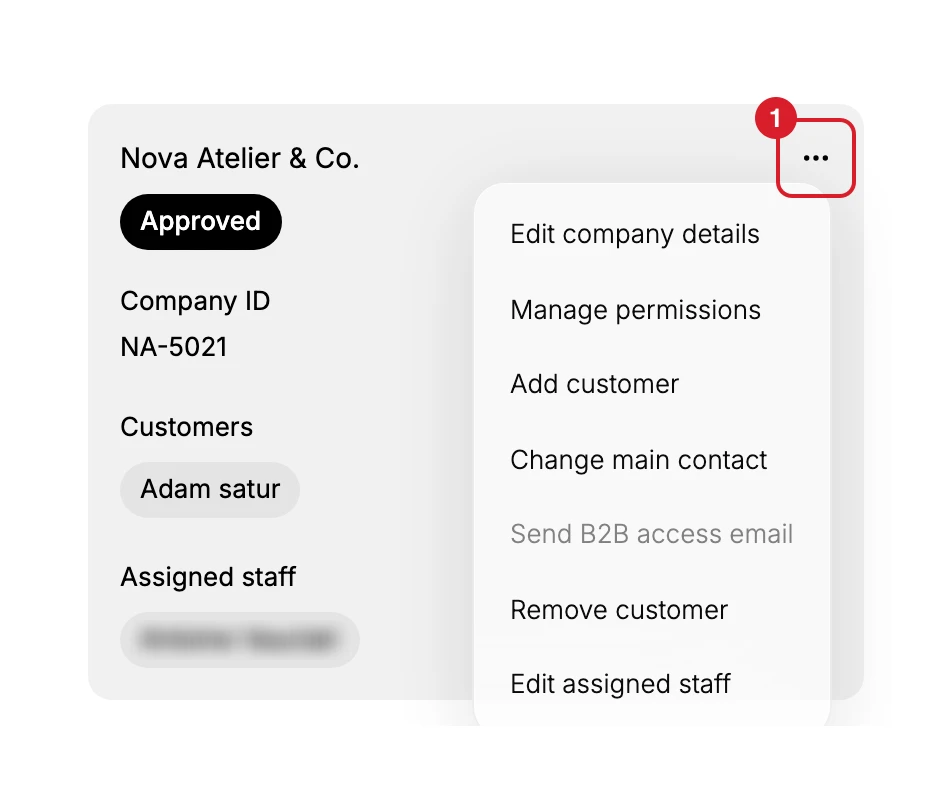
The three dots (1) at the top right of the company card hold everything that changes the company itself.
| Item | What it opens |
|---|---|
| Edit company details | The company name and the Company ID, the reference you use for the business in your own records |
| Manage permissions | The company's locations, each with an Ordering only permission, for the customer named in the dialog |
| Add customer | The two-step dialog above, for giving a customer ordering access |
| Change main contact | The chooser above, for deciding which customer holds the role |
| Send B2B access email | Nothing. It is greyed out on companies with a customer, with a main contact and with orders alike, so the notify option inside Add customer is what tells a buyer |
| Remove customer | The list of the company's customers, with a warning that the one you remove loses access to place or view the company's orders, and may keep receiving order notices until the customer on their orders is changed |
| Edit assigned staff | The staff list, covered below |
Not all of these finish in their dialog, which is worth knowing before you walk away from the page. Add customer and Remove customer take effect as you press the button. Change main contact and Edit assigned staff do not: they raise an unsaved changes bar across the page, and the change is kept only when you select Save there. A change left sitting in that bar is lost when you leave.
Assign staff to the company
Assigned staff on the card reads No staff assigned until you set it. Assign staff and Edit assigned staff open the same list, and whoever you pick is assigned to all of the company's locations at once. To hold a staff member to particular locations instead, change their Companies permissions in Users.
Pick the staff member, select Save in the dialog, then Save again in the unsaved changes bar. Stop after the first one and the name shows on the card, but it is gone once the page reloads.
Assigned staff is who on your team looks after this company, and it does not change what the company's buyers can do. The Companies permission group holds its own entry for this job, Assign staff to company locations.
Set the company-wide customizations
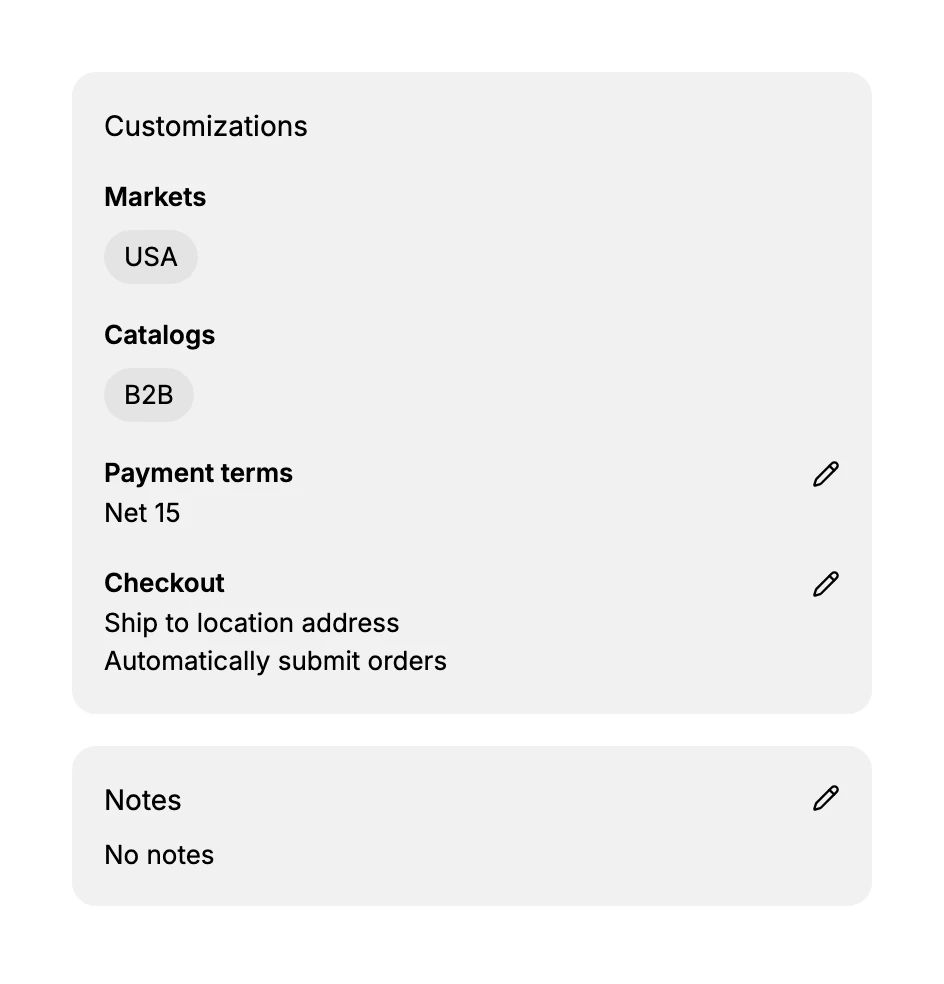
The Customizations section holds the settings that apply to the company as a whole: its Markets, Catalogs, Payment terms, and Checkout rule.
The four are not all changed in the same place. Payment terms and Checkout each carry an edit control on this card. Markets and Catalogs are chips that open the market or the catalog itself, with a link back to the company, so those two are changed where they are built rather than here.
These are the company-level defaults. An individual location can carry them or set its own, so put what should be true across the company here and leave the exceptions to the location.
Keep notes and work with locations
The Notes card, beneath Customizations in the image above, holds anything you want recorded against the company, such as a term you agreed or a contact detail.
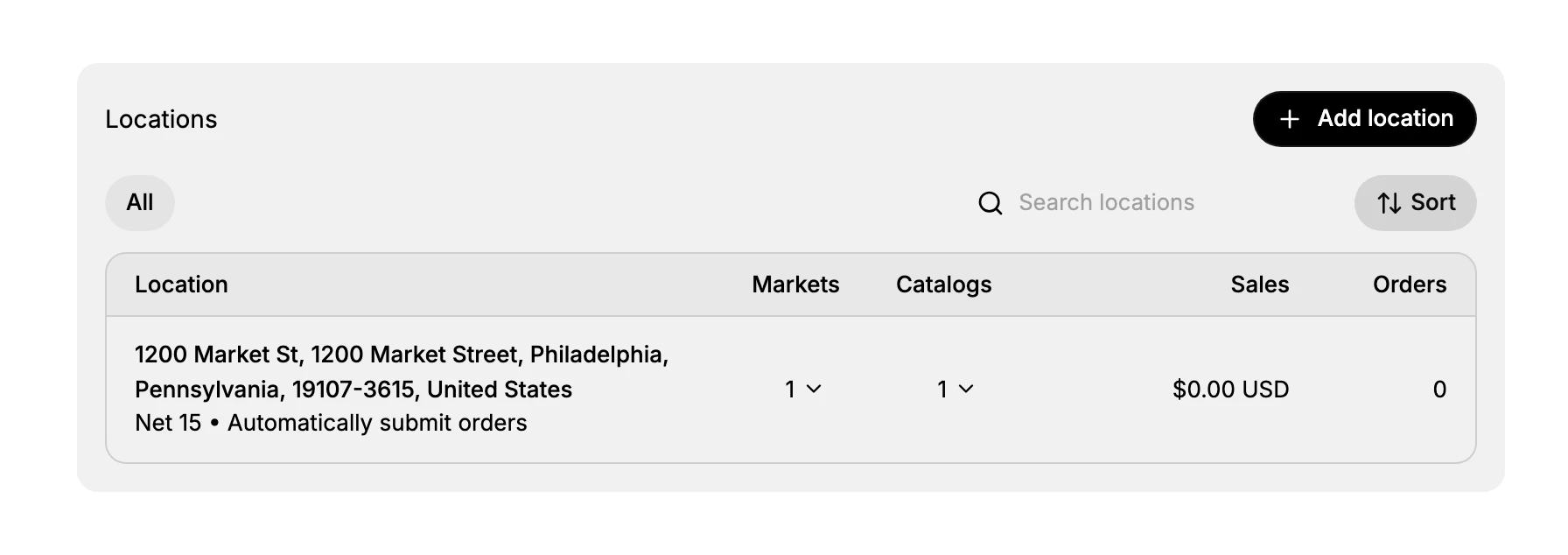
The Locations panel lists every location the company orders for, with the payment terms and checkout rule of each beneath its address, and the market and catalog counts beside it. Adding or editing them is covered in Company Locations.
Place an order for the company
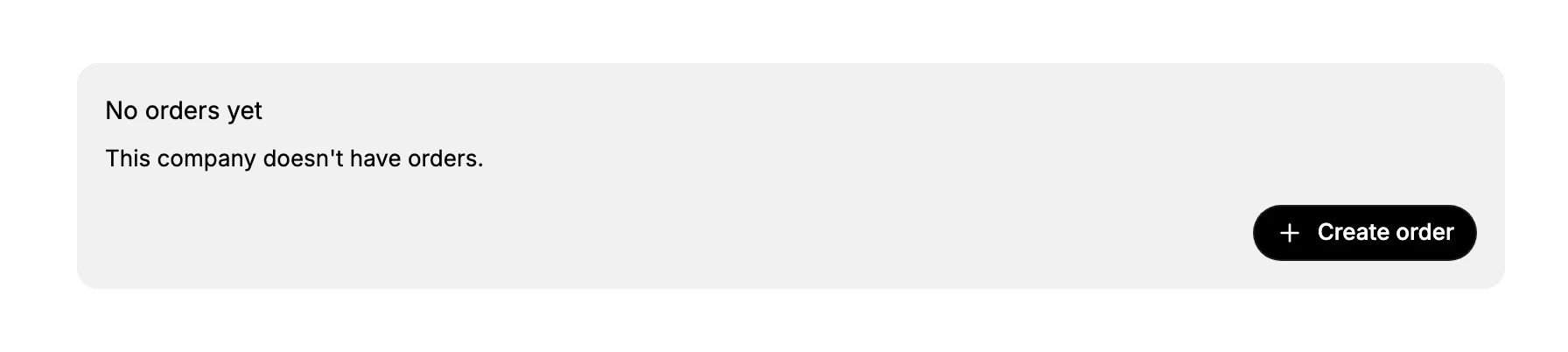
The orders area reads No orders yet until the company has bought something. Create order is how you place one yourself, for a business that orders by phone or email rather than through your storefront.
- Select Create order. The dialog asks you to select a customer for this order and lists the company's own customers, so a company with none cannot get past this step.
- Pick the buyer and select Continue.
- The draft order form opens, which is the form for an order you build in the admin rather than one a customer places at checkout. It arrives with the company's details already in it: the customer, the company and the location, the shipping address taken from that location, the billing address set to match, and the market the company sells in. Building the order from here is the ordinary job covered in Create Draft Order.
- Finish the order the way the business is paying: save it as a draft to return to, send an invoice, or mark it paid.
A finished order takes the place of the No orders yet panel in the orders area, and the Companies list shows the company's totals on its row, under Total orders and Total sales.
If something goes wrong
- The company cannot order. It is Not approved, which means no customer has ordering access yet. Add one with the steps above.
- Create order will not get past the first dialog. The company has no customers to pick from. Add a customer first.
- The Main contact column reads No main contact. A customer is attached but nobody holds the role. Set it with Change main contact.
- Your change is gone when you come back. The main contact and the assigned staff are not saved by their own dialogs. The unsaved changes bar is what saves them.
- Send B2B access email is grey. It is greyed out whether or not the company has a customer, a main contact or orders. Use the notify option inside Add customer to tell the buyer instead.
- You cannot open the actions menu. Your role may not include Create and edit in the Companies permission group. An owner or admin can add it.
Next steps
Related articles
Still stuck?
- Ask Tanqory AIAsk in your own words. It answers from these articles and links the ones it used.
- Ask in your adminThe assistant in your Tanqory admin answers and makes the change for you once you confirm.
- Contact TanqoryWrite to our privacy, security or legal teams, or talk to sales about a plan or a move.