Customers Overview
A map of the Customers area and which article covers each part of it, from the list page and its table to a single record, tags, segments, merging duplicates, store credit, export and privacy requests. The list is covered by two articles rather than one, and this says which takes which half. It also separates the two pairs people most often confuse, views against segments and tags against notes.
On this page
The Customers area holds everyone who has an account with your store or has bought from it. This article is the map: what lives there, and which article covers each part.
Opening Customers in the sidebar needs the View customers permission. Changing anything needs the permission for that particular action, such as Edit customers, Export customers or Manage store credit.
The customer list, where most work starts
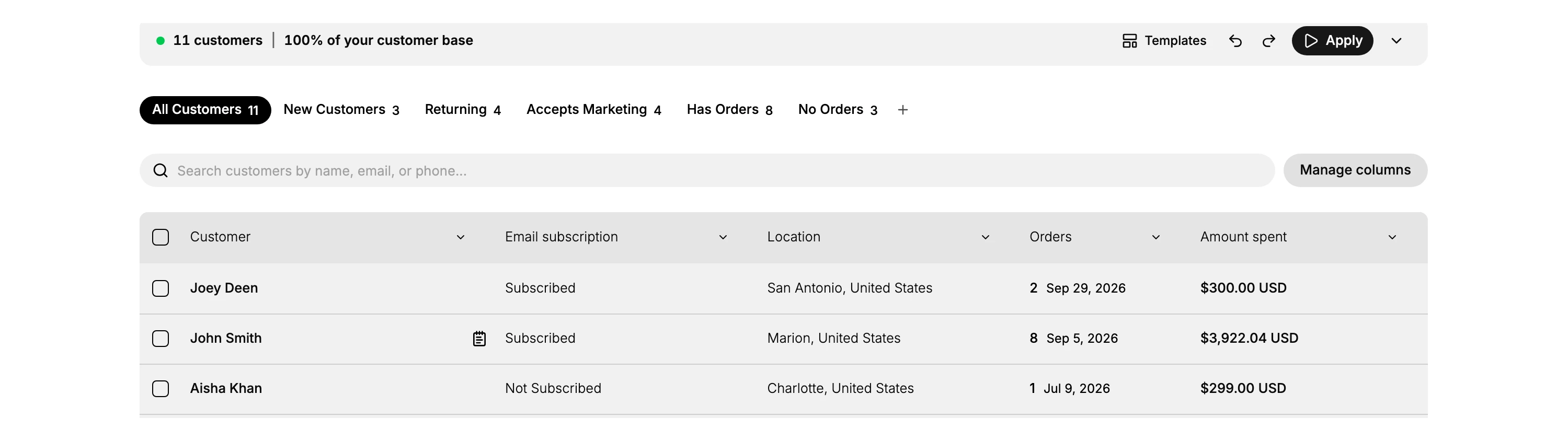
Almost everything begins here. You open one person to see their record, search to jump to someone by name, narrow to a group with the tabs, or tick several rows and change them together.
The page is covered by two articles rather than one, because it does two jobs: choosing which customers you are looking at, and choosing what you see about each of them. The first two rows of the table below are those two articles, and The Customers Page sets the two apart if you are not sure which you want.
What lives in the Customers area
Each row says what the part is for, where it is in the admin, and which article covers it. Only some of them are on the list page; the rest are on a customer's own record or on a page of their own.
| Part | What you do there | Where it is | Where it is covered |
|---|---|---|---|
| The list page | Narrow with the tabs, search, save a view, act on a selection | Customers in the sidebar | Viewing the Customer List |
| The table | Choose which of the twenty columns show, reorder them, sort | The same page, under the search box | The Customers Table |
| Search | Find one person by name, email or phone | The box above the table | Search the Customer List |
| Views | Save the filters you use often as a tab of your own | The plus at the end of the tabs | Customer List Views |
| A customer's record | Contact details, orders, addresses, notes, tags, store credit | Select a row in the list | Customer Detail Page |
| Adding one | Create a record by hand, for an order taken over the phone | Add Customer, top right of the list | Adding a Customer |
| Editing one | Change a name, contact details or address | Edit on the record's Customer card | Edit a Customer Record |
| Tags | Label a customer so a group has a name | The Tags section of the record | Customer Tags |
| Segments | Save a question about your customers that answers itself as they change | Customers > Segments in the sidebar | Customer Segments |
| Acting on several | Tick rows and edit, tag or merge them together | The bar that appears when you tick a row | Bulk Edit Customers |
| Merging duplicates | Fold two records for the same person into one | Merge Customers on that same bar | Merge Customers |
| Store credit | Give a customer a balance to spend with you | The Store credit section of the record | Store Credit |
| Export | Take the list, or a filtered version of it, out as a file | Export, top right of the list | Exporting Customer Data |
| Privacy | Handle a request to see or erase someone's personal data | Settings > Customer privacy | Customer Privacy |
Import sits beside Export at the top of the list and brings customers in from a file. It has no article of its own yet.
Two pairs worth telling apart
Views and segments. A view is a tab on the customer list, for getting back to a list you look at often. A segment is a group picked out by conditions you set, which keeps answering as your customers change, and it has its own page away from the list. If you only want to stop rebuilding the same filter, a view is the lighter answer.
Tags and notes. A tag is a label meant to be shared across many customers so a group has a name. A note is for something true of one person. Reach for a tag when you will want the group later, and a note when you will not.
Next steps
Related articles
Still stuck?
- Ask Tanqory AIAsk in your own words. It answers from these articles and links the ones it used.
- Ask in your adminThe assistant in your Tanqory admin answers and makes the change for you once you confirm.
- Contact TanqoryWrite to our privacy, security or legal teams, or talk to sales about a plan or a move.