Customer Account Settings
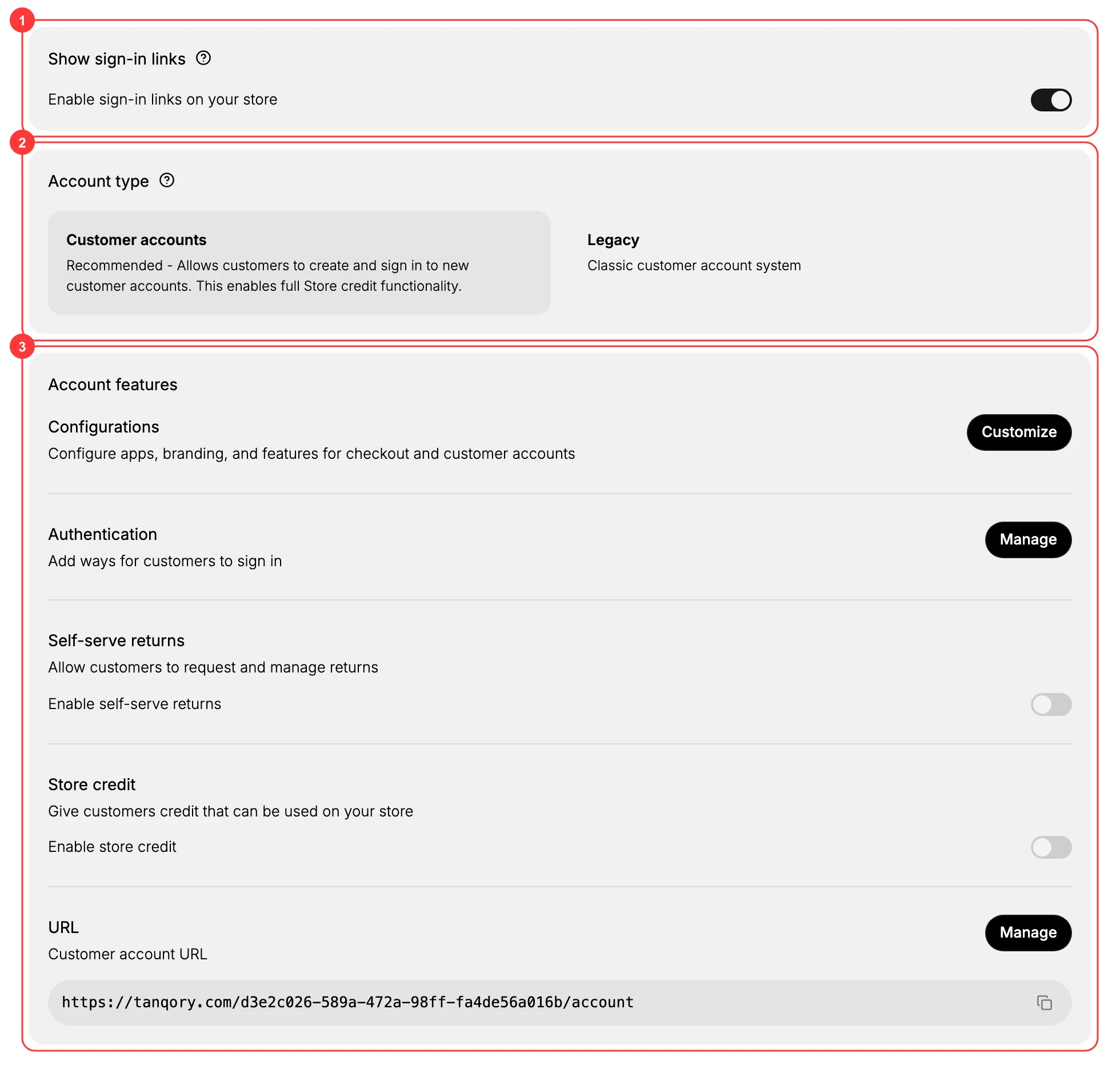
The Customer accounts page has no Save button, so nothing tells you when you are finished with it. This walks its three parts in the order that avoids setting anything twice, starting with the account type, which the switches below it depend on.
On this page
Settings, then Customer accounts, is where you choose the account type, decide whether sign-in links appear on your store, and turn on the account features you want. This article walks that page control by control. Customer Accounts explains what customer accounts give a shopper and why the order of these settings matters.
What's on the page
The Customer accounts page has three parts:
| Part | What it does |
|---|---|
| Show sign-in links | Turns sign-in links on your storefront on or off. |
| Account type | Chooses between Customer accounts (the recommended, current system) and Legacy (the classic system). |
| Account features | Holds Configurations, Authentication, Self-serve returns, Store credit, and the Customer account URL. |
Before you begin
- Your role includes Customer settings, which is what opens the page.
- You know which of the three parts you came to change, since all three sit on one screen and the page has no Save button to review them together.
Steps
1. Open the settings page
Open Settings, then Customer accounts. The page opens with the three parts shown below.
One thing to notice before you touch anything: the page carries no Save button. Nothing at the foot collects your changes and nothing tells you the page is finished, so treat each control as its own decision rather than as part of a form you are filling in.
That also makes this a safe page to read. Open it, change nothing, and leave, and the store is exactly as you found it.
2. Choose the account type
In Account type (2), pick how accounts work on your store. This is the one choice on the page that the others depend on, so settle it before you touch the switches underneath. Leave it alone and the store keeps running whichever system it is on now, which for a store created recently is the recommended one.
- Customer accounts is the recommended option. It lets customers create and sign in to new customer accounts, and it enables full Store credit.
- Legacy is the classic customer account system, for stores that still rely on it. Choosing it is not a fault, but store credit does not do everything the page describes on a store running it.
Choose Customer accounts unless you have a reason to stay on Legacy, since it is the current system and is what store credit needs to work fully. Staying on Legacy is not a fault, but a store on it that later turns on store credit will find the feature does not do everything the page promises.
3. Show or hide sign-in links
In Show sign-in links (1), turn Enable sign-in links on your store on so shoppers see a way to sign in on your storefront, or off to hide it. With it off the accounts still exist and still work, but nothing on your storefront points to them, so only a customer who already has the direct address can get in. That is the setting to use while you are still preparing the account area, and the one to turn on the moment it is ready. Where those links show up on a storefront is the subject of Customer Sign-In Links.
4. Set up the account features
In Account features (3), open each one you need. Each row here is a decision about how much a customer can do without you, so turn on what your team is ready to support rather than everything at once.
None of it is required. Leave the whole section alone and accounts still work: customers can sign in and see their orders. What they cannot do is start a return themselves or spend a credit balance, and both of those keep arriving as work for your team instead.
- Configurations opens Customize, where you set apps, branding, and features for checkout and customer accounts.
- Authentication opens Manage, where you add the ways customers can sign in. Customer Account Authentication takes the panel in full.
- Self-serve returns has an Enable self-serve returns toggle that lets customers request and manage their own returns.
- Store credit has an Enable store credit toggle that lets you give customers credit to spend on your store. What a balance is worth and how a customer spends it belongs to Store Credit.
5. Share the customer account URL
At the foot of Account features, the Customer account URL is the link customers use to reach their account, with a copy control beside it.
Copy it now and put it somewhere customers will look, because this is the step that decides whether the rest of the page is used. Skip it and the account area exists but nothing on your storefront points a customer to it. Account Features Configuration covers the row and what Manage changes.
With the account type chosen, the sign-in links switched on, the features you want enabled, and the URL published, the page is finished and the store is offering accounts. Nothing here needs revisiting until you add a sign-in method or change what customers are allowed to do for themselves. From this point the work moves to the customers themselves, on their own records.
If something goes wrong
- Customers cannot find where to sign in. Check that Enable sign-in links on your store is on.
- Store credit is not available. Confirm the account type is Customer accounts, which is what enables it fully.
- You cannot open the page. Your role may not include Customer settings. An owner or admin can add it.
Next steps
Related articles
Still stuck?
- Ask Tanqory AIAsk in your own words. It answers from these articles and links the ones it used.
- Ask in your adminThe assistant in your Tanqory admin answers and makes the change for you once you confirm.
- Contact TanqoryWrite to our privacy, security or legal teams, or talk to sales about a plan or a move.