Customer Account Features
Account features looks like five settings and is really three different kinds of thing: two shortcuts to other pages, one panel, and two switches that change something here. None of it is required, so this covers what each row is for and what turning it on gives your customers.
On this page
Account features is the part of the Customer accounts settings where you set up what signed-in customers can do. It groups the configuration shortcuts, the sign-in methods, the self-serve returns and store credit toggles, and the link customers use to reach their account. You open it under Settings > Customer accounts, where it sits below Show sign-in links and Account type.
Customer Accounts takes the whole settings page, including the account type choice.
What's in Account features
| Feature | Control | What it does |
|---|---|---|
| Configurations | Customize | Opens Settings, then Checkout, which is where the apps, branding, and features for checkout and customer accounts are set |
| Authentication | Manage | Adds the ways customers can sign in |
| Self-serve returns | Enable toggle | Lets customers request and manage their own returns |
| Store credit | Enable toggle | Lets you give customers credit they can spend on your store |
| Customer account URL | Copy / Manage | The link customers use to reach their account. Manage opens Settings, then Domains |
Before you begin
- Your role includes Customer settings, which is what opens the page.
- Your account type is set, since Account type sits above this section and Customer accounts is what enables store credit in full.
- You have somewhere to put the customer account URL, such as your return and refund policy or your storefront footer. The page tells you to add it, and self-serve returns are hard for customers to find without it.
Steps
1. Open Account features
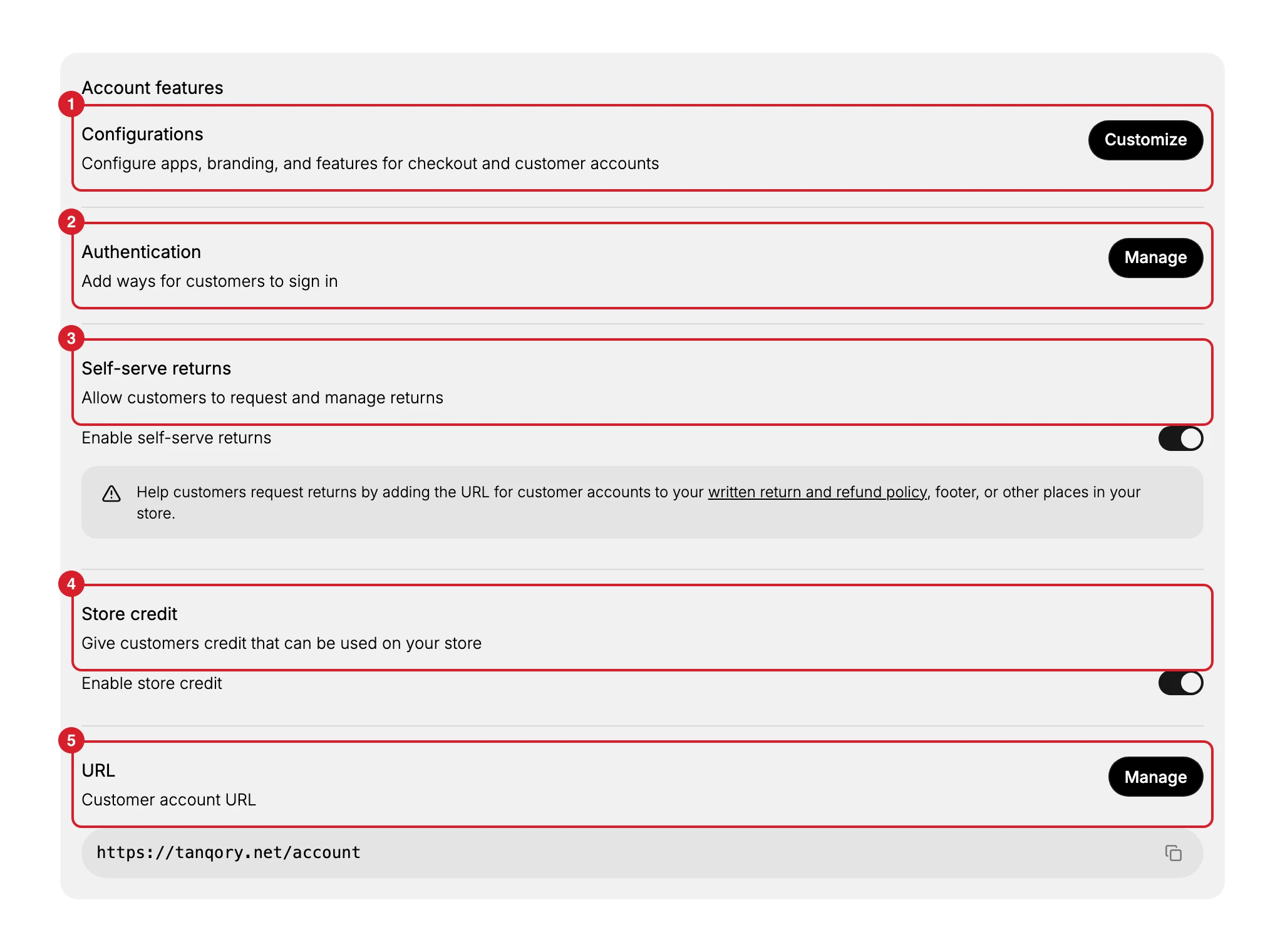
Open Settings, then Customer accounts, and scroll to Account features at the foot of the page. The section lists the five items below.
Read it before you touch anything, because two of the rows are not settings. Configurations and URL hand you to other pages, while only Self-serve returns and Store credit are switches that change something here. Knowing which is which saves you looking for a setting that was never on this page.
Nothing in this section is required. A store that leaves all of it alone still has working accounts; what it does not have is customers who can start their own returns, spend a credit balance, or find their way to the account area.
2. Open Configurations
Under Configurations (1), select Customize. It does not open a panel here: it takes you to Settings, then Checkout, which is where those apps, branding, and features are set. Use the back arrow to return to this page.
The row exists because the checkout and the account area share the same branding and the same apps, so Tanqory keeps one place to set both rather than two that could drift apart. Leaving it alone is a fair choice. Your account area then looks the way the checkout already looks, which for most stores is what you want anyway.
3. Set up Authentication
Under Authentication (2), select Manage to add the ways customers can sign in. Customer Account Authentication goes into the detail.
Every method you add is one more way a customer gets in without asking you for help, which is the point of accounts. Add none and accounts still work, but every shopper is limited to the store's own sign-in, and anyone who cannot get past it becomes a support message.
4. Turn on Self-serve returns
Turn on Enable self-serve returns (3) to let customers request and manage their own returns from their account, instead of contacting you for each one. The work does not disappear, but it starts as a structured request against a real order rather than as a message you have to interpret.
Leave it off and returns keep arriving the way they do now, by email or message, with you creating each one by hand. That is a reasonable choice while your return policy is still being decided, since a customer starting their own return against rules you are still writing causes more work than it saves.
5. Turn on Store credit
Turn on Enable store credit (4) to give customers credit they can spend on your store. It gives you something to offer a customer other than money back to their card, which keeps the value with your store rather than sending it out. With the switch off you refund to the original payment method every time, which is simpler but hands the money back for good.
Store credit works fully when the account type is Customer accounts, so confirm that first. Issuing a balance and watching it spent is a job of its own, in Store Credit.
6. Share the Customer account URL
At the foot of the section, the Customer account URL (5) is the link customers use to reach their account. Use the copy control to copy it, or Manage to change how it is reached, which opens Settings, then Domains.
Publish it somewhere customers will look, such as your return and refund policy or your storefront footer. The page asks you to, in the notice beside self-serve returns, which also links to your written return and refund policy under Settings, then Policies. Skip it and everything you switched on above is still there but unreachable, because nothing on your storefront tells a customer the account area exists.
That is the whole section. Two of its rows are shortcuts that hand you to other settings pages, two are switches you own, and the last is a link with no setting behind it, only an address to publish. Once the switches read the way you want and the URL is somewhere customers will see it, Account features is done, and what you turned on starts showing up in the customer's own account area rather than in your inbox.
If something goes wrong
- Store credit does not work fully. Confirm the account type is Customer accounts under Account type, not Legacy.
- A toggle did not change. Refresh the page and set it again.
- You cannot open the page. Your role may not include Customer settings. An owner or admin can add it.
Next steps
Related articles
Still stuck?
- Ask Tanqory AIAsk in your own words. It answers from these articles and links the ones it used.
- Ask in your adminThe assistant in your Tanqory admin answers and makes the change for you once you confirm.
- Contact TanqoryWrite to our privacy, security or legal teams, or talk to sales about a plan or a move.