Show Sign-In Links
Show sign-in links is the single toggle that decides whether your storefront offers shoppers a way into their account. It changes what shoppers see and nothing else: no account is created or closed, staff access is untouched, and the account area stays reachable through the Customer account URL even with the links hidden. This covers where the toggle sits, what turning it off really does, and why checking your own storefront is the only way to see the result.
On this page
Show sign-in links decides one thing: whether your storefront offers customers a way into their account, or says nothing about accounts at all.
It changes only what shoppers are shown. It does not create, disable or delete any account, and a customer who already has one keeps it either way. What a shopper actually finds, a person icon in the header and the panel behind it, is shown in Customer Sign-In Links.
Before you begin
- Your role includes Edit customer settings, since the toggle is a store setting rather than a change to a customer.
- You can open your own storefront to check the result, since the admin shows the setting and not what a shopper sees.
Where the setting is
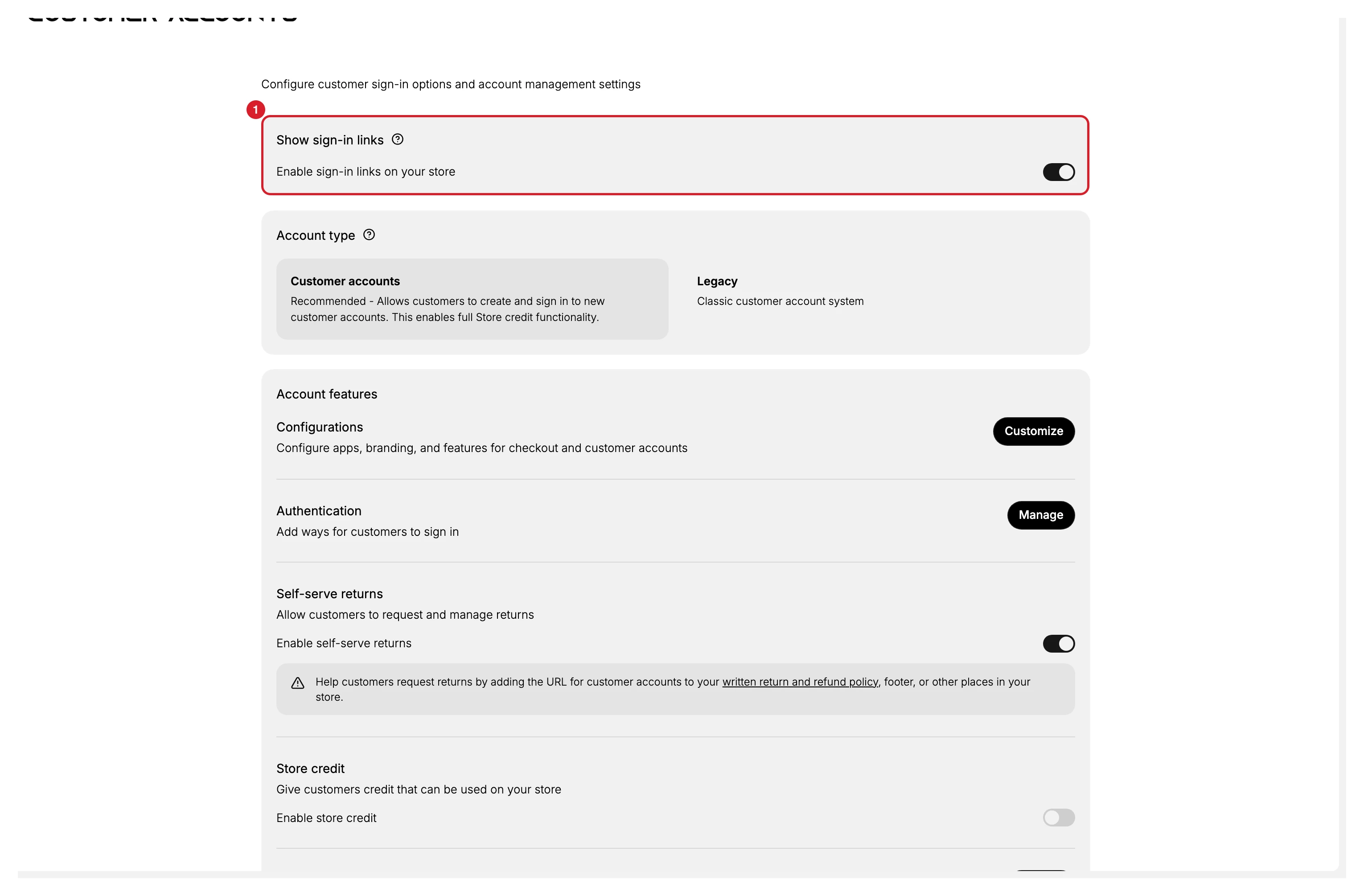
Close up, that first card reads:

Show sign-in links (1) is the first card on the page, above everything else, and it holds one row: Enable sign-in links on your store, with a toggle.
Its position matches what it does. The rest of the page sets up what an account can do once a customer is inside it, while this one decides whether they are shown a way in.
Steps
1. Open the setting
Go to Settings > Customer accounts. The page opens on Show sign-in links, so there is nothing to scroll to.
The toggle shows the state your store is in now. If you are not sure what it should be, leave it and read the section below on turning it off first.
2. Set the toggle
Turn Enable sign-in links on your store on to have your storefront show a way to sign in, or off to hide it.
The change is to the storefront alone. Nothing on any customer record changes, no account is created or removed, and staff access to the admin is not affected in any way.
3. Check the storefront
Open your own store as a shopper would and look for the sign-in entry point. This is the only check that tells you what customers now see, because the admin only reports the setting, not the result.
Refresh if the old state is still showing. A storefront page can be served from cache for a while after a settings change.
Turning it off does not close the account area
Hiding the links removes the visible way in, and nothing else. The account area itself is still there, and the same page carries its address: at the foot of Customer accounts is a URL section holding the Customer account URL, with a copy control beside it.
So a store can keep accounts working and reachable while showing no sign-in link anywhere, by giving customers that address directly. The page itself suggests exactly that for one case: the notice under Self-serve returns asks you to add the customer accounts URL to your written return and refund policy, your footer, or elsewhere in your store.
| If you want | Do this |
|---|---|
| Customers to find their account on their own | Leave the toggle on |
| No account links anywhere on the storefront | Turn it off and do not share the URL |
| Accounts used, but only by people you send there | Turn it off and put the Customer account URL where those customers will see it |
What this setting is not
- It is not Account type. Whether your store uses the current or the Legacy account system is the card below this one.
- It is not Authentication. How customers prove who they are is under Account features, then Authentication.
- It is not a way to disable accounts. Nothing here stops an existing customer signing in if they reach the account URL.
If something goes wrong
- Customers cannot find where to sign in. Confirm Enable sign-in links on your store is on, then look at the storefront yourself.
- The link still shows after turning it off. The page may be cached; refresh it.
- You cannot change the toggle. Your role may lack the Edit customer settings permission. An owner or admin can add it.
Next steps
Related articles
Still stuck?
- Ask Tanqory AIAsk in your own words. It answers from these articles and links the ones it used.
- Ask in your adminThe assistant in your Tanqory admin answers and makes the change for you once you confirm.
- Contact TanqoryWrite to our privacy, security or legal teams, or talk to sales about a plan or a move.