Customer Sign-In Links
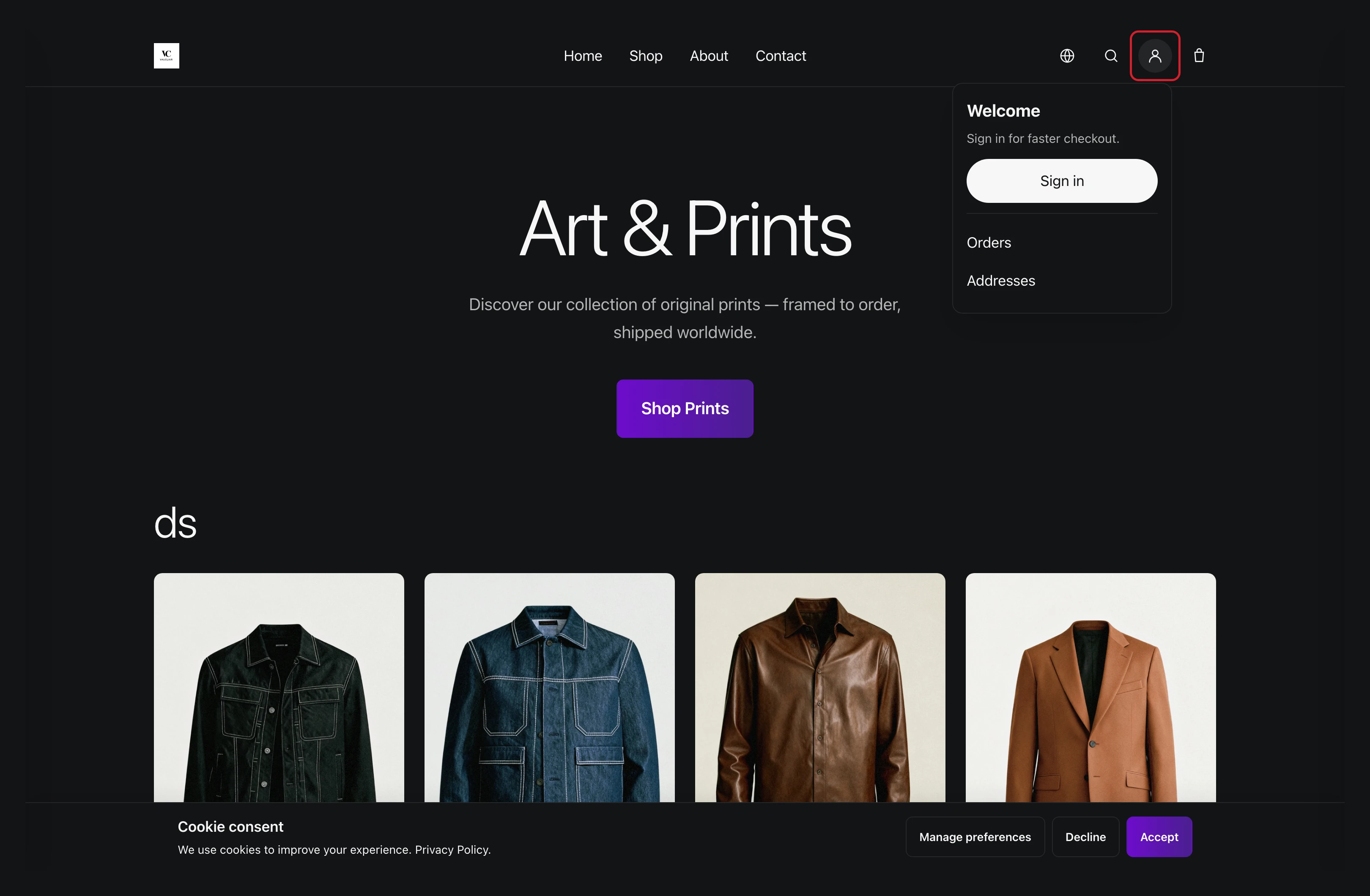
What a shopper actually finds on your storefront when they go looking for their account: a person icon in the header, and the panel behind it offering Sign in, Orders and Addresses. This covers where each of those leads, what the sign-in page asks for, and what a shopper sees when the links are switched off.
On this page
A sign-in link is the way into an account from the shopper's side. Everything else about customer accounts is set in the admin; this is the part your customers actually meet.
Show Sign-In Links is the setting that puts these links on your storefront or takes them away. This article is the other half: what they look like once they are on.
What a customer sees
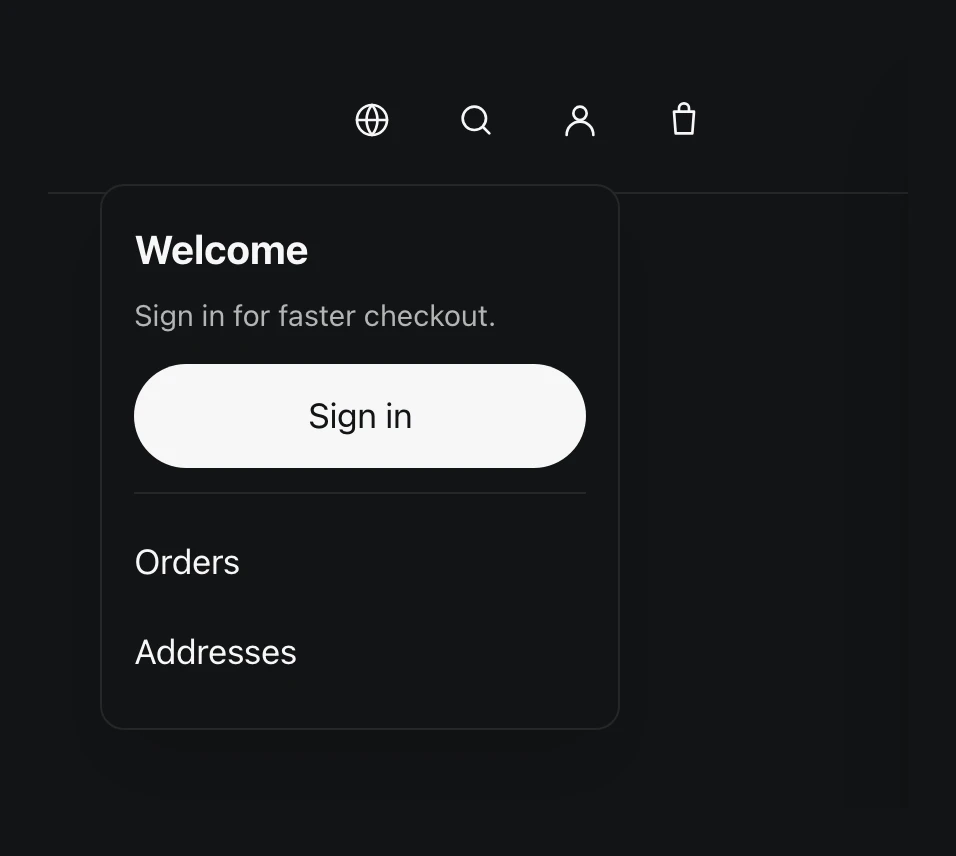
Close up, that corner of the header reads:
The entry point is a person icon in the header, beside the search and cart icons. It carries no wording, so a shopper looking for the word account has to recognise the icon instead.
Selecting it opens a small panel:
| In the panel | Where it leads |
|---|---|
| Welcome, over the line Sign in for faster checkout. | Nothing. It says what the panel is for |
| Sign in | The sign-in page, which asks for whatever the store's sign-in methods require |
| Orders | The customer's own order history |
| Addresses | The addresses saved on their account |
The panel is the same for a shopper who has never signed in: Orders and Addresses are offered either way. Taking one of them while signed out opens the sign-in page rather than an error, and the page they asked for is kept as the destination, so they land on it once they are in.
On the store these pictures come from, that page asks for an email address and nothing else, then emails a 6-digit code to sign the shopper in. The page also states that a shopper who has not bought from you before has an account created for them as they sign in. What your own sign-in page asks for depends on the methods turned on in Customer Account Authentication, so yours may look different.
What the panel is offering
Sign in for faster checkout is the line the panel leads with, and the two links under it are what the account actually holds: the orders the customer has placed with you, and the addresses saved on their account.
That is the case for leaving the links on. A shopper who cannot find the way in has no way to look up an order themselves, so the question comes to you instead.
If the links are not there
A storefront that shows no person icon is a storefront with Show sign-in links turned off. The accounts still exist and still work. What is missing is the signpost, and the account area can still be reached through its own address, which Show Sign-In Links covers along with the setting itself.
Next steps
Related articles
Still stuck?
- Ask Tanqory AIAsk in your own words. It answers from these articles and links the ones it used.
- Ask in your adminThe assistant in your Tanqory admin answers and makes the change for you once you confirm.
- Contact TanqoryWrite to our privacy, security or legal teams, or talk to sales about a plan or a move.