Customer Account Authentication
The Authentication panel is the only place that shows which sign-in methods your store offers, which makes it worth opening even when you are not changing anything. This covers reading it, what Shop and the social providers each need, and what it means when a switch cannot be moved.
On this page
Authentication controls how customers sign in to your store. You manage it from the Customer accounts settings, where the Authentication panel lets you turn on Shop sign-in and connect social providers such as Google and Facebook. Adding a sign-in method gives customers a faster way to access their account, while the methods you leave off are not offered at sign-in.
Sign-in methods
| Method | What it does | Notes |
|---|---|---|
| Shop | Lets customers sign in with their Shop credentials | Its switch is greyed out where Tanqory Payments is not supported |
| Lets customers sign in with their Google account | You connect it from Available connections | |
| Lets customers sign in with their Facebook account | You connect it from Available connections |
The Account type you choose also affects sign-in. Customer accounts is the recommended type and supports the full set of account features, while Legacy uses the classic system. Customer Accounts covers that choice.
Before you begin
- Your role includes Customer settings, which is what opens the page.
- Your store already offers customer accounts, since sign-in methods only matter once shoppers have an account to sign in to.
- You can complete a provider's own authorization when Connect hands you to it, which happens outside the Tanqory admin.
Steps
1. Open Customer accounts settings
Open Settings, then Customer accounts. Sign-in methods are not a page of their own; they sit inside this one, alongside the account type and the customer account URL, because which methods you can offer depends on the account system the store runs.
Start here rather than hunting for an authentication page. There is no other route to the panel, so a store that never opens this page has never seen which sign-in methods it is offering.
2. Open Authentication
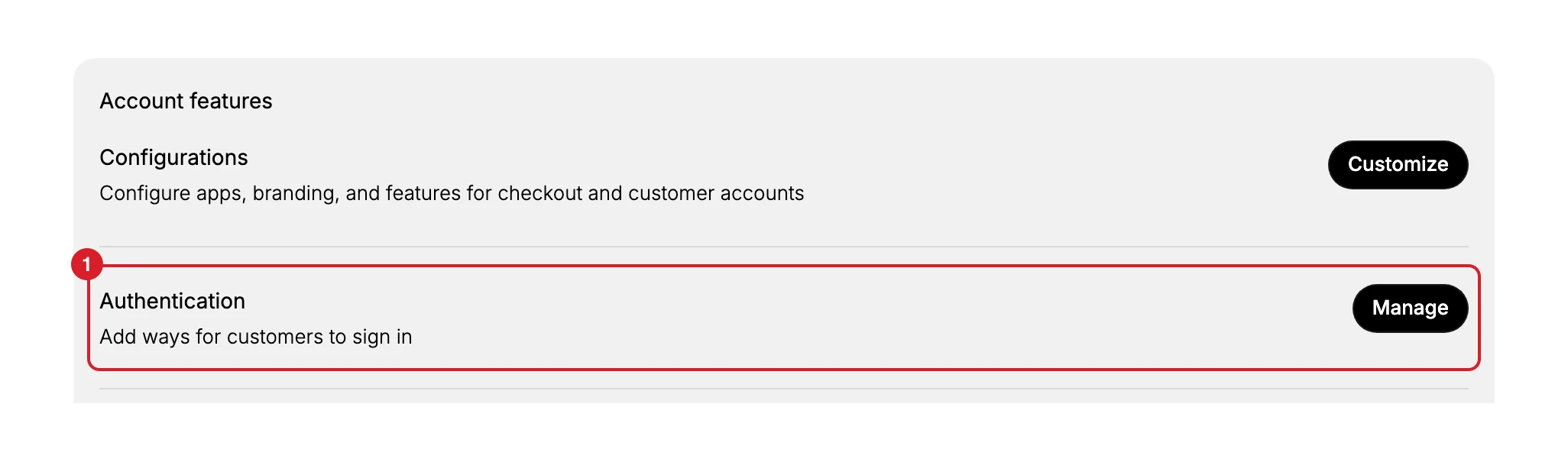
Under Account features, find Authentication (1), described on the page as a way to add how customers sign in. Select Manage to open the panel.
The row shows nothing about what is currently on, so opening the panel is the only way to see which methods your store offers. Leave it unopened and you are working from an assumption rather than from the screen.
3. Review the sign-in methods
Read the panel before changing anything, since it is the only place that shows which methods your store offers. A method you assume is on may be greyed out for a reason you have never seen, and turning something on without reading the notice underneath is how a store ends up believing it offers a sign-in that customers cannot use.
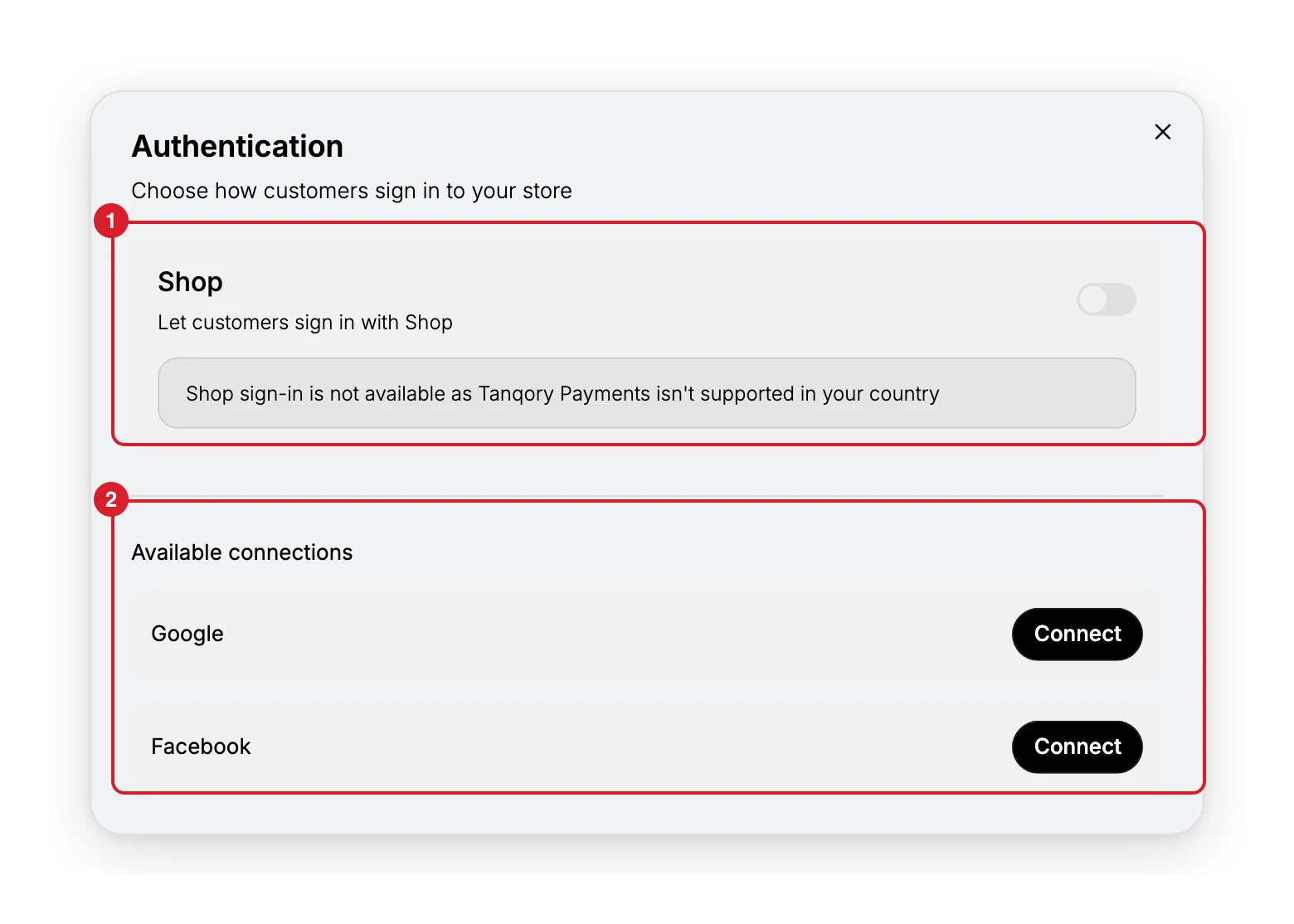
The panel is headed Authentication and reads "Choose how customers sign in to your store". Shop (1) carries a switch to let customers sign in with Shop. Where it cannot be used the switch is greyed out and a panel underneath says why, in this store's case "Shop sign-in is not available as Tanqory Payments isn't supported in your country". Available connections (2) lists the providers you can add, Google and Facebook, each with a Connect button.
4. Turn on Shop sign-in
Where Shop sign-in is available, turn on its switch to let customers sign in with their Shop credentials. Where it is not, the switch cannot be moved, and the panel underneath names the reason. That is the record telling you the method is unavailable to this store, not a permission problem.
5. Connect a social provider
To add Google or Facebook, select Connect beside that provider. The panel hands you to the provider's own authorization, which is outside the Tanqory admin. Only a Connect button is shown against each provider on a store with nothing connected, so what the panel offers once a provider is connected is not described here.
Between the Shop switch and the two connections, the panel holds every sign-in method this store can offer. What you leave off is not presented to customers at sign-in, so the panel is worth a second look whenever people report trouble getting in. Closing it returns you to the Customer accounts page, where the rest of the account settings sit.
Next steps
Related articles
Still stuck?
- Ask Tanqory AIAsk in your own words. It answers from these articles and links the ones it used.
- Ask in your adminThe assistant in your Tanqory admin answers and makes the change for you once you confirm.
- Contact TanqoryWrite to our privacy, security or legal teams, or talk to sales about a plan or a move.