Notifications
The Settings Notifications page: set the email your store sends from, and reach the settings for customer emails, staff alerts, fulfillment services, and webhooks.
On this page
Settings Notifications is where you control the automated messages your store sends. It gathers the sender your customers see, the customer-facing emails, the internal alerts your team gets, the notifications sent to fulfillment partners, and the webhooks that push data to other systems, all on one page. Each of these has an effect a customer or a teammate actually notices, so this page is where you make sure the right people get the right message. This article walks the page and points to the detailed article for each area.
Before you begin
- You can open Settings, then Notifications.
- Your role includes General settings.
- Open Settings > Notifications in the admin sidebar.
Walk through the Notifications page
From the admin, open the Notifications page. The page shows the Sender email at the top, an Email templates group holding the customer, staff, and fulfillment settings, and Webhooks below. Each row opens the settings for that area.
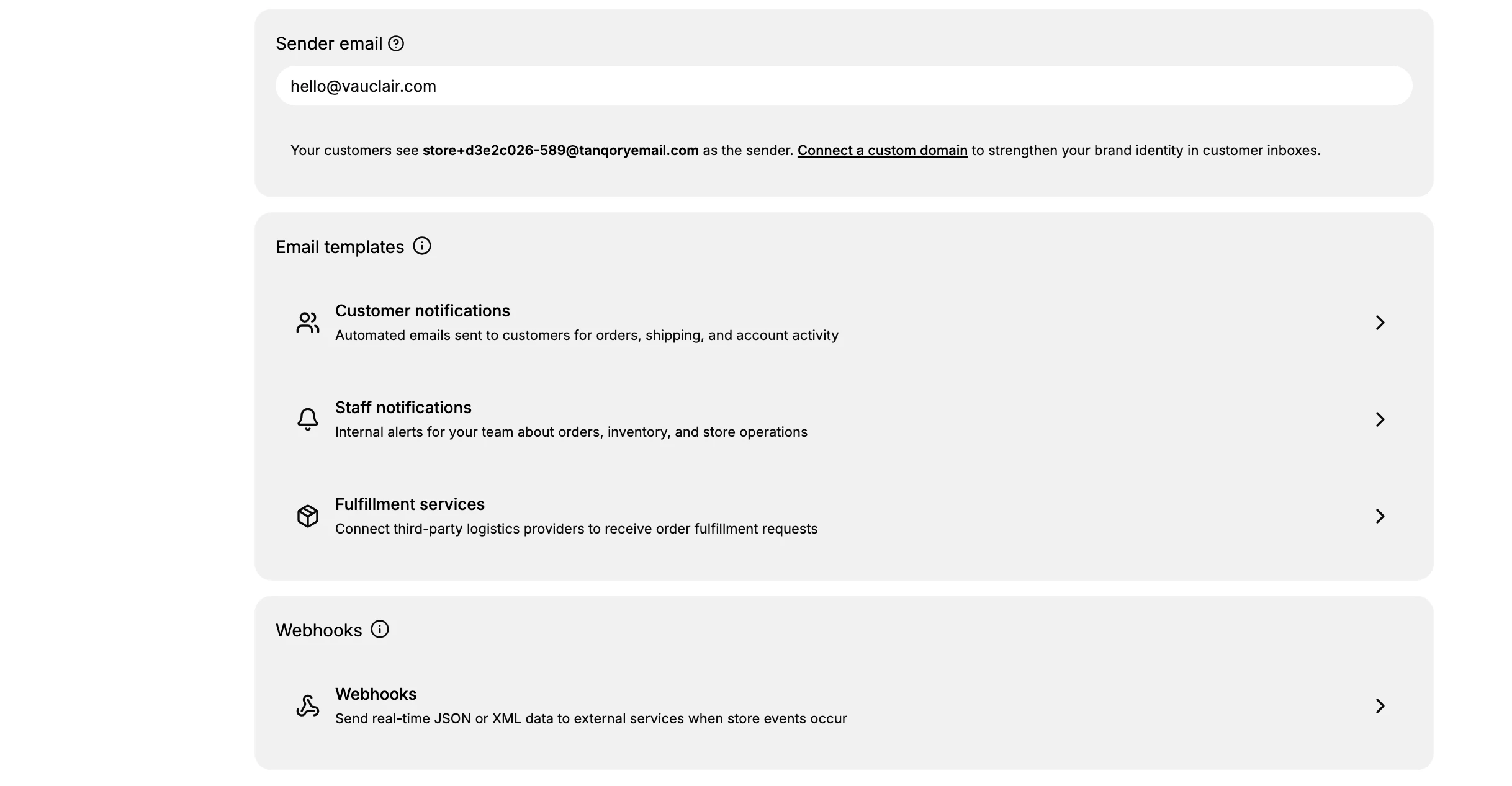
- Set your sender email. The Sender email field is the address customers see your emails come from. Until you connect a custom domain, the page notes that customers see a default tanqoryemail.com address as the sender, and connecting your own domain is what makes emails come from your brand instead. See Connecting Your Domain.
- Manage customer notifications. The Customer notifications row opens the automated emails sent to customers for orders, shipping, and account activity. This is where you control which of these emails go out and how they read. See Customer Notifications.
- Manage staff notifications. The Staff notifications row opens the internal alerts your team receives about orders, inventory, and store operations. Setting these up is what makes sure the right person hears about a new order or low stock without watching the admin all day. See Staff Notifications.
- Connect fulfillment services. The Fulfillment services row is where you connect third-party logistics providers so they receive your order fulfillment requests. Use this when someone other than you ships your orders, so their system is told what to fulfill. Custom Order Fulfillment follows how fulfillment flows through the store.
- Set up webhooks. The Webhooks section sends real-time data to external services when store events happen, which is how you keep an analytics, CRM, or ERP system in step with your store. See Webhooks.
Verify the result
- A test order's emails arrive from the sender address you set.
- Customers receive the notifications you left enabled, and not the ones you turned off.
- Staff receive their alerts when the triggering event happens.
- A connected webhook endpoint logs the events you subscribed it to.
Best practices
- Connect a custom domain so emails come from your brand rather than the default sender, which customers trust more and are less likely to mark as spam.
- Review the customer emails in your own words before launch, so the first message a customer gets sounds like your store.
- Send staff alerts to more than one person where it matters, so a single missed inbox does not hold up an order.
- If a customer says an email never arrived, check the sender domain's email DNS first. See Customer Emails Not Sending.
Next steps
Related articles
Still stuck?
- Ask Tanqory AIAsk in your own words. It answers from these articles and links the ones it used.
- Ask in your adminThe assistant in your Tanqory admin answers and makes the change for you once you confirm.
- Contact TanqoryWrite to our privacy, security or legal teams, or talk to sales about a plan or a move.