Store Information Settings
The Settings General page, where you set your store's name and contact details, its defaults for currency, units, and timezone, your order number format, and how orders are processed.
On this page
Settings General is the page where your store's identity and its store-wide defaults live. The values you set here follow your store everywhere: your store name appears on receipts and emails, your default currency and units feed pricing and shipping, and your timezone decides how every report is bucketed. Getting them right early is what keeps later work consistent, because a wrong timezone or unit shifts numbers across the whole store rather than in one place. This article walks the page section by section.
Before you begin
- You can open Settings, then General.
- Some sections, such as Organizations and Store Transfers, are available only to the store owner.
- Your role includes General settings.
- Open Settings > General in the admin sidebar.
The General settings page section by section
Open the General settings page
From the admin, open Settings and select General. The page loads as a single scrollable page with each area of store configuration in its own section, described below.
Set your store details
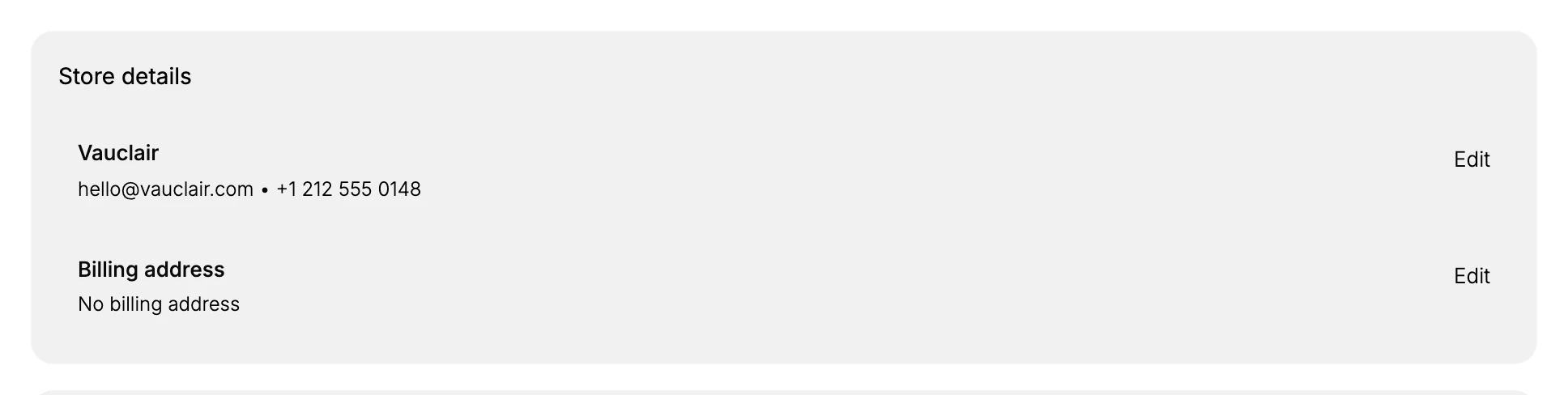
The Store details section holds your store name and its contact email and phone, along with the billing address Tanqory keeps on file. Select Edit on either block to change it. The store name and contact details are what customers see on receipts and in emails, so this is the identity the rest of the store inherits. The billing address is the address Tanqory holds for your account, which is separate from where you ship orders from.
Set your store defaults
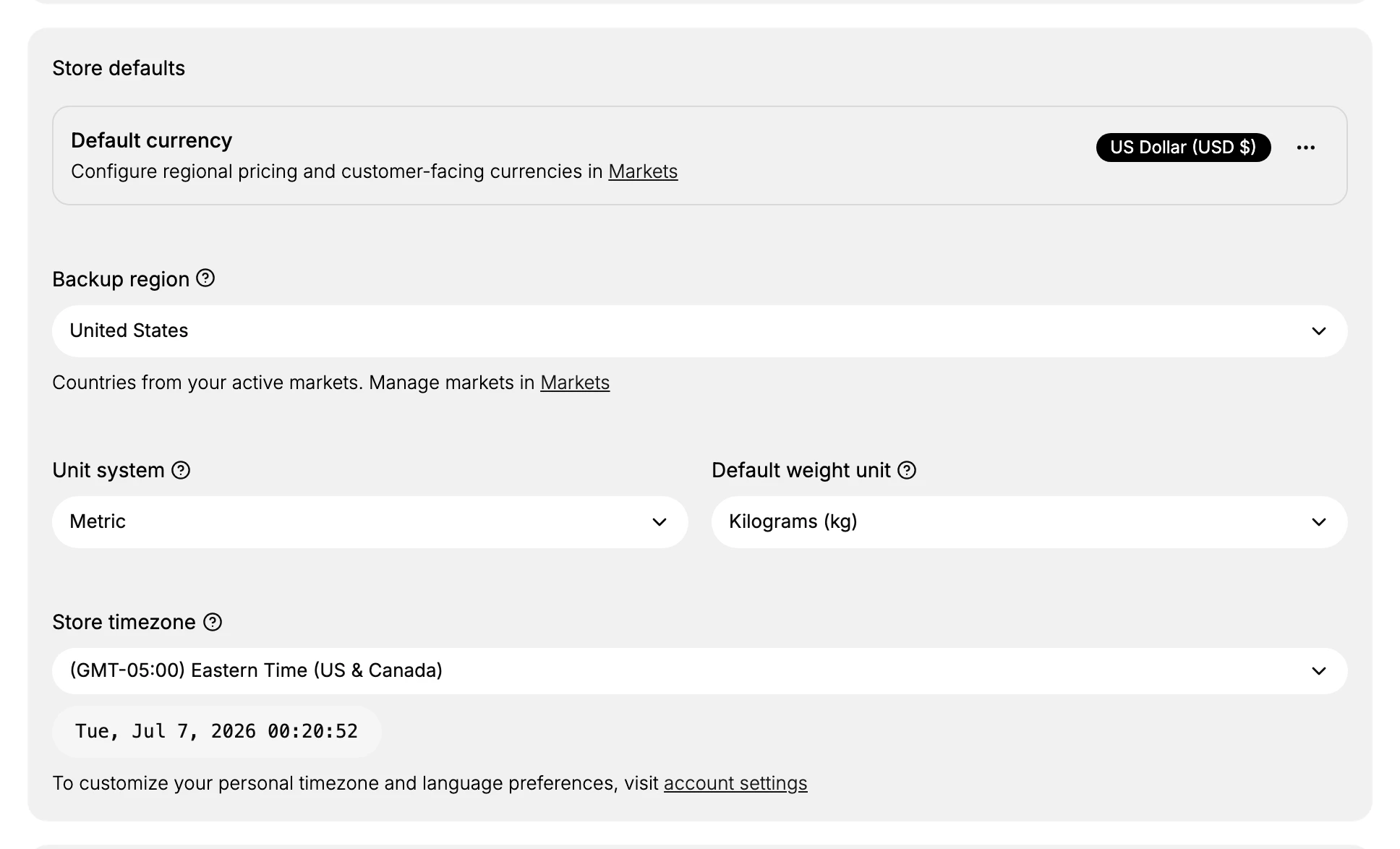
The Store defaults section holds the values pricing, shipping, and reporting fall back on.
- Default currency is the currency your store is denominated in. It is managed alongside your regional pricing in Markets, which the section links to. See Change Store Currency.
- Backup region is the fallback country for region-dependent calculations, drawn from the countries in your active markets.
- Unit system, either Metric or Imperial, sets the measurement system, and Default weight unit follows from it. This feeds the weights you enter on products and the rates you build in shipping.
- Store timezone sets the clock every report and timestamp uses. Match it to the team that runs your operations, because reports group by this timezone rather than by where a customer is.
Set your order ID format
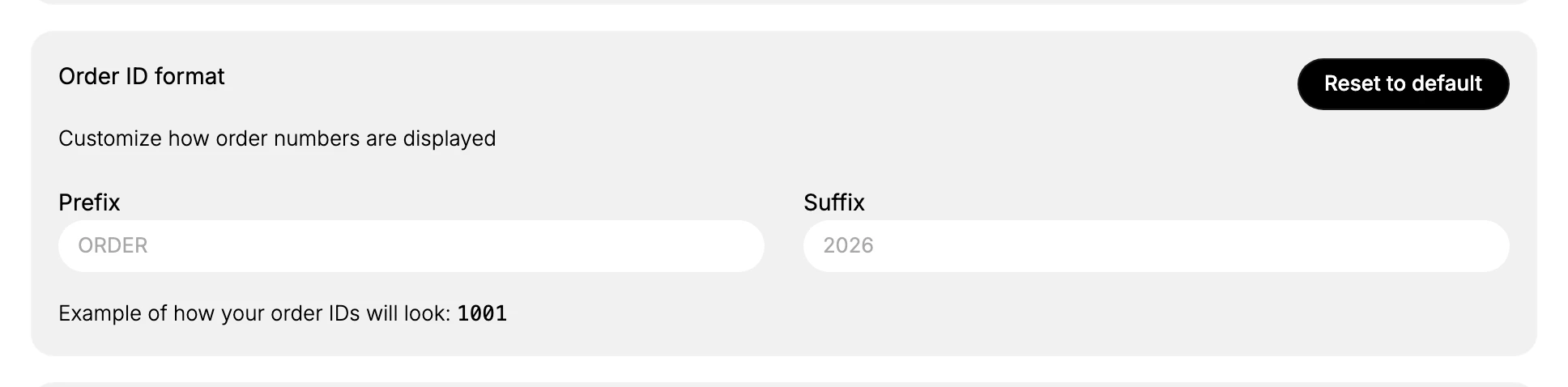
The Order ID format section decides how your order numbers read. Enter a Prefix and a Suffix around the automatic number, and the example updates to show how an order ID will look. A format like a year suffix makes orders easier to tell apart across a long history. Reset to default returns to the plain numbering if you change your mind.
Choose how orders are processed
The Order processing section sets whether Tanqory advances orders through fulfillment on its own. You choose one order fulfillment behavior: automatically fulfill every line item, automatically fulfill only gift cards, or do not automatically fulfill, which leaves each order for your team to fulfill by hand. A separate option automatically archives orders once they are fulfilled. Auto-fulfilling suits digital goods that need no picking, while physical goods that go through pick and pack usually want manual fulfillment.
Review custom data and branding
The Custom data & branding section has two parts. Custom store data lets you attach key-value data that your theme and the Storefront API can read. Brand identity opens your logo, colors, and brand assets. Brand covers the brand editor itself.
Find resources and account tools
The Resources section gathers read-only links: What's new for platform updates, the Tanqory help center, Developer resources, Keyboard shortcuts, and the Store activity log. There are no settings to change here; it is a jumping-off point to documentation and your store's activity history.
Manage organizations and transfers
The Organizations and Store Transfers section is available to the store owner. It holds Organization information, Transfer ownership, and Migrate to Organization. These change which account or organization owns the store, so use them deliberately, since they affect the whole store rather than a single setting.
Verify the result
- Your store name and contact details appear correctly on a test order's receipt and emails.
- The store timezone matches your operations team, so reports read the way you expect.
- A newly placed order uses your Order ID format.
- Your chosen order processing behavior happens as expected on a test order.
Best practices
- Set the store timezone to where your operations run, not to a customer market, because every report groups by it.
- Keep the unit system consistent with how you weigh and measure products, so shipping rates and product weights line up.
- Include a year in your order ID format, which makes orders easier to trace across multiple years.
- Choose order processing to match your goods: auto-fulfill digital items, but leave physical goods for manual fulfillment so nothing ships before it is picked.
Next steps
Related articles
Still stuck?
- Ask Tanqory AIAsk in your own words. It answers from these articles and links the ones it used.
- Ask in your adminThe assistant in your Tanqory admin answers and makes the change for you once you confirm.
- Contact TanqoryWrite to our privacy, security or legal teams, or talk to sales about a plan or a move.