Currency Formatting
The Change currency formatting dialog controls how prices display on your storefront and in emails. It has four templates: HTML with and without currency, and Email with and without currency, each built from an amount placeholder.
On this page
The Change currency formatting dialog controls how prices are shown to customers. As it explains, it customizes how prices display on your storefront and in emails, using four separate templates so you can control the look in each place. Each template is built from an amount placeholder that is replaced with the real price, and you decide whether to show the currency alongside it. You open the dialog from Settings, then General, in the Store defaults section, by opening the menu on the Default currency row and choosing Change currency formatting.
The four templates
| Template | What it controls |
|---|---|
| HTML with currency | How a price shows on the storefront, including the currency |
| HTML without currency | How a price shows on the storefront, without the currency |
| Email with currency | How a price shows in emails, including the currency |
| Email without currency | How a price shows in emails, without the currency |
Before you begin
- Your role includes General settings.
- Open Settings > General in the admin sidebar. In Store defaults, open the currency formatting dialog.
Format how prices display
From the admin, open Settings, then General. In the Store defaults section, find the Default currency row, open its menu, and select Change currency formatting. The dialog opens with a note that it customizes how prices display on your storefront and in emails, and shows the four templates.
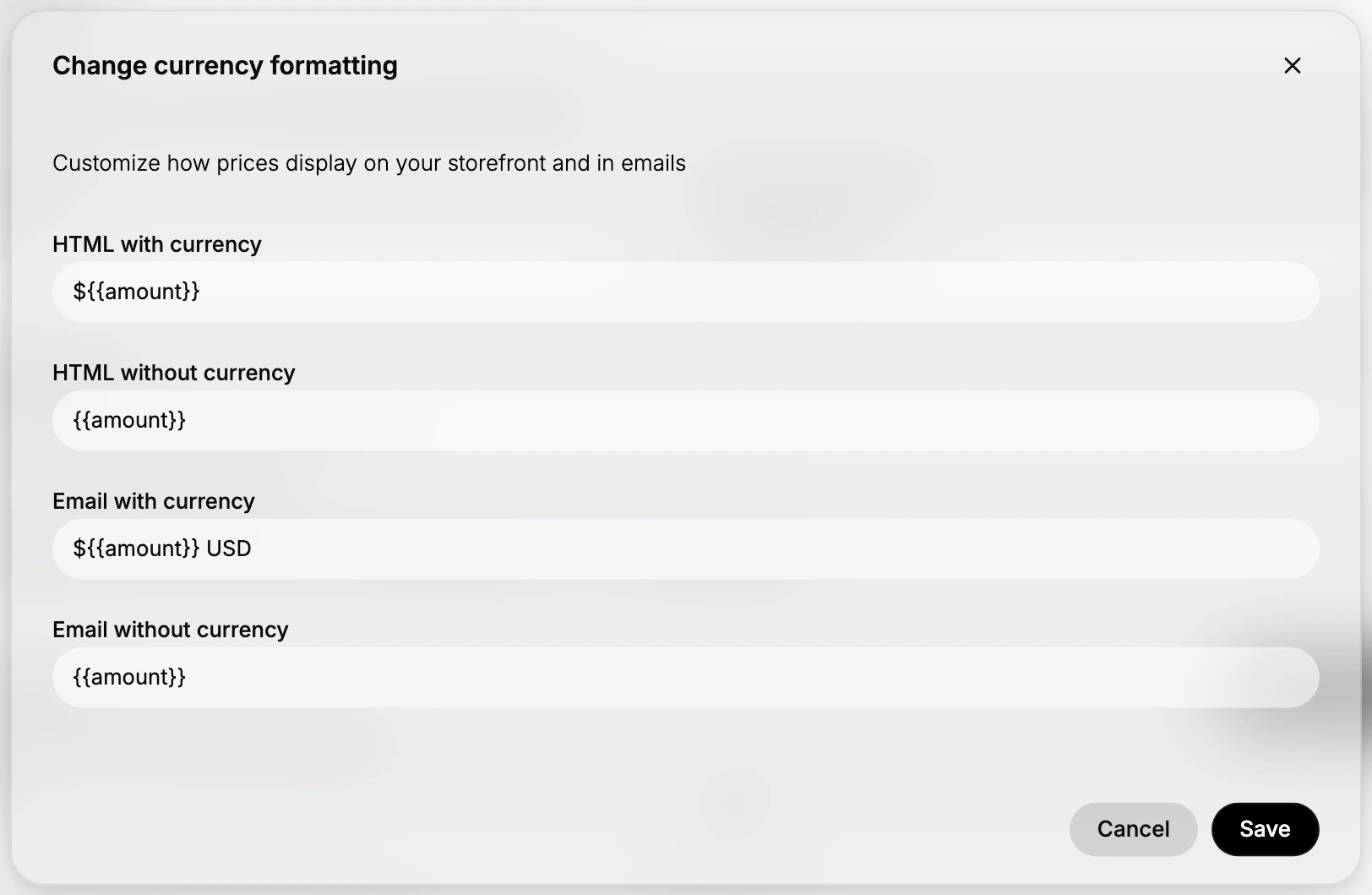
- Set the storefront templates. The first two fields control the storefront. HTML with currency is the format used where the price should carry the currency, so it combines the currency symbol with the amount placeholder. HTML without currency is used where only the number is wanted, so it shows the amount placeholder on its own. Keep the amount placeholder in each field, since that is what is replaced with the real price.
- Set the email templates. The next two fields control emails. Email with currency is the format used in emails where the price should show the currency, so it pairs the amount with the currency, and on this store it also adds the currency code after the amount. Email without currency shows the amount placeholder on its own. Matching these to your storefront formats keeps prices consistent between what customers see on the store and in their emails.
- Save the formats. Select Save to apply the templates, or Cancel to close without changing them. Because these formats decide how every price reads, review each field before you save, and keep the amount placeholder in place so prices still render.
Best practices
- Keep the amount placeholder in every field. It is replaced with the real price, so a template without it will not show the amount.
- Match the storefront and email formats. Use the same style in both so a price reads the same on your store and in emails.
- Show the currency where it removes doubt. Use a with-currency template where customers might otherwise be unsure which currency a price is in.
- Preview a real price after saving. Check the storefront and a test email so the formatting reads the way you intended.
If something goes wrong
- A price shows no amount. The template is likely missing its amount placeholder; add it back so the real price is inserted.
- The currency is missing from a price. Use the with-currency template for that place, since the without-currency template shows only the number.
- You cannot change the formatting. Your role may not allow managing settings. Ask an owner or admin.
Next steps
Related articles
Still stuck?
- Ask Tanqory AIAsk in your own words. It answers from these articles and links the ones it used.
- Ask in your adminThe assistant in your Tanqory admin answers and makes the change for you once you confirm.
- Contact TanqoryWrite to our privacy, security or legal teams, or talk to sales about a plan or a move.