Markets
Markets is where you manage the places your store sells to. The list shows each market with its status, the regions it includes, and its customizations, and lets you create, search, and filter markets. It is the starting point for setting up how your store sells across regions.
On this page
The Markets list
The list shows each market as a row, with columns that summarize it, and controls above it to filter, search, and add markets.
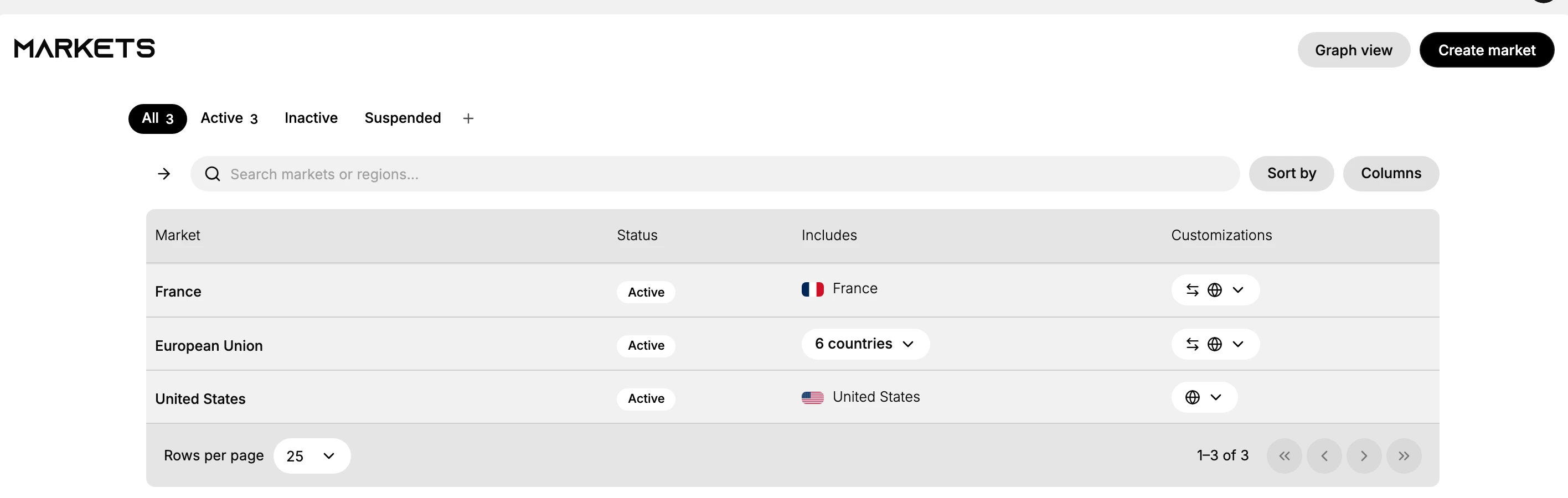
| Part | What it is |
|---|---|
| Market | The market's name |
| Status | Whether the market is Active, Inactive, or Suspended |
| Includes | The regions the market covers, such as a country or a count of countries |
| Customizations | The settings this market customizes |
| Tabs | Filter the list by All, Active, Inactive, or Suspended |
| Search | Find a market by name or region |
| Sort by / Columns | Order the list and choose which columns to show |
| Create market | Add a new market |
Before you begin
- In your admin, select Markets in the left navigation to open the Markets list.
- You know which regions you want a market to cover.
- For a market's domain and language, the domain is already set up for your store.
Creating and finding markets
Select Create market to add a new market, then give it a name and choose the regions it covers. To find an existing market in a long list, use the search box or the tabs to filter by status. Sort by and Columns let you order the list and control what it shows.
Setting up a market: recommended order
A market has several settings, and they build on each other, so this order works well. Each step links to its own article.
- Choose the market's regions. Create the market and pick the countries it covers. See Add Regions to a Market.
- Set its currency. Decide the currency, or use local currencies for a multi-country market. See Market Currencies.
- Set its domain and language. Assign a domain and language so its storefront is local; the domain must be set up for your store first. See Domains and Language Per Market.
- Set up shipping. Add a shipping zone and rate that cover the market's regions, or customers there cannot check out. See Market Detail.
- Adjust the rest as needed. Taxes, catalogs, and metafields can be customized per market from the market's page.
You do not have to do every step. A market with only its regions set uses your store's defaults for everything else.
Note: A market cannot take orders until a shipping zone and rate cover its regions, so set up shipping before you set the market to Active.
Best practices
- Group regions that share settings. Put regions that should use the same currency and catalog in one market.
- Keep statuses current. Set a market to Active only when it is ready to sell.
- Name markets clearly. A clear name, such as European Union, makes the list easy to scan.
- Set up shipping before going live. Without a shipping rate covering its regions, customers in that market cannot check out.
If something goes wrong
- A market is not selling. Check its status is Active and that shipping covers its regions.
- You cannot find a market. Use the search box or filter by status with the tabs.
- Customers cannot check out in a market. Make sure a shipping zone and rate cover the market's regions.
- You cannot create or change a market. Your role may not allow managing markets. Ask an owner or admin.
Next steps
Related articles
Still stuck?
- Ask Tanqory AIAsk in your own words. It answers from these articles and links the ones it used.
- Ask in your adminThe assistant in your Tanqory admin answers and makes the change for you once you confirm.
- Contact TanqoryWrite to our privacy, security or legal teams, or talk to sales about a plan or a move.