A Fully Customized Market
A market can customize as many of its settings as it needs, moving each one out of Inherited settings and into the Customized section. The more you customize, the more the market runs on its own values instead of your store's. A fully customized market has most or all of its settings customized.
On this page
Where a market with no customizations follows your store on everything, a fully customized market does the opposite: it sets its own values for most or all of its settings, so it runs the way that region needs rather than the way your store does. You customize a setting by moving it from Inherited settings into the Customized section and giving it a value for the market. The more settings you customize, the more the market stands on its own. You see the result on the market's page, in the Customized section.
Before you begin
- In your admin, select Markets in the left navigation, then select a market to open its page.
- You have a market with its regions set, since its customized settings serve those regions. See Add Regions to a Market.
- You know which settings the market needs to differ on, since you customize only those. See Market Customizations Overview.
What a customized market looks like
Each setting you customize moves into the Customized section and shows the value you set for the market, with a control to remove the customization. A heavily customized market has several settings here, leaving only a few inherited from your store.
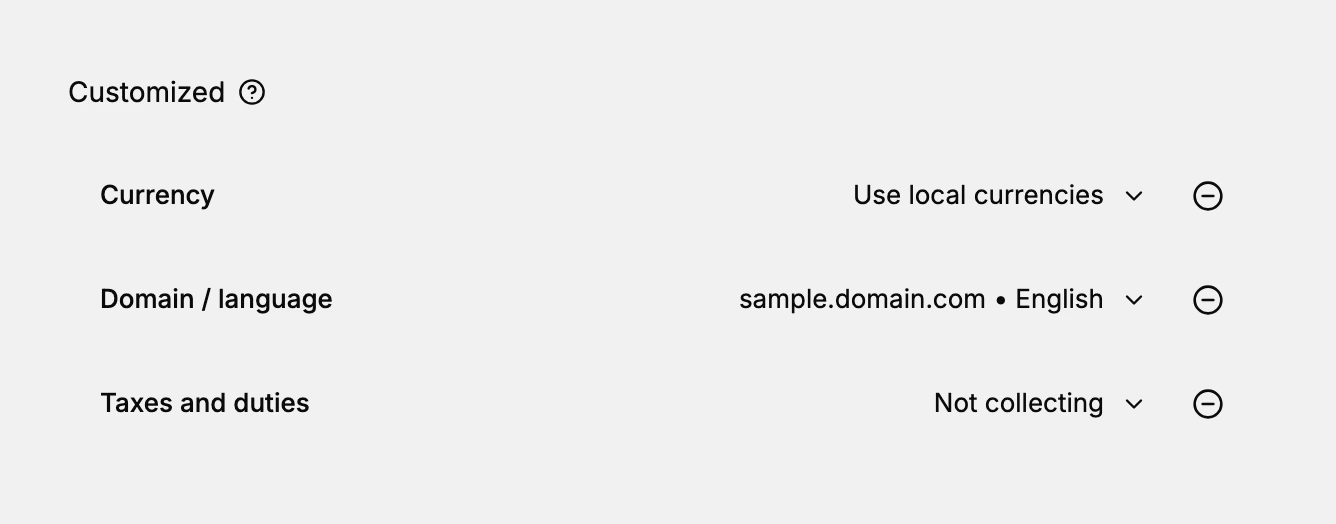
| Part | What it is |
|---|---|
| Customized rows | The settings this market sets for itself, each with its own value |
| Value | What the market uses for that setting, such as Use local currencies |
| Remove control | Returns a setting to inheriting your store's value |
The settings shown are an example; a market can customize any of its settings, and a fully customized one customizes most or all of them.
Which settings you can customize
A market can customize the same settings it can inherit: Currency, Catalogs, Discounts, Online Store, Domain and language, Taxes and duties, and Returns and cancellations. Customizing all of these makes the market fully its own; customizing a few makes it differ from your store only where it needs to. You choose per setting, so a market can be as customized as its region requires.
How to fully customize a market
To customize a setting, open the market and select the add control next to that setting in Inherited settings, then set the value you want for the market. The setting moves into the Customized section. Repeat for each setting the market needs to differ on. To make a market fully customized, customize every setting; to undo one, use its remove control in Customized and it goes back to inheriting your store's value.
Best practices
- Customize only what the market needs. Even a heavily customized market should inherit a setting where the store's value is right, to keep it simpler.
- Set regions first. A market's customized settings serve its regions, so add the regions before customizing.
- Review the Customized section. It shows exactly what the market runs on its own, so check it reflects what you intended.
- Use remove to reset. If a customization is no longer needed, remove it so the setting follows your store again.
If something goes wrong
- A setting is not using the value you set. Check that it is under Customized, not Inherited settings, since inherited ones follow your store.
- You customized the wrong setting. Use its remove control in Customized to return it to your store's value.
- A store change did not reach the market. A customized setting no longer inherits your store's value; that is expected.
- You cannot customize a market. Your role may not allow managing markets. Ask an owner or admin.
Next steps
Related articles
Still stuck?
- Ask Tanqory AIAsk in your own words. It answers from these articles and links the ones it used.
- Ask in your adminThe assistant in your Tanqory admin answers and makes the change for you once you confirm.
- Contact TanqoryWrite to our privacy, security or legal teams, or talk to sales about a plan or a move.