Catalogs
A catalog lets you customize which products, and at what prices, are shown to different markets or customer groups, without running separate stores. You manage them on the Catalogs page, where you create a catalog, or export and import catalogs. This is how one store serves different audiences differently.
On this page
A catalog is a way to customize the products, and their prices, that a market or customer group sees, all from one store. Instead of running a separate store for each audience, you create a catalog that sets which products are included and adjusts their prices, then apply it to the markets it serves. The Catalogs page is where all of this lives: it lists your catalogs, and lets you create one, or move catalogs in and out with export and import. This is how a single store shows different products or prices to different audiences. You reach it under Markets > Catalogs in your admin.
Before you begin
- You have products in your store, since a catalog is built by choosing which of your products it includes.
- You have the markets the catalog will serve, since a catalog is applied to them. See Markets.
- Open Markets > Catalogs in the admin sidebar to reach the Catalogs page.
The Catalogs page
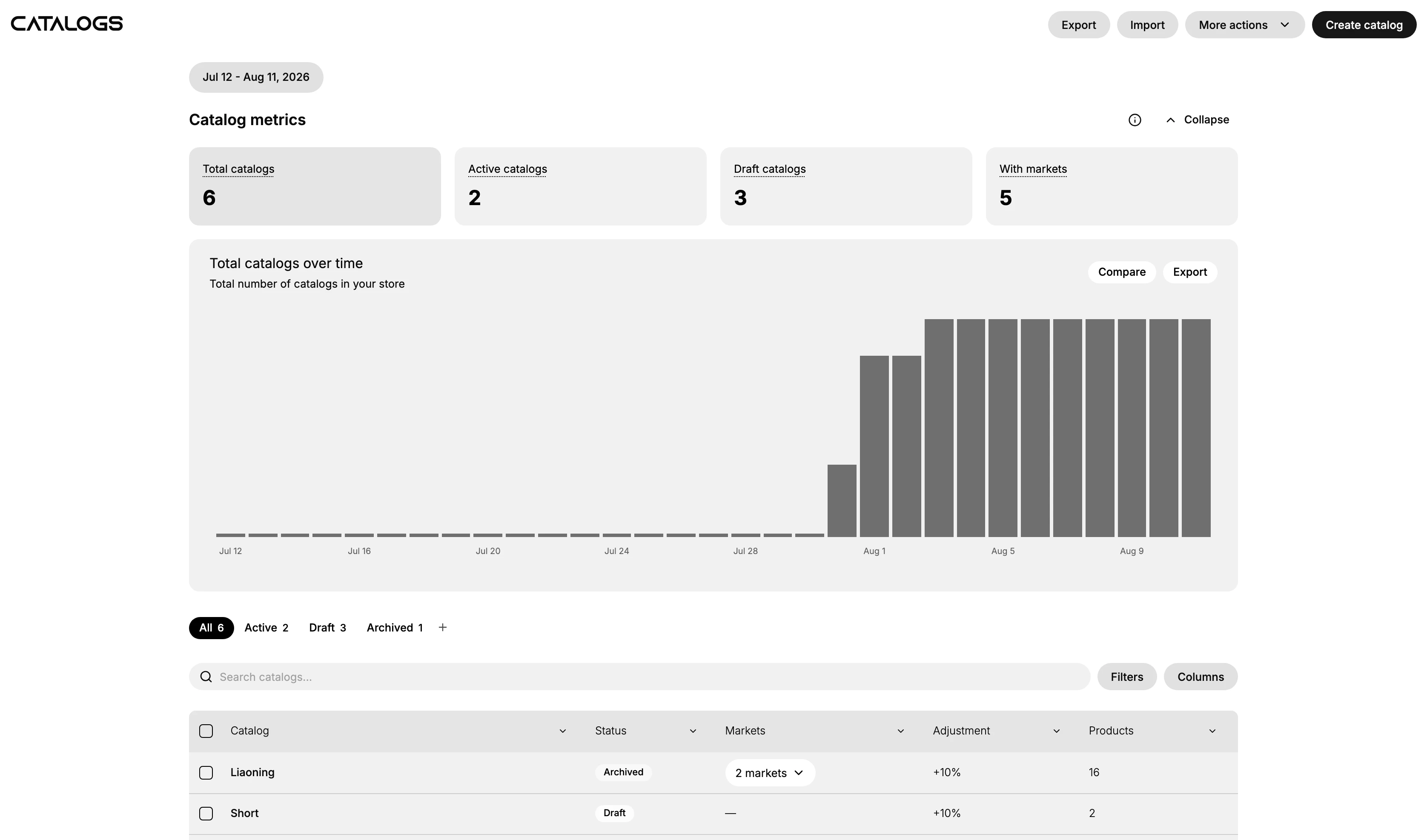
The Catalogs page opens on a Catalog metrics band, counting your total, active, and draft catalogs and how many are attached to a market, with a chart of how that total has moved over the selected date range. Below it, status tabs split the list into All, Active, Draft, and Archived, and a search box with Filters and Columns narrows what the table shows. The table itself lists each catalog with its status, the markets it applies to, its price adjustment, and how many products it holds. Create catalog, along with Export and Import, sits in the top corner. Until you add your first catalog, the table is replaced by a prompt to create one.
| Control | What it does |
|---|---|
| Create catalog | Start a new catalog, setting its products and prices |
| Export | Take your catalogs out of the store, covered in Export Catalogs |
| Import | Bring catalogs into the store, covered in Import Catalogs |
What a catalog holds
When you create a catalog, you give it a title and a status, choose the markets it applies to, and set how its prices work, such as the currency to price in and a percentage price adjustment. You then choose which products the catalog includes, so a market or customer group sees only those, at the catalog's prices. Setting up a catalog in detail is covered in Catalog Detail.
Creating a catalog
Select Create catalog, on either the empty state or the top corner, to open a new catalog. Give it a title, choose the markets it serves, set its pricing, and pick its products, then save it. Once saved, the catalog appears in the list and applies to the markets you chose. See Catalog Detail for each part of the form.
Moving catalogs in and out
Export takes your catalogs out of the store, which is useful for keeping a copy or editing in bulk, and Import brings catalogs into the store. These let you manage many catalogs without setting each up by hand. How each works is covered in Export Catalogs and Import Catalogs.
Best practices
- Use a catalog per audience. Give each market or customer group that needs different products or prices its own catalog.
- Name catalogs clearly. A clear title makes a catalog easy to find in the list.
- Set pricing deliberately. Choose the currency and any adjustment so the catalog's prices are what you intend.
- Export before big changes. Keep a copy by exporting before editing many catalogs at once.
If something goes wrong
- A market shows the wrong products or prices. Check which catalog applies to that market and what it includes.
- You cannot find a catalog. It may not be created yet; the empty state means there are none.
- An import did not work. Make sure what you import matches an export from Catalogs. See Import Catalogs.
- You cannot manage catalogs. Your role may not allow it. Ask an owner or admin.
Next steps
Related articles
Still stuck?
- Ask Tanqory AIAsk in your own words. It answers from these articles and links the ones it used.
- Ask in your adminThe assistant in your Tanqory admin answers and makes the change for you once you confirm.
- Contact TanqoryWrite to our privacy, security or legal teams, or talk to sales about a plan or a move.