Import Catalogs
Import lets you create or update many catalogs at once from a CSV file, instead of setting up each one by hand. You upload the file on the Catalogs page and choose whether it updates existing catalogs or only creates new ones. This is the quick way to manage catalogs in bulk.
On this page
Importing lets you set up or change many catalogs in one step by uploading a CSV file, rather than creating and editing each catalog on its own page. You open the import dialog from the Catalogs page, upload a CSV, and choose whether the file updates catalogs you already have or only adds new ones. When the import runs, the catalogs in the file are created or updated to match it. You do this from the Catalogs page, using Import.
Before you begin
- In your admin, select Markets in the left navigation, open Catalogs, then select Import in the top corner.
- You have a CSV file of catalogs ready. The dialog can give you a starting file with Download CSV template, so you can fill it in with your catalogs.
The import dialog
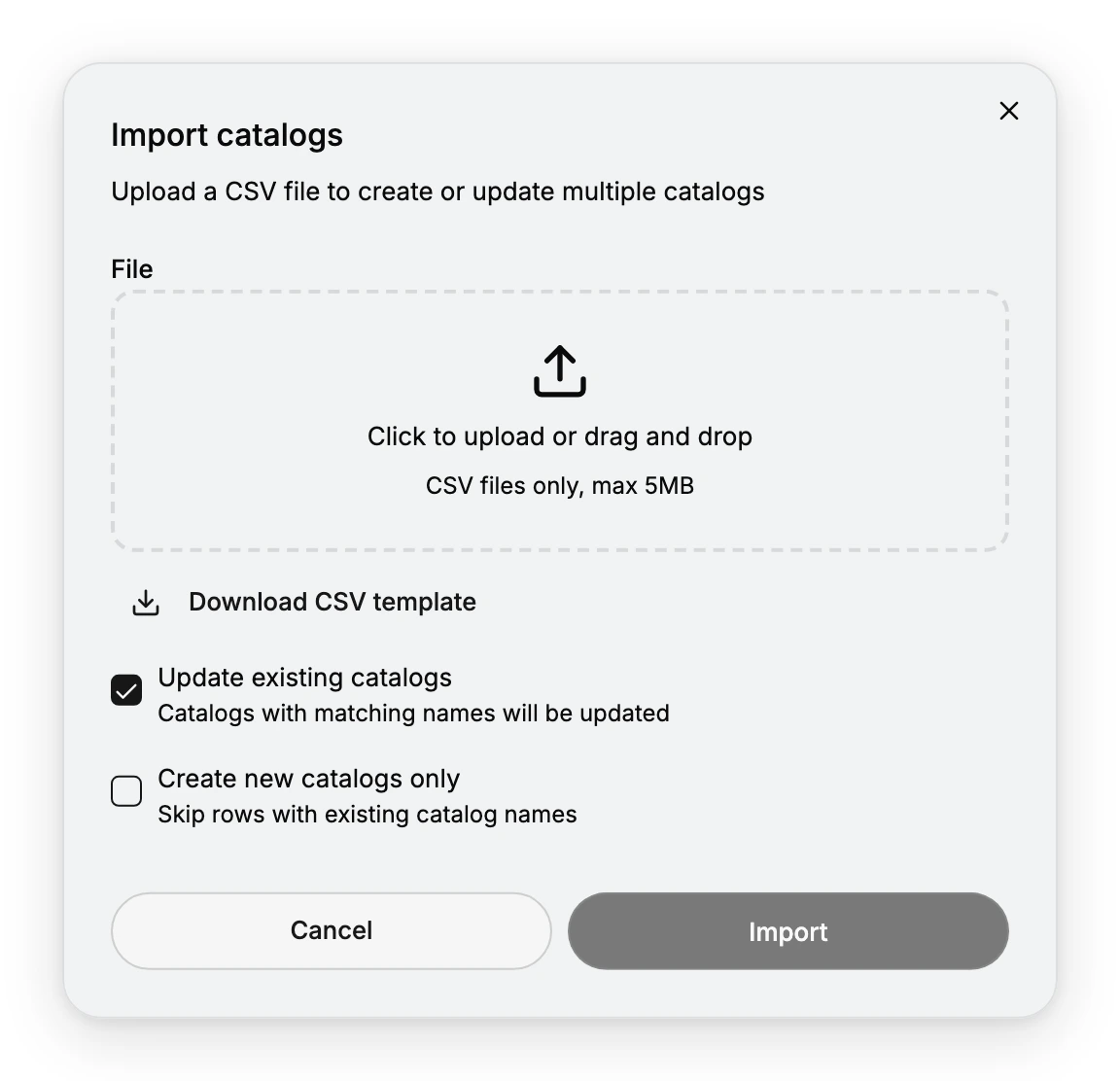
Selecting Import opens the Import catalogs dialog, where you upload the file and choose how it is applied.
Getting the template
If you do not already have a file in the right format, select Download CSV template to get one set up with the columns the import expects. Fill it in with your catalogs, then upload it. Starting from the template keeps the file in a format the import can read.
Start from Download CSV template when you are not sure of the format. A file that does not match the template may not import.
Choosing the file
In the File area, select Click to upload or drag and drop to add your CSV. The import accepts CSV files only, up to 5MB, so make sure your file is a CSV within that size. Once the file is added, it is ready to import.
Choosing how existing catalogs are handled
Below the file, two options decide what the import does with catalogs whose names are already in your store:
- Update existing catalogs updates any catalog whose name matches one in the file, so the file's values replace what those catalogs had.
- Create new catalogs only skips rows whose catalog name already exists, so the import only adds catalogs you do not have yet and leaves the existing ones as they are.
Choose the one that matches whether you want the import to change your current catalogs or only add new ones.
Running the import
When the file is added and the option is set, select Import to run it, or Cancel to close without importing. After the import, the catalogs from the file appear in the Catalogs list, created or updated according to the option you chose.
Best practices
- Start from the template. Download CSV template gives you the right columns, so the file imports cleanly.
- Pick the right option. Use Update existing catalogs to change catalogs you have, or Create new catalogs only to add without touching them.
- Keep the file under the limit. The import takes CSV files up to 5MB, so split a very large file if needed.
- Check the list after. Open the Catalogs list to confirm the catalogs imported as you expected.
If something goes wrong
- Your file will not upload. The import accepts CSV files only, up to 5MB; make sure the file matches.
- Existing catalogs changed when you did not want them to. Use Create new catalogs only so matching names are skipped.
- Matching catalogs were not updated. Make sure Update existing catalogs is selected, since it is the option that updates catalogs whose names match the file.
- You cannot import. Your role may not allow managing catalogs. Ask an owner or admin.
Next steps
Related articles
Still stuck?
- Ask Tanqory AIAsk in your own words. It answers from these articles and links the ones it used.
- Ask in your adminThe assistant in your Tanqory admin answers and makes the change for you once you confirm.
- Contact TanqoryWrite to our privacy, security or legal teams, or talk to sales about a plan or a move.