Market Detail Page
A market's page brings together everything about that market: its name and status, the regions it includes, the settings it customizes, the settings it inherits from your store, its place in the market hierarchy, and more. It is where you review a market in one place and open any part to change it.
On this page
A market's page is where everything about that market comes together. Instead of hunting through separate screens, you see the market's name and status, the regions it covers, the settings it has customized, the settings it inherits from your store, and how it sits among your other markets, all in one place. This makes it the page you open to understand a market and to change any part of it. You reach it by opening a market from the Markets list.
Before you begin
- You have a market to open. Everything on this page belongs to one market.
- Your role includes View markets, and Edit markets to change anything on the page.
- Open Markets in the left navigation, then select a market to open its page.
What is on a market's page
The page groups a market's settings into a few areas, so you can read the market in one pass and open any part to adjust it.
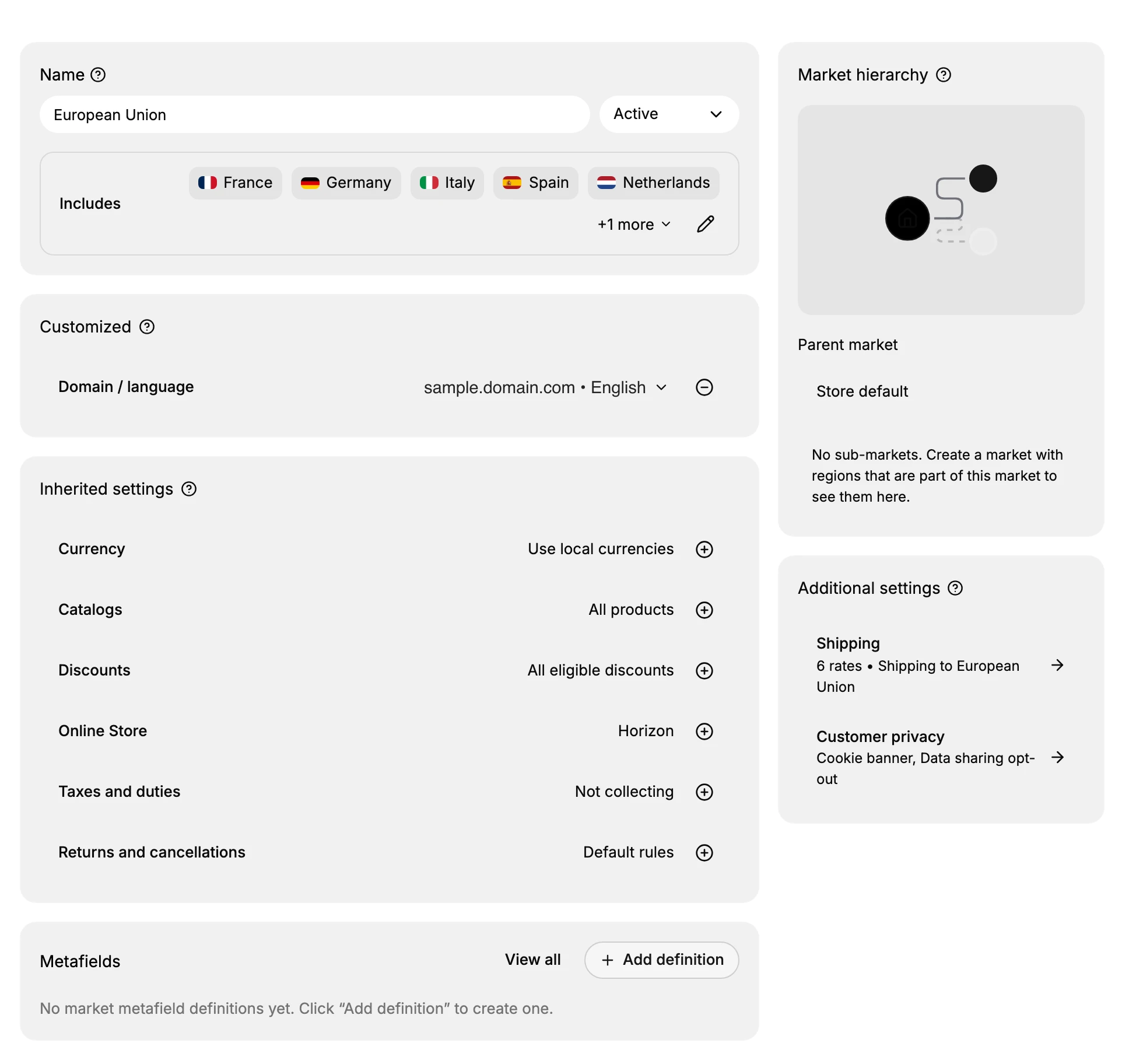
The parts of the page
Each area covers a different aspect of the market, and most link to a fuller article.
| Area | What it holds |
|---|---|
| Name and status | The market's name and whether it is Active |
| Includes | The regions the market covers |
| Customized | Settings changed for this market, such as Domain and language |
| Inherited settings | Settings the market takes from your store: Currency, Catalogs, Discounts, Online Store, Taxes and duties, and Returns |
| Market hierarchy | The market's parent market and any sub-markets |
| Additional settings | Shipping and Customer privacy for the market |
| Metafields | Custom fields defined for the market |
Customized versus inherited settings
The page separates the settings a market has changed from those it takes from your store. Under Customized are the settings this market overrides, such as its Domain and language. Under Inherited settings are the ones it uses as your store has them, each shown with an add control you can use to customize it for this market. This split makes it easy to see what is special about a market and what follows your store.
Tip: Leave a setting under Inherited settings while it should follow your store, and move it to Customized only when this market genuinely needs its own value. That keeps each market as simple as possible.
Reviewing and changing a market
Because the page brings everything together, you use it both to review a market and to change it. Its name, status, and regions are shown at the top, its currency, catalog, taxes, and other settings below, and its place among your markets to the side. From here you open any setting to adjust it for the market.
Best practices
- Review the whole page. Reading the market's page shows what it customizes and what it inherits.
- Customize only what you need. Leave settings as inherited unless a market genuinely needs its own, so markets stay simple.
- Check the status. Make sure a market is Active when you want it live.
- Use it as your starting point. Open the market's page first, then go to the specific setting you want to change.
If something goes wrong
- A setting is not what you expect. Check whether it is under Customized or Inherited settings, since inherited ones follow your store.
- The market is not live. Check the status at the top of the page and set it to Active if needed.
- You cannot find a setting. Each area covers a different part of the market; look under the matching heading.
- You cannot change the market. Your role may not allow managing markets. Ask an owner or admin.
Next steps
Related articles
Still stuck?
- Ask Tanqory AIAsk in your own words. It answers from these articles and links the ones it used.
- Ask in your adminThe assistant in your Tanqory admin answers and makes the change for you once you confirm.
- Contact TanqoryWrite to our privacy, security or legal teams, or talk to sales about a plan or a move.