Market Grouping and Hierarchy
Markets form a hierarchy: a market whose regions are part of another market becomes its sub-market, and that other market is its parent. The Market hierarchy section on a market's page shows its parent market and any sub-markets. This lets you nest a smaller market inside a larger one.
On this page
Markets are not just a flat list; they form a hierarchy. When one market's regions are part of a larger market's regions, the smaller market becomes a sub-market of the larger one, and the larger one is its parent. This lets you group a focused market inside a broader one, for example a single-country market inside a regional market. You see this on a market's page, in the Market hierarchy section, which shows the market's parent and any sub-markets.
How markets nest
A market becomes a sub-market automatically, based on its regions: if its regions are part of another market's regions, it nests under that market. You do not set the parent by hand; you create a market with regions that fall inside a larger market, and the hierarchy connects them. A market that is not inside any other market has Store default as its parent. On the market's page, the Market hierarchy section (1) shows its parent market and any sub-markets.
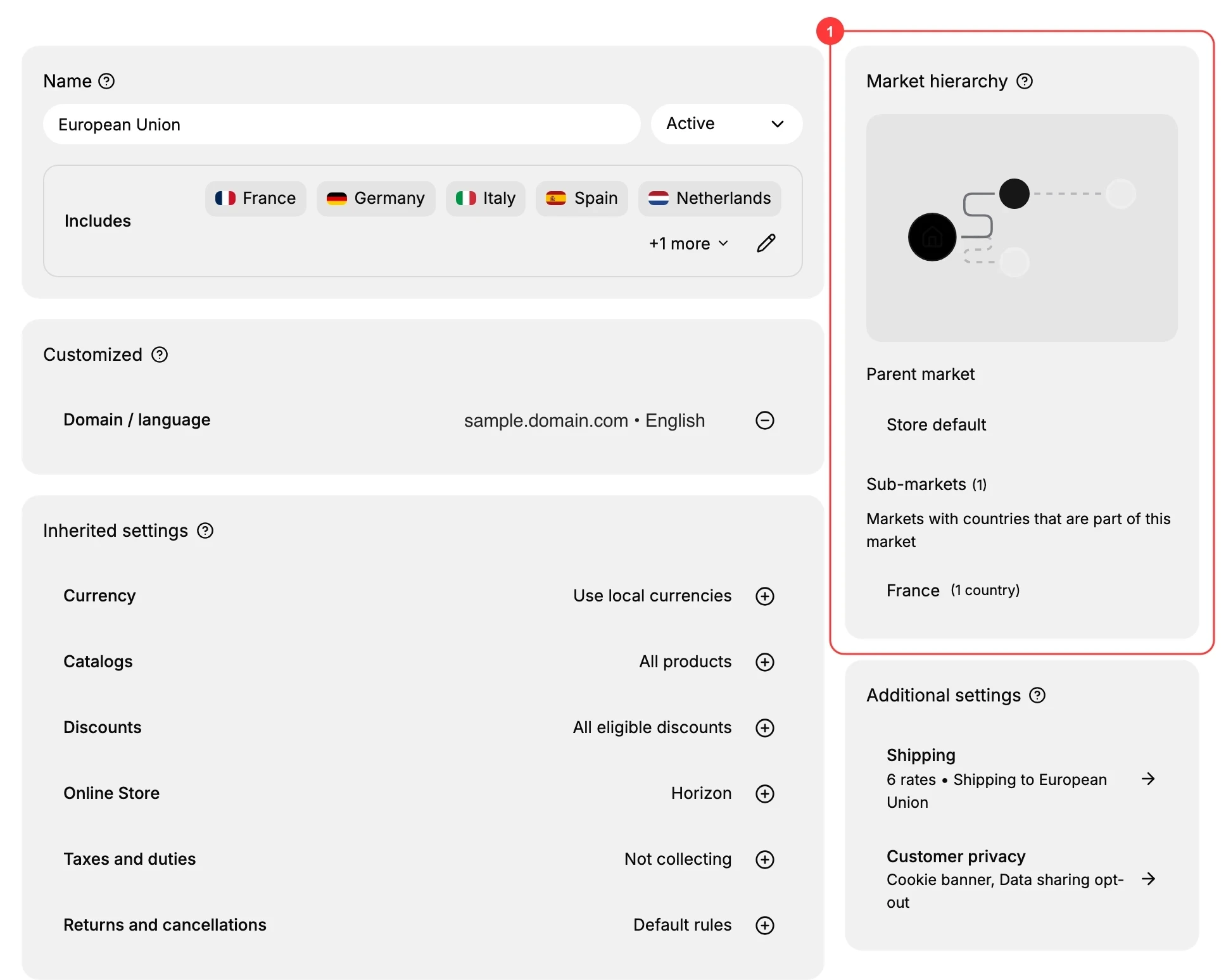
| Part | What it is |
|---|---|
| Parent market | The market this one sits inside, or Store default if none |
| Sub-markets | Markets whose regions are part of this market |
| Diagram | A visual of how this market relates to its parent and sub-markets |
Before you begin
- In your admin, select Markets in the left navigation, then select a market to open its page.
- You have a market to view the hierarchy of. See Markets.
- To create a sub-market, you first have a larger market, and then a market whose regions are part of it. See Add Regions to a Market.
Creating a sub-market
To nest one market inside another, first make sure the larger market exists and covers the regions you want, then create a second market whose regions are part of the larger one. For example, a European Union market that covers several countries can have a France market, covering only France, as a sub-market. Because France is part of the European Union market's regions, the France market shows the European Union market as its parent, and the European Union market lists France under its Sub-markets. No parent is set by hand; the shared regions connect them.
Note: You never choose a parent market yourself. Nesting is worked out automatically from the regions, so plan a market's regions with the hierarchy you want in mind, and review the Market hierarchy section afterward to confirm it nested as expected.
Reading the hierarchy
On a market's page, the Market hierarchy section shows the market's Parent market at the top and its Sub-markets below, with a diagram of the relationship. Parent market is Store default when the market is not inside any other market. Sub-markets lists the markets nested inside this one, each with a count of the regions it covers. This lets you see how a market fits among your others.
Best practices
- Nest for focus. Use a sub-market to give one region its own settings while it stays part of a broader market.
- Plan regions before nesting. A market nests only when its regions are part of a larger market's regions, so set regions with that in mind.
- Check the hierarchy after changes. After creating or editing a market's regions, review the Market hierarchy to confirm it nested as you expected.
- Keep names clear across levels. Clear names, such as European Union and France, make the hierarchy easy to read.
If something goes wrong
- A market did not nest as expected. It nests only when its regions are part of a larger market's regions; check both markets' regions.
- A sub-market is missing. Confirm its regions are part of the parent market, since that is what creates the link.
- The parent shows Store default. The market is not inside any other market; that is expected unless its regions are part of a larger one.
- You cannot change a market. Your role may not allow managing markets. Ask an owner or admin.
Next steps
Related articles
Still stuck?
- Ask Tanqory AIAsk in your own words. It answers from these articles and links the ones it used.
- Ask in your adminThe assistant in your Tanqory admin answers and makes the change for you once you confirm.
- Contact TanqoryWrite to our privacy, security or legal teams, or talk to sales about a plan or a move.