Domains and Language Per Market
A market can use its own domain so buyers reach its storefront at a web address meant for them, shown with the language that storefront reads in. You set it on the market's page, on the Domain and language row, by choosing from the domains already set up for your store.
On this page
Giving a market its own domain makes its storefront feel local to the buyers it serves. Instead of every market sharing one web address, a market can use a domain buyers go to directly, shown next to the language its storefront reads in. Buyers then trust and understand the storefront more easily, because it appears at a fitting address in a familiar language. You set this on the market's own page, on the Domain and language row.
Before you begin
- In your admin, select Markets in the left navigation, then select a market to open its page.
- The domain you want to assign is already set up for your store, so it is available to choose.
Where it lives
A market's page groups its settings into Customized, for the ones you have changed from your store's defaults, and Inherited settings, for the ones still using those defaults. Domain and language (1) sits under Inherited settings until you set it: it shows the domain and language the market currently uses, and it carries the control that opens the configuration.
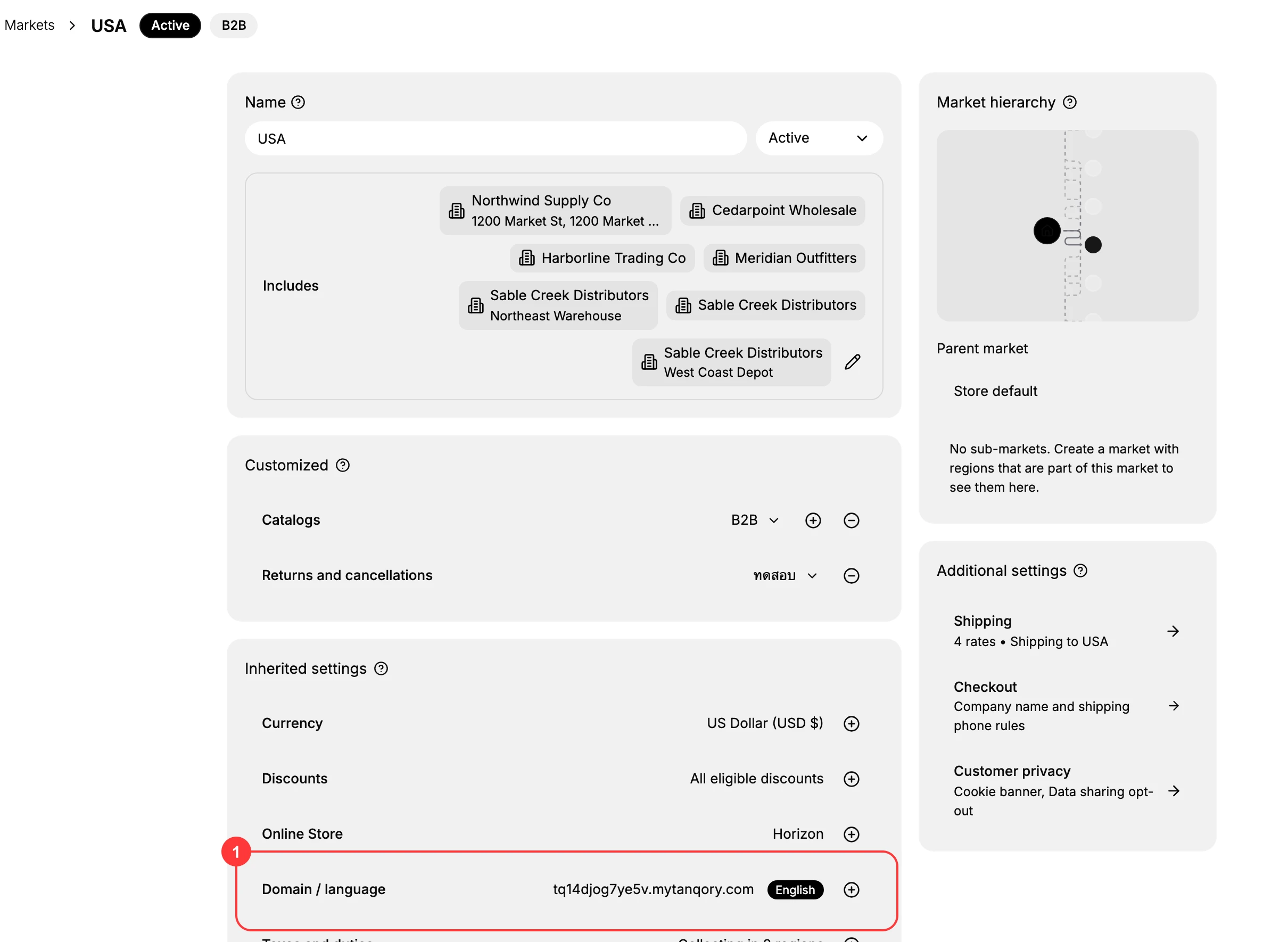
How the domain and language fit together
The domain is the web address buyers use to reach this market's storefront, and the language is what its pages read in. The Domain and language row shows both, so you can see at a glance where buyers in this market land and in which language. A market with nothing set uses your store's default domain and language.
Set a market's domain
- On the market's page, find the Domain and language row in the Inherited settings.
- Select the control on that row to open the Configure domains and language for this market panel.
- Choose a domain (1) from the list. These are the domains already set up for your store, each marked as a primary domain. To serve the market from a path on your default domain instead, select New subfolder at the top of the panel, covered in the next section.
- Confirm with Done (2), or select Cancel to leave the market unchanged.
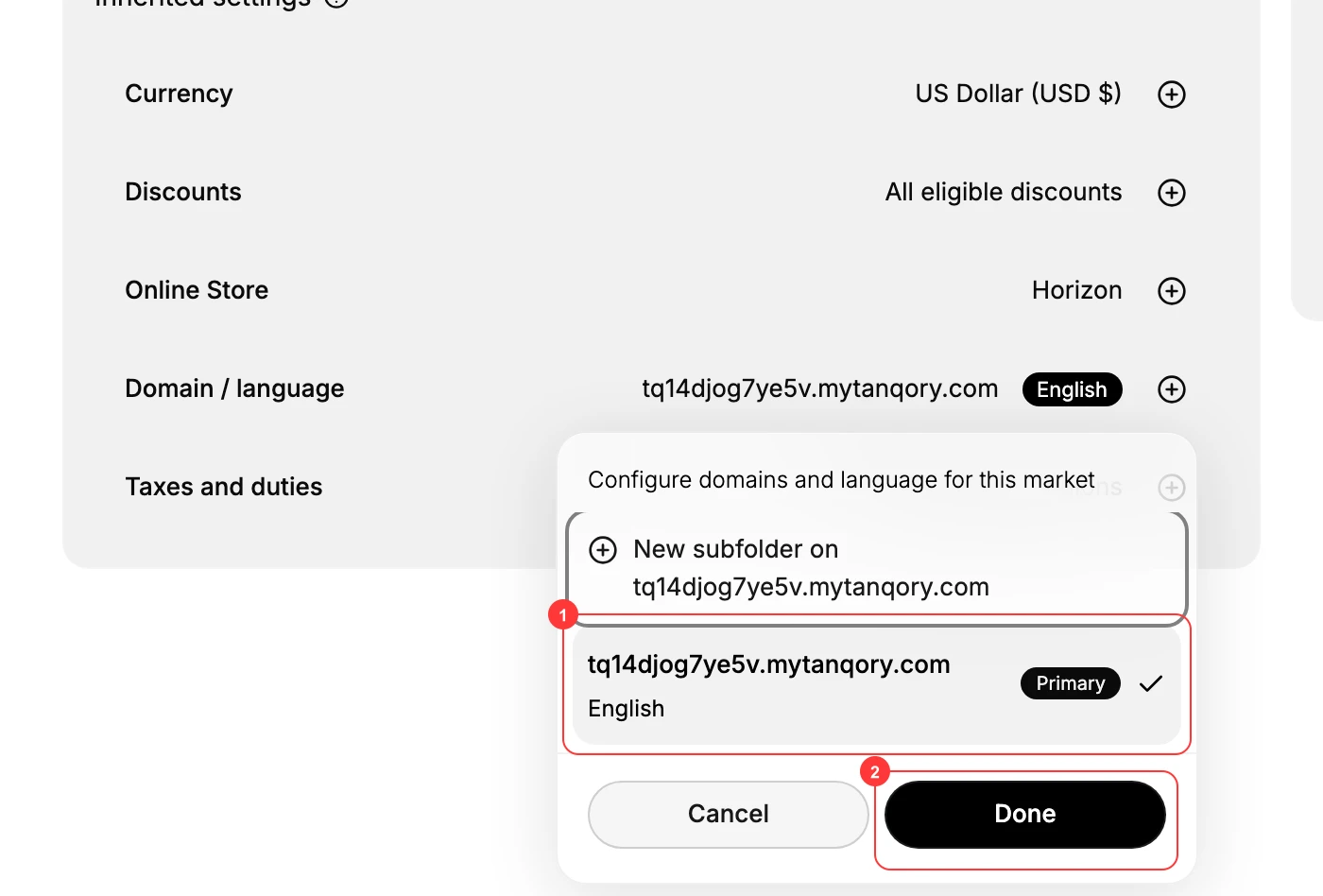
The Domain and language row then shows the domain and language the market uses, and buyers there reach the storefront at that address.
Serve a market from a subfolder
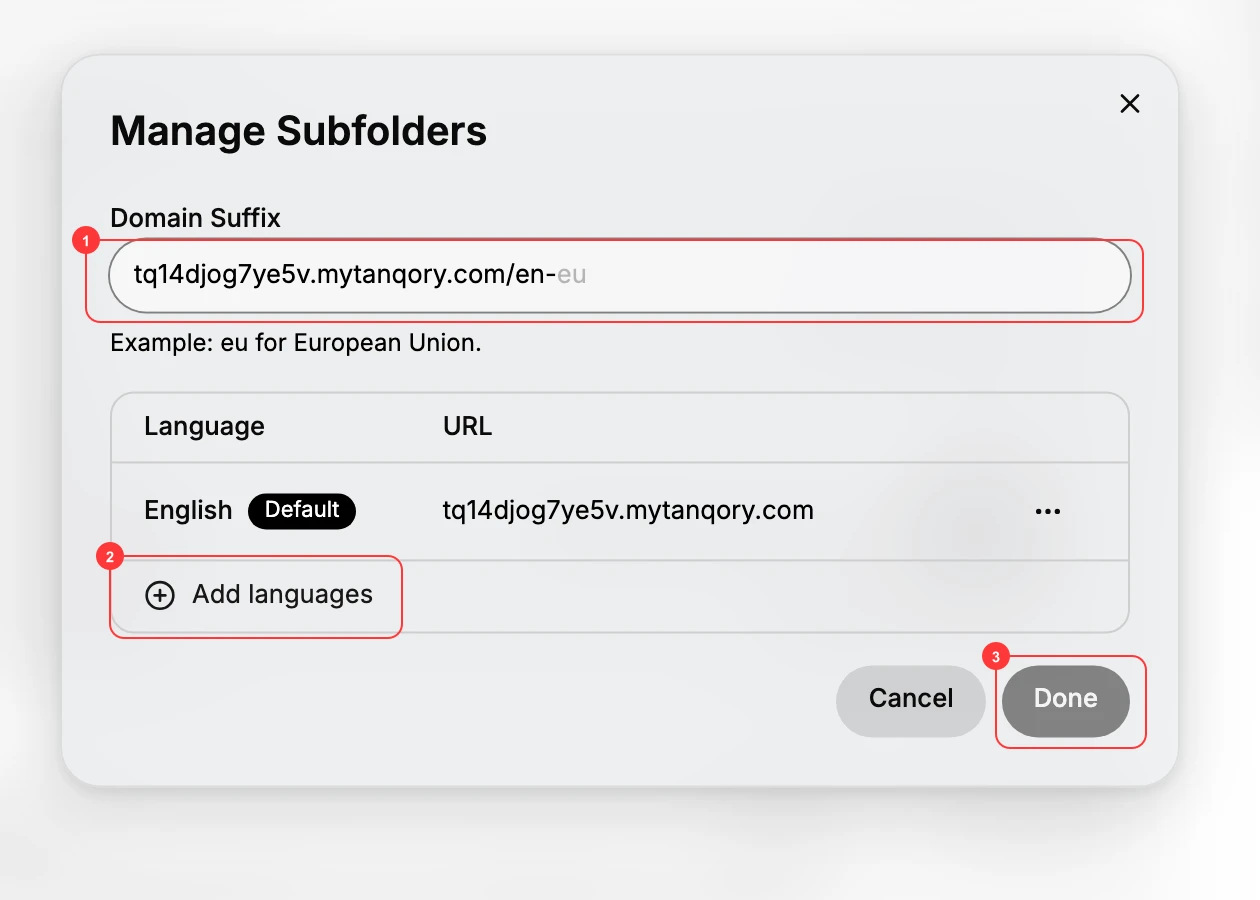
Instead of a separate domain, you can serve a market from a path on your default domain, such as yourstore.mytanqory.com/en-eu. In the configure panel, select New subfolder to open the Manage Subfolders dialog. Enter the path in Domain Suffix (1): for example, use eu for the European Union, which makes the suffix /en-eu. The dialog lists the languages this subfolder serves, each with its own URL; select Add languages (2) to serve it in more than one language. Select Done (3) to save.
Remove the customization
To return a market to your store's default domain, use the remove control on the Domain and language row. The market falls back to the default address, and the row returns to Inherited settings.
Best practices
- Set up the domain first. Add the domain to your store before assigning it to a market, so it is available to choose in the panel.
- Use a fitting address. Give the market a domain that signals it is meant for those buyers.
- Check the storefront after assigning. Open the market's storefront to confirm it loads at the new address as expected.
- Fall back to defaults when unsure. A market with no custom domain just uses your store's default, which is fine until you are ready.
If something goes wrong
- The domain you want is not in the list. Set it up for your store first, then it appears in the panel to assign.
- The market still uses the default address. Make sure a domain is assigned on the market, not only set up for the store.
- You want to undo the customization. Use the remove control on the Domain and language row to return to the store default.
- You cannot change it. Your role may not allow managing markets. Ask an owner or admin.
Next steps
Related articles
Still stuck?
- Ask Tanqory AIAsk in your own words. It answers from these articles and links the ones it used.
- Ask in your adminThe assistant in your Tanqory admin answers and makes the change for you once you confirm.
- Contact TanqoryWrite to our privacy, security or legal teams, or talk to sales about a plan or a move.