Export Catalogs
Export downloads your catalog data as a CSV file, so you can review it, edit it in bulk, or keep a copy. You choose which catalogs to include and what data goes in the file. This is the quick way to take your catalogs out of the store.
On this page
Exporting downloads your catalogs as a CSV file, so you can look over them, edit them in a spreadsheet, or keep a copy before making changes. You open the export dialog from the Catalogs page, choose which catalogs to include and what data to put in the file, then download it. The file holds the catalog data you selected, ready to open or keep as a copy. You do this from the Catalogs page, using Export.
Before you begin
- You have catalogs to export. If you have none yet, the export scope shows a count of zero and the file has nothing in it.
- Open Markets > Catalogs in the admin sidebar, then select Export in the top corner.
The export dialog
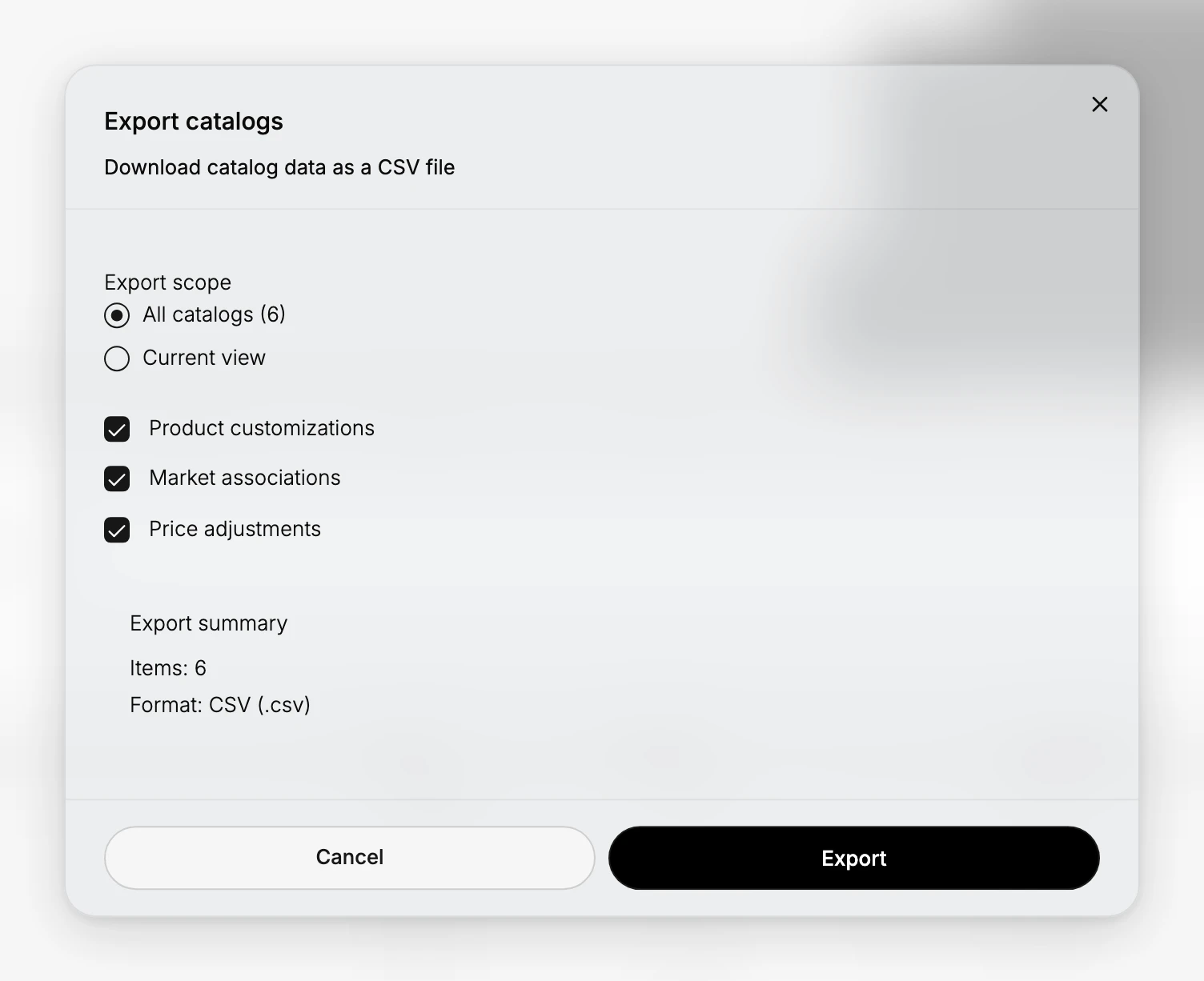
Selecting Export opens the Export catalogs dialog, where you choose the scope and the data to include, then export.
Choosing the scope
Export scope decides which catalogs go into the file:
- All catalogs exports every catalog you have, with the count shown next to it.
- Current view exports only the catalogs currently shown in the list, rather than every catalog you have.
Pick All catalogs for a full copy, or Current view to export just the catalogs you are looking at.
Choosing the data
Below the scope, three checkboxes decide what data each catalog carries into the file:
- Product customizations includes the per-product changes a catalog makes.
- Market associations includes which markets each catalog applies to.
- Price adjustments includes each catalog's price adjustment.
Turn on the data you want in the file, and leave off anything you do not need.
The export summary
The Export summary shows what you are about to download: Items is the number of records the file will hold, and Format is CSV (.csv). Check it before exporting so you know the file matches what you meant to include.
Check the Export summary before you export, so the item count and format match what you meant to download.
Running the export
When the scope and data are set, select Export to download the file, or Cancel to close without exporting. The file downloads as a CSV, holding the catalogs and data you chose.
Best practices
- Export before big changes. Keep a CSV copy of your catalogs before editing many at once.
- Include only what you need. Leave off data you will not use to keep the file simple.
- Use Current view for a subset. Filter the list first, then export Current view to get just those catalogs.
- Check the summary. Confirm the item count and format before you export.
If something goes wrong
- The export is empty. Check the Export summary; if Items is zero, there are no catalogs in the scope you chose.
- The file is missing data you wanted. Turn on the matching checkbox, such as Price adjustments, and export again.
- You exported the wrong catalogs. Switch between All catalogs and Current view, then export again.
- You cannot export. Your role may not allow managing catalogs. Ask an owner or admin.
Next steps
Related articles
Still stuck?
- Ask Tanqory AIAsk in your own words. It answers from these articles and links the ones it used.
- Ask in your adminThe assistant in your Tanqory admin answers and makes the change for you once you confirm.
- Contact TanqoryWrite to our privacy, security or legal teams, or talk to sales about a plan or a move.