Set Up a Catalog
A catalog's page is where you set what it does: a title and status, the markets it applies to, how its prices are set, and which products it includes. You fill it in when you create a catalog or open an existing one. This is where a catalog's products and prices are decided.
On this page
A catalog's page is the form where you decide everything about it: what it is called, whether it is active, which markets it applies to, how its prices are set, and which of your products it includes. You see this page when you create a catalog, and again whenever you open one to change it. Working through its sections is how you make a catalog show the right products at the right prices to the markets it serves. You reach it from the Catalogs page, by creating a catalog or opening an existing one.
Before you begin
- In your admin, select Markets in the left navigation, open Catalogs, then select Create catalog or open an existing catalog.
- You have products in your store, since the catalog's Products section lists them for you to include.
- You have the markets the catalog will serve, since you add them in the catalog's Markets section. See Markets.
The catalog form
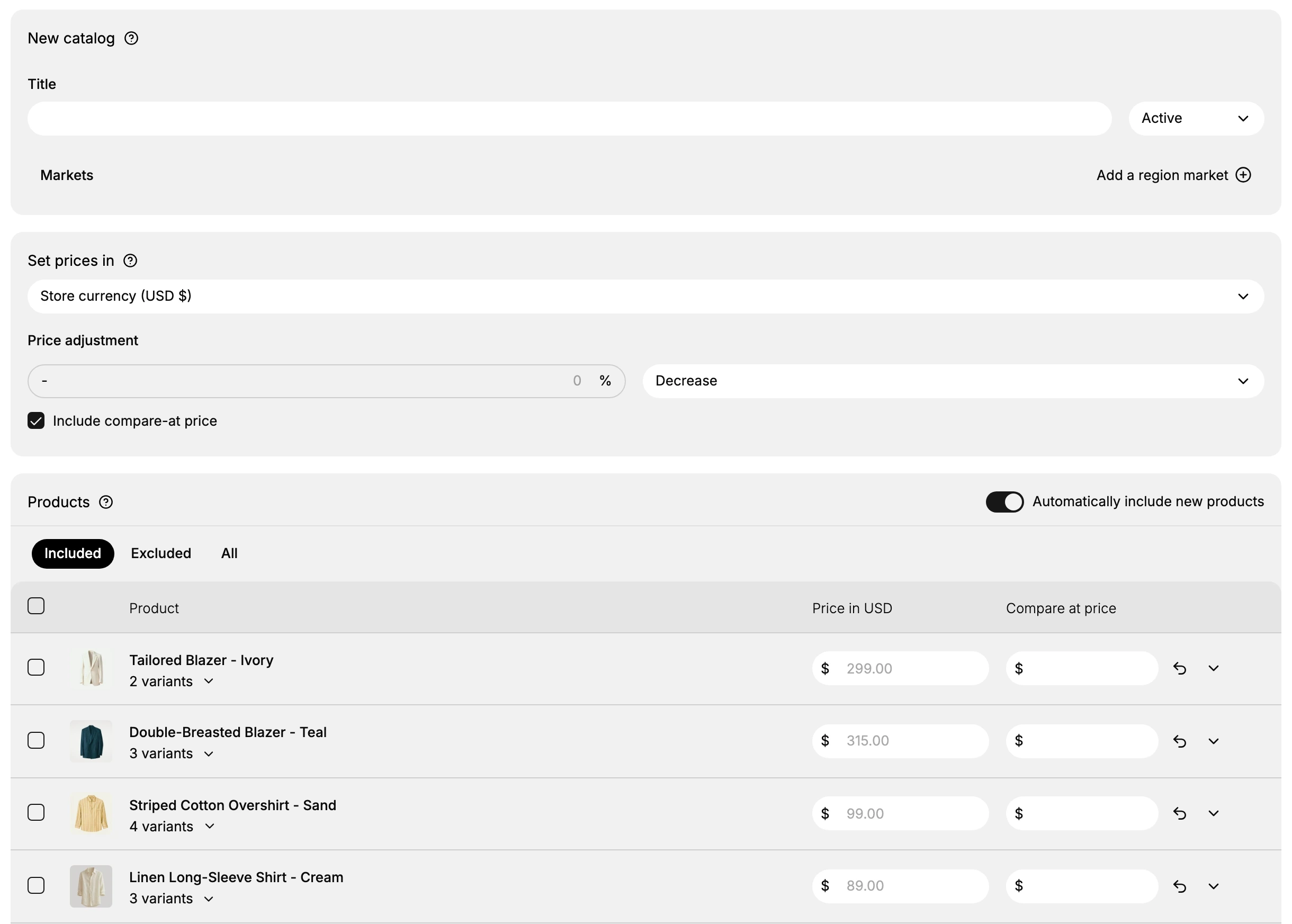
A catalog's page has three parts: the catalog's name and markets, its pricing, and its products.
Name, status, and markets
At the top, give the catalog a Title so you can recognize it, and set its status, shown as Active. Under Markets, use Add a region market to choose which markets the catalog applies to, so those markets see the catalog's products and prices.
| Field | What it is |
|---|---|
| Title | The catalog's name, so you can recognize it |
| Status | Whether the catalog is Active |
| Markets | The markets the catalog applies to, added with Add a region market |
Pricing
The Set prices in section decides the prices the catalog uses.
| Field | What it is |
|---|---|
| Set prices in | The currency to price in, shown as Store currency (USD $) |
| Price adjustment | A percentage to change prices by, with a direction shown as Decrease |
| Include compare-at price | Whether the catalog also carries a compare-at price for its products |
Set the currency the catalog prices in, then use Price adjustment to raise or lower all its prices by a percentage, with the direction shown here as Decrease. Turn on Include compare-at price to keep a compare-at price alongside each product's price.
Tip: Use Price adjustment to shift every product's price by one percentage in a single step, rather than editing products one by one. You can still set a specific price for an individual product in the Products table below.
Products
The Products section is where you choose which products the catalog includes.
- Automatically include new products adds products to the catalog as you add them to your store, so the catalog keeps up without you adding each by hand.
- Included, Excluded, and All switch the table between the products the catalog includes, the ones it leaves out, and every product.
- The table lists each product with its variants, a Price in USD you can set for the catalog, and a Compare at price.
Use the table to set a catalog price for a product, different from your store's price, and the tabs to control which products the catalog carries.
Saving
When the catalog is set the way you want, select Save to keep it, or Discard to drop your changes. Once saved, the catalog applies to the markets you chose, showing its products at its prices.
Best practices
- Name the catalog for its audience. A title like the market it serves makes it easy to find.
- Set the markets before the products. Add the catalog's markets first, so it is clear who the catalog is for.
- Use Price adjustment for across-the-board changes. A percentage adjustment is quicker than editing every product.
- Review the Products tabs. Check Included and Excluded so the catalog carries exactly the products you intend.
If something goes wrong
- A market is not getting the catalog. Make sure the market is added under the catalog's Markets section.
- Prices are not what you expect. Check the currency in Set prices in and the Price adjustment.
- A product is missing from a market. Check the Products tabs; it may be under Excluded rather than Included.
- You cannot save the catalog. Your role may not allow managing catalogs. Ask an owner or admin.
Next steps
Related articles
Still stuck?
- Ask Tanqory AIAsk in your own words. It answers from these articles and links the ones it used.
- Ask in your adminThe assistant in your Tanqory admin answers and makes the change for you once you confirm.
- Contact TanqoryWrite to our privacy, security or legal teams, or talk to sales about a plan or a move.