Connecting Your Domain
The store-setup view of domains: where the Domains page is, the two ways to get a custom domain onto your store, and the detailed articles for each path.
On this page
A custom domain is the web address customers type to reach your store, and connecting one is what turns a default store URL into your own brand at checkout and in every link you share. Until a domain is connected, your store still works but lives on its default address, so this is one of the steps that has to be done before you launch. This article is the store-setup overview of where domains live and the two ways to add one; the step-by-step detail for each path lives in the Domains articles linked below.
Two ways to add a domain
- Buy a new domain through Tanqory, which registers it and connects it for you in one place, so there is no separate DNS setup to do. See Buy or Connect a Domain.
- Connect a domain you already own from another registrar, which you point at Tanqory through your DNS records. See Connect an Existing Domain.
Either way, Tanqory provisions the secure certificate for the domain, so your storefront loads over HTTPS once the domain is verified.
Before you begin
- Your role includes General settings.
- If you are connecting an existing domain, you can sign in to the registrar where you manage its DNS.
- Open Settings > Domains in the admin sidebar.
Connect a domain to your store
From the admin, open the Domains page. The page lists any domains already on the store, and when none are connected it shows a "No domains found" state with the two ways to add one. The same actions, Buy new domain and Connect existing domain, are available from the top right of the page.
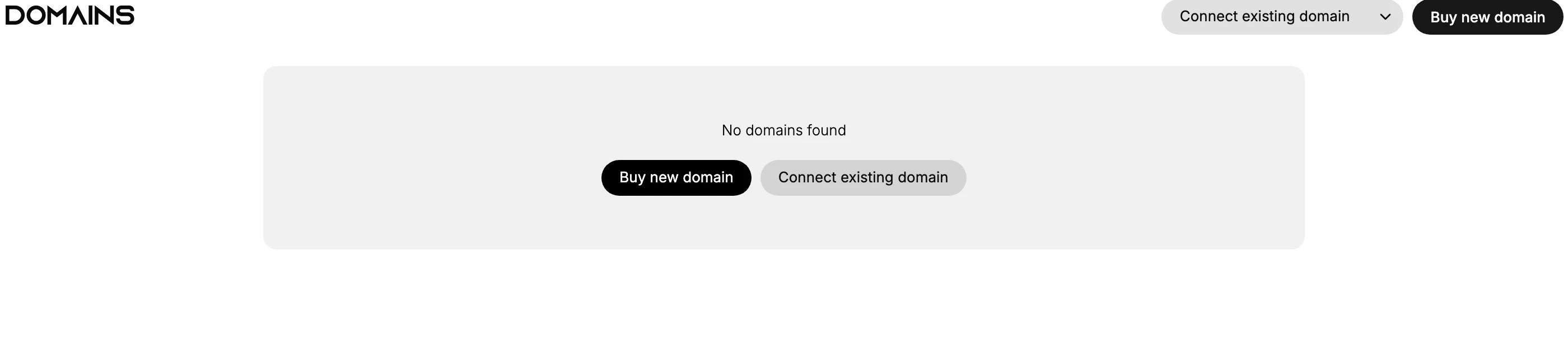
- Choose your path. Select Buy new domain to register a domain through Tanqory, or Connect existing domain to bring one you already own. Pick the path that matches where your domain is today, then follow its dedicated article for the exact fields and DNS records. See Buy or Connect a Domain and Connect an Existing Domain.
- Verify DNS and set your primary domain. For a connected domain, confirm the DNS records resolve so the domain verifies and its certificate is issued. If you use more than one domain, set the one customers should see as primary. The DNS record values and domain types are documented in the reference articles. See DNS Records Reference and Domain Types Reference.
Before you launch
- Your domain is bought or connected and shows on the Domains page.
- Its DNS has verified and the secure certificate is active, so the storefront loads over HTTPS.
- Your primary domain is set, and any secondary domains redirect to it.
- If you plan to send email from this domain, its email DNS records are in place. See Customer Emails Not Sending.
- You have opened the storefront on more than one device and browser to confirm it loads.
Verify the result
- The storefront loads on your custom domain over HTTPS.
- Secondary domains redirect to your primary domain.
- Links you share resolve to the store rather than the default address.
Next steps
Related articles
Still stuck?
- Ask Tanqory AIAsk in your own words. It answers from these articles and links the ones it used.
- Ask in your adminThe assistant in your Tanqory admin answers and makes the change for you once you confirm.
- Contact TanqoryWrite to our privacy, security or legal teams, or talk to sales about a plan or a move.