DNS Records for Your Domain
The DNS change is the part of connecting a domain that happens outside Tanqory, at the provider where the domain is registered. This explains what a DNS record is, which ones a store needs, why your email records must be left alone, and how long the change takes to take effect.
On this page
When you connect a domain you already own, you point it at your store by updating its DNS records at the provider where the domain is registered. Tanqory states this directly when you start connecting the domain, and it issues an SSL certificate for the domain automatically once the connection is in place. This article explains what DNS records are, which ones point a domain at a store, and where the change is made.
The DNS change is made at your domain provider, not inside Tanqory.
Before you begin
- Your role includes Domain settings.
- You can sign in to the provider where the domain's DNS is managed, since the records are changed there rather than in Tanqory.
- You accept that DNS changes take time to spread, so the domain may not resolve the moment you save.
- Open Settings > Domains in the admin sidebar, where the connection instructions for your domain are shown.
What Tanqory asks you to do
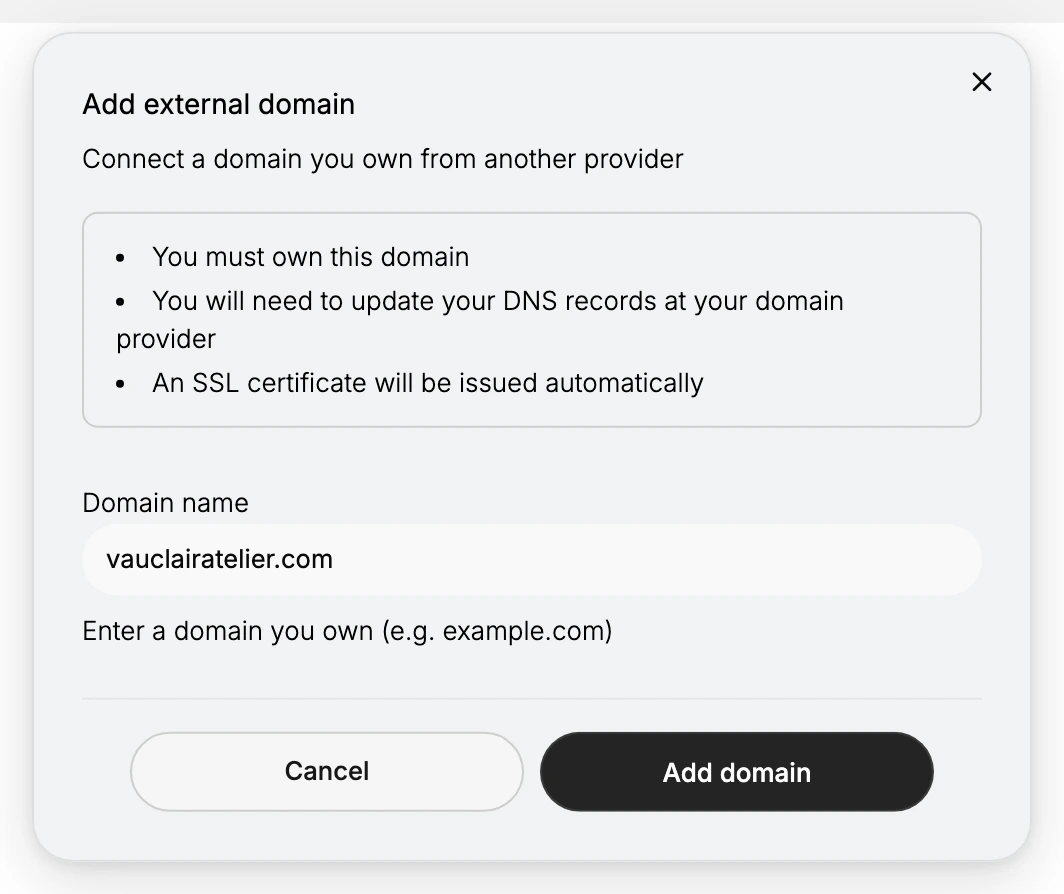
When you start Connect existing domain, the Add external domain dialog spells out where the work happens. It states that you must own the domain, that you will need to update your DNS records at your domain provider, and that an SSL certificate will be issued automatically.
That middle line is the one this article is about. Adding the domain in Tanqory is a small step. Pointing it at your store is a change you make at your provider, in a panel that has nothing to do with Tanqory, and until you make it the domain does nothing.
What a DNS record is
DNS records tell the internet where the parts of your domain should point. When you connect a domain to a store, you change the records that decide where the domain loads from, so that visiting your domain shows your store. You make these changes in the DNS area of the provider where your domain is registered.
Two record types are commonly used to point a domain at a store:
| Record | What it points | Typical use |
|---|---|---|
| A record | Your root domain, such as example.com | Points the bare domain at a server address |
| CNAME record | A subdomain, such as www.example.com | Points the www version at a hostname |
Add the records and values that apply to your store, and copy them exactly rather than typing them by hand. A single wrong character stops the domain from loading, and mistakes here are the most common reason a newly connected domain does not work.
Where to make the change
Every domain provider has a DNS area, often labeled DNS, DNS settings, or Advanced DNS, where you edit the records for a domain. Providers such as GoDaddy, Namecheap, Cloudflare, and Amazon Route 53 all keep this under the management page for the individual domain. Sign in to the provider where your domain is registered, open that domain's DNS settings, and add the records there.
If your provider uses a proxy or CDN layer in front of your DNS, such as Cloudflare's proxy, keep it turned off while you first connect the domain, so your provider serves the real records. You can turn it back on once the domain is connected and loading correctly.
Leaving your email records alone
Pointing your domain's website at Tanqory is separate from your email. The records that route email for your domain, such as MX records and their related verification records, stay with your email provider. Do not remove or change them while you connect the website, unless you are deliberately moving your email as well. Clearing email records by mistake is a common way to break incoming mail, so change only the records that point the website.
Confirming it worked
DNS changes are not instant, because the update has to spread across the internet, which can take from a few minutes to longer depending on your provider. Once the records are in place and have spread, your domain loads your store, and the SSL certificate lets it load securely over https. If the domain still does not load after you have given it time, recheck that the records you added match the values for your store exactly, with no extra characters or stray spaces.
Best practices
- Copy the values, do not type them. Typing introduces small errors that are hard to spot and cost you time waiting.
- Change only the website records. Leave your email records in place unless you are moving email on purpose.
- Turn off any proxy layer first. If your provider proxies DNS, keep it off until the domain is connected and loading.
- Give propagation time. If the domain does not load immediately, wait before assuming something is wrong.
Common mistakes
- Entering the wrong record type, such as using an A record where a CNAME is needed or the reverse.
- A typo in the value, which points the domain somewhere other than your store.
- Removing email records while changing the website records, which breaks incoming mail.
- Expecting an instant result, when DNS changes need time to spread before the domain loads.
If it still does not work
Give it time first. A domain that does not resolve twenty minutes after you saved the records has not failed, and there is nothing to fix yet.
After that, the usual causes are few. The record was saved at a different provider from the one the domain actually uses, which happens when a domain was bought in one place and its DNS moved to another. The old record was left in place beside the new one, so the domain has two answers and uses the wrong one. Or the record was entered against the wrong name, with a full domain typed where the provider expected just the host part. Each provider words that field differently, which is why it is the field most often filled in wrongly.
Once the domain does resolve, it is still not the address customers are given until you say so. Set Your Primary Domain covers that, and Connect Existing Domain covers where this step sits in the whole sequence.
Next steps
Related articles
Still stuck?
- Ask Tanqory AIAsk in your own words. It answers from these articles and links the ones it used.
- Ask in your adminThe assistant in your Tanqory admin answers and makes the change for you once you confirm.
- Contact TanqoryWrite to our privacy, security or legal teams, or talk to sales about a plan or a move.