Transfer a Domain to Tanqory
Move a domain's registration from another registrar to Tanqory using its authorization code. The transfer typically takes 5 to 7 days and extends the registration.
On this page
Transferring a domain into Tanqory moves the domain's registration from your current registrar to Tanqory, so you manage and renew it in one place. This is different from connecting a domain you own, where the registration stays with your current provider. To transfer a domain in, you prepare it at your current registrar, get its authorization code, and start the transfer from the Domain Transfers page in your store.
Transferring in compared with connecting
| Connect a domain you own | Transfer a domain in | |
|---|---|---|
| Where the registration stays | Your current registrar | Moves to Tanqory |
| Where you renew the domain | Your current registrar | Tanqory |
| What you do | Update DNS records at your provider | Provide the authorization code and wait for the transfer |
| Choose when | You want a quick setup and keep your registrar | You want to manage and renew the domain in Tanqory |
Before you begin
- Your role includes Domain settings.
- You can sign in to the registrar where the domain is currently held, since the preparation happens there rather than in Tanqory.
- You are ready for the transfer to take days rather than minutes, because it changes who the domain is registered with.
- Open Settings > Domains in the admin sidebar, then open the transfers view to start one.
What to prepare at your current registrar
The transfer form lists what to prepare, and you do these at the registrar where the domain is currently held.
- Unlock the domain. A locked domain has its transfer rejected.
- Disable WHOIS privacy or protection.
- Obtain the authorization code, also called the EPP or auth code.
- Make sure the domain has been registered for at least 60 days.
Steps
1. Open the Domain Transfers page and click Transfer In
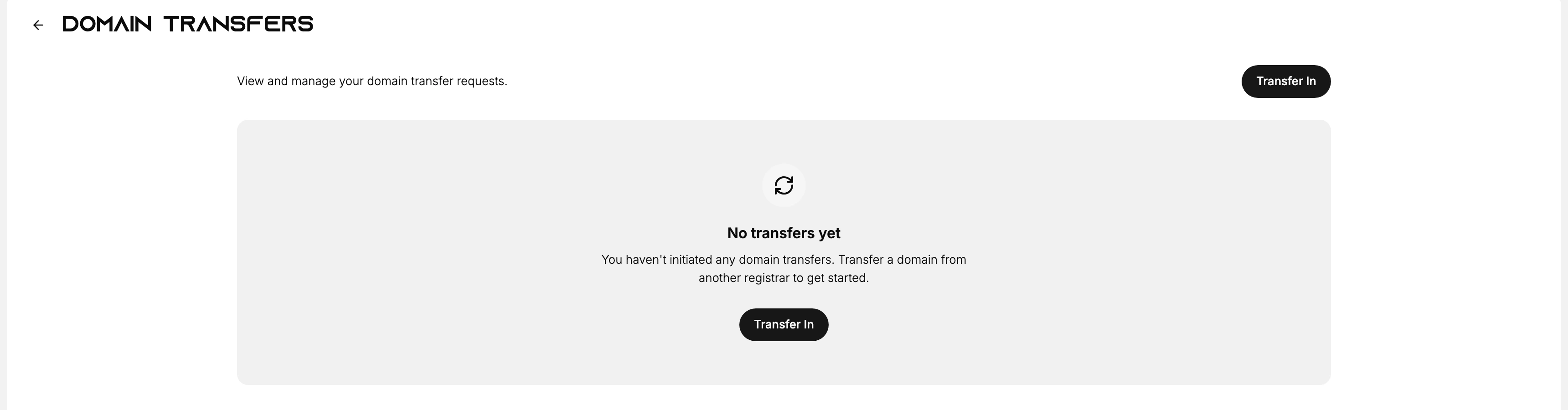
The Domain Transfers page shows your transfer requests. When you have not started any, it reads No transfers yet, as shown. Click Transfer In to open the transfer form.
2. Enter the domain, choose options, and start the transfer
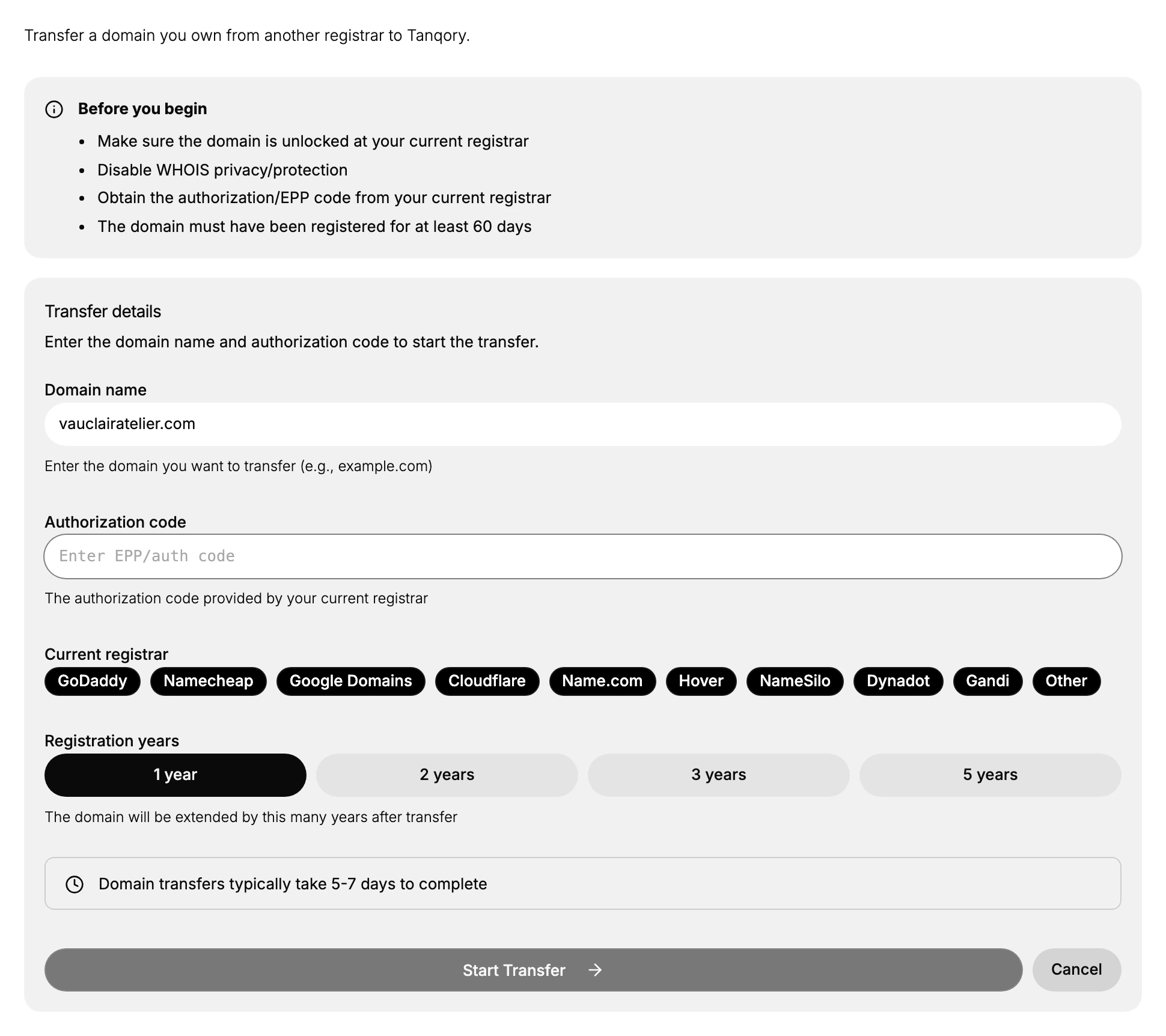
The form asks for four things.
| Field | What to put in it |
|---|---|
| Domain name | The domain you are moving, written in full, such as example.com |
| Authorization code | The code from your current registrar, which they may call an EPP code or an auth code. It is the proof that you are the one asking for the move |
| Current registrar | Where the domain is held now, such as GoDaddy, Namecheap or Cloudflare. Choose Other if yours is not listed |
| Registration years | How many years to add. The choices are 1, 2, 3 and 5; there is no 4. The domain is extended by that much once the transfer completes, so this is a renewal as well as a move |
Then select Start Transfer.
Two things the form tells you, both worth reading before you worry:
- It takes 5 to 7 days. That is normal for a registrar transfer and not something you can speed up from here.
- Your DNS does not change. If the domain already points at your store, it keeps serving customers for the whole time the transfer is running. Nothing goes dark.
The request then appears on the Domain Transfers page, which is where you check on it while it runs.
Best practices
- Start early. Begin the transfer well before the domain is due to expire at your current registrar, not at the last minute.
- Keep access during the transfer. Stay able to sign in to your current registrar and reach the domain's contact email until the transfer completes.
- Use a fresh authorization code. These codes can expire, so get a new one if yours is old.
- Do not re-lock the domain. After you unlock it at your current registrar, leave it unlocked until the transfer finishes.
Common mistakes
- Transferring a locked domain, which the current registrar rejects.
- Leaving WHOIS privacy enabled, which can block the transfer.
- Starting too early, before the domain has been registered for 60 days.
- Entering an expired or incorrect authorization code, so the transfer does not start.
After the transfer completes
When the transfer finishes, the domain is registered with Tanqory and the old registrar no longer holds it. Three things follow from that, and none of them happen on their own.
Renewals move with it. The domain now renews through Tanqory rather than your old provider, on the expiry date the transfer extended. If you had auto-renew set up at the old registrar, that arrangement ends with the transfer, so check that the domain is not left without one.
It is not automatically the address customers see. Transferring changes who the domain is registered with, not which address your storefront answers on. If you want customers to land on it, set it as primary. Set Your Primary Domain covers that switch and what moves with it.
Your DNS records are still whatever they were. The transfer left them alone by design. If the domain was already pointing at your store it still is, and if it was not, it still is not. DNS Records for Your Domain covers the records involved.
Next steps
Related articles
Still stuck?
- Ask Tanqory AIAsk in your own words. It answers from these articles and links the ones it used.
- Ask in your adminThe assistant in your Tanqory admin answers and makes the change for you once you confirm.
- Contact TanqoryWrite to our privacy, security or legal teams, or talk to sales about a plan or a move.