Domain Transfers
The Domain Transfers page is the one place a transfer request lives while it runs. This covers what the page lists, what its empty state means, and what to do and avoid during the days a transfer is under way.
On this page
The Domain Transfers page is where you view and manage your domain transfer requests in one place. It has two jobs. First, it is where you start a transfer, moving a domain's registration from another registrar into Tanqory so you can manage and renew it here. Second, it is where you follow that transfer while it is under way, because a transfer is a multi-day process rather than an instant change, and you come back to this page to see it through to completion.
Transferring a domain in is different from connecting a domain you own. Connecting points a domain at your store while its registration stays with your current provider, and it takes effect quickly. Transferring moves the registration itself to Tanqory, which follows a standard, checked process and takes several days. This article explains what the page shows, how you start and follow a transfer, and what to expect along the way. Transfer a Domain to Tanqory has the full step-by-step of starting one.
Before you begin
- Your role includes Domain settings.
- If you are starting a transfer rather than following one, have the domain unlocked at your current registrar and its authorization code to hand. On a store with none started, the page reads No transfers yet.
- Open Settings > Domains in the admin sidebar, then open the transfers view.
What the Domain Transfers page shows
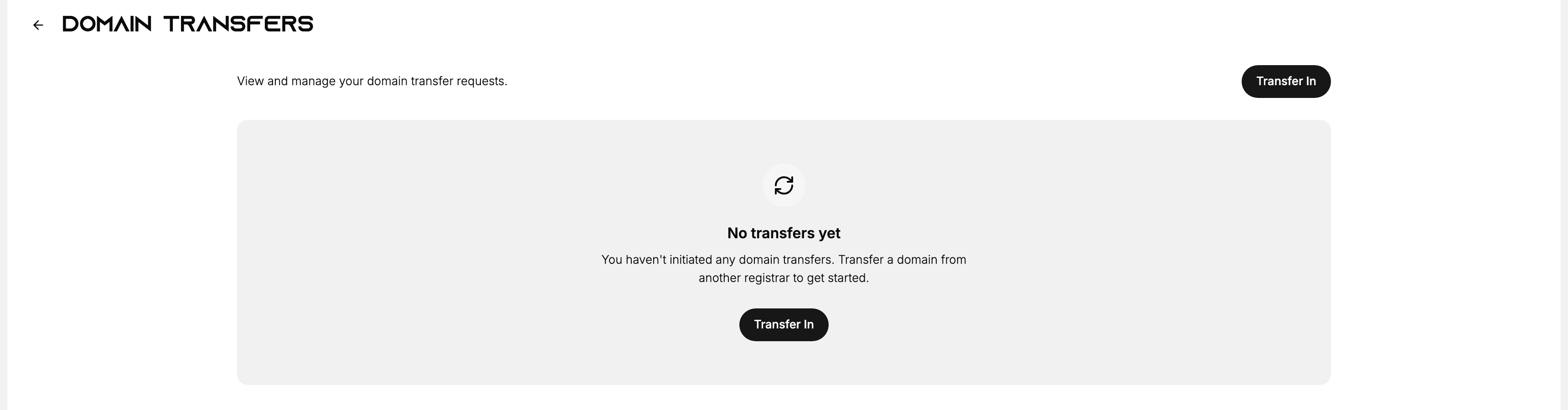
The page is headed Domain Transfers and described as View and manage your domain transfer requests. It has a Transfer In button to start a new transfer. Before you have started any transfer, the page shows a No transfers yet message that reads, "You haven't initiated any domain transfers. Transfer a domain from another registrar to get started," as shown above. Once you start a transfer, your request is listed here instead of the empty state.
Starting a transfer from here
Transfer In on this page opens the transfer form, and that is all this page does with starting one. The form, the checklist it opens with and the fields it asks for are covered in Transfer a Domain to Tanqory, and the stage-by-stage account of what happens afterwards is in Domain Transfer-In Flow.
Come back here once a request exists. From that point this page is where it lives.
Following a transfer
After you start a transfer, you use the Domain Transfers page to check on it during those 5 to 7 days. A transfer that has begun stays on this page until it finishes, so this is the one place to come back to rather than guessing whether anything has changed. While a transfer is in progress, keep the following in mind so nothing stalls it.
- Keep access to your current registrar account, in case the transfer needs an action there before it can move forward.
- Keep the domain's contact email reachable, since messages about the transfer are sent to the address on the domain.
- Leave the domain unlocked at your current registrar until the transfer finishes, because re-locking it can cause the transfer to be rejected.
- Avoid changing the domain's settings at your current registrar while the transfer is running, so nothing interrupts it partway through.
After a transfer completes
When a transfer is complete, the domain's registration lives in Tanqory, so this is now where you manage and renew it rather than at your old registrar. The domain is available to use with your store. If you want the transferred domain to be the address customers see, set it as your primary domain, and other connected domains will send visitors to it. See Set Your Primary Domain.
Common questions
- Where do I start a transfer? From the Transfer In button on this page.
- How long does a transfer take? Transfers typically take 5 to 7 days to complete.
- My page has no transfers listed. That is expected until you start one. Use Transfer In to begin.
Next steps
Related articles
Still stuck?
- Ask Tanqory AIAsk in your own words. It answers from these articles and links the ones it used.
- Ask in your adminThe assistant in your Tanqory admin answers and makes the change for you once you confirm.
- Contact TanqoryWrite to our privacy, security or legal teams, or talk to sales about a plan or a move.