Buy or Connect a Domain
There are two ways to put your store on a custom domain: buy a new one through Tanqory, or connect a domain you already own from another provider.
On this page
A custom domain is the branded web address customers use to reach your store, such as yourbrand.com, instead of the default address your store came with. There are two ways to put your store on one: buy a new domain through Tanqory, or connect a domain you already own from another provider. This article explains how to choose between them and walks through where each path starts, so you can begin the one that fits your situation.
You will find both options on the Domains page in Settings.
Which path to choose
Pick the path that matches what you already have. You only need one domain to launch.
| Your situation | Best path |
|---|---|
| You do not own a domain yet | Buy a new domain |
| You already own a domain | Connect the domain you own |
| You want registration handled inside Tanqory | Buy a new domain |
| You want to keep your domain at its current provider | Connect the domain you own |
Before you begin
- Your role includes Domain settings.
- To buy a domain, you can complete a purchase in your store.
- To connect a domain, you own the domain and can update its DNS records at the provider where it is registered.
- Open Settings > Domains to open the Domains page.
Buy or connect a domain
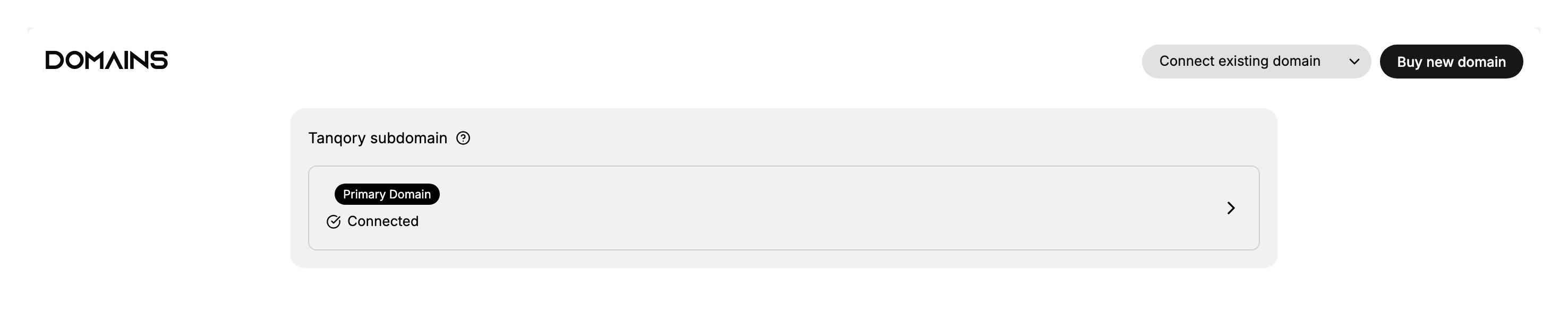
Go to Settings, then open Domains. The two ways to add a domain sit at the top right: Connect existing domain (for a domain you already own) and Buy new domain (for registering a new one). Below them the page already lists the Tanqory subdomain your store came with.
If you are buying a new domain
Open the search. Select Buy new domain. The page that opens is headed Buy a domain and tells you what it does: search for a domain name to purchase, and it will show you available options and pricing.
Search for the name you want. Type the name on its own, without www in front and without an ending. Searching for the name on its own finds more than searching for www and the ending does. The search looks for that name across the endings it can register for you, so one search covers .com, .store and the rest rather than you having to guess which is free.
Read the results before you pick. Each result shows whether the name is available and what it costs for a year. The price is per year and the domain renews on the same cycle, so a name that looks cheap in the first year is a commitment you keep paying.
Complete the purchase. Registering a domain requires real contact details, because every domain has a registered owner on public record. Buy a Domain Checkout walks through what the checkout asks for and why. Once the purchase completes, the domain appears on your Domains page with no further setup, because Tanqory is now the provider.
That is the whole buying path. Because Tanqory registered the domain, there is nothing to set up at a provider afterwards and nothing to point anywhere: the domain appears on your Domains page ready to use.
If you already own the domain
Open the dialog. Select Connect existing domain. A dialog headed Add external domain opens, described as connecting a domain you own from another provider.
Read the three conditions it states. They are not filler, and each one is a thing that stops the connection working if it is not true.
- You must own this domain. You need to be able to sign in wherever it is registered, because the next step happens there, not here.
- You will need to update your DNS records at your domain provider. Adding the domain in Tanqory does not move any traffic on its own. It tells Tanqory to expect the domain; pointing the domain at Tanqory is a separate change you make at the provider.
- An SSL certificate will be issued automatically. This is the padlock in the browser bar. You do not buy or install one, and you do not need to do anything for it, but it is issued after the domain points here, so it will not appear the moment you add the domain.
Enter the domain. The Domain name field asks for a domain you own, and shows example.com as its example. Enter yours the same way, the name and the ending together, with nothing in front of it: no https, no www. Then select Add domain. Cancel closes the dialog without adding anything.
Go to your provider and point the domain here. This is the step people skip, and it is the one that makes the store load on the address. You sign in wherever the domain is registered, find its DNS settings, and enter the records Tanqory gives you. DNS Records for Your Domain covers which records those are and what each one does.
Wait, then check. DNS changes are not instant. They spread across the internet over minutes to hours, and occasionally longer, so a domain that does not work five minutes after you save the records has not failed. Come back to the Domains page and look at the status against the domain.
Note: Adding the domain in Tanqory and pointing it here at your provider are two separate steps, in that order, and neither works alone. A domain added here but never pointed will sit on the page without ever serving your store, which is the most common reason a new domain appears to do nothing.
Verify the result
- The domain you bought or connected appears on the Domains page.
- For a connected domain, an SSL certificate is issued automatically, as the Add external domain dialog states, so your store can load securely once your DNS is set.
Best practices
- Pick a brand-aligned name. A short domain that matches your store is easy to remember and share.
- Keep the domain renewed. A domain that lapses takes your store address offline, so keep it registered wherever it lives.
- Connect a domain you already own rather than buying a second one, if you have a suitable domain.
- Set your DNS carefully when connecting. A connected domain only loads your store once its DNS records point at Tanqory.
Common mistakes
- Registering a name with a typo, which is hard to undo once the domain is bought.
- Trying to connect a domain you do not control, since you need access to its DNS at the provider.
- Skipping the DNS update after connecting, which leaves the domain pointing somewhere other than your store.
Next steps
Related articles
Still stuck?
- Ask Tanqory AIAsk in your own words. It answers from these articles and links the ones it used.
- Ask in your adminThe assistant in your Tanqory admin answers and makes the change for you once you confirm.
- Contact TanqoryWrite to our privacy, security or legal teams, or talk to sales about a plan or a move.