Buy a Domain Checkout
The Domain checkout page in full: the auto-renew switch and registration period, the registrant details a domain registration legally requires, what the order summary already includes, and what happens once you hand off to Stripe.
On this page
When you choose a domain to buy, Tanqory opens the Domain checkout page. This is where you confirm how long to register the domain for, enter the registrant details required to register it, and complete payment. Payment is handled securely on Stripe. This article walks through each part of that page. Buy a Domain finds and picks one first.
You reach this page from Settings, in the Domains area, after choosing a domain to buy.
Before you begin
- Your role includes Domain settings.
- You have chosen a domain to buy from the search results.
- You have the registrant contact details ready.
- Open Settings > Domains in the admin sidebar, then search for a domain and choose one to reach the checkout.
Steps
1. Reach the Domain checkout and set the registration options
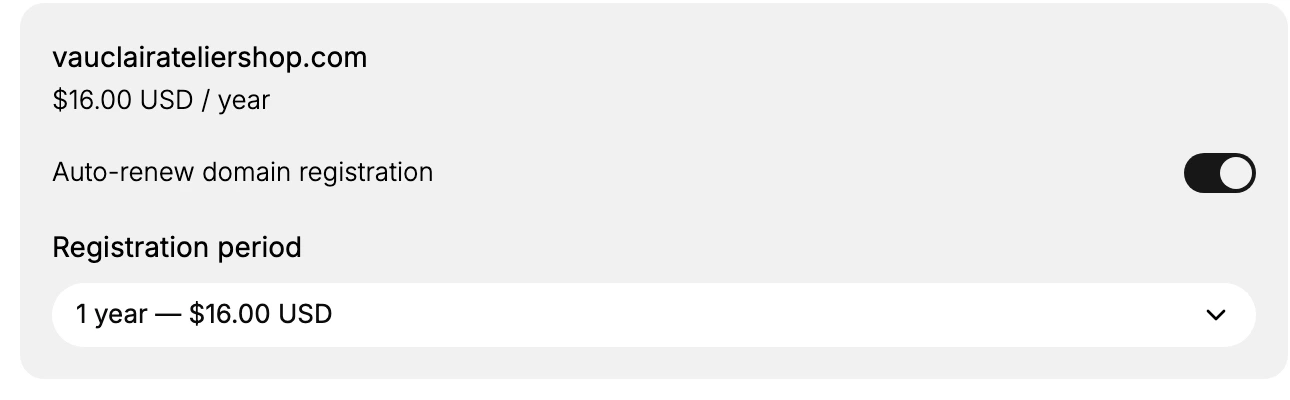
On the Buy a domain search, select Buy on the domain you want. The Domain checkout page opens for that domain, with its name and yearly price at the top.
Two settings sit above the form.
- Auto-renew domain registration keeps the domain renewing when the period ends. Left on, the registration continues and you are charged again. Turned off, it lapses when the period runs out, and a lapsed domain stops reaching your store and can be registered by someone else.
- Registration period is how many years you are buying at once. The price for the period you pick is shown beside it, so a longer period is more now and fewer renewals later.
2. Fill in the registrant information
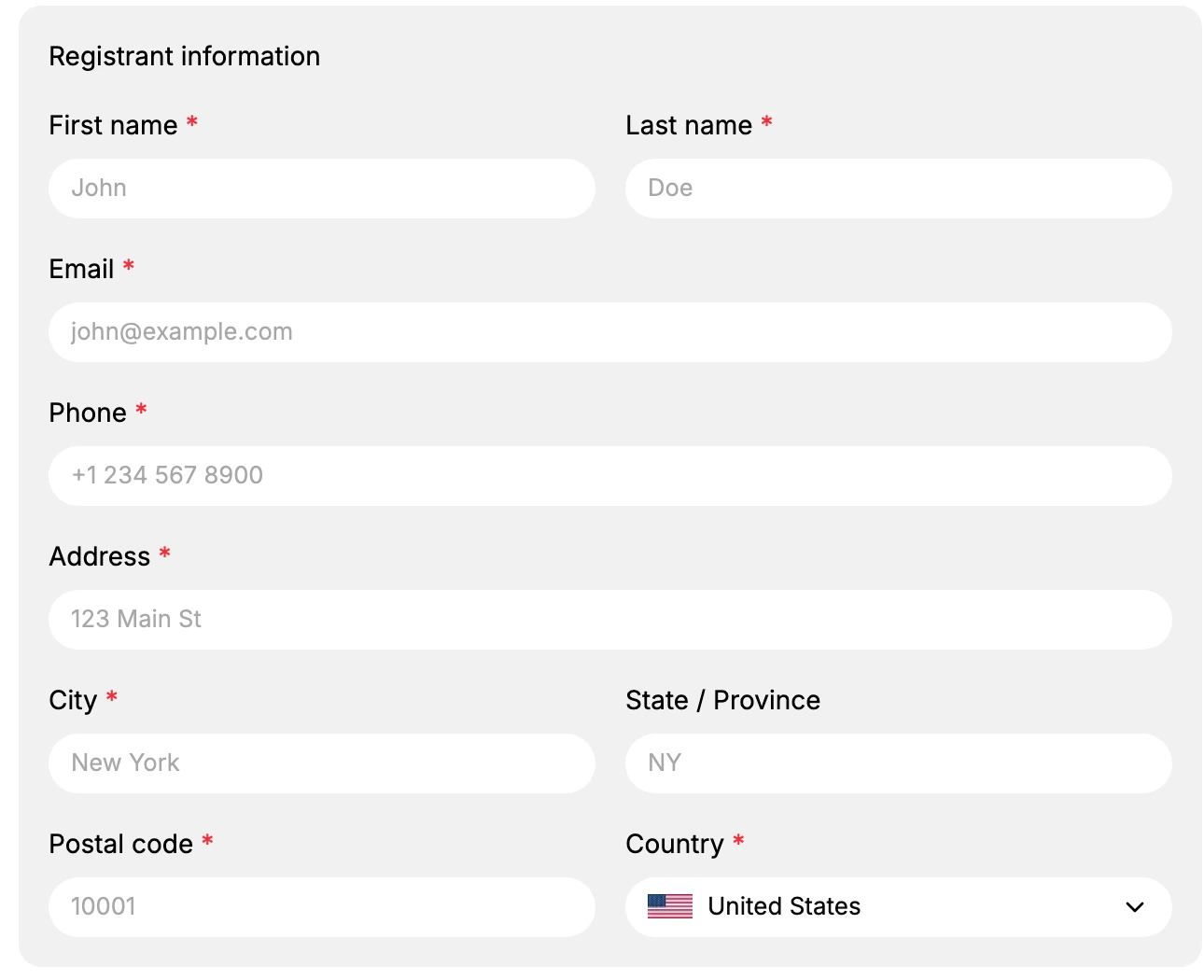
Under Registrant information, enter the details of the person or business that will own the domain. Every field is required except State / Province: First name, Last name, Email, Phone, Address, City, Postal code and Country, which starts on United States.
This is not a delivery form. A domain registration records a legal owner, and these are the details that go on that record, so a name and address that are not yours will register the domain to someone else. Use an email you actually read, because renewal and verification notices go there and a missed one can cost you the domain.
3. Review the order summary and complete the purchase
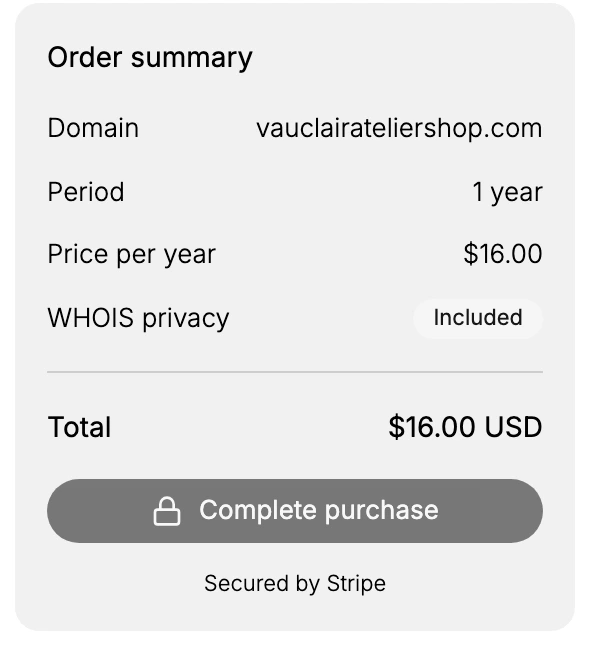
The Order summary lists the domain, the period, the price per year, and the Total. It also shows WHOIS privacy as Included, so your personal contact details are kept private at no extra cost. When the summary looks right and the required fields are filled, click Complete purchase. As the page notes, you complete payment securely on Stripe, where saved cards, new cards, and wallets are available, and a Stripe invoice and receipt email follow automatically after payment.
Verify the result
- The Domain checkout page shows the domain you chose and its yearly price.
- The Total in the Order summary matches the period you selected.
- WHOIS privacy shows as Included.
- Complete purchase becomes available once the required registrant fields are filled.
Best practices
- Enter accurate registrant details. These register the domain to you, so correct contact information avoids problems later.
- Use an email you can reach. Registration and renewal notices are sent to the registrant email.
- Leave Auto-renew on for a live store. It keeps the domain from lapsing and taking your store address offline.
- Check the Total before you pay. Confirm the period and price in the Order summary match what you intend.
Common mistakes
- Entering an email you do not monitor, so you miss registration or renewal notices.
- Turning off Auto-renew and forgetting to renew, which lets the domain lapse.
- Rushing past the Order summary without checking the period and Total.
What happens after you pay
Payment leaves Tanqory at the last step. As the page says, you complete it on Stripe, where saved cards, new cards and wallets are available, and a Stripe invoice and receipt email follow automatically.
Once the registration completes, the domain is yours and appears on the Domains page alongside the Tanqory subdomain your store already had. It is not yet the address customers are given: a newly bought domain does not take over on its own. Set Your Primary Domain covers making it the one they see.
There is nothing to set up at a provider afterwards, which is the difference between buying here and connecting a domain you own elsewhere. Tanqory is the provider, so the DNS side is already pointing at your store. Domain Types sets out what each kind leaves you responsible for.
Next steps
Related articles
Still stuck?
- Ask Tanqory AIAsk in your own words. It answers from these articles and links the ones it used.
- Ask in your adminThe assistant in your Tanqory admin answers and makes the change for you once you confirm.
- Contact TanqoryWrite to our privacy, security or legal teams, or talk to sales about a plan or a move.